
Track why events happened by applying structured reason codes. Reason codes are organized into hierarchies that are shared across your organization and assigned to Vantage Rooms.
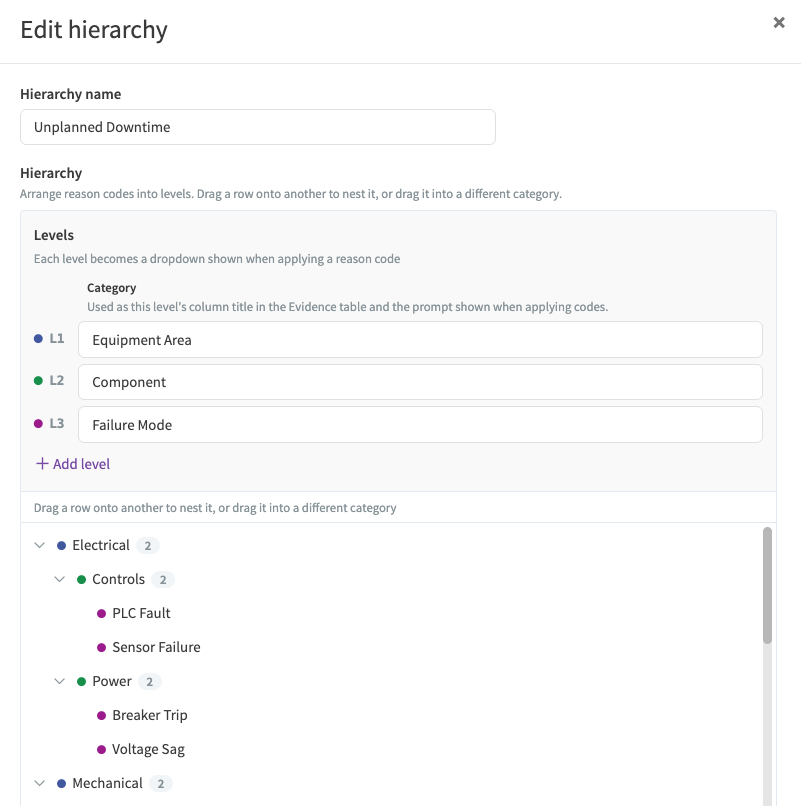
Creating a hierarchy
A hierarchy has one or more levels, and each level's name appears as a column in the Evidence Table and as a prompt when applying codes in the Context Pane. Add labels to each level to build the tree. Labels that have been applied to events cannot be removed.
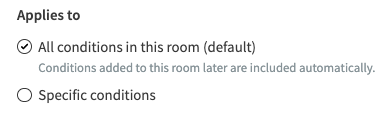
Assigning a hierarchy
Assign a hierarchy to the whole Vantage Room, or to specific conditions when different conditions need different reason codes. Assigning to the whole Vantage Room also allows reason codes to be applied to conditions added to the Room later. A Room can use multiple hierarchies, and each one gets its own button in the Context Pane.
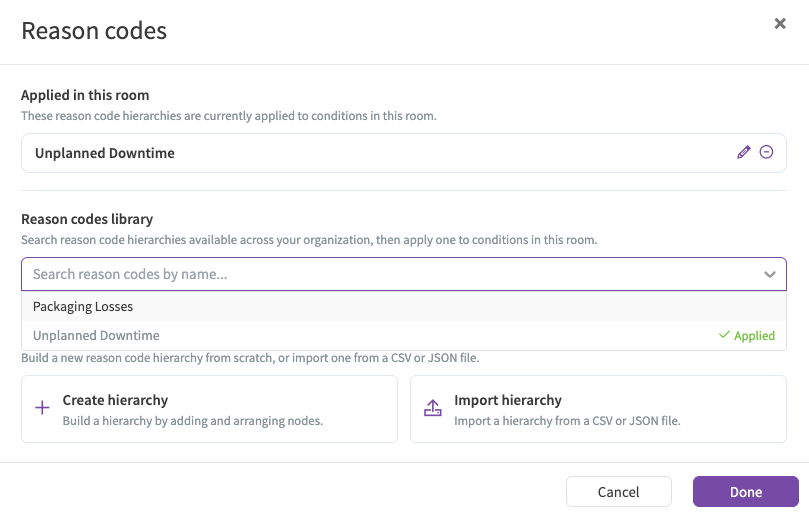
Importing a hierarchy
Instead of building a hierarchy by hand, you can import one from a CSV or JSON file. You can also download any hierarchy as CSV or JSON to reuse or edit it elsewhere.
In a CSV, the header row names the levels, and each value nests under the most recent value in the column to its left:
A JSON file uses the same format the download produces: an optional name and levels, and a reasonCodes tree of labels with children:
Files used with the legacy Data Lab reason codes script can also be imported directly.
Applying reason codes
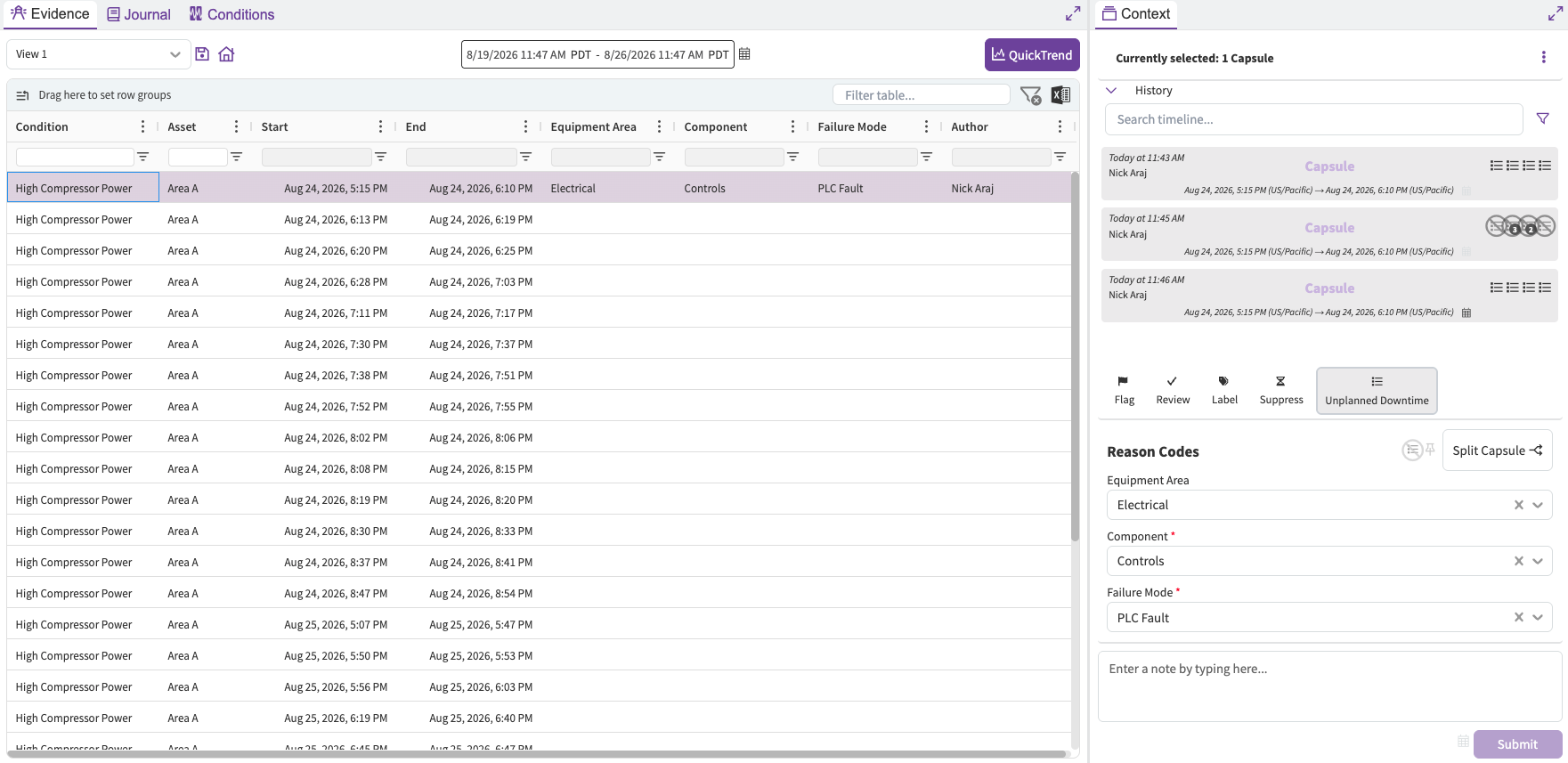
Reason codes are applied from the hierarchy's button in the Context Pane. Submitted codes appear in the Context Timeline as well as the Evidence Table:
Rooms that previously set up reason codes with the Data Lab script are migrated automatically: hierarchies are created from the existing trees, and all applied reason codes and history are preserved. The Data Lab script is no longer needed and should not be used going forward.