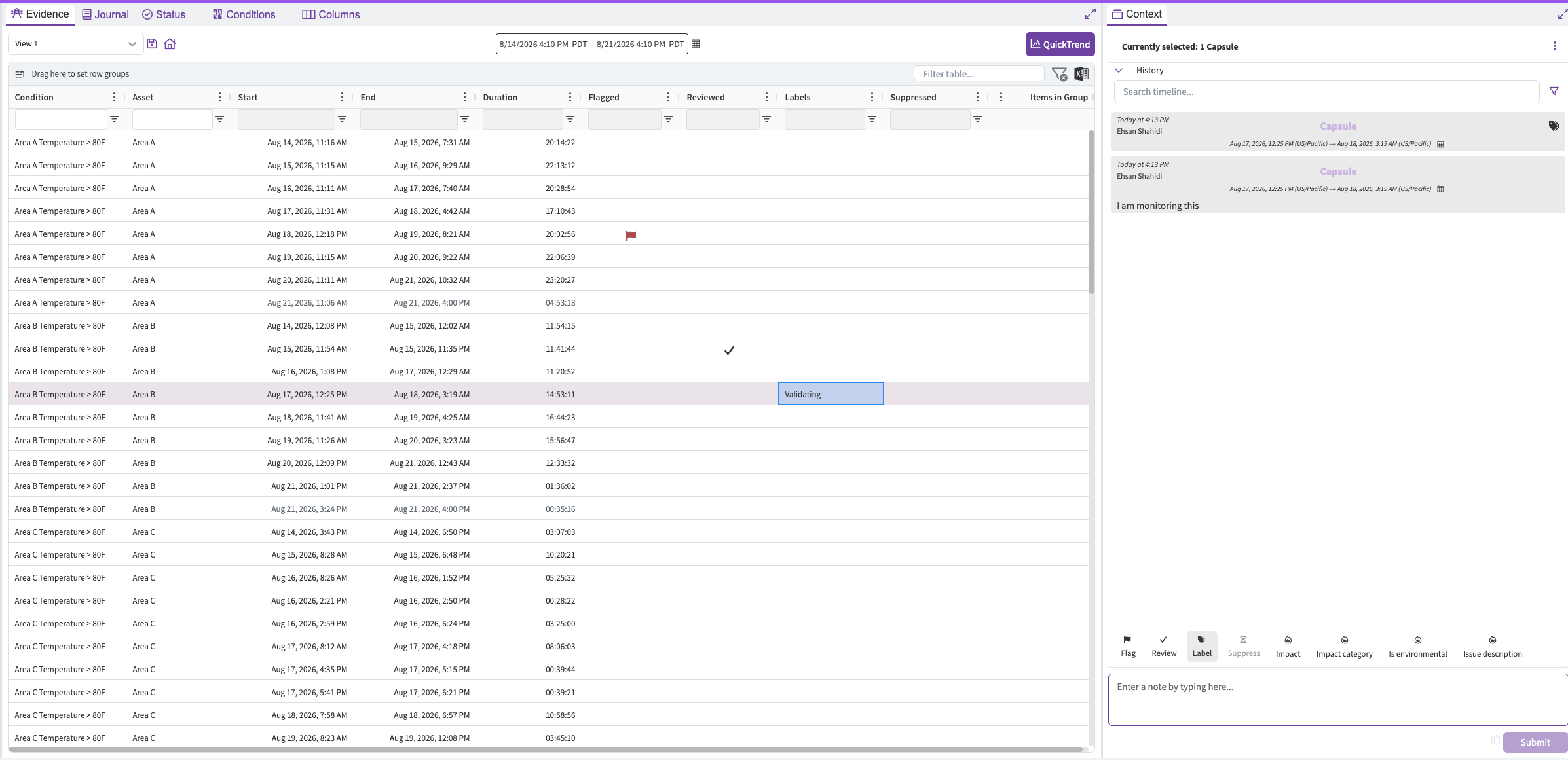
This how-to article will help you get started with Vantage, by defining your search of existing Conditions, both for calculations created in Seeq, or for Conditions connected through a data source, like PI Event Frames.
Overview
Vantage Condition Sources define which Conditions you want to monitor with Vantage, as well as control various settings like the Schedule, Initial Lookback and Lookahead - to give you control over your monitoring set-up.
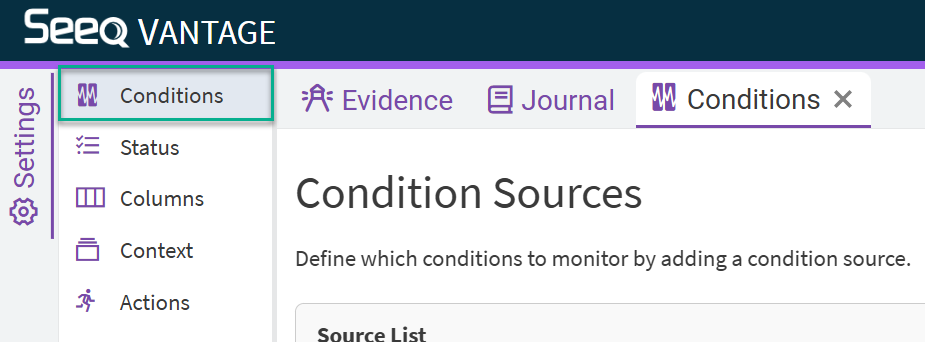
The “Conditions” tab is only available to users with at least Manage permissions to the Vantage Room, and can be accessed on the Settings Menu, along the left-hand side.
You can add as many, or as little, Condition Sources as you like.
All of the search types, except manual selection, are dynamic - meaning the results MAY change on each scheduled execution, depending on your search type and criteria.
Getting Started
-
Click the “Conditions” section within the Settings menu.
-
Select the relevant search location type.
There are a variety of choices for you to define where and how to find Conditions you have created in the Seeq platform. Each allows for further refinement based on Properties (like Name, Description, etc.) or Asset Tree root. See below for details and examples of each.
Workbench Search
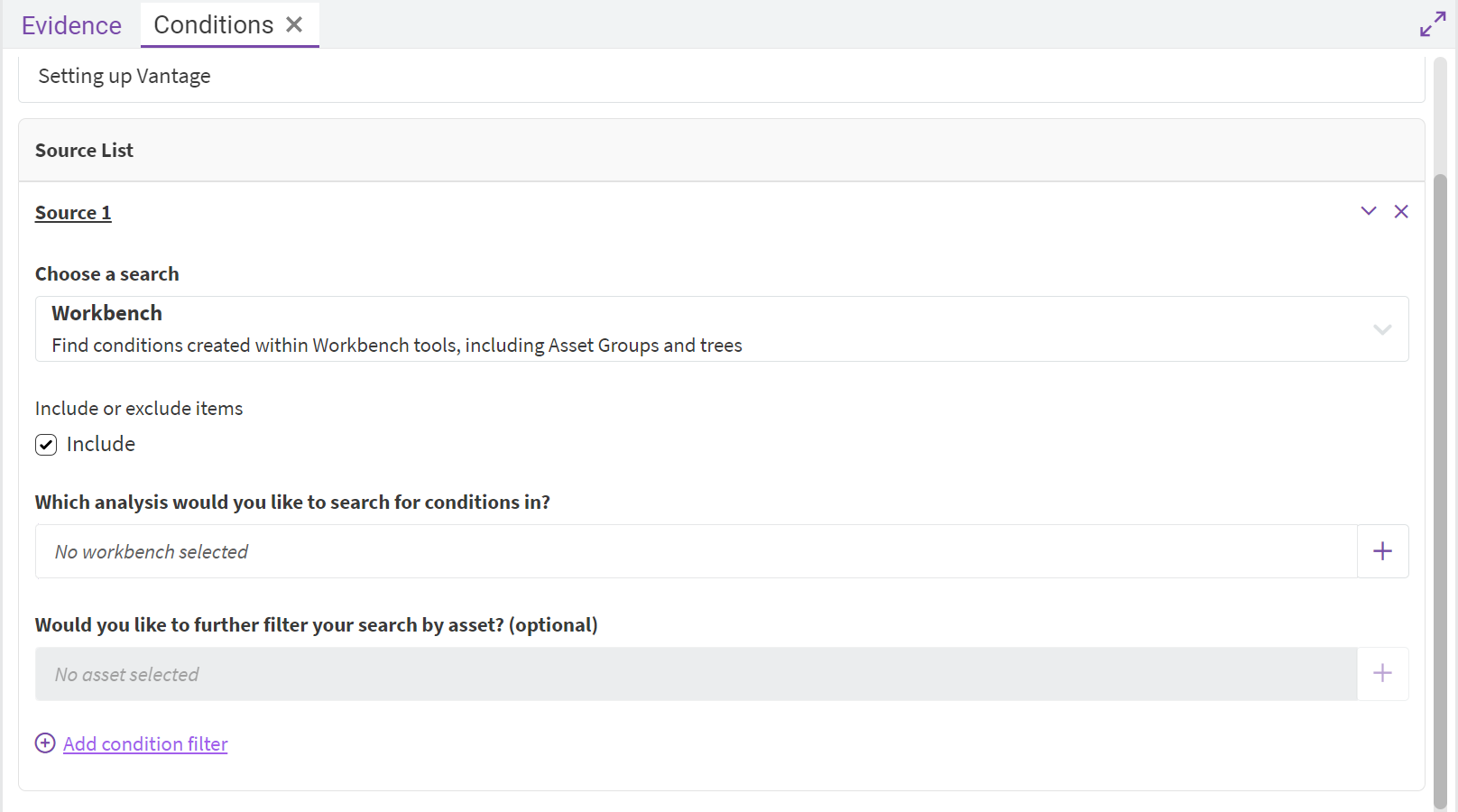
Workbench Search allows you to narrow your search to a particular Workbench.
-
Start by selecting an Analysis to search for Conditions.
-
Optionally, select a locally-scoped Asset Tree or Group within that Workbench.
-
Adding a “Condition filter” allows even more granular refinement to your search. Use these extra filters to find Conditions only with a specific Name, Description, Datasource ID, etc.
You may choose only one Workbench Analysis per source. Try the Folder search if you’d like to search all analyses within a selected Folder.
Asset Tree Search
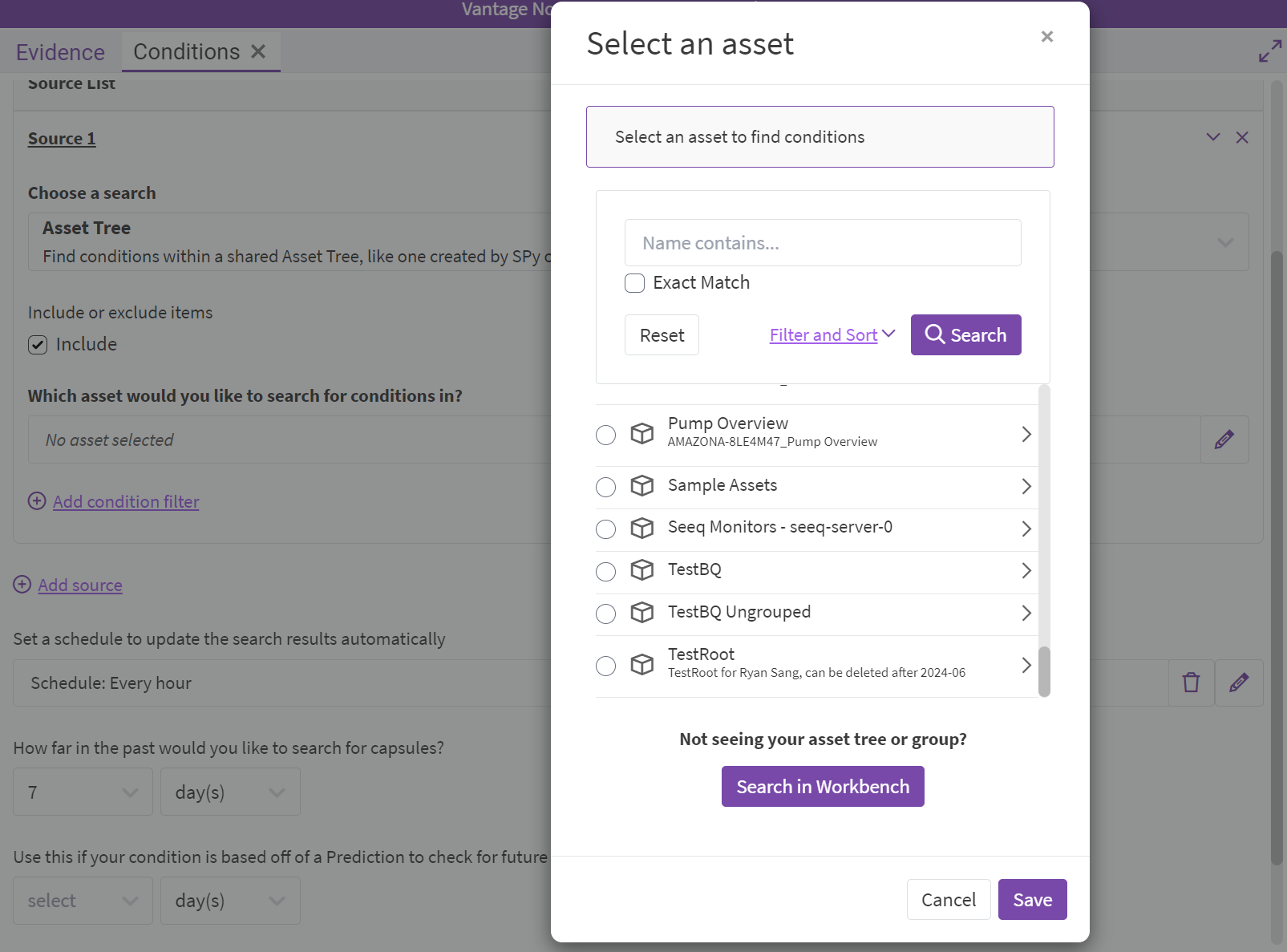
Asset Tree Search allows you to narrow your search to a global Asset Tree.
If you do not see the Asset Tree/Group you are expecting in this modal, you may have built a Locally-scoped Tree.
Try switching to Workbench Search and choosing the appropriate analysis first, then narrowing your search to that Tree. A shortcut to toggle to a Workbench Search is provided in the modal shown.
Folder Search
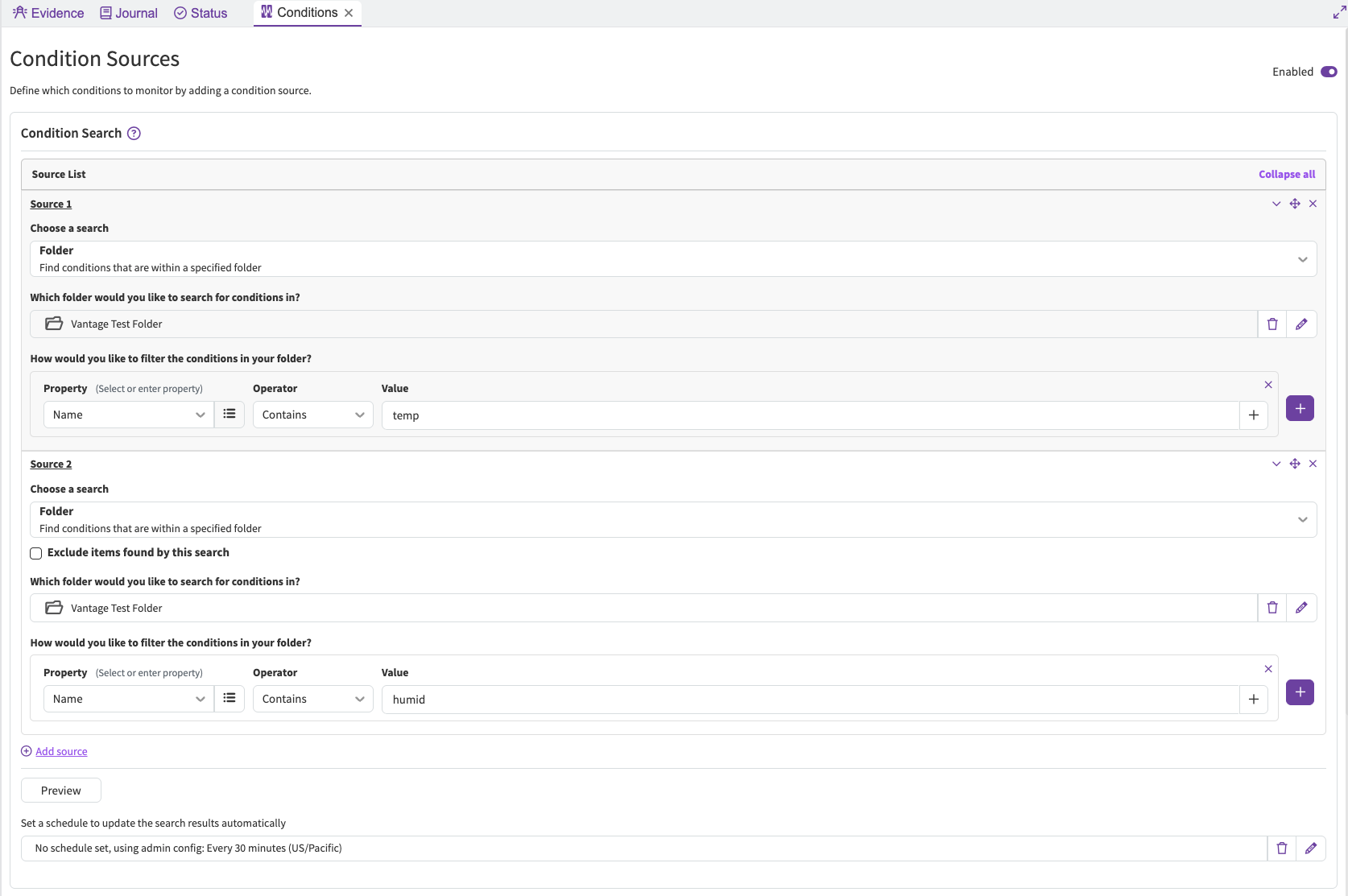
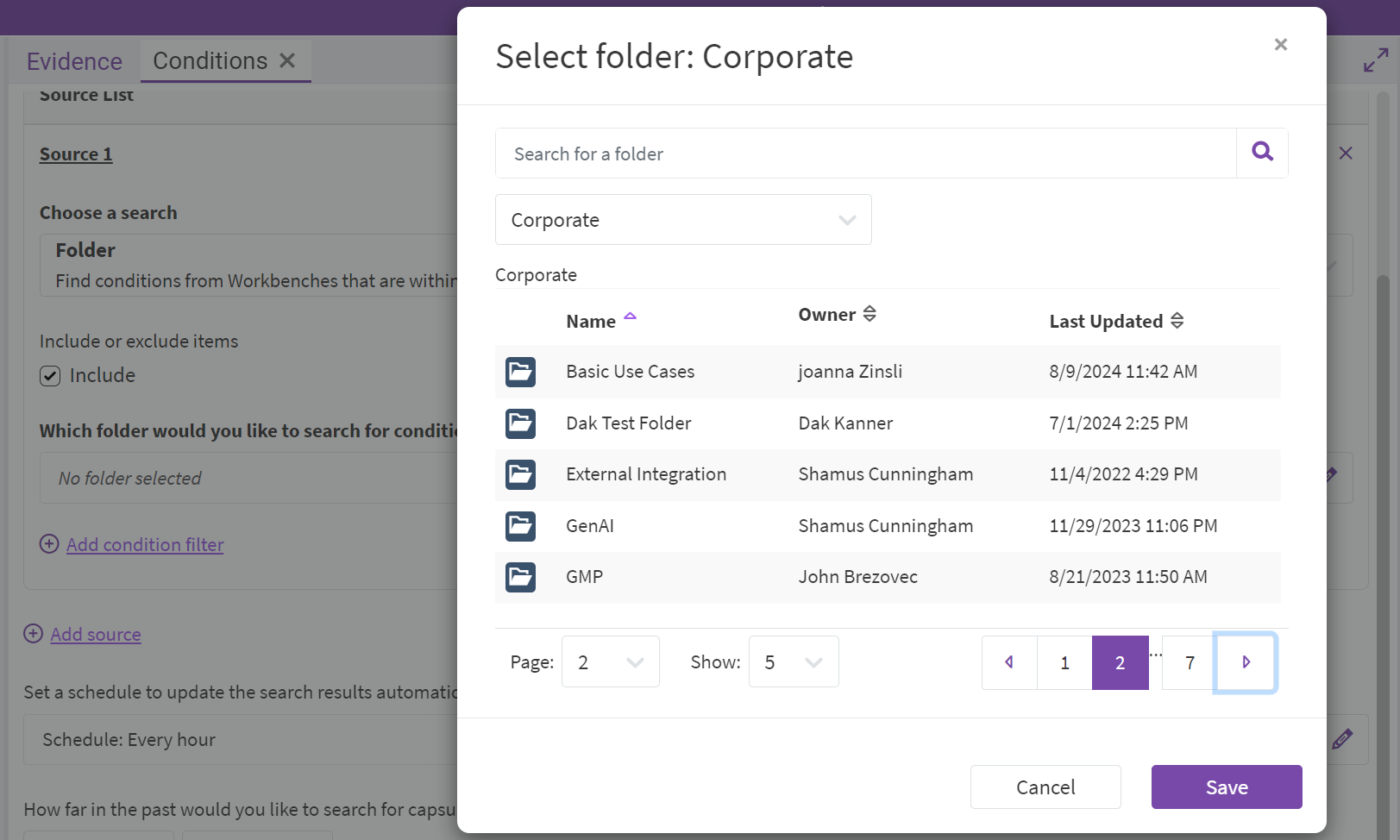
Folder Search is broad, but a great way to capture many Conditions. Selecting a Folder means, we will search Conditions created in any Analysis within the Folder. This is particularly powerful when operationalizing a monitoring workflow for teams to continually update and refine which Conditions are monitored with Vantage.
Because the Condition Sources are updated on a schedule, this means you can add/remove Analyses from your selected Folder, and the next time Vantage runs, it will update which Conditions you are monitoring.
Just like the other Search types, you can additionally refine your Folder Search with a Condition Filter.
For example, monitor all Conditions in a Folder named “Site ABC Monitoring”, but add a Condition Filter for “Name CONTAINS ‘Alert’”. This will prevent Vantage from finding extraneous Conditions like “Days” or “Shifts”, that you may have used in defining your Alert condition but is irrelevant for monitoring.
Property Search
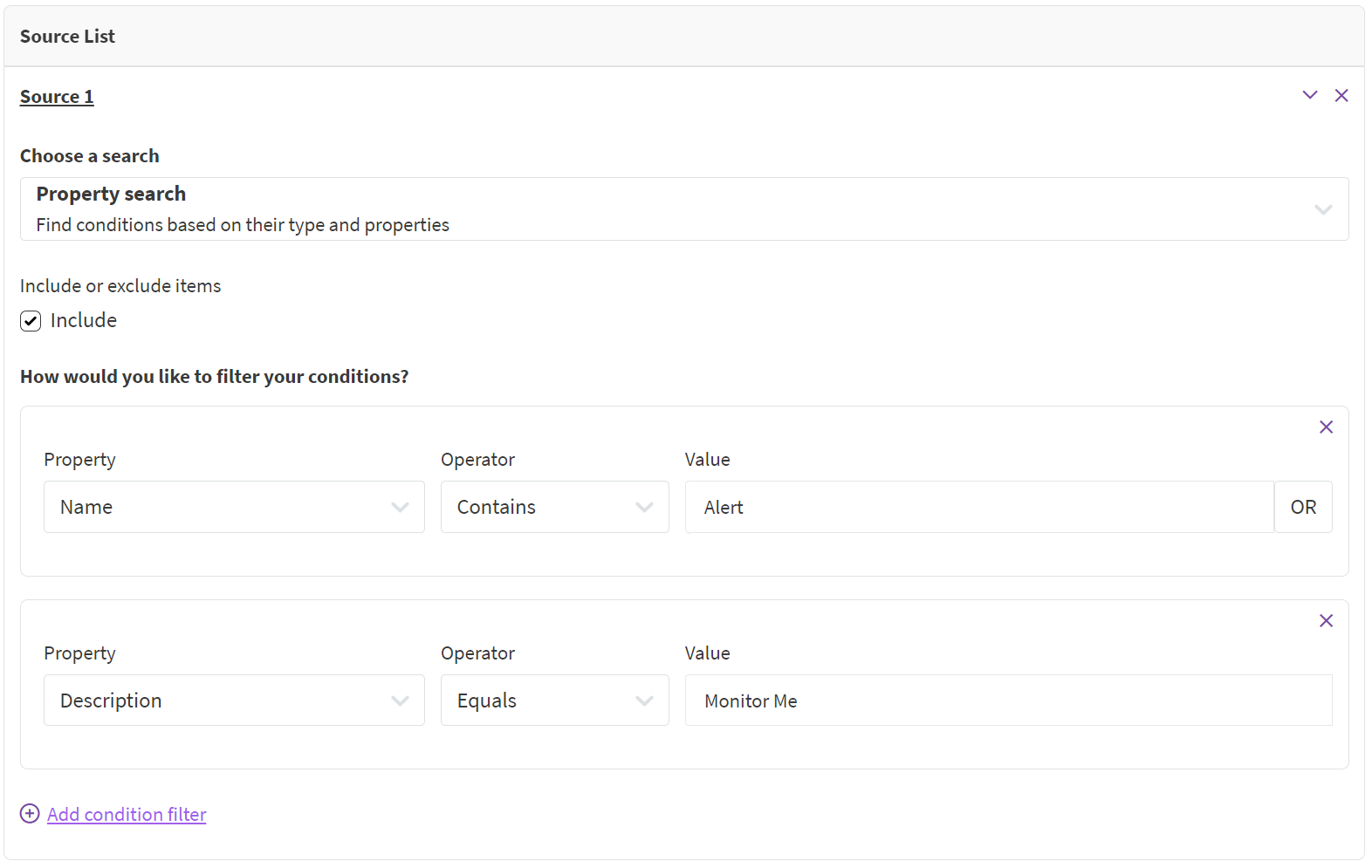
Property Searches are the most generic and should be used with caution. Because Property Searches are not bound by Workbench, Folder, or Asset Tree - they can search over the entire Seeq system.
Multiple Property Searches are linked together with AND logic, meaning the example below would require both criteria to be met in order to return a result:
-
Name CONTAINS ‘Alert’ AND Description EQUALS ‘Monitor Me'
Manually select conditions Search
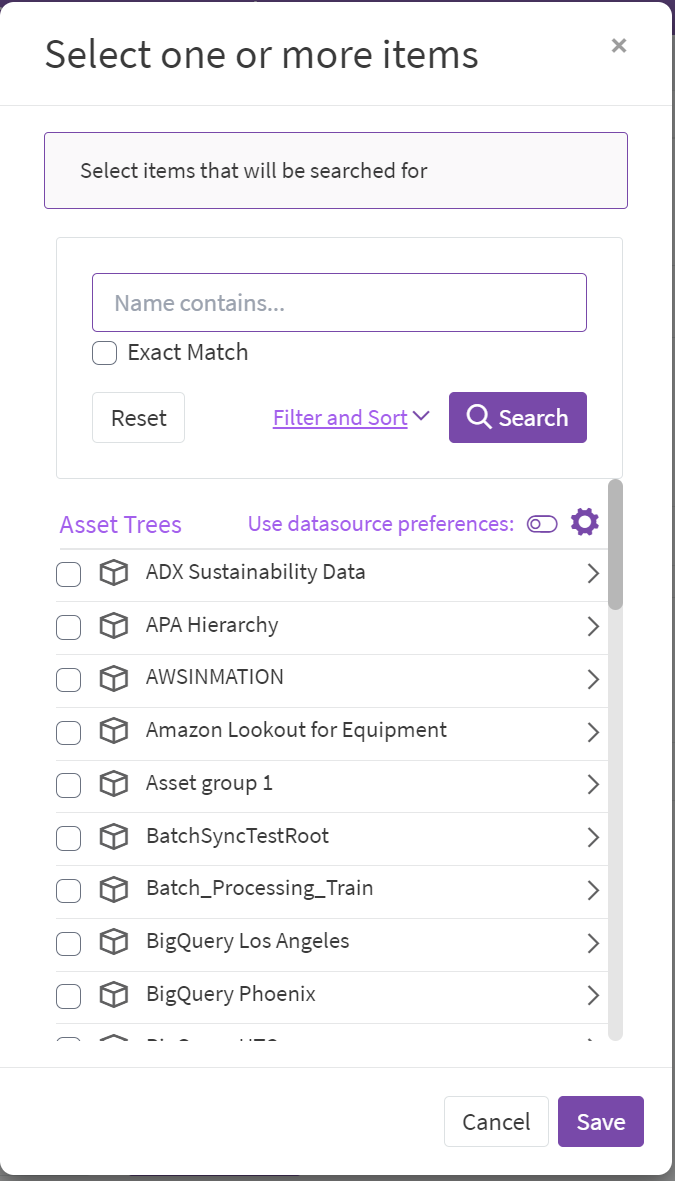
Manually selecting conditions to monitor allows the most control to hand-pick which Conditions you want to monitor, but requires a user to manually add more Conditions at a later time.
Scaling Table Search
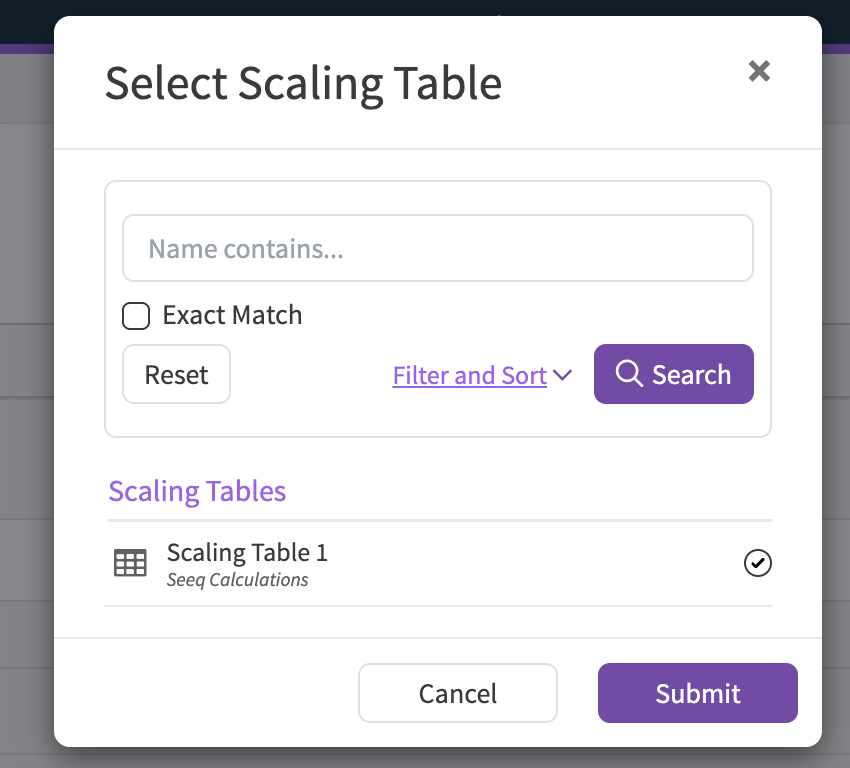
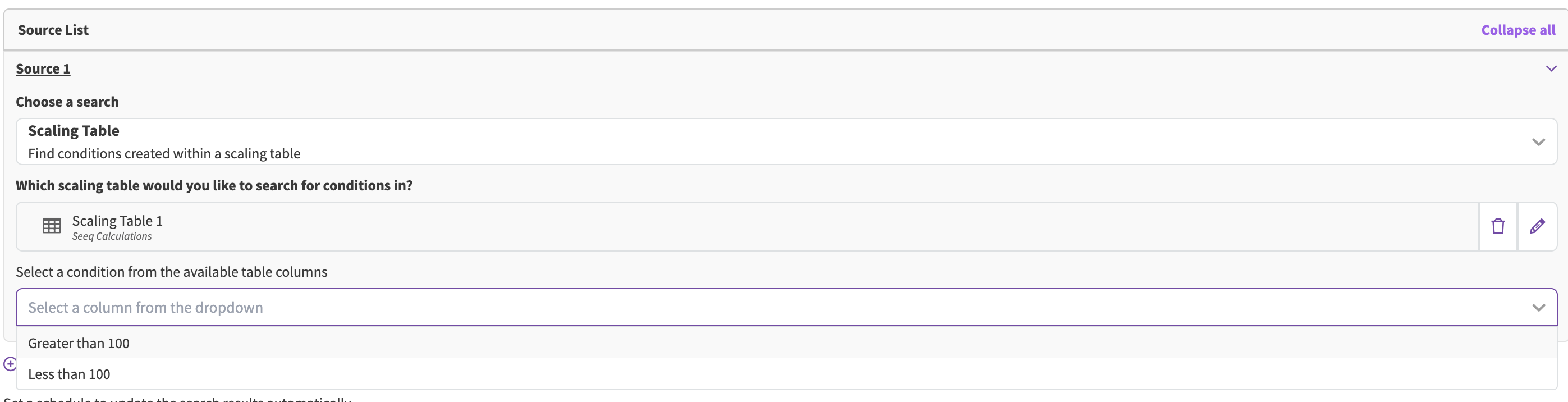
Scaling Table Search allows you to narrow your search to a specific Scaling Table and select a column containing condition references.
When selecting a Scaling Table, you can choose from any scaling table accessible to you (global, or locally scoped) in your Seeq environment. After selecting a table, you'll be able to pick from UUID columns that contain condition references - other column types will be automatically filtered out.
If you do not see the Scaling Table you are expecting in this modal, verify the following:
-
The table exists and is accessible - Scaling Tables must be created and have appropriate permissions
-
The table has ID columns - Only tables with at least one item column containing condition content will show available columns
-
The column contains condition references - The selected column must reference conditions (not other item types like signals or assets)
If you do not see the expected column after selecting your table, the column may not contain condition references. Scaling Table Search only supports UUID columns that reference conditions as the selected data type.
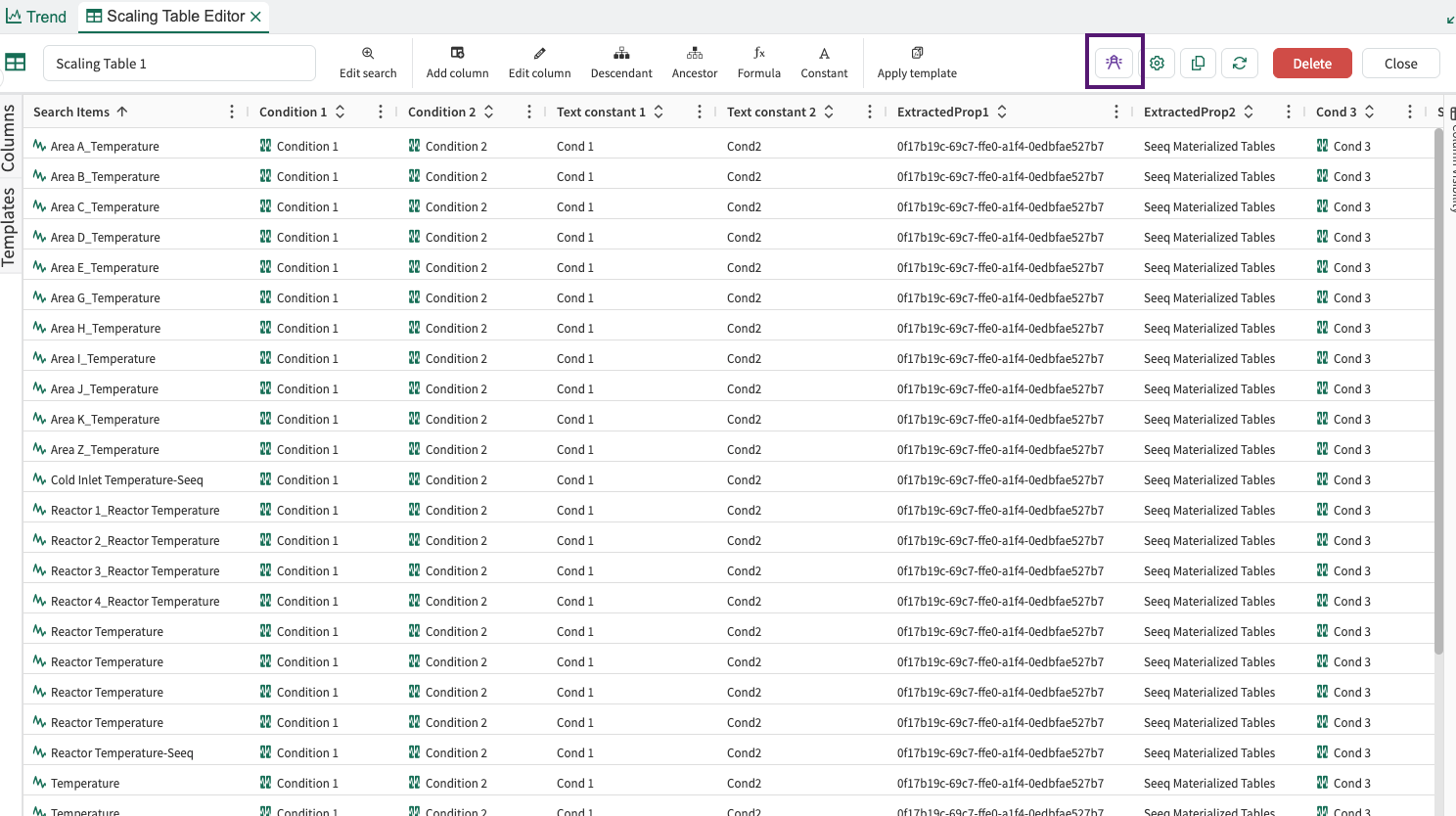
Note: Alternatively, you may also set up monitoring on a Scaling Table from the Scaling Table itself in Workbench Analysis. More details can be found here.
Condition Search Preview and Schedule
You may use the Preview button to view and verify your condition search before scheduling monitoring. The preview includes the count and a subset of 100 conditions per source.
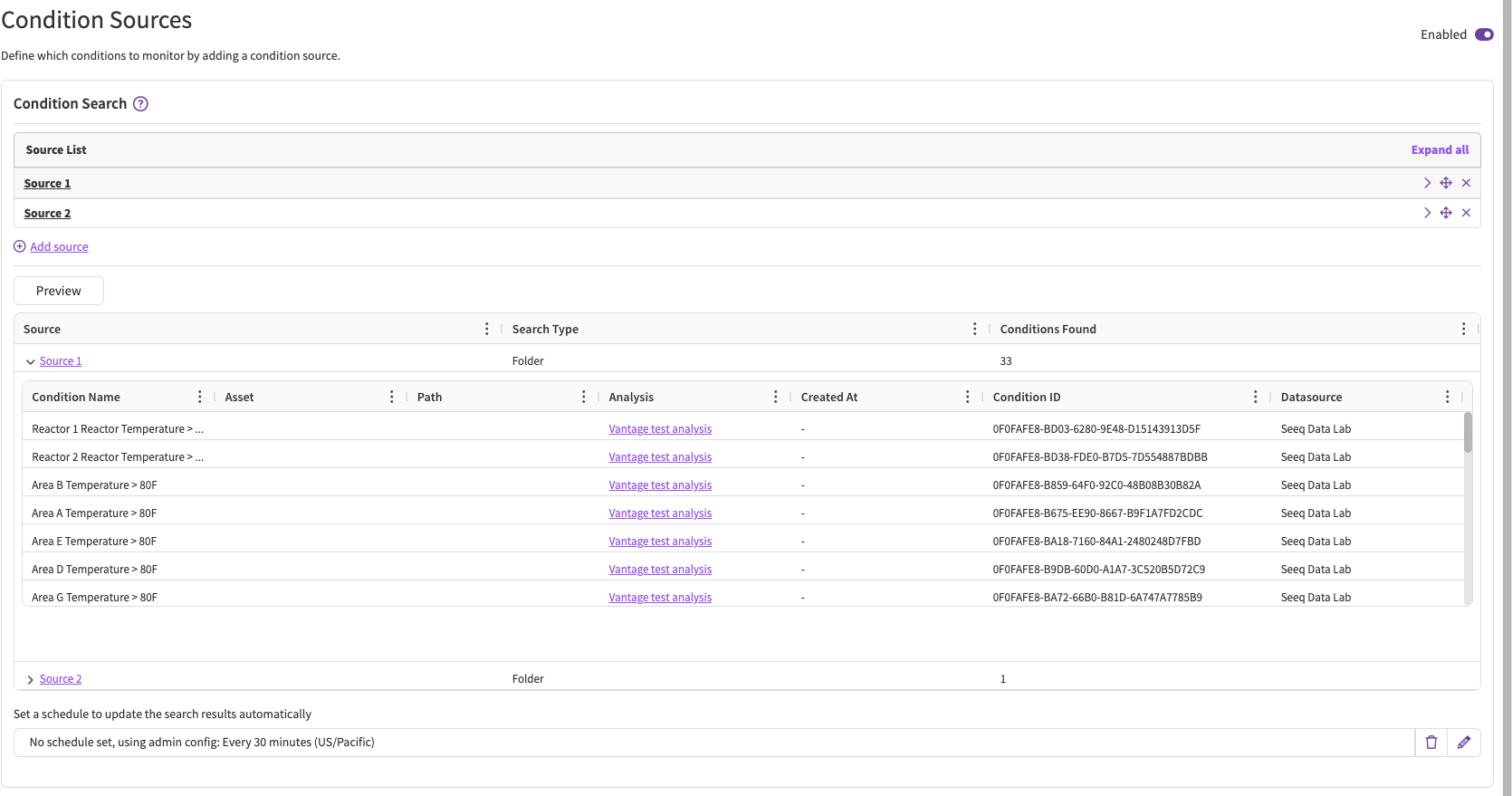
You can also set the desired schedule for your condition search to update the list of monitored conditions on a schedule using the same search configuration above.
Capsule Search Settings
Once you are satisfied with your initial Condition Source setup, adjust your monitoring settings before Executing.
Just as with Scheduled Organizer Topic reports, Vantage Room schedules use shared server resources. We suggest setting the maximum acceptable schedule frequency that is needed for your use case.
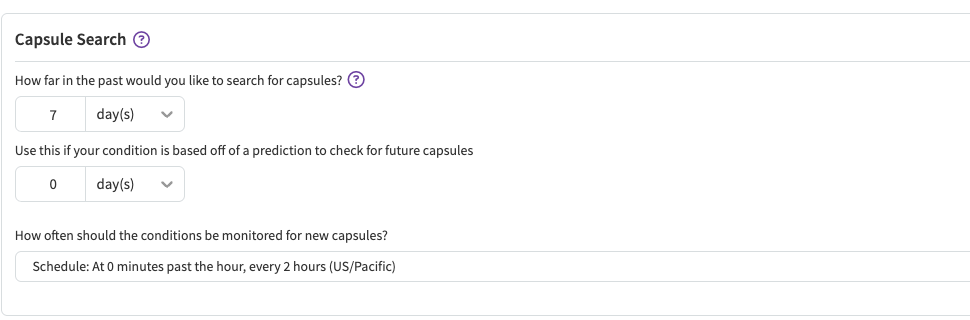
Initial Lookback: On the first execution, Vantage can search for capsules in the past to backfill. Note that that is may impact the performance of the first run.
Lookahead: For monitoring use cases that have forecasted events, use this setting to ensure Vantage looks for capsules in the future.
Schedule: How frequently you want your Vantage Room to search for new Capsules in the monitored conditions.
Execution and Changes
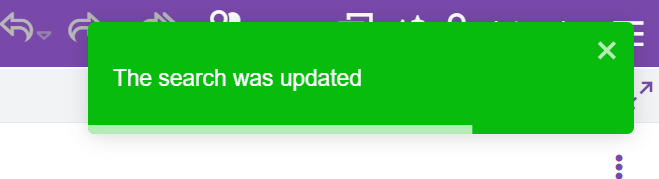
Once your set-up is complete, click “Execute” to save your changes. You should receive a green toaster.
When your Condition Sources, and associated schedule, are executed and updated; the Condition Monitor is successfully scheduled to run at the next execution time (e.g. top of the hour, if scheduled hourly). It does not run on-demand, so you will need to wait until the next scheduled run to begin getting Capsules in your “Evidence” tab.
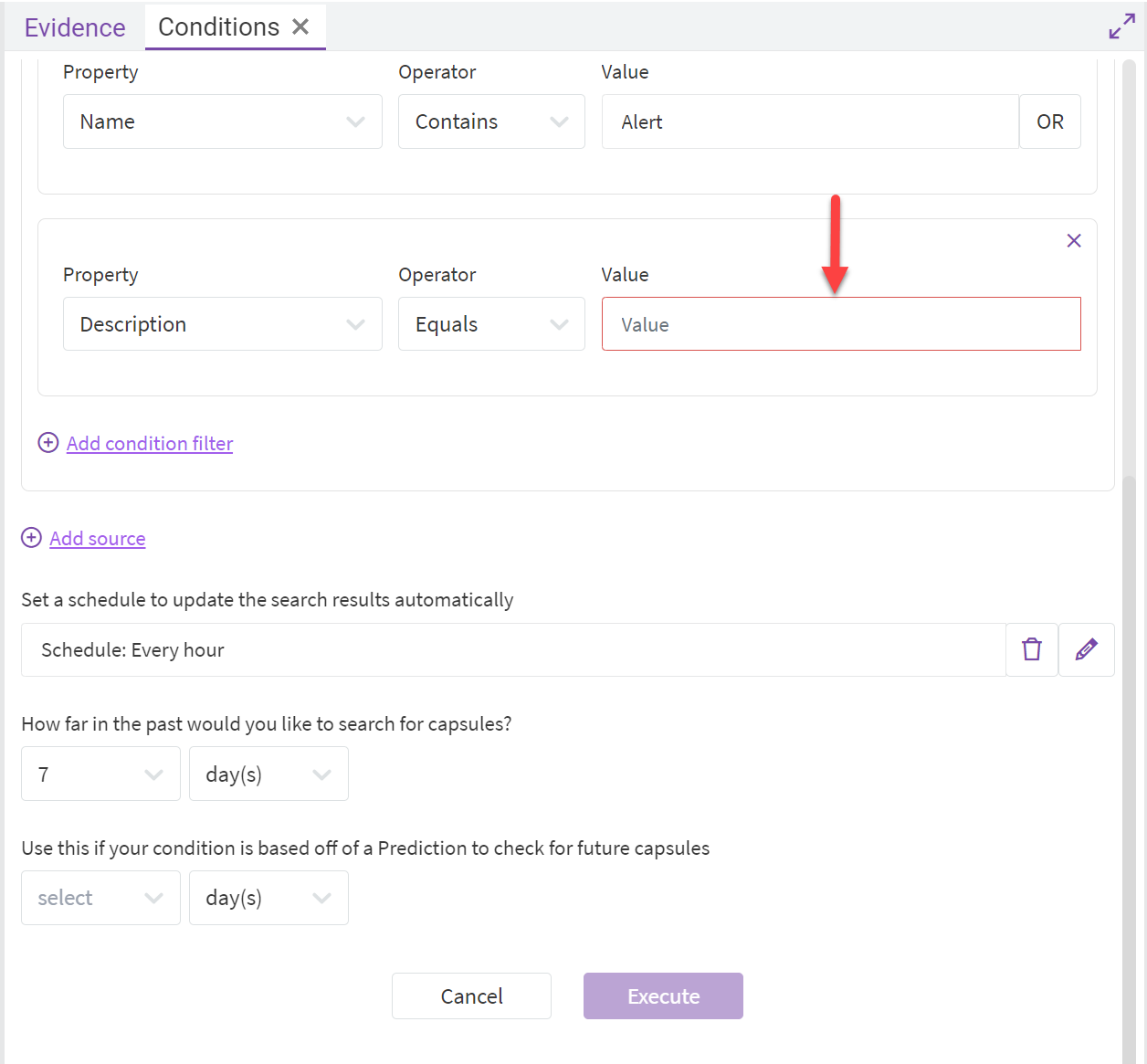
If the “Execute” button is disabled, that means an input field in your set-up is incomplete or incorrect. Review your inputs, and make any necessary corrections. The offending input fields should be highlighted in Red.
You may disable your Vantage Room via the toggle at the top right of the Conditions tab.

You may view historical monitoring runs and re-run monitoring manually in the Status tab. See this section for more details.
Exploring the Capsules and Adding Context
The capsules that your monitoring finds can be explored in the Evidence tab. You may group, filter, and add context there. See the Using Context section for more details on that.