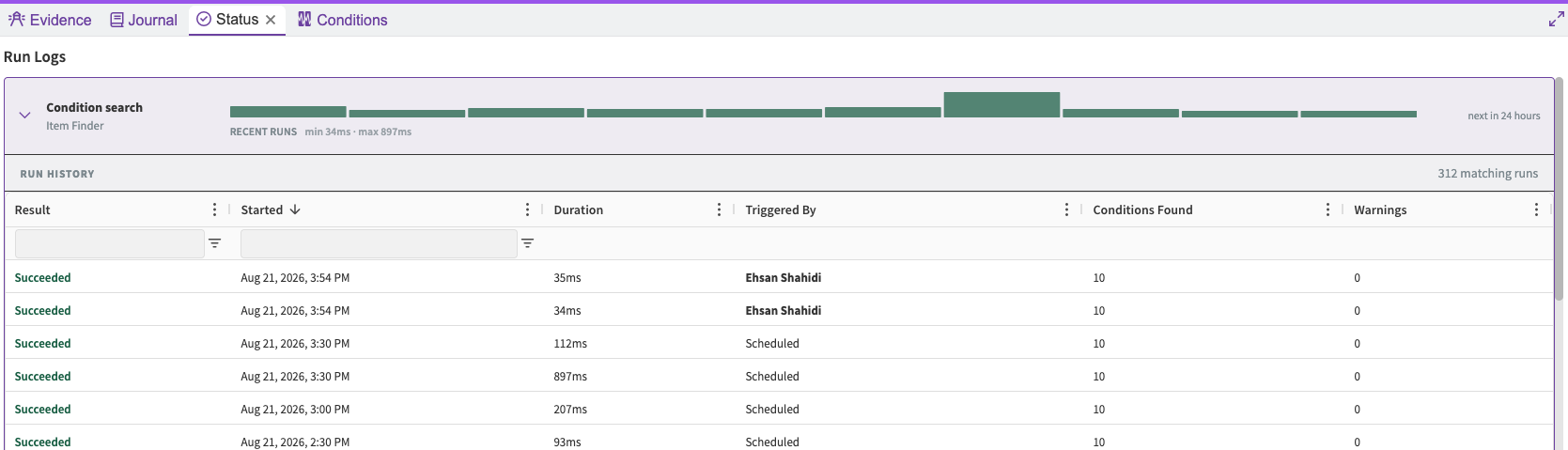
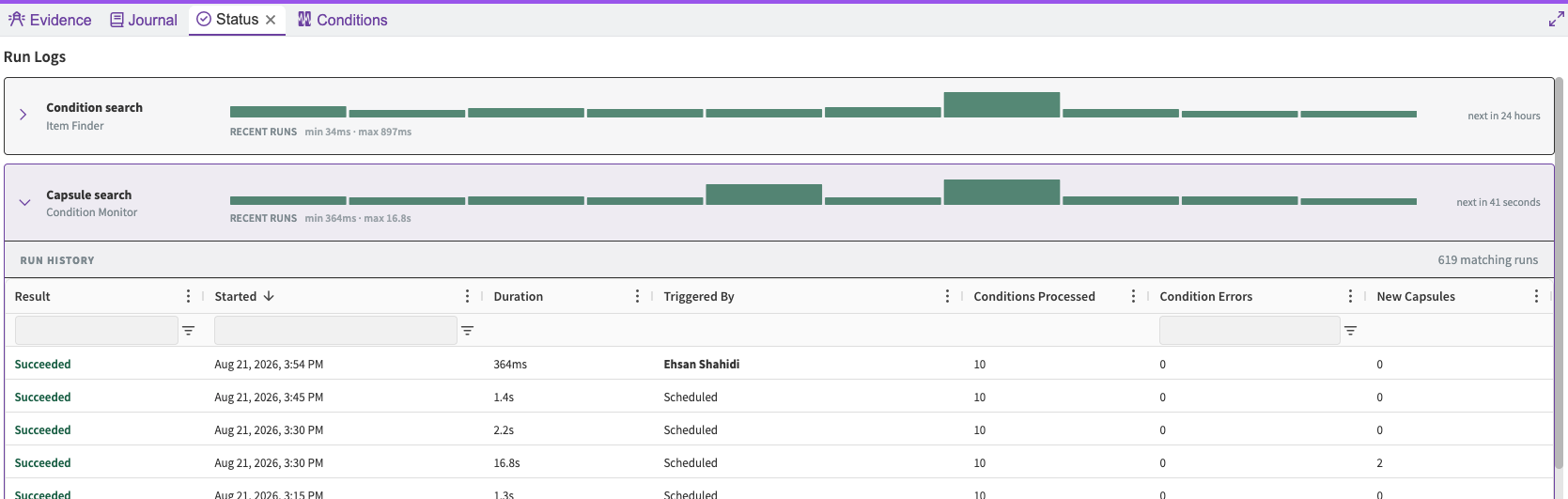
Open the Status tab to find the logs of recent condition search and capsule search runs, as well as next scheduled runs.
You can also view the monitored conditions.
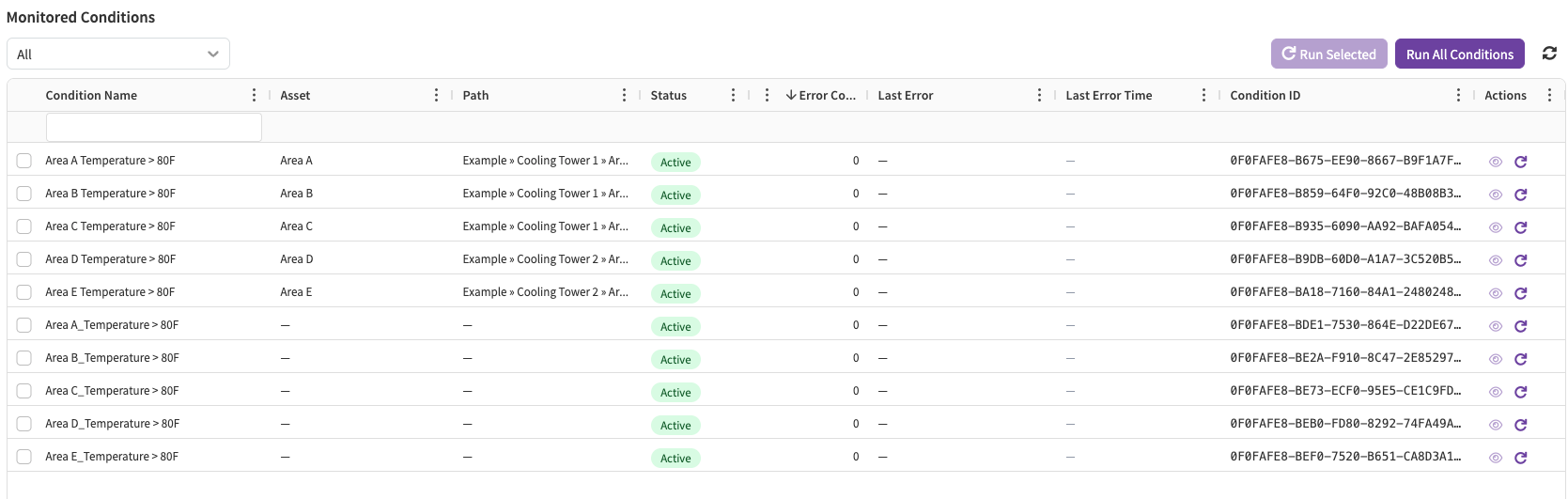
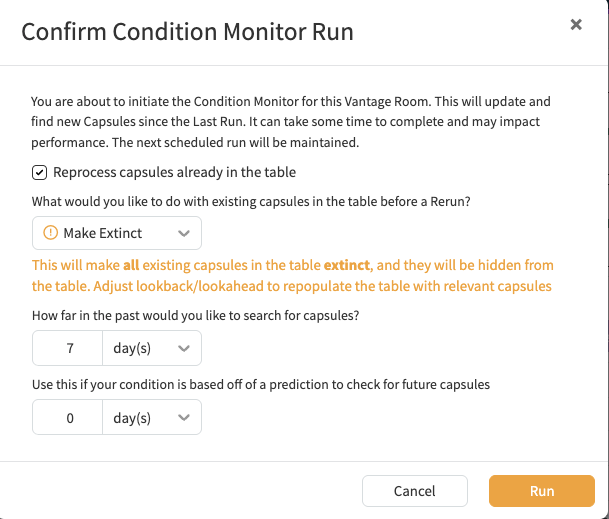
You may trigger a manual re-run of monitoring for all or a subset of the monitored conditions. Re-running without selecting the “Reprocess capsules already in the table” option will find new capsules or update ongoing ones since the last time the capsule search ran.
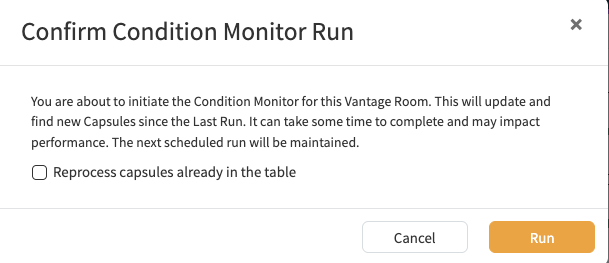
Selecting the “Reprocess capsules already in the table” option would allow you to “go back in time” and re-process the capsules that may already be processed. If you choose to do so, you will be prompted to specify the action to be taken on capsules that already exist in your Evidence table. “No action” means duplicate capsules may show up in your Evidence table, and “Make Extinct” means the old capsules will be marked as “extinct”. Such capsules are normally filtered out from your Evidence table, but are recoverable via the “include extinct” option in the Columns tab. This action would be applicable to the entire table if you selected “Run All Conditions”, and is done on a per condition basis if you are re-running a subset of the conditions. Marking the capsules extinct is generally suitable when you make a change to your conditions and the existing capsules are no longer valid. You will be prompted to specify a lookback and lookahead again for the fresh reprocessing.