
Access control for Vantage works very similarly to Access Control for the rest of the Seeq applications, with a few minor differences that will be outlined below.
Special Considerations
“Read” access to Conditions being monitored
Permissions set on the Vantage Room may be different than permissions set on the Condition. In order for any user with access to the Room to add context (notes, labels, etc.) or view the variables in QuickTrend, they must also have a minimum of “Read” access to the Conditions that are being monitored in the Room. To manage permissions at the Condition level, see https://support.seeq.com/kb/latest/cloud/understanding-scoping-and-permissions.
Users with “Read” access can add Context
One difference between Vantage and the rest of the Seeq applications is that users with “Read” access to a Vantage Room can also add Context to the events shown, such as Notes, Labels, Reason Codes, etc.
Sharing and Access Control Details
Just like the other applications, when a user creates a Vantage Room, it is private and their own, until intentionally shared with other Users or Groups. You can grant others various levels of permissions to your Vantage Room through the “Share” button in the top-right of the screen:
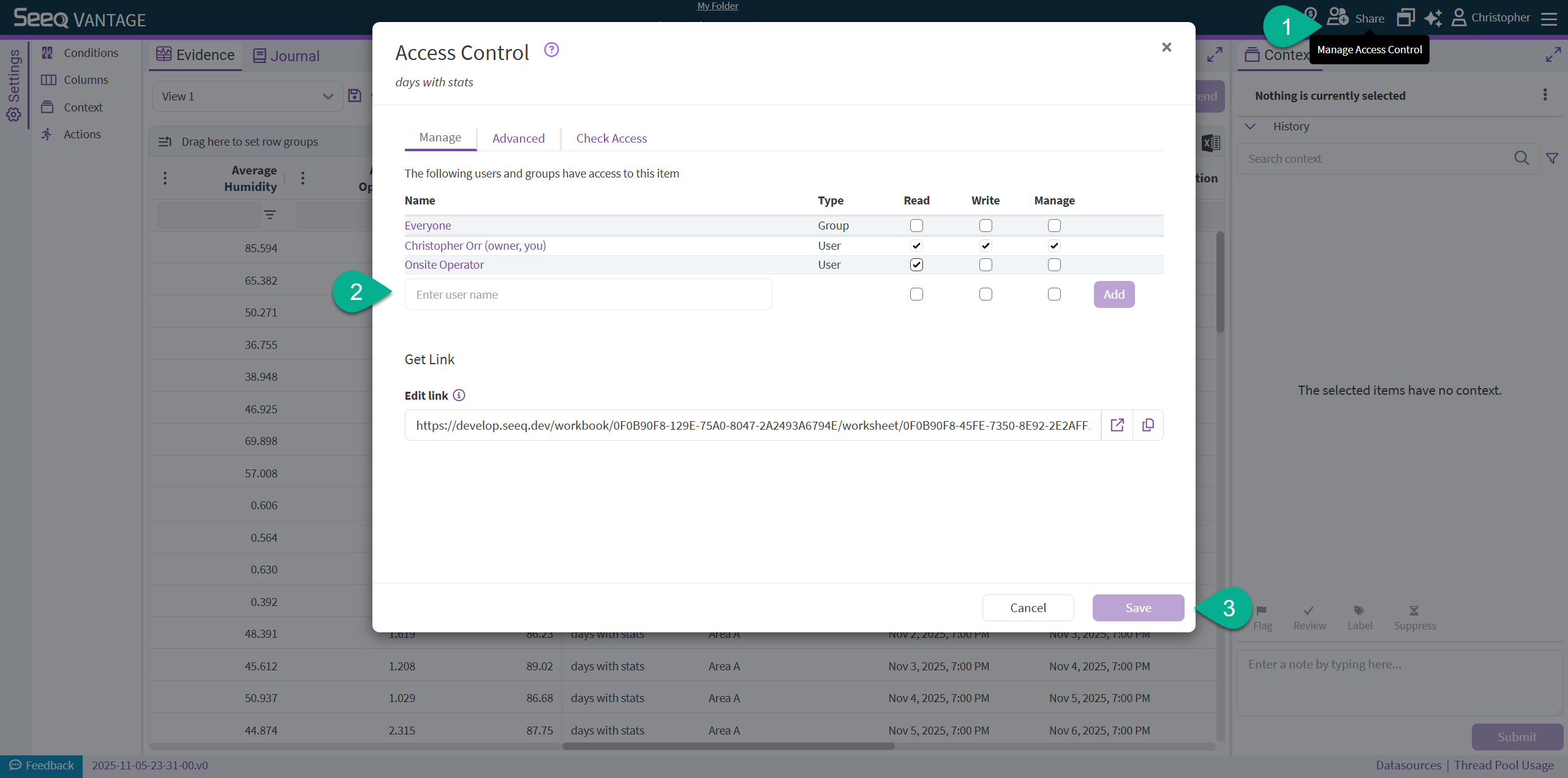
Read
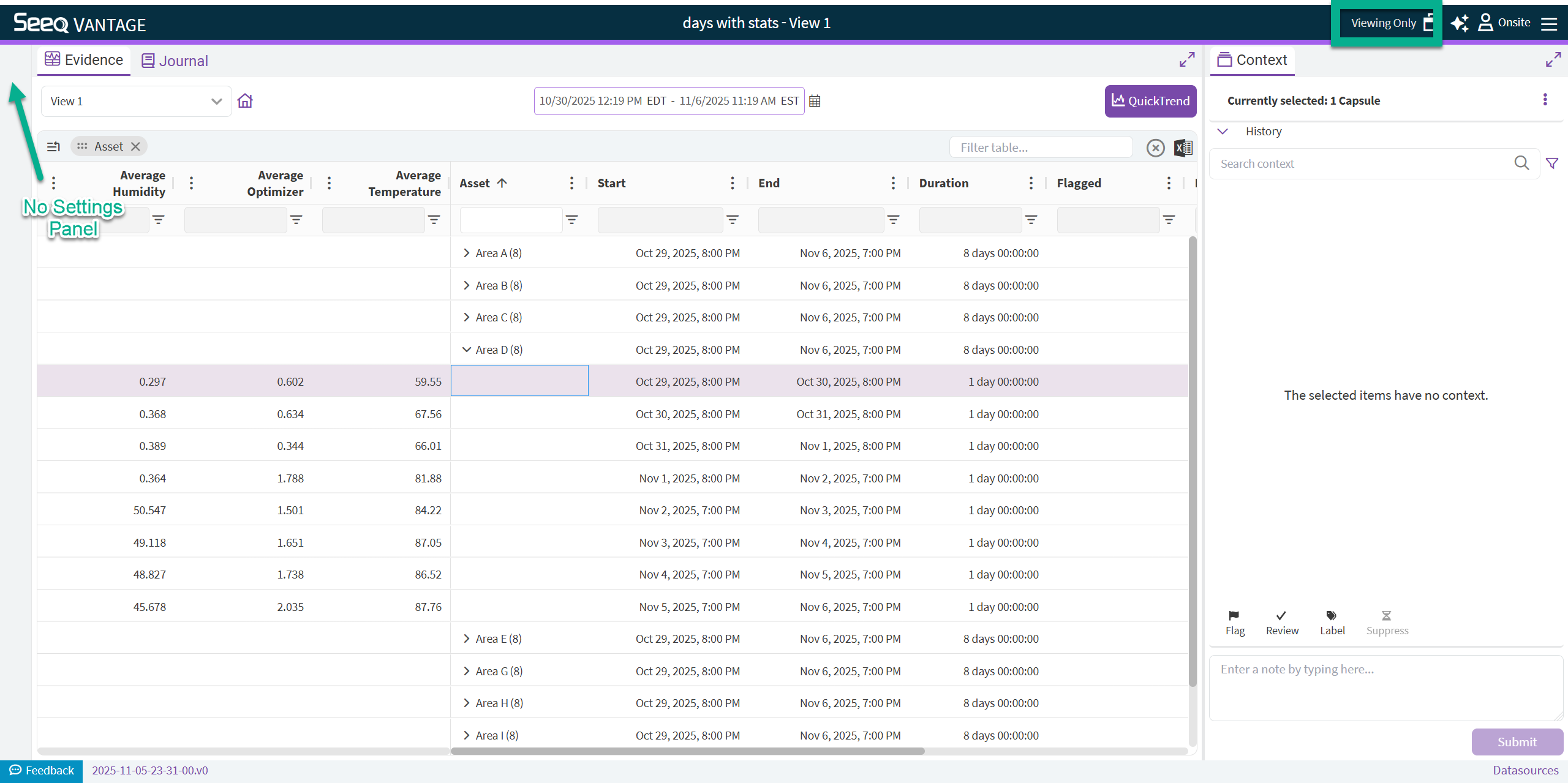
Users with just “Read” access will have a trimmed-down view of the Vantage Room, with limited access. These users cannot see or change any of the “Settings” for the Room, nor can they create or edit Views. They can still change the Date Range to view more or fewer events.
Lastly, as mentioned above in the Special Considerations section, users with “Read” access can also add Context and view the history on the right-hand side of Vantage, including Notes, Labels, Flags, etc.
Write
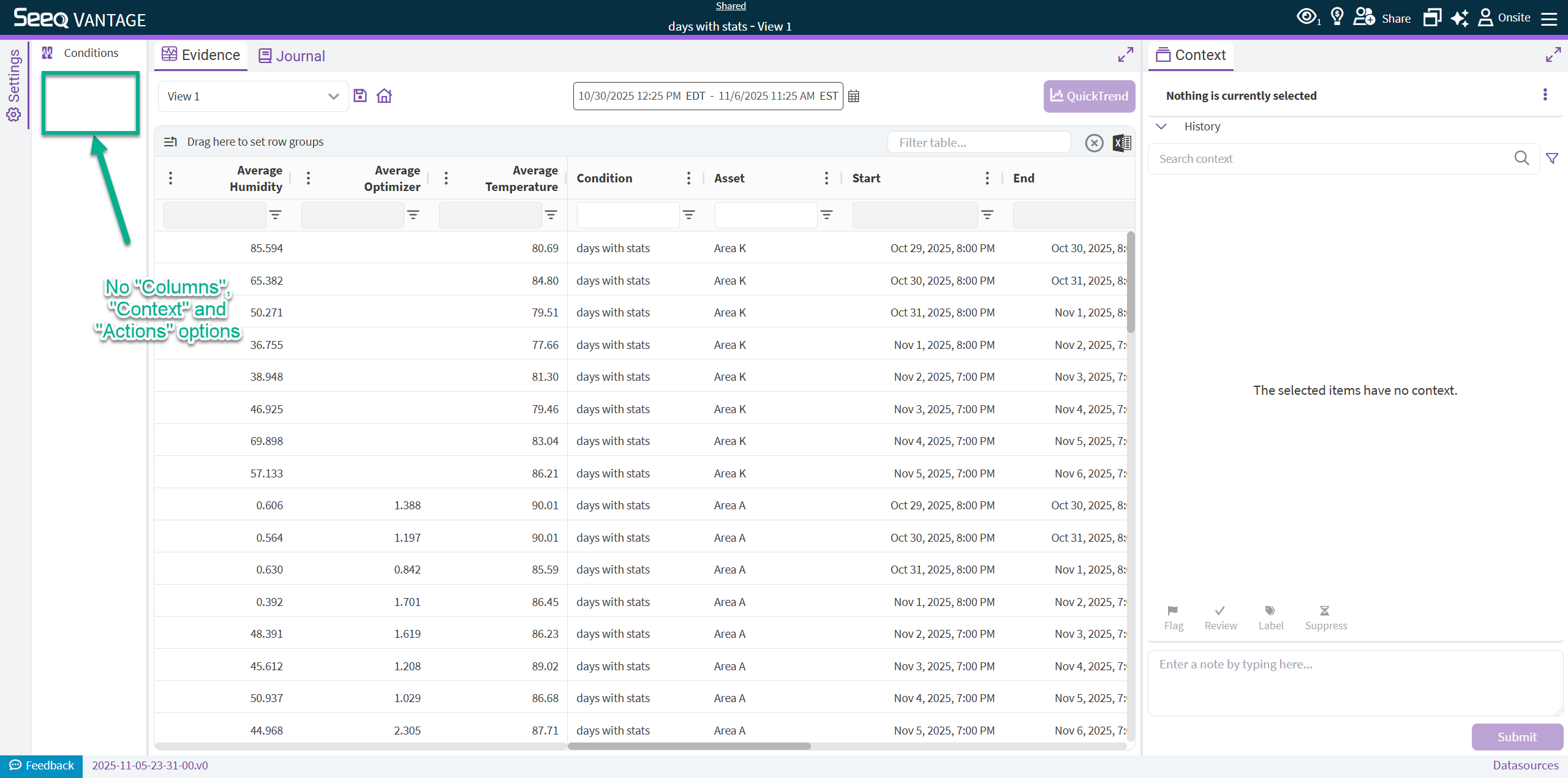
By granting “Write” access to other Users or Groups to your Vantage Room, these Users can save/overwrite Views, edit the Journal, view what other users/groups have permissions to the Room, and update the Condition search within the Settings. “Write” access also grants all the capabilities included in “Read”.
Users with “Write” access cannot see the “Columns”, “Context”, and “Actions” settings options along the left to make changes, nor can they grant or change other users/groups access to the Room.
These users can also still read and write context (notes, labels, flag, review, etc.) within this Room.
Manage
By granting “Manage” access to other Users or Groups to your Vantage Room, you give them full control over the Room, including changing all of the Settings, archiving the Room, granting other users Read/Write/Manage permissions, editing the Journal, plus all the capabilities included within Write and Read permissions. More details on users with full access can be found here.