
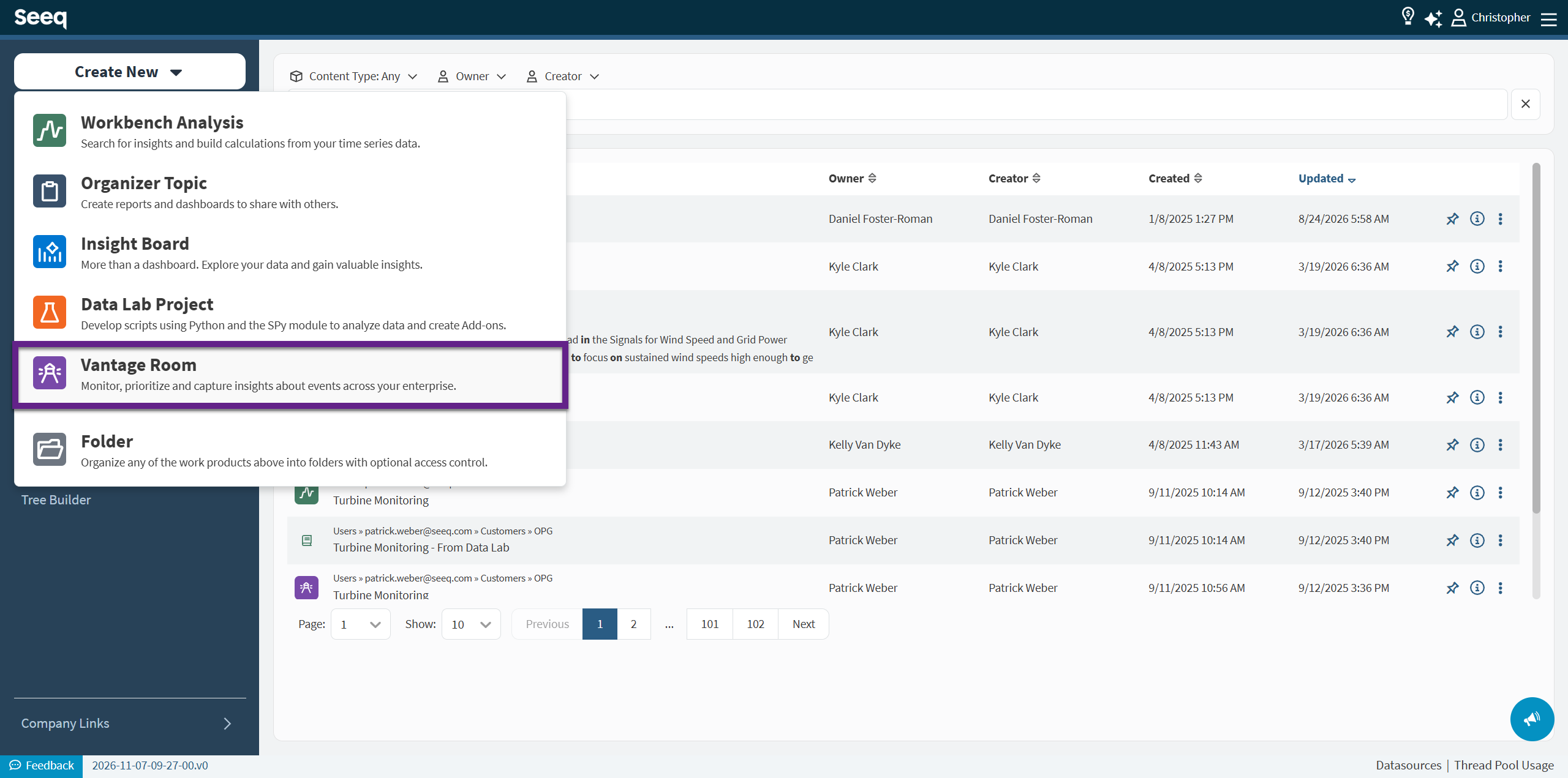
Once licensed and enabled, a Vantage Room can be accessed via the same “New” dropdown that is used to create Workbench Analyses, Organizer Topics, and Data Lab Projects. Vantage Rooms are access controlled, and searchable throughout the Home page, just like the other apps.
Navigating a Vantage Room
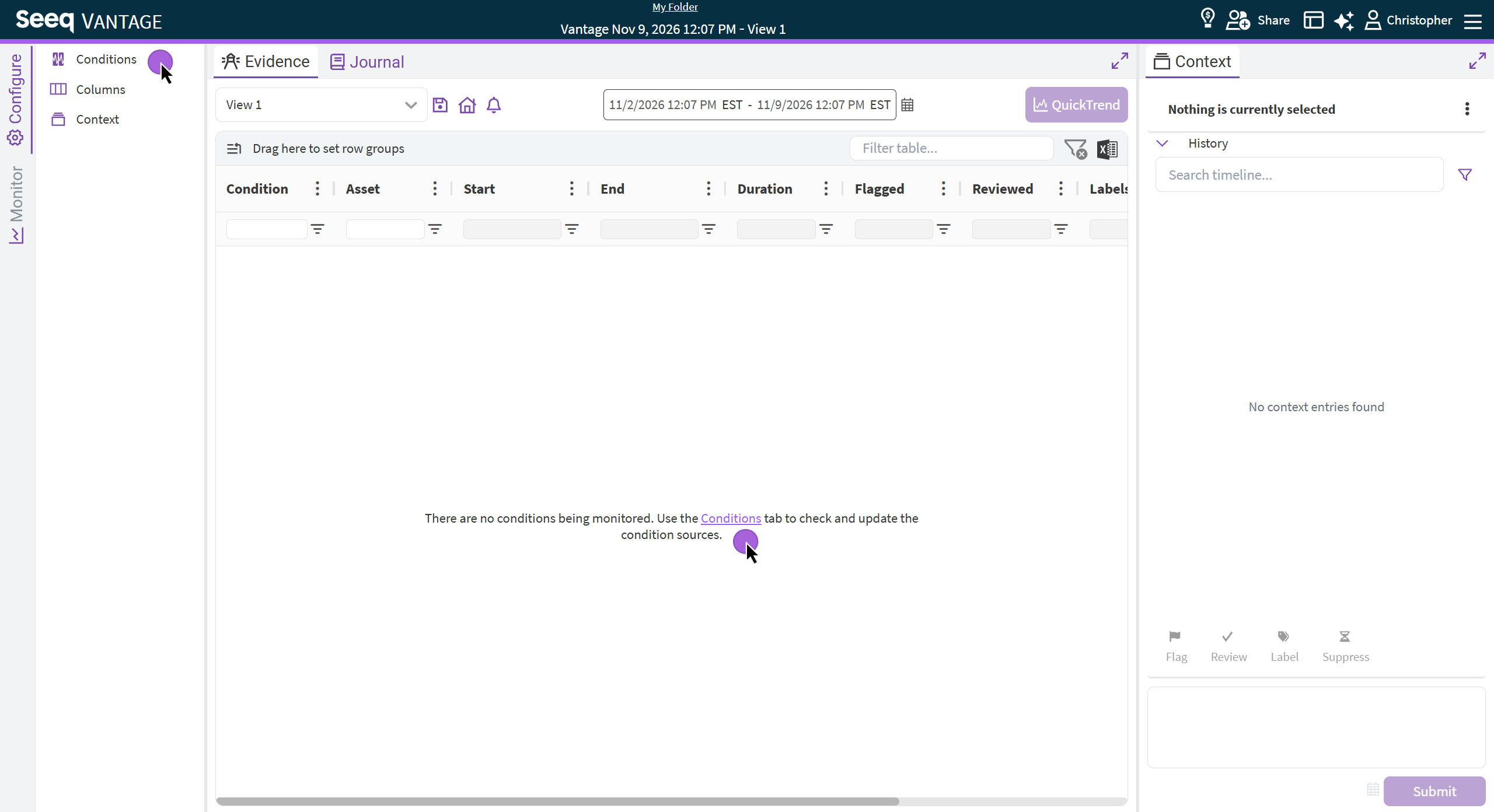
Vantage is segmented into 3 primary tabs: Settings, Evidence and Context.
Your Vantage Room will begin empty. Start finding Capsules by configuring your Condition Sources to begin populating your table, by navigating to the Conditions tab.
Configure
The Settings menu on the left-hand side allows users with at least Write access to the Room to control Room-wide options, including:
-
Conditions: Define which Conditions across the platform you want to monitor, and how often.
-
Columns: Control which columns you want available for you (and others) to leverage for navigating your evidence table. These columns are most commonly transcribed from Capsule properties.
-
Context: Customize which context actions appear in the context panel, located above the notes field. These settings apply to all users in this Vantage Room and provide corresponding table columns for filtering.
Evidence
The focal point of Vantage is the table of capsules. These events can be sorted, filtered and grouped in the table. Specific table states, including the date range, can be saved as a View for easy navigation.
Within this pane, you also have the ability to toggle on/off QuickTrend - which will show you related time-series trends based on your selection in the table below.
Context
The Context pane presents all related context (notes, labels, etc.) to the selection you make in the table and allows for entering new context.
Monitor
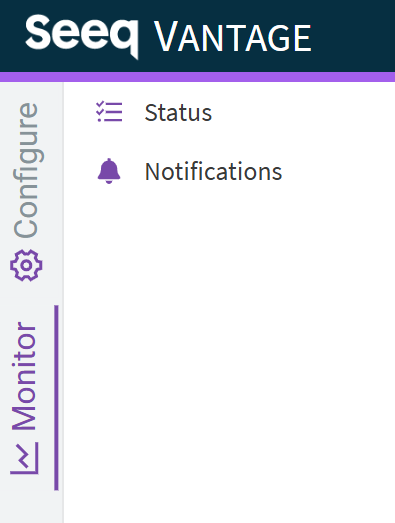
The Monitor tab has two options, Status and Notifications. Use Status to review the current state if your Vantage Room and examine all Previous Runs of your schedule. You can also inspect all current monitored Conditions and initiate one-time runs from this page. See this page for more detail.
The Notifications page will show all actively configured Notifications setup on this Vantage Room. You can enable/disable, and edit existing configurations here, as well.
See Vantage Notifications for more detail.
Journal
The Journal is a free-form text editor that is similar to the journal feature in Workbench. There is only one Journal for each Vantage Room. Note that this is different than in Workbench were there are is a journal per worksheet.
The Journal can be used to document information that is relevant to the entire Vantage Room, such as details about the monitoring being performed, or contextual information like how a column should be interpreted.
