
The Start node defines how a Custom Agent workflow begins. Every workflow must have one Start node, and it cannot be deleted.
Configure the trigger
-
Select the Start node on the Agent Builder canvas.
-
In the Inspector, choose how the agent starts:
-
Chat for user-initiated runs.
-
Autonomous for runs started automatically.
-
-
Configure the selected trigger, then publish the workflow when you are ready for the trigger change to become the Production behavior.
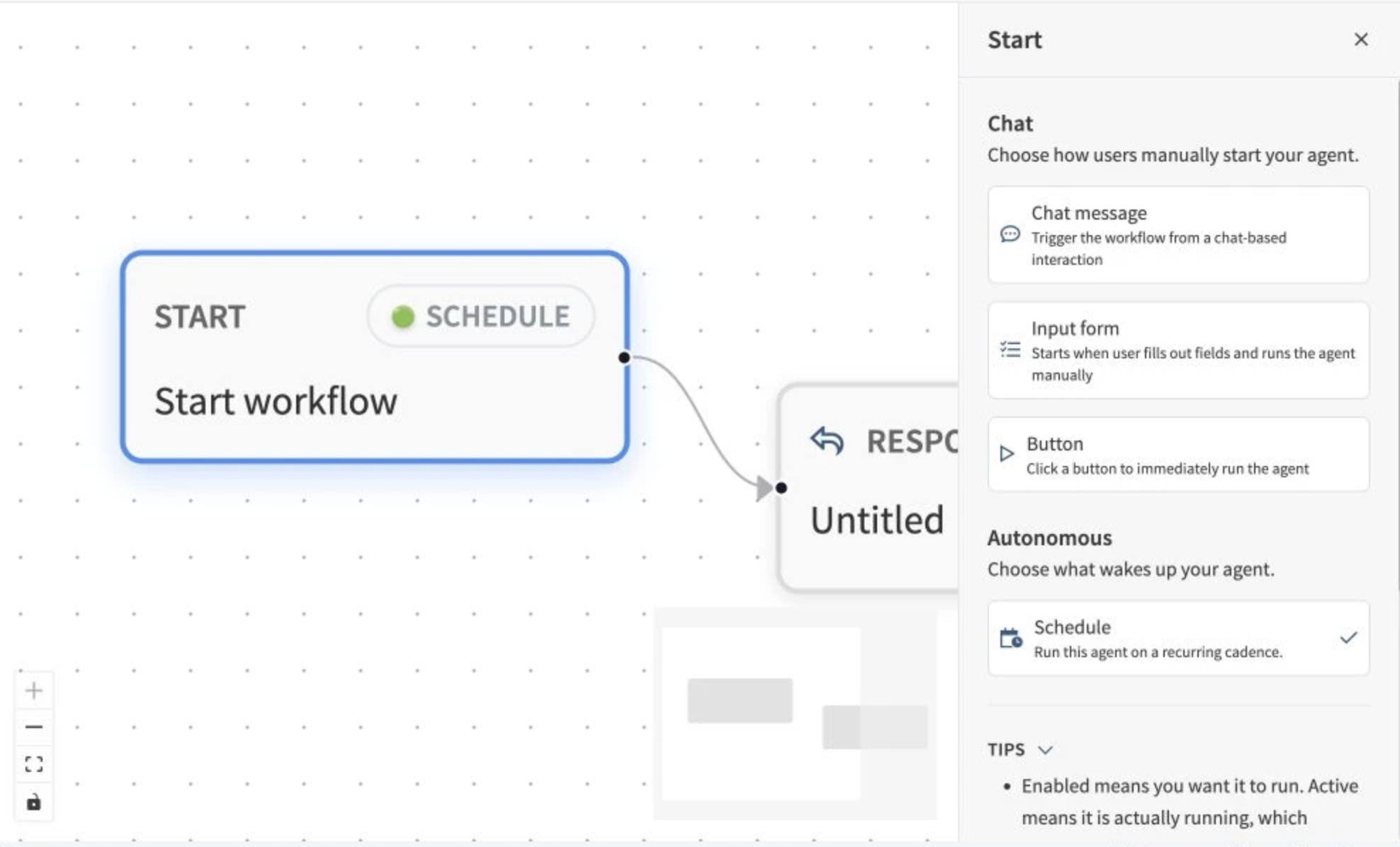
The Start Inspector groups user-initiated Chat triggers separately from the Autonomous Schedule trigger.
Chat triggers
1. Chat Message
Definition
Standard conversational workflow entry.
Behavior
-
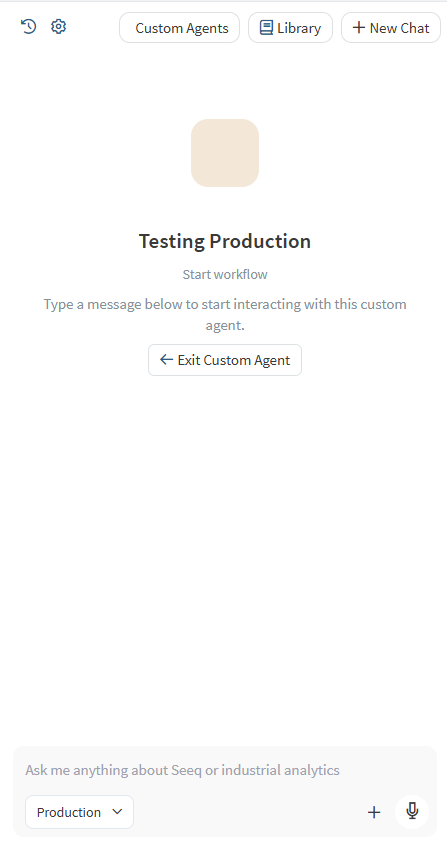
User submits a natural language prompt in AI Assistant.
-
The submitted message becomes the workflow input payload.
-
Execution begins immediately after submission.
Input Handling
-
Entire user message is passed as raw input.
-
No enforced structure.
-
Parsing and interpretation occur within downstream nodes.
When to Use
-
Open-ended questions
-
Exploratory analysis
-
Dynamic or variable requests
-
Knowledge retrieval workflows
Example Use Cases
-
“Analyze last week’s production variance.”
-
“Compare Reactor A and Reactor B efficiency.”
-
“Explain this KPI.”
2. Input Form
Definition
Structured workflow entry with predefined fields.
Behavior
-
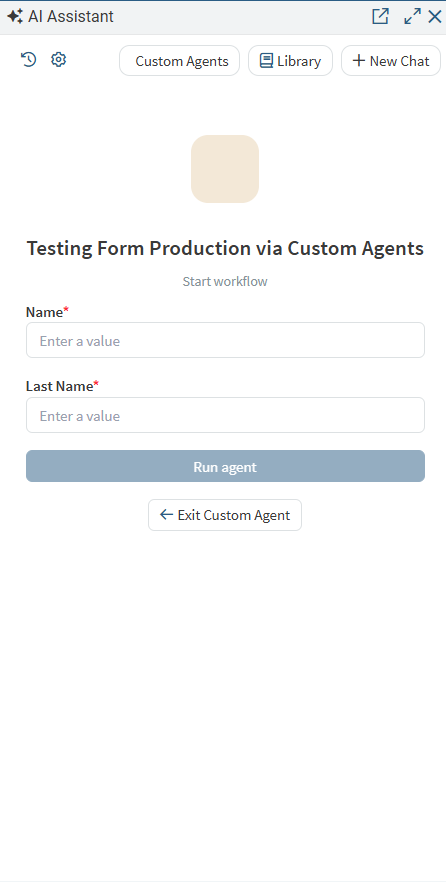
User is presented with configured input fields in AI Assistant before execution.
-
The workflow does not start until the form is submitted.
-
Field values are serialized into a structured input object.
Requirements
-
At least one form field must be configured.
-
Each field defines type, label, and validation constraints.
Input Handling
-
Values are transmitted as structured key-value pairs.
-
Eliminates ambiguity and enforces required parameters.
Input form fields
Input form fields support:
-
Text
-
Multiple choice
-
Date
Per-field settings:
-
Label
-
Description (optional)
-
Default value (optional)
-
Required
-
Options (multiple choice only)
When to Use
-
Workflows requiring mandatory inputs
-
Report generation
-
Compliance or standardized submissions
-
Parameterized analysis
Example Fields
-
Start Date
-
End Date
-
Asset ID
-
Severity Level
-
Analysis Type
3. Button
Definition
Immediate execution trigger with no user-supplied input.
Behavior
-
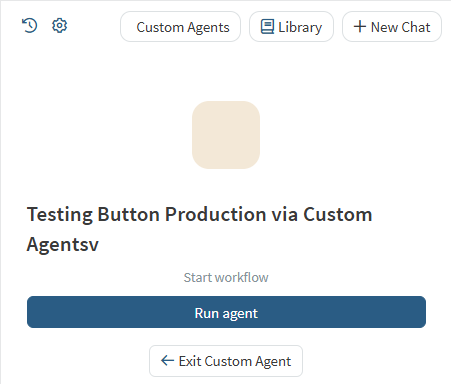
User sees two options: Run agent and Exit.
-
No prompt or form is displayed.
-
Clicking Run agent starts the workflow instantly.
Input Handling
-
No runtime input collected from the user.
-
Workflow relies on predefined logic or system-derived values.
When to Use
-
Deterministic actions
-
Predefined reports
-
System checks
-
Refresh or update operations
Example Use Cases
-
“Generate Today’s Production Report”
-
“Run Diagnostic”
-
“Update Metrics Now”
Autonomous trigger
1. Schedule
The Schedule trigger starts the published agent automatically on a recurring cadence. Only an Analytics Administrator can configure it.
To configure a schedule:
-
In the Start Inspector, select Schedule under Autonomous. You can also select Automate in the Agent Builder header when no automation is configured.
-
In Schedule settings, choose a frequency:
-
Daily
-
Weekly
-
Monthly
-
Periodic
-
-
Configure the run times or periodic rate and the time zone.
-
Set Enabled on or off.
-
Select Save.
Scheduled runs must be at least one hour apart. Invalid times are identified in the editor, and Save remains unavailable until the schedule is valid.
When you select Schedule from another trigger, the trigger change is pending until you save the Schedule settings. Selecting Cancel leaves the previous trigger unchanged.
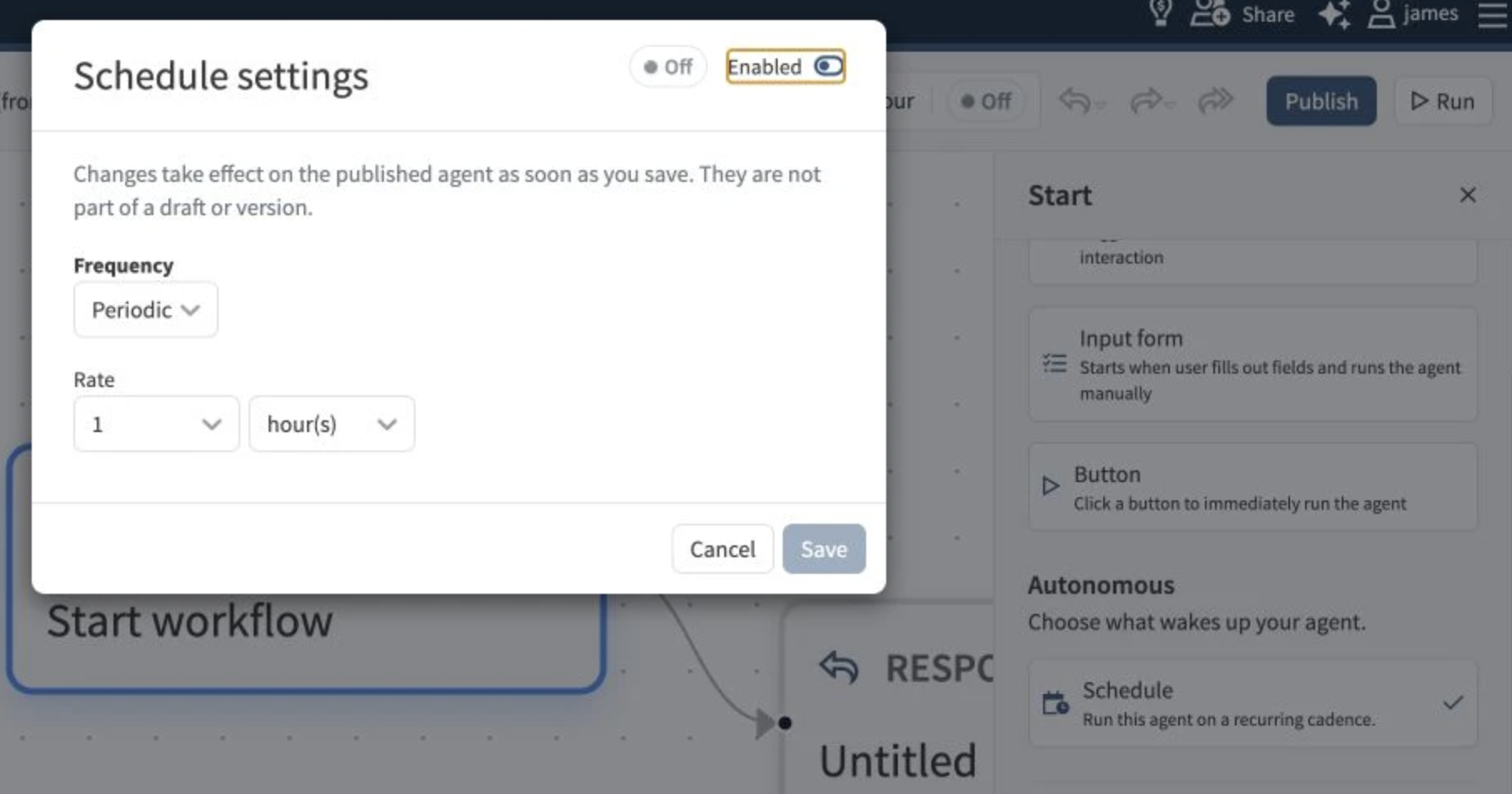
Schedule settings stage cadence, time-zone, and enabled changes until you select Save.
Schedule changes and versions
Schedule settings belong to the Custom Agent, not to an individual draft or version. Saving cadence, time-zone, or enabled changes applies immediately to the published agent.
The Start trigger itself is versioned:
-
A schedule can run only when the Production version uses the Schedule trigger.
-
Publishing is blocked until a schedule has been saved for a schedule-triggered agent.
-
Changing a draft from Schedule to a Chat trigger does not stop an active schedule. The schedule continues until the non-schedule version is published to Production.
-
When publishing a non-schedule version would stop an active schedule, the publish dialog shows a warning.
-
The saved schedule is preserved if you switch away from Schedule, so it is available if you switch back later.
Schedule status
The Agent Builder header shows the saved cadence and one of these states:
-
Active: Enabled is on and the Production version uses the Schedule trigger.
-
Inactive: Enabled is on, but the Production version does not use the Schedule trigger.
-
Off: Enabled is off.
Select the schedule summary in the header to reopen Schedule settings. When the schedule is Active, its next run is also shown in the status details.
Test a scheduled run
With the Schedule trigger selected, select Run to open Test Scheduled Run. The dialog shows the saved cadence, time zone, next run, last scheduled occurrence, and recent scheduled times.
Choose a date and time or one of the recent scheduled occurrences then select Run. The workflow runs immediately as a user initiated test with the selected scheduled time; it does not wait for the real schedule to fire.
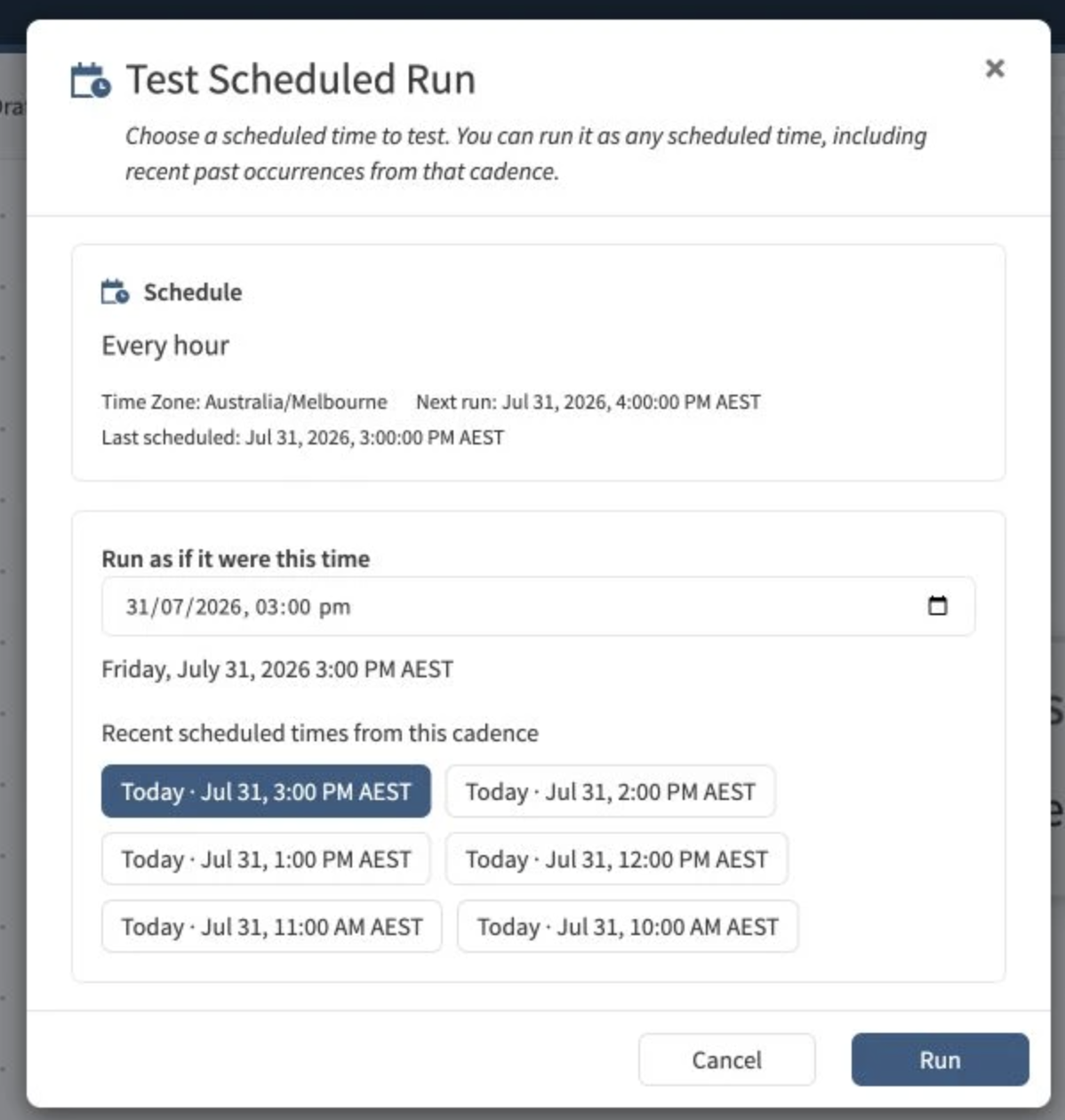
Test Scheduled Run lets you validate the workflow using a representative scheduled time.
Validation rules
-
The Start node must have a trigger.
-
An Input form trigger must contain at least one field.
-
A schedule-triggered agent must have a saved schedule before it can be published.
-
Scheduled runs must be at least one hour apart.
-
Only the agent owner or an Analytics Administrator can save Schedule settings.