
When you run a custom agent, Seeq keeps a record of that run. Use run history to find past runs, see how they went, and open one again in the AI Assistant.
Find your runs
-
Open Agent Builder.
-
Select the Runs tab (next to Drafts and Templates).
You’ll see runs you started, plus runs for custom agents you have access to.
Read the list
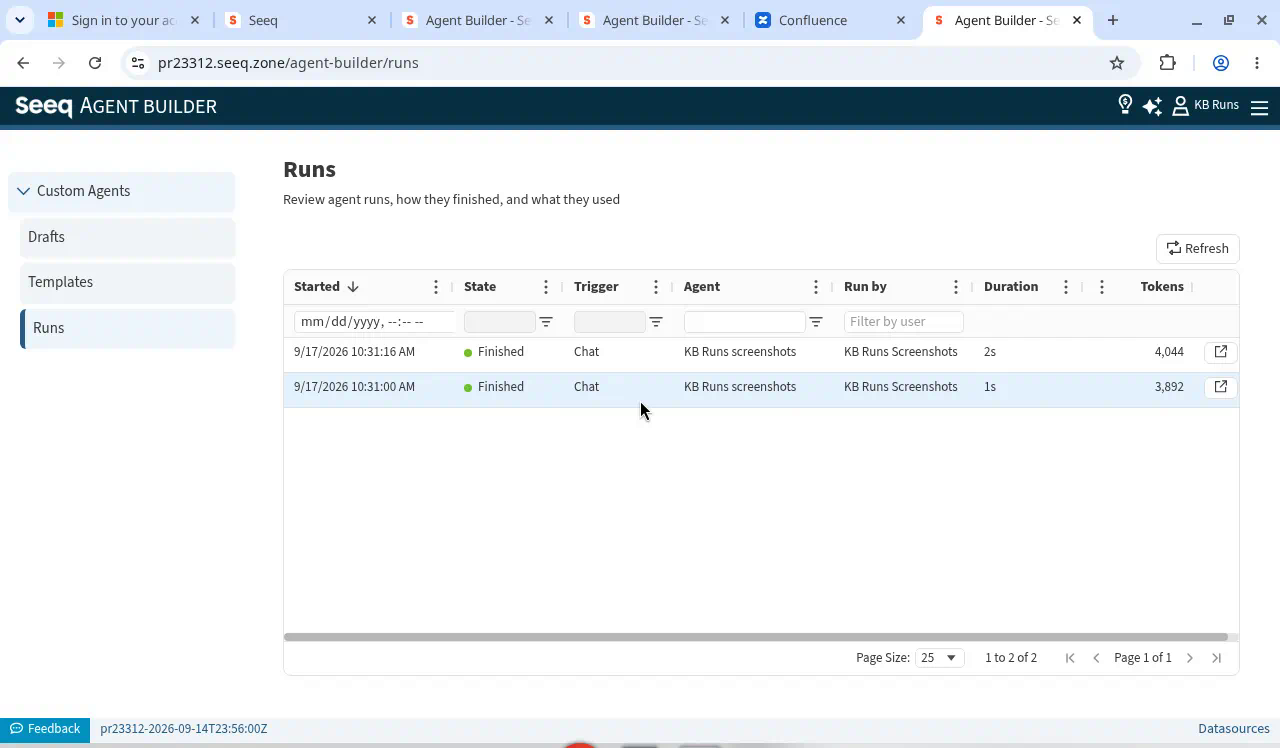
Each row is one run. Typical columns include:
-
Started — when the run began
-
State — whether it is still going or finished (and how it ended)
-
Trigger — how the run was started
-
Agent — which custom agent ran
-
Run by — who ran it
-
Duration — how long it took
-
Tokens — how much AI usage the run consumed
Use the filters at the top of the columns to narrow the list (for example by agent, date, or who ran it). You can also refresh the list if you expect a new run to show up.
Open a past run
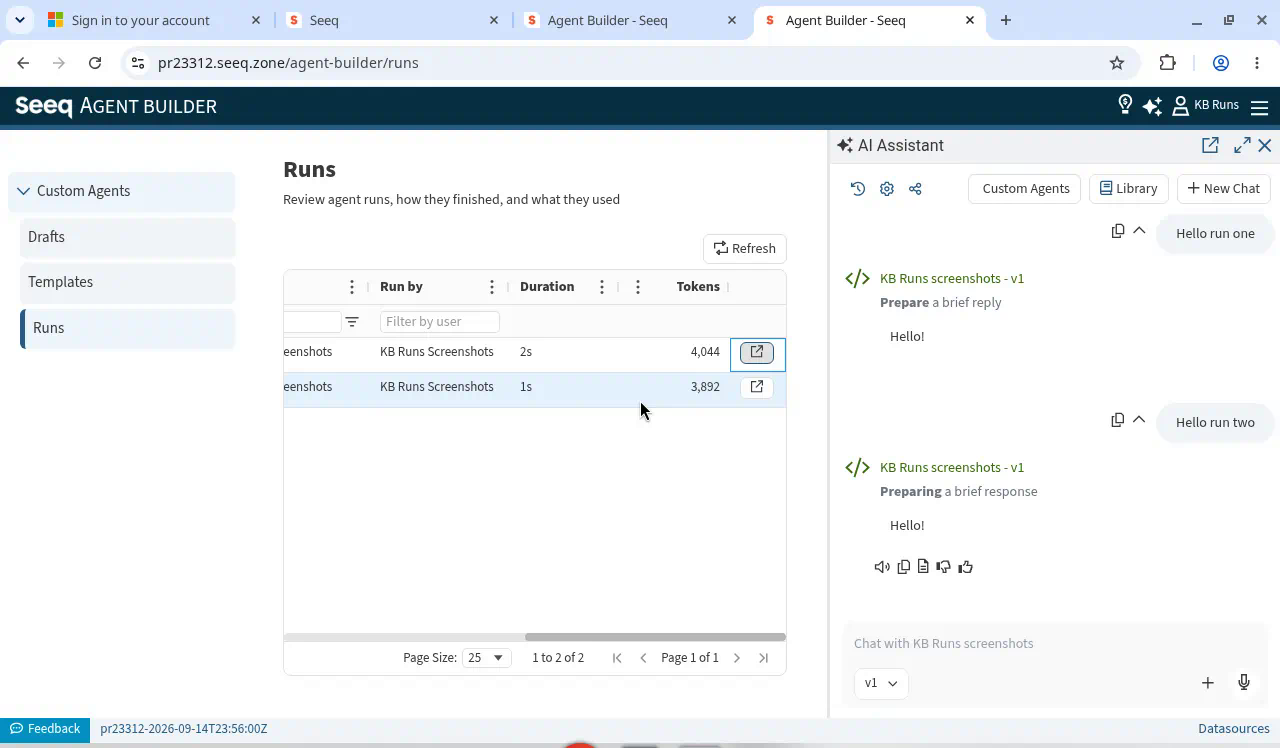
On a row you own, use the open action to bring that run back up in the AI Assistant, similar to opening something from chat history.
If a run belongs to someone else, or there is no chat to open, that action stays unavailable.
What you can see
You can see:
-
runs you started yourself
-
runs for custom agents you are allowed to use
If something looks missing after a sign-in problem, try signing in again and refreshing the Runs tab.