
Using Code Tools with Agent Q
Overview
Extend Agent Q’s capabilities by creating custom Python functions that the agent can discover and use. Code tools let you add specialized domain knowledge, business logic, or integrations with external data to help you analyze your operations and get to actions and insights. Write your functions in Data Lab notebooks, register them as code tools, and Agent Q can immediately start using them to solve your problems.
Common use cases include:
Domain-specific logic, algorithms, calculations, or models specific to your processes
Specialized data transformations or statistical analyses
Integrations with third-party systems (other enterprise software or your own internal tools)
Code tools will likely be familiar if you have experience writing Data Lab functions. You can use the Seeq AI Assistant Data Lab Agent to help you build proficiency in Python.
Why Code Tools?
Code tools and MCP tools are two ways to provide Agent Q with access to domain-specific logic and company-specific integrations. MCP tools are exposed to the agent as “standard tools” which means that the agent can provide string and numeric arguments and receives text responses. This works when the responses are text-based and small, but what about if the response is a 1000-row table? It’s cases like this where MCP won’t work - Agent Q can’t hold all that information in it’s “memory” or reliably do things like filter, sort, and group. This is where Code Tools come in.
Code tools are exposed to Agent Q as Python modules in its coding environment. Each code tool is a function within the module. When the agent wants to call a tool, it writes a script that imports the module and calls the function. The response from the function can be of any built-in python type (eg. text, numbers, dictionaries, lists), Pandas DataFrames, and really anything that can be serialized using the pickle module. With the response in code Agent Q can explore the data without having the “memorize” it. The agent can use code to list column names, get summary statistics on values, do grouping, filtering, sorting, etc and get only the information it wants. Code tools are an extremely valuable way to increase Agent Q’s data analysis potential.
Creating Code Tools
Step 1: Write Your Code Tool Functions in a Notebook
Open a Data Lab notebook and create a cell with your function. Here’s a simple example that shows the required structure:
# POST /model_score
"""
Score a model based on weights

Args:
    weights (list[int]): The model weights

Returns:
    dict: A dict with a key of "score" and a float value of the score
"""
import numpy as np

# Define the function
def model_score(weights: list[int], x: list[int]) -> dict:
    score = float(np.array(weights).dot(np.array(x)))
    return {"score": score}

# Parse request arguments
kwargs = unpack_request(REQUEST)
weights = kwargs.get("weights", [1, 2, 3])
x = kwargs.get("x", [1, 1, 1])

# Call the function and pack the response
result = model_score(weights, x)
pack_response(result)
Key elements:
Start with
# POST /endpoint_nameto define the endpointInclude a clear docstring - Agent Q uses this to understand when to call your function
Use
unpack_request(REQUEST)to get the arguments Agent Q passesUse
pack_response(result)to return your results
Step 2: Register Your Code Tools as Modules
Within Data Lab, use the config_tools.ipynb notebook (provided by Seeq) to register code tool modules. The notebook validates your configuration and provides helpful error messages. See the Registering Modules section below for details.
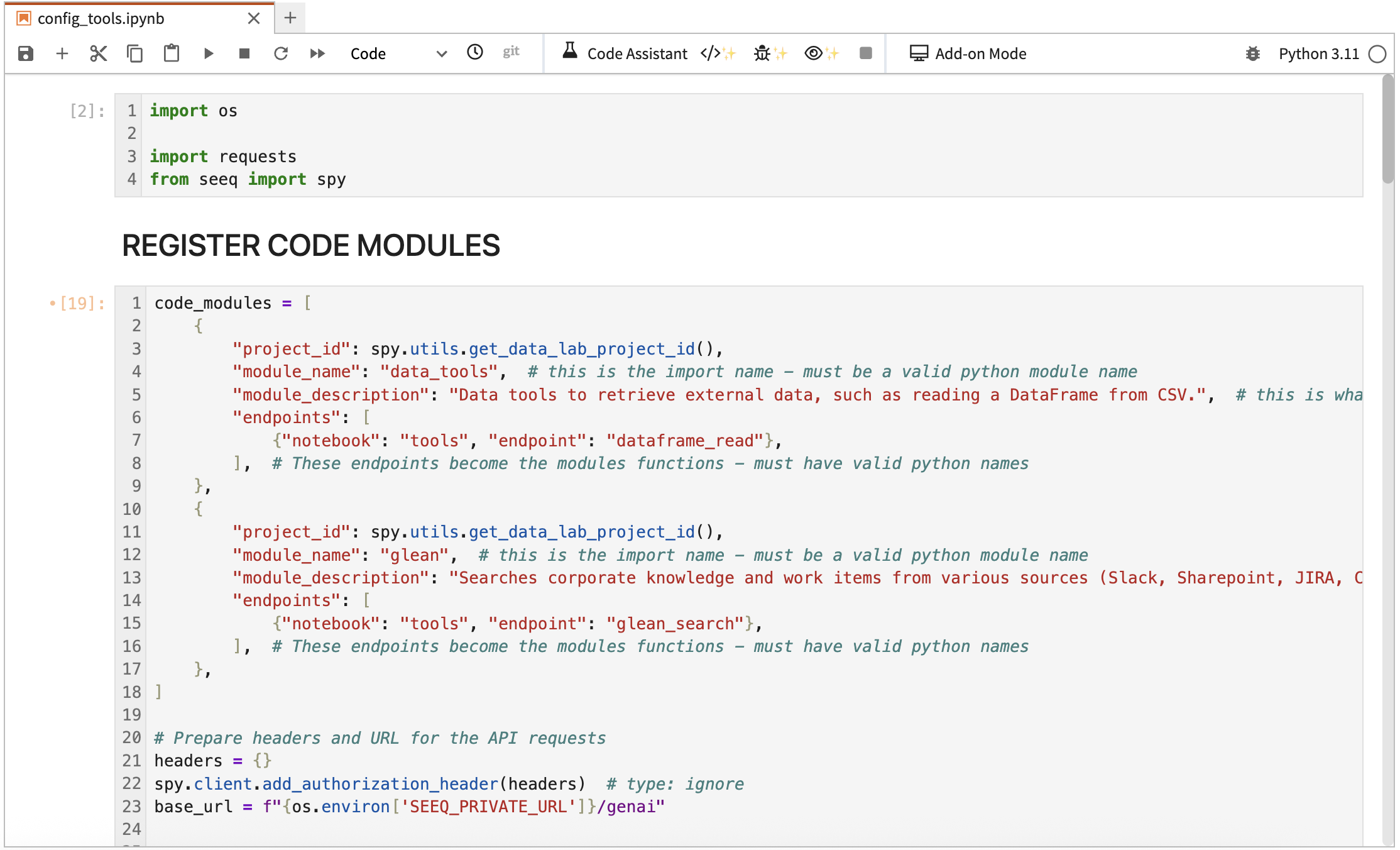
You can also list registered modules and their endpoints to verify everything is set up correctly.
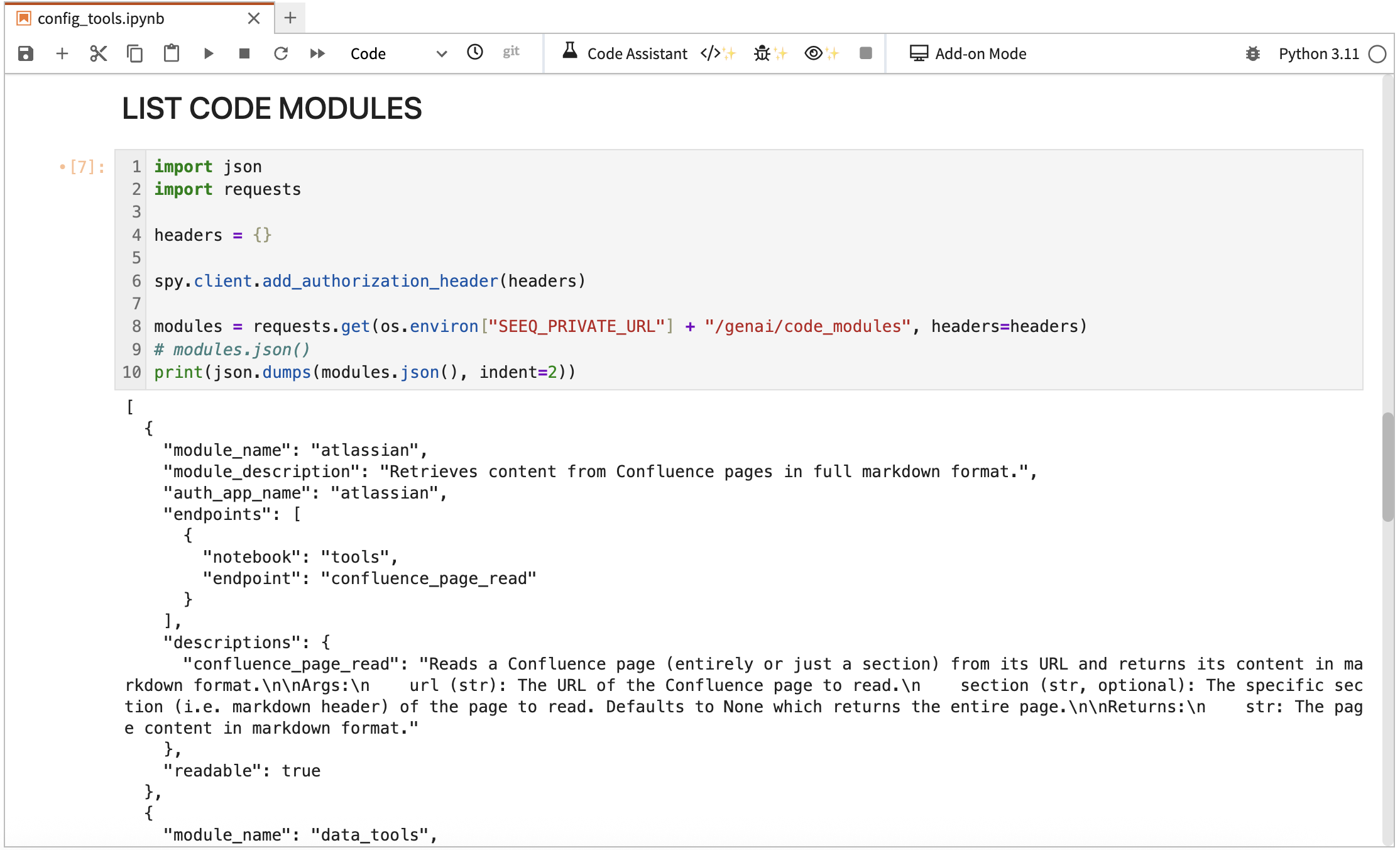
Name and description tips:
Use descriptive module names that Agent Q can understand their semantics (e.g.,
quality_metrics,production_analytics)Keep endpoint names clear and action-oriented (e.g.,
detect_anomalies)Write detailed descriptions for both the module and each endpoint
Step 3: Agent Q Discovers and Uses Your Tools
Once registered, Agent Q can automatically discover and use your code tools. For example:
You: “Score the model using weights [1, 2, 3] and input vector [4, 5, 6]”
Agent Q: Discovers your code tool, reads the function documentation, calls model_score(weights=[1, 2, 3], x=[4, 5, 6]), and displays the result: {"score": 32.0}.
Registering Modules
Modules are hosted in Data Lab projects and consist of one or more endpoints (functions). A module has a collection of endpoints that become their functions. You can register multiple code modules at once. If modules require different permission or code dependencies, host them in separate Data Lab projects.
Here’s an example configuration for registering two modules:
code_modules = [
    {
        "project_id": "your_data_lab_project_id",
        "module_name": "data_tools",  # this is the import name - must be a valid python module name
        "module_description": "Data tools to retrieve external data, such as reading a DataFrame from CSV.",  # this is what the agent sees when it lists modules
        "endpoints": [  # Endpoints become the modules functions - must have valid python names
            {"notebook": "tools", "endpoint": "dataframe_read"},
        ],
    },
    {
        "project_id": "another_data_lab_project_id",
        "module_name": "erp",
        "module_description": "Integrates with our company's ERP system to retrieve data on inventory, orders, and production schedules.",
        "auth_app_name": "erp",  # this is the name of the OAuth app configured in config_tools_auth.ipynb
        "endpoints": [
            {"notebook": "tools", "endpoint": "erp_inventory_check"},
            {"notebook": "tools", "endpoint": "erp_order_status"},
            {"notebook": "tools", "endpoint": "erp_production_schedule"},
        ],
    }
]
Using OAuth2 with Code Tools
Code tools can connect to external services that support OAuth2, such as an ERP, CRM, etc. To set this up:
Configure OAuth (admin task):
Use the
config_tools_auth.ipynbnotebook provided by SeeqSet up OAuth credentials for the external service
Configure required scopes and permissions
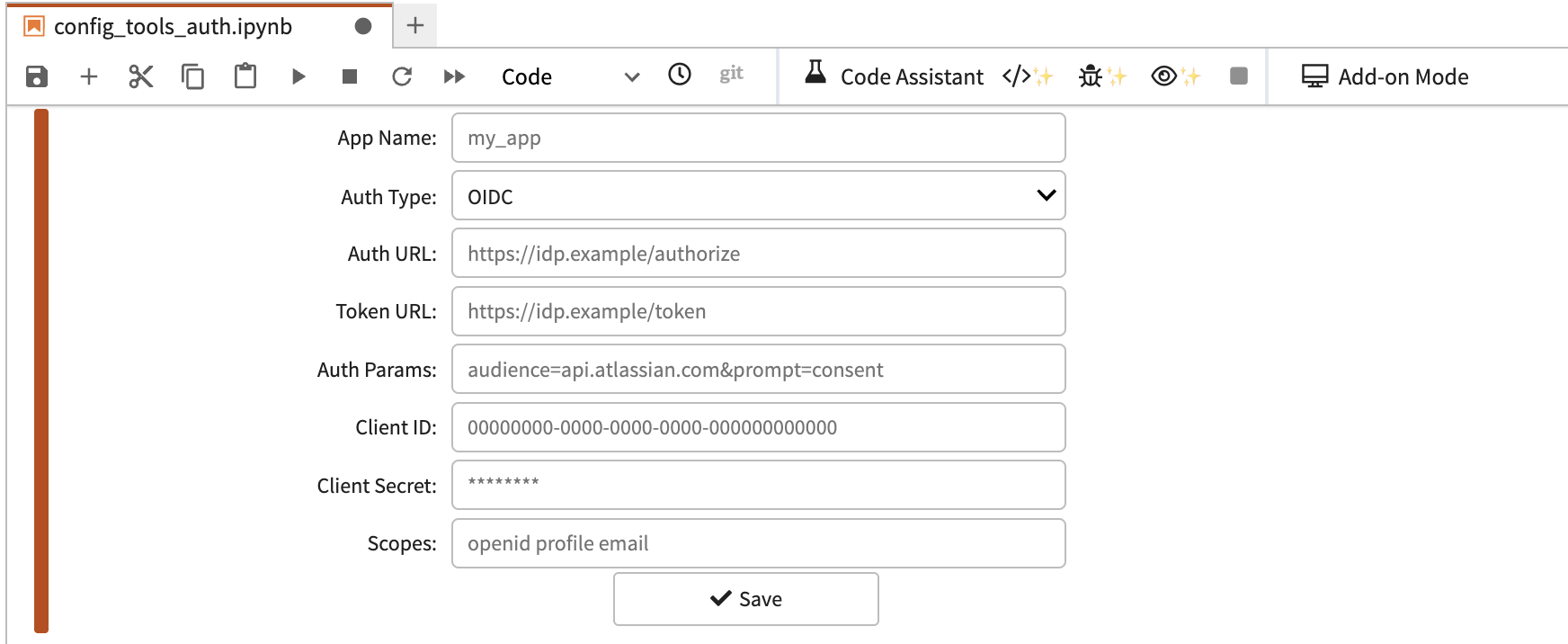
Register authenticated module:
PY{ "module_name": "erp_tools", "module_description": "ERP integration tools", "auth_app_name": "erp", # Links to the OAuth2 config "endpoints": [...] }First-time authorization:
When Agent Q first uses the tool, you’ll be prompted to authorize
Complete the OAuth flow in your browser
Subsequent uses are handled automatically
Access Control
Code tool access follows Seeq’s existing permission model:
To use a code tool: Users need read access to the Data Lab project containing the notebooks
To modify a code tool: Users need write access to the Data Lab project
Best practice: Create separate Data Lab projects for different teams or use cases to control who can use which tools
See Restricted Access to Sensitive Content in Seeq Data Lab for detailed guidance on managing Data Lab project permissions.
Best Practices
Write clear documentation: Agent Q relies on the function documentation (docstrings) to understand when and how to use your functions.
Use descriptive names: Module and endpoint names should clearly indicate what they do.
Version control: Connect your Data Lab Project to source control (e.g., GitHub) to track changes.
Test thoroughly: Validate your functions work correctly before making them widely available.
Handle errors gracefully: Include error handling in your functions and return informative error messages.
Keep functions focused: Each endpoint should do one thing well, rather than trying to do too much.
Document assumptions: Note any data format requirements or assumptions in your docstrings.
Review: Carefully review code to ensure it meets your organization’s standards and policies before registering it as a code tool.
Use Data Lab Functions: Switching the Project from Interactive to a Data Lab Functions project will allow for better performance. Agent Q will warn you if you use an interactive project.
Troubleshooting
Agent Q doesn’t see my code tool
Ask Agent Q what tools it has access to
Verify you registered the module successfully (use
config_tools.ipynbto list modules)Confirm you have read access to the Data Lab project
Function calls timeout
Increase
endpoints_timeout_secondswhen registering the module (default is 60 seconds)Optimize your function code or break complex operations into smaller functions
Function returns an error
Test your endpoint directly in the Data Lab notebook first
Check the Data Lab notebook execution history for error details
Verify all required Python packages are installed