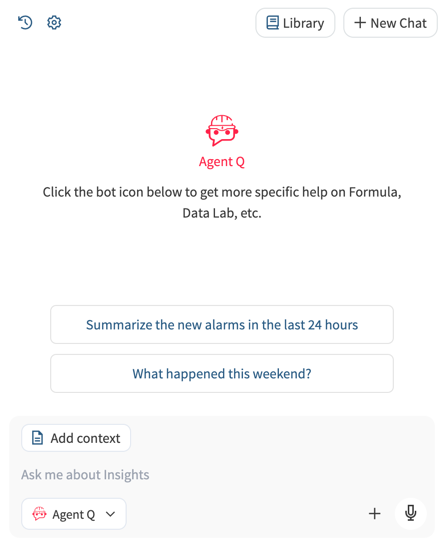
Agent Q

Agent Q is enabled with a license for Seeq Intelligence. Contact your account team for more information.
Agent Q is an agentic AI Analyst that can reason, analyze data and initiate investigations in Seeq. After performing an analysis, it summarizes results with rich visuals and can generate reports detailing operations or deviations. It leverages relationships and information created by subject matter experts through their routine use of Seeq, improving efficiency for teams monitoring industrial operations.
Working with Agent Q in Vantage
In Seeq Vantage, users interact with Agent Q in the AI Assistant chat, asking questions about recent trends in anomalies or looking across a fleet to summarize events. Vantage is often used for monitoring at large scale, and Agent Q can help quickly make sense of recent activity and identify where you want to focus your attention.
You can specify visualizations you’d like to see when working with Agent Q. It can summarize data with a variety of charts.
Example beginner prompts might include:
What happened this weekend?
What 3 sites have the most anomalies this month?
How do events this quarter compare with events last quarter? Show me differences between quarters in a column chart.
When did this happen last and what is different this time?
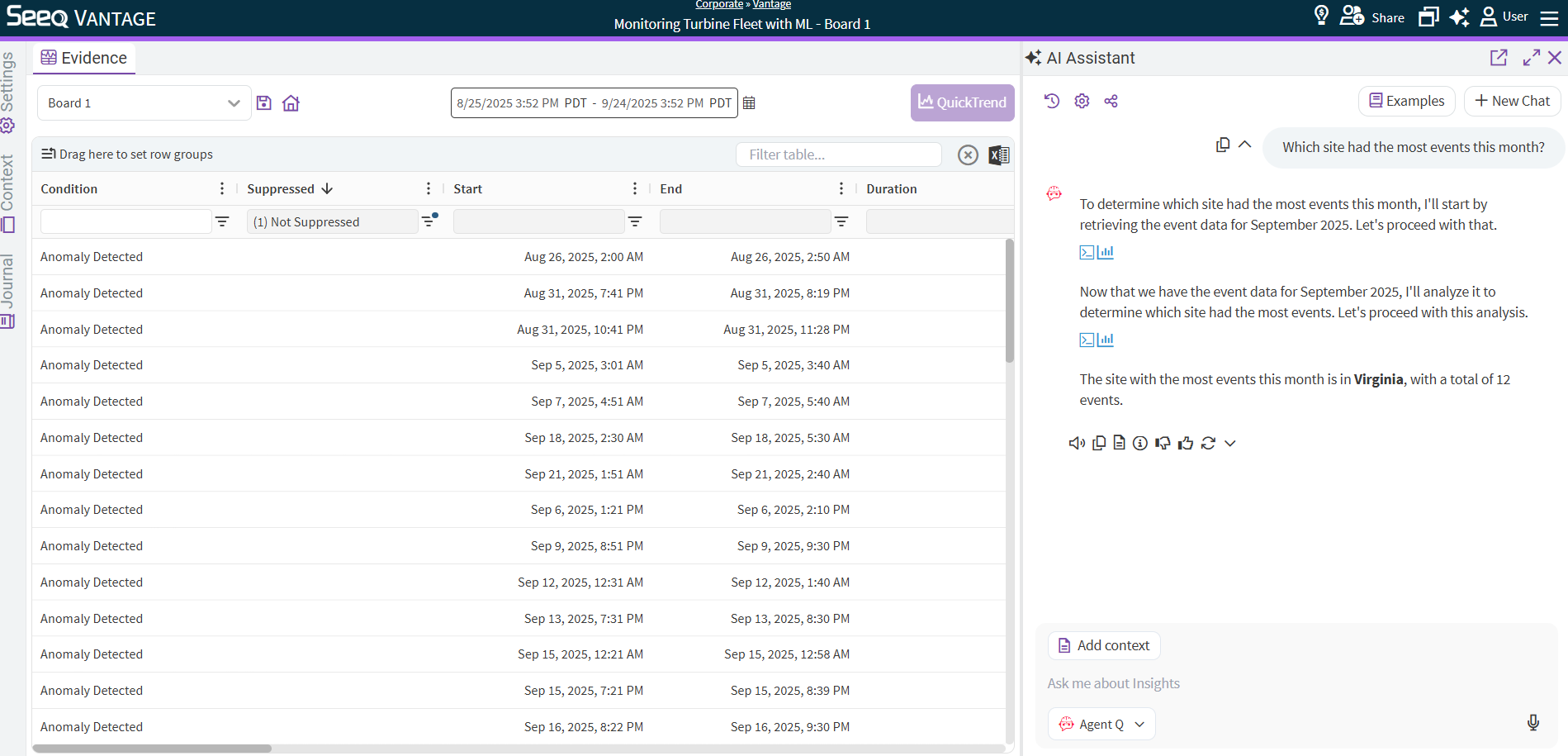
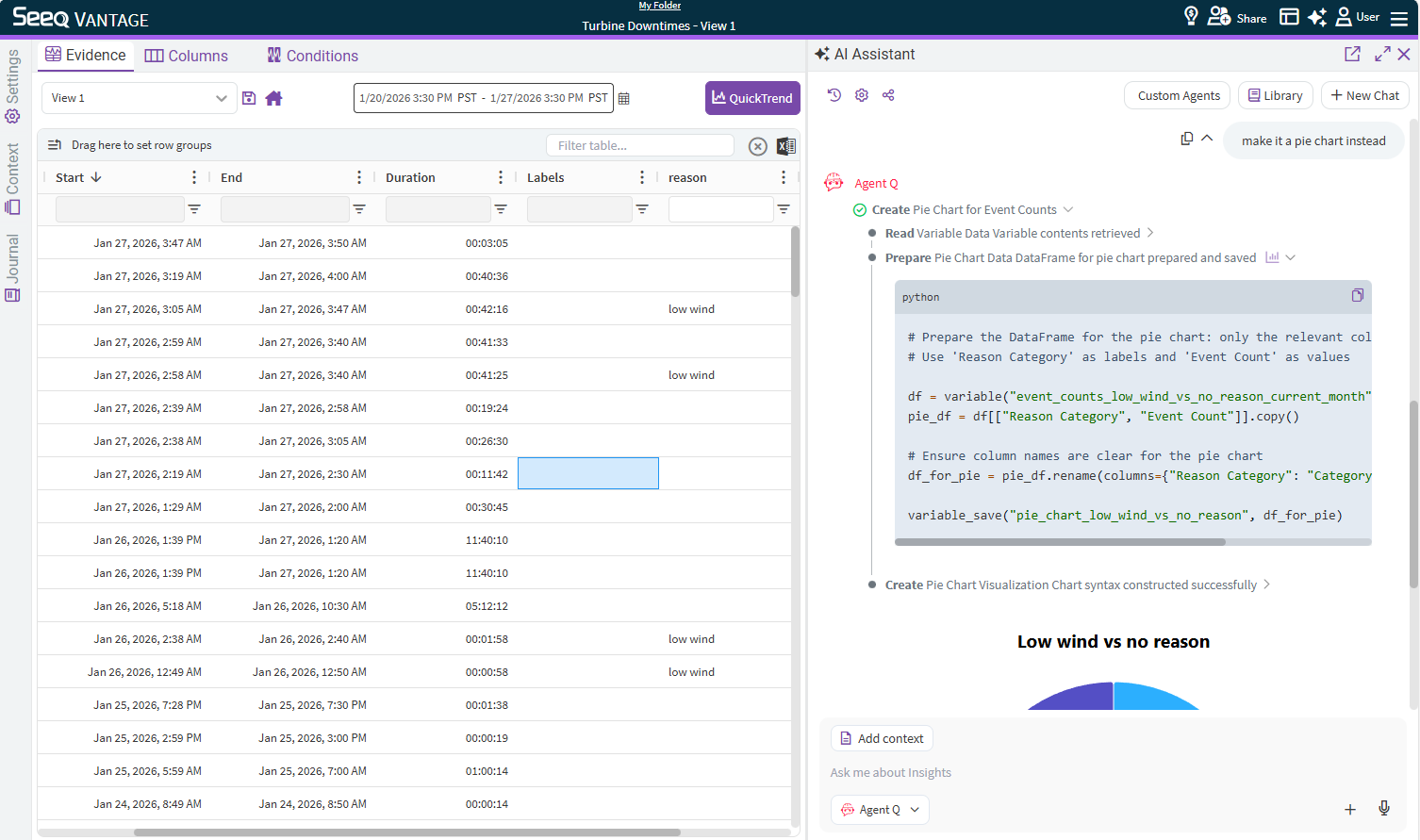
When Agent Q responds, it provides snippets of code that it writes to perform its analysis and the results. You can access these by clicking on the blue icons throughout the chat. This is a good place to start to better understand the approach taken and validate results.
Enriching Agent Q with relevant information
When you engage with Agent Q from a Vantage Room, it has access to all the events, labels, comments, context, and information in that Room.
There is a Journal that can be used to better explain what the Room is used for and any important aspects that could help Agent Q perform analytics consistently. This is used as additional information for each interaction with Agent Q in this Room and can simplify each prompt.
There is a button in the Journal toolbar to insert a template to get you started.
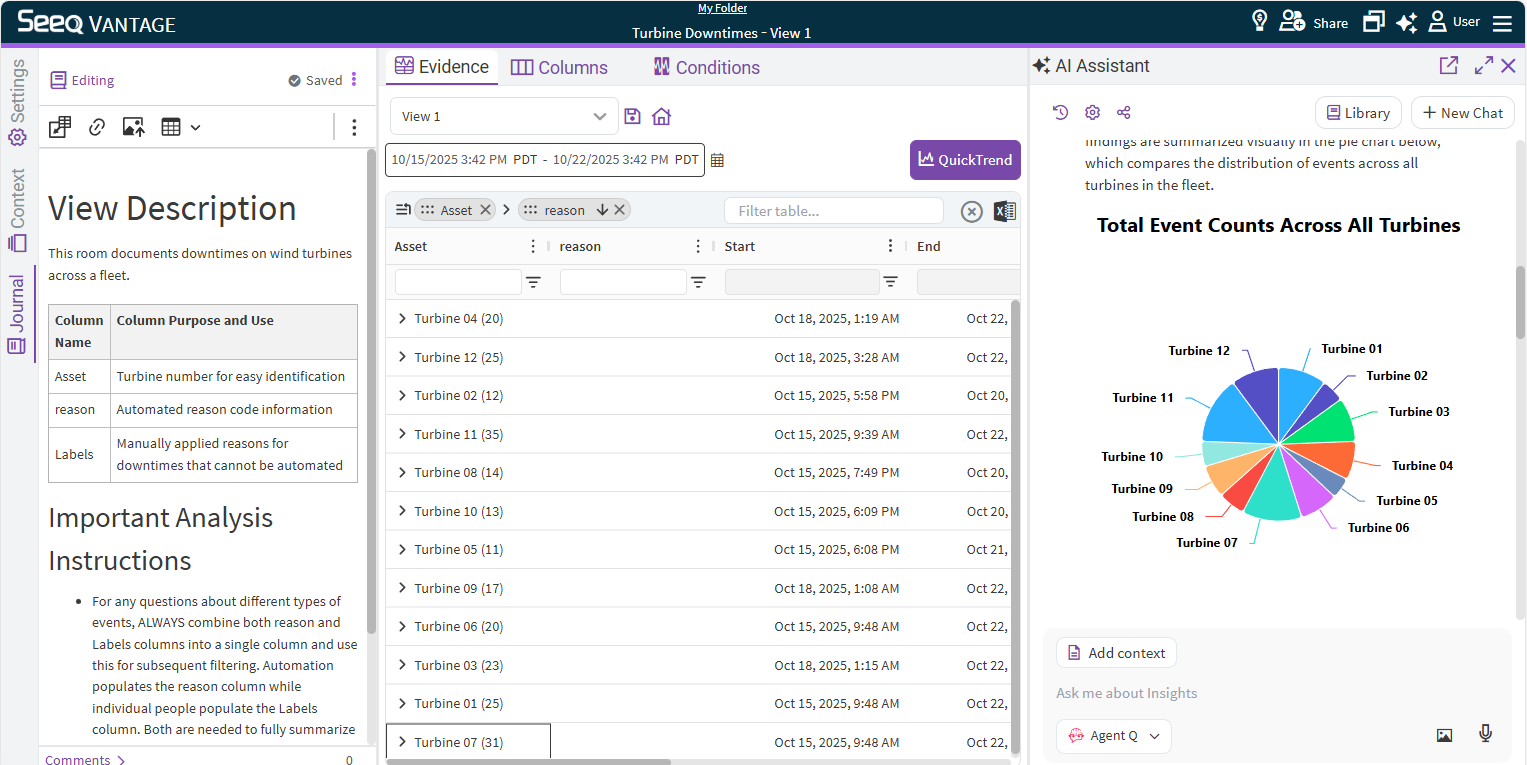
Think of this space as a place for you to provide low-barrier prompt engineering to Agent Q when engaging with this Vantage Room. Use headers and bullets to organize the information in the Journal for efficient use. If users will often ask a particular type of question, you can have a section that clarifies how to handle those types of questions. If company acronyms are your thing, define them in the Journal so that Agent Q can make sense of them when provided in questions.
Examples
If you want to routinely compare anomalies across shifts, you can define what those shifts are in the journal with more information as per below.
The “Downtime” condition represents outages in each processing line. There is a day shift from 6 AM EST to 6 PM EST and a night shift from 6 PM EST to 6 AM EST. When counting downtimes related to shifts, always uses these shift definitions and report events that start within a shift, not events that end in shifts.
Some use cases require a combination of context from various columns in Vantage if some properties are set through Seeq Formula and others added with Labels or Reason Codes.
For any questions about different types of events, ALWAYS combine both reason and Labels columns into a single column and use this for subsequent filtering. Automation populates the reason column while individual people populate the Labels column. Both are needed to fully summarize events.
Global Context
An administrator can provide Global Context for Agent Q by adding relevant markdown through the Features/GenAI/GlobalContext configuration setting. This can be helpful to provide context for internal terms, jargon, or acronyms that may be used across your organization. This could include mapping site references to datasources if that is not obviously apparent through names of datasources or hierarchies.
Understanding Analysis Approach and Results
Whenever Agent Q is used, there is a button at the end of the latest response to View all files in this task.
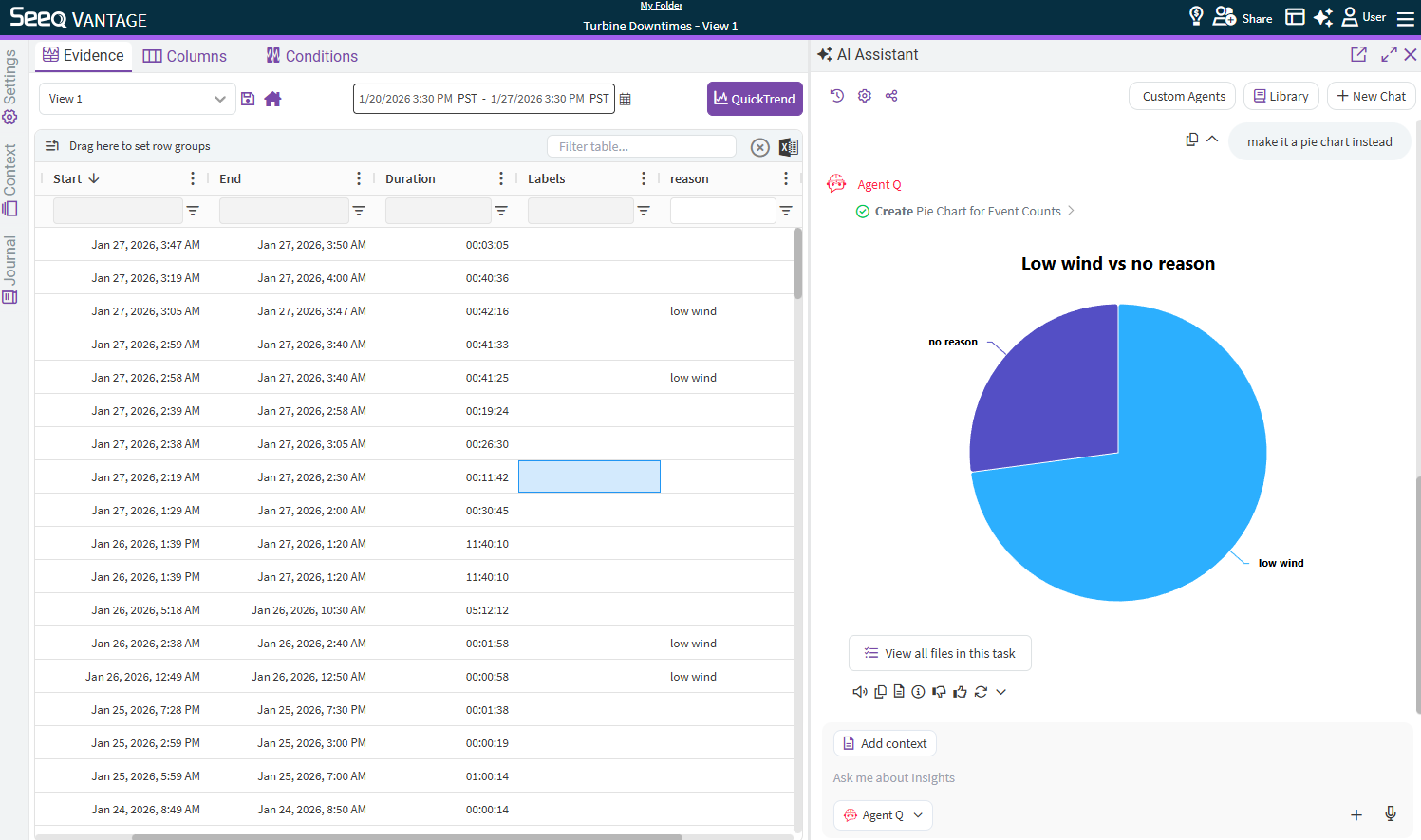
This opens the Chat Results pop up that will show any code Agent Q wrote, intermediate tables of data it organized, and visualizations or reports it writes. Click on each row to see the details, or filter by a type of chat result at the top of the pop up. This can be helpful to ensure the data used matches your expectations and to understand how Agent Q produced its results.
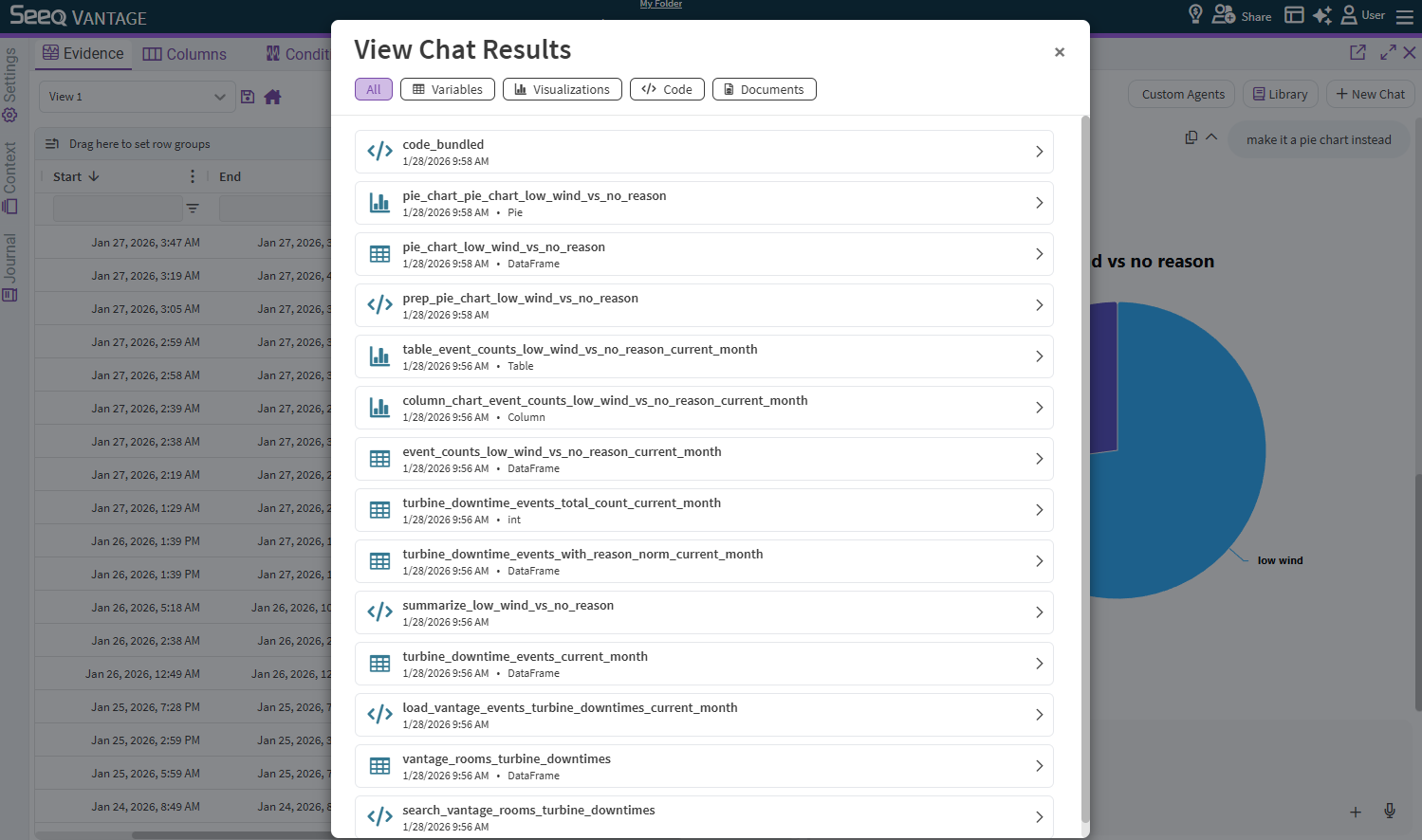
Individual parts of the chat results are also accessible if you expand the planning and executing steps at the top of each chat with Agent Q. These become available as soon as Agent Q creates them in case you want to understand the direction before the final result is available.
Routine or prescribed instructions for Agent Q
Agent Q can reason on its own when given a set of data, but many Seeq users are subject matter experts and may want to provide their own guidance on how an analysis should be performed. If there is a particular way you would like Agent Q to routinely analyze data and report findings, utilize Agent Builder to create Custom Agents that will follow a specific pre-defined workflow for consistency.
If there is information that you’d like to ensure Agent Q always gets exposed to regardless or user location, administrators can customize the Features/GenAI/GlobalContext configuration option to provide additional context in the form of Markdown text.
Working with Agent Q in Workbench
If you have access to Agent Q, it can also reason and analyze data in Seeq Workbench. Agent Q is utilizing the SPy library and will write and execute Python code to perform its analysis. It will query the data directly and use the tools it has available to do analysis per your instruction. You can ask it about correlation or to create some other visualizations that are not currently available in Workbench, but it does not yet work with Workbench Tools or Formula. Continue to use the Actions Agent to create items in Workbench.
System Awareness and Understanding
Impact Reports
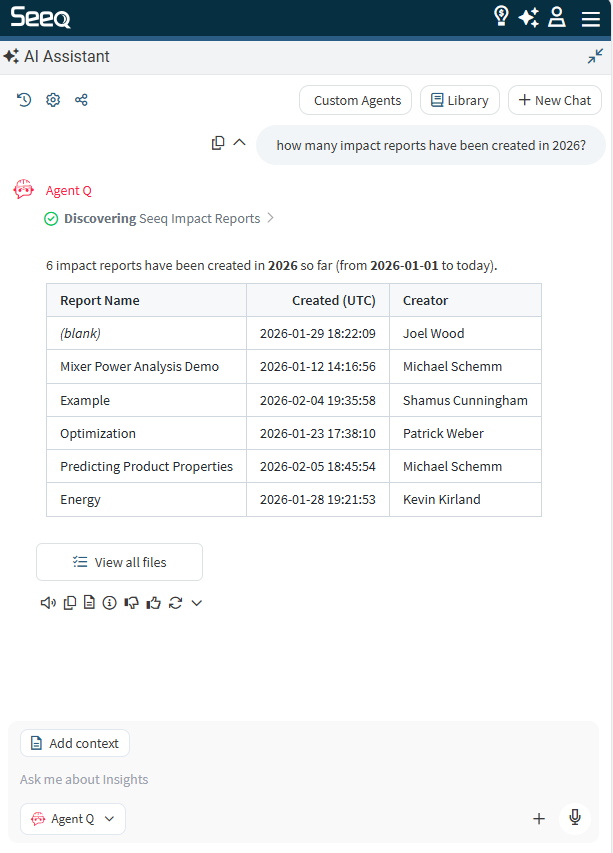
Agent Q is aware of Impact Reports that have been documented within a single Seeq instance. If your organization is using Impact Reports to track the value users are driving through their analytics and monitoring efforts, all users can benefit from this information.
Agent Q can answer the following types of questions:
Who has filed impact reports this month?
How many impact reports are there about reduced energy consumption?
Seeq Usage
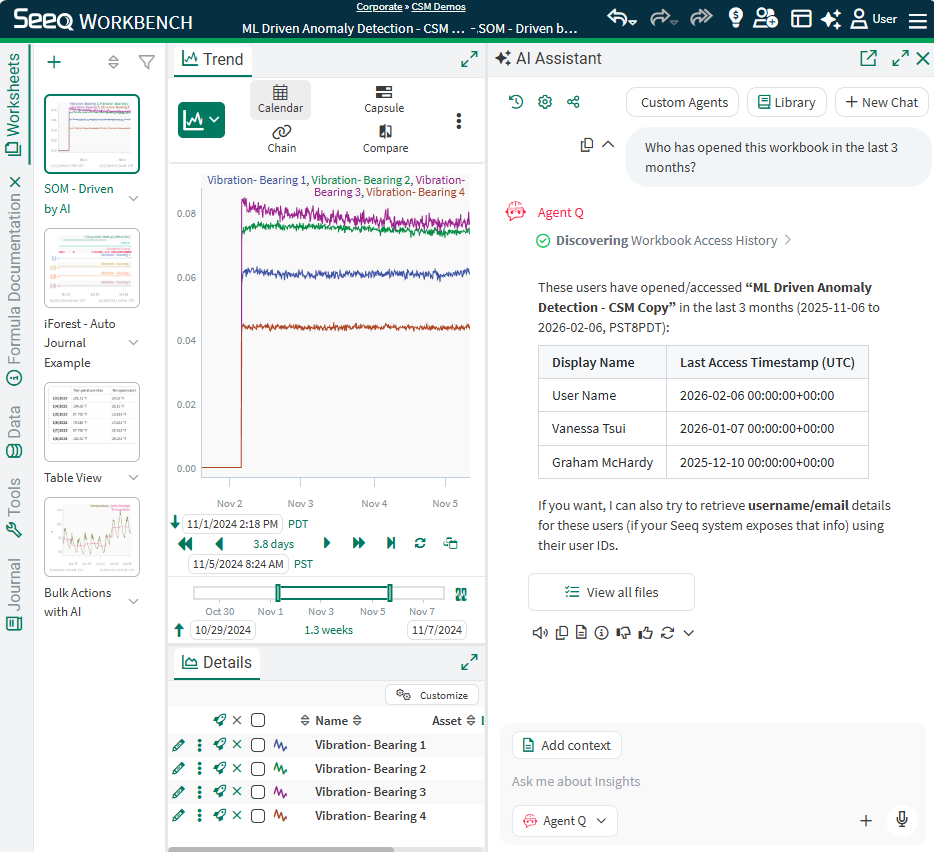
Agent Q is also aware of the information available in the Usage page. Whenever a user asks a question about Usage, Agent Q uses the permissions associated with that user to inquire about usage. Analytics administrators can see Usage from multiple users, they’ll be able to get accurate answers to the questions below.
Who has opened this workbook this year?
Which Organizer Topic has the most viewers this month?
Non-admin users can only see their own usage, so the above questions could only be answered about how they have used a workbook or other application in Seeq. They will get better answers to questions like:
How many days did I open this workbook this month?
Frequently Asked Questions
Who benefits from Agent Q?
Operations analysts, process engineers, remote monitoring personnel, managers or directors, and anyone else seeking to understand short or long term trends about events in a Vantage Room.
System administrators can benefit from Agent Q’s understanding of usage.
Who has access to Agent Q?
When Agent Q is enabled with a Seeq Intelligence license, all users will be able to use Agent Q. There is not currently a way to limit access to select users.
How do I tell who is using Agent Q?
An administrator can use the Usage Page to understand overall AI usage patterns of the user base. This does not reveal the text of prompts or where Agent Q is used, but by selecting Prompts from the radio buttons on the right, limiting the Type to AI Assistant (Agent Q), and aggregating by users, you can see how much engagement the user base has with Agent Q.
What information is passed through to LLMs when I am working with Agent Q?
Agent Q has access to any information in a Vantage Room, from events, comments, labels, conditions, columns, and Journal. Additional context provided to Agent Q includes your user information like language preferences, memories, timezone, and current time. If you have created any Code Tools, those are also provided as context so Agent Q can determine whether or not they should be used.
It is possible that anything within the workspace (including dataframes of data) may get passed to the LLM. In practice, Agent Q uses previews / descriptions of dataframes and routinely passes column names, types of data in the column, and the first couple rows to the LLM. It is possible for it to write code that could reveal any part of the dataframe to the LLM.
Agent Q can also request additional information like active time ranges, displayed items, selected rows, calculation hierarchies, and recently accessed items. It can perform searches throughout Seeq on the user’s behalf to find other items or information
Can I customize the suggested prompts that show when Agent Q is opened?
Yes, administrators can modify the Features/GenAI/AgentQCustomPrompts configuration option and supply a list of prompts that will be shown to all users when Agent Q is first opened: