
December 12, 2025
AI Formula Agent better understands calculation hierarchies (Admin-only)
The Formula Agent can now request more detailed information on an entire calculation hierarchy to assist in understanding and troubleshooting. This is available wherever you use the Formula Agent, including in the ‘Explain with AI’ and ‘Debug with AI’ buttons in the Formula Tool. This functionality is currently limited to users with the ‘All Administration’ capability.
November 18, 2025
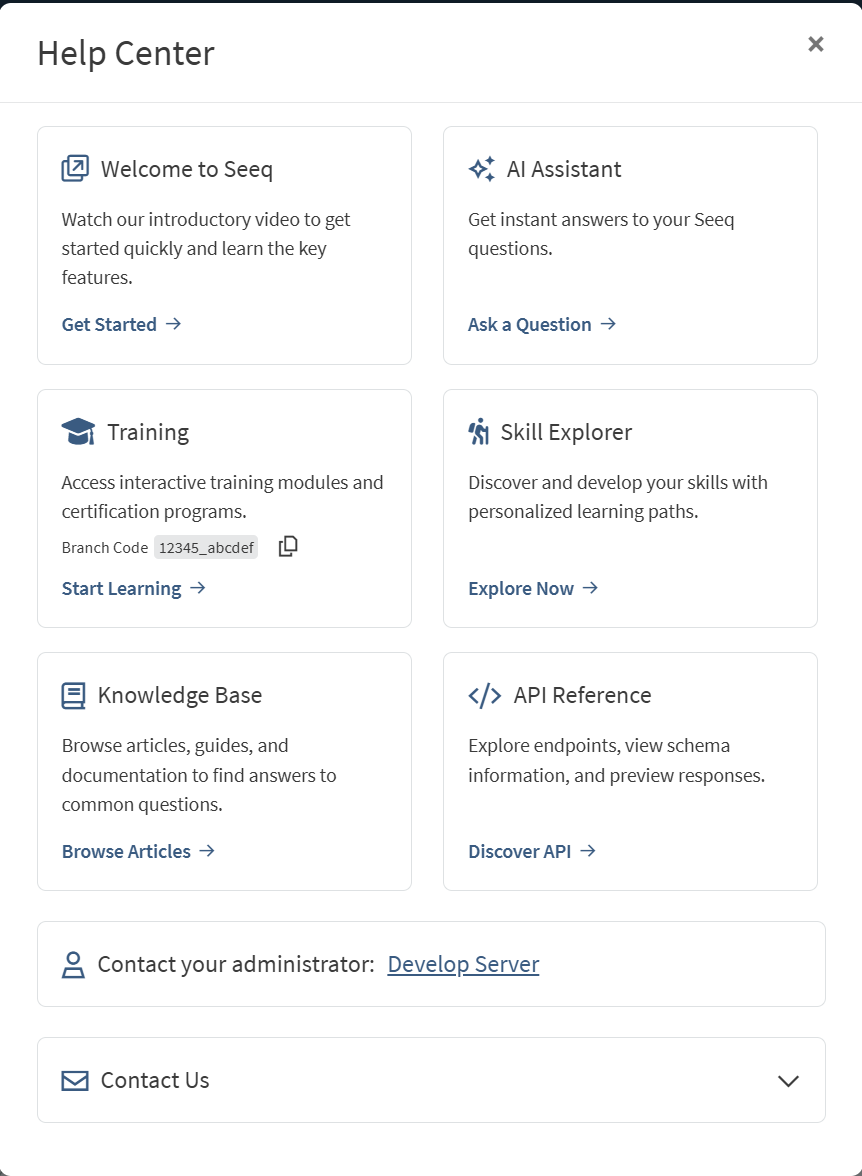
Help Center Modal
We’ve refreshed the Help experience with a brand-new Help Center that brings everything together in one easy-to-navigate spot.
The Help panel has been redesigned and now includes direct access to the Skill Explorer, Training and Certifications Center, API Reference, and the Knowledge Base.
November 13, 2025
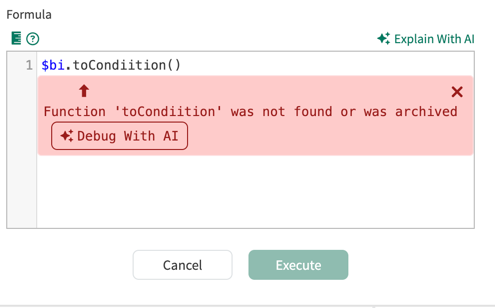
AI Explain and Debug Buttons in the Formula Tool
Use the new ‘Explain with AI’ and ‘Debug with AI’ buttons in the Formula tool to quickly call on the the Formula agent to help understand or troubleshoot a tricky formula.
November 3, 2025
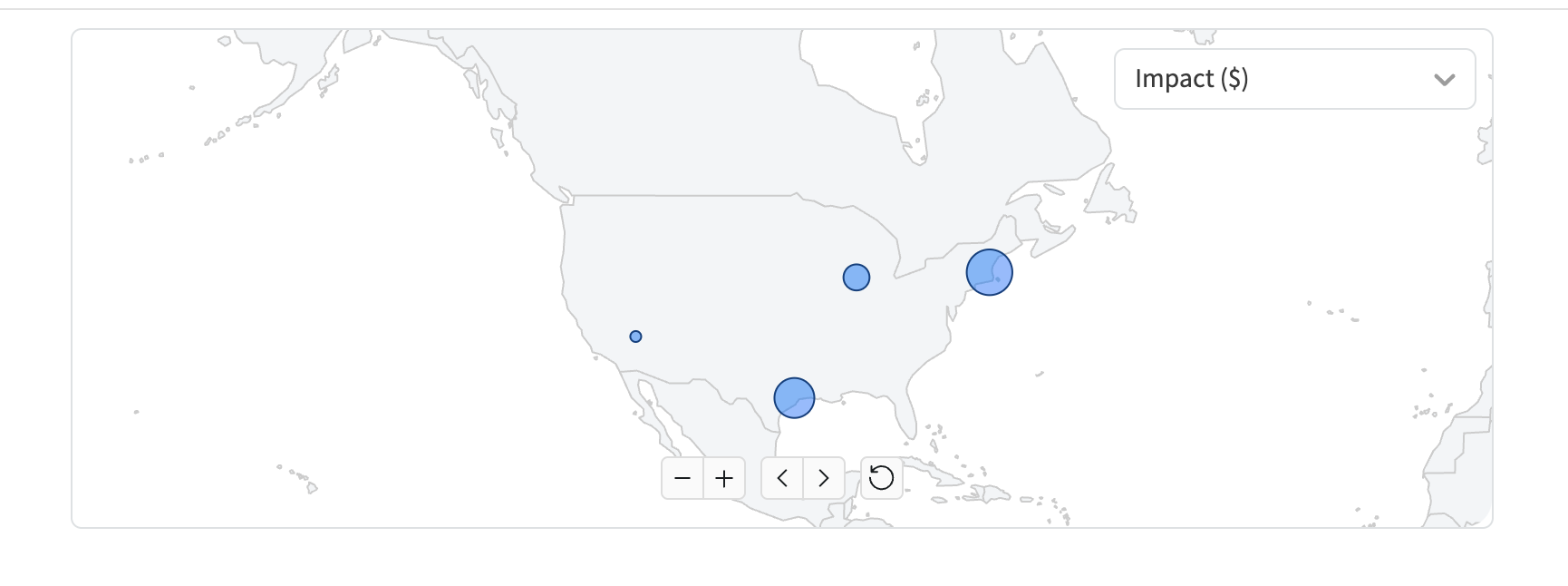
Impact Report Maps are now zoom-able
Ever wanted to zero in on just a specific region’s Impact on the Impact Reports Map? Now you can! The map (that can be added via the “Configure” button) in Impact Reports is now zoom & draggable! If you would like to save the applied zoom & drag settings you can do so by switching to “Edit” mode and then adjusting your map to display as desired. Changes made in “view” mode will not be persisted.
October 22, 2025
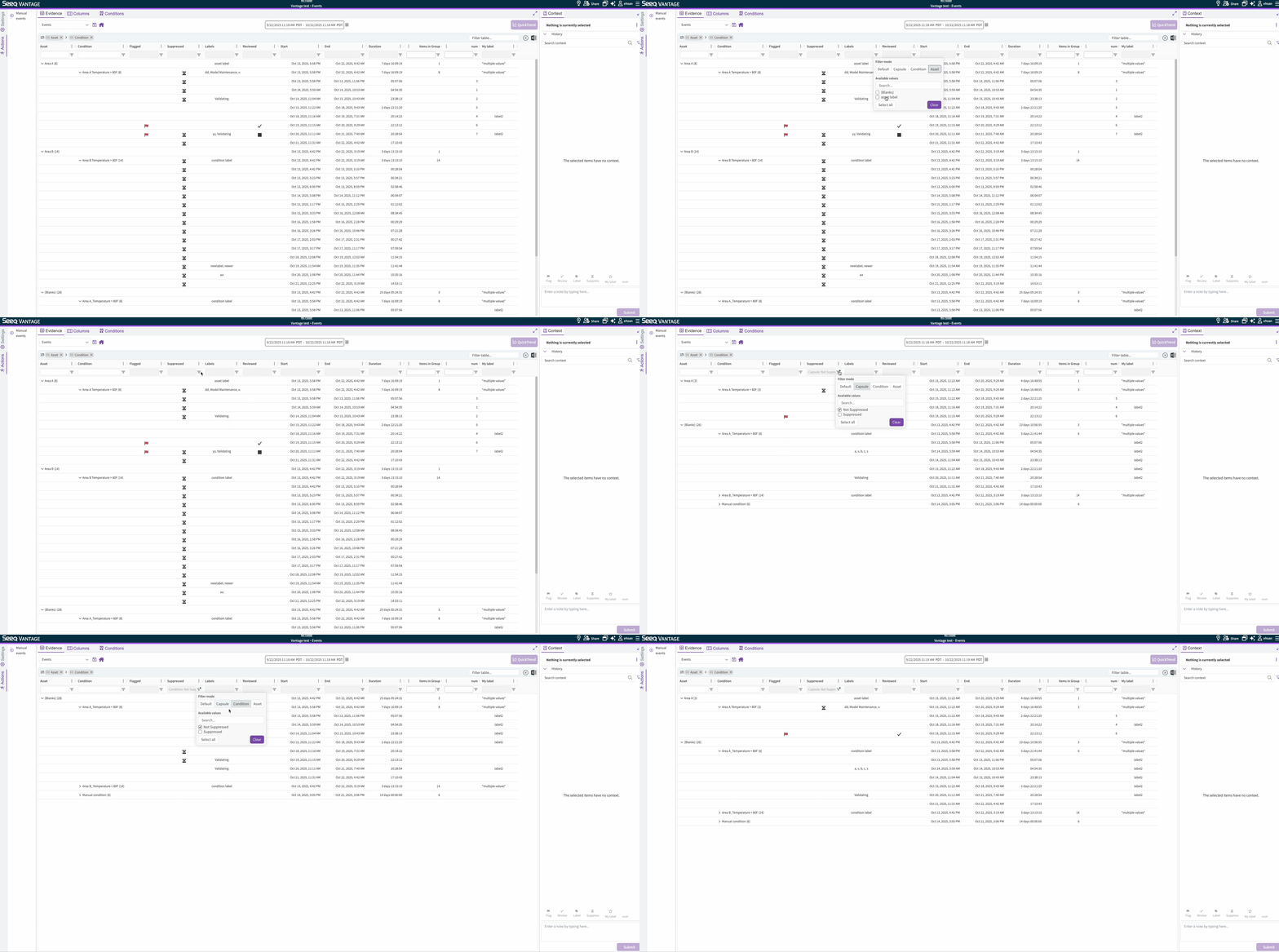
Vantage multimodal filtering for context columns
A subset of Vantage columns now allow the user to apply their desired filter to capsules, conditions, or assets separately. For instance by applying a “Not Suppressed” filter in Capsule mode, the user will only see capsules that are not suppressed, regardless of whether the source condition is suppressed. Similarly, by applying a “Not Suppressed” filter in Condition mode, they would only see capsules, regardless of suppression status, under conditions that are not suppressed. This feature currently only applies to context columns that can have independent values for capsule, conditions, and assets, namely the Suppressed, Flagged, and Labels columns. The default filter mode applies the filter to all capsules and groupings the same way the basic filtering did.
October 21, 2025
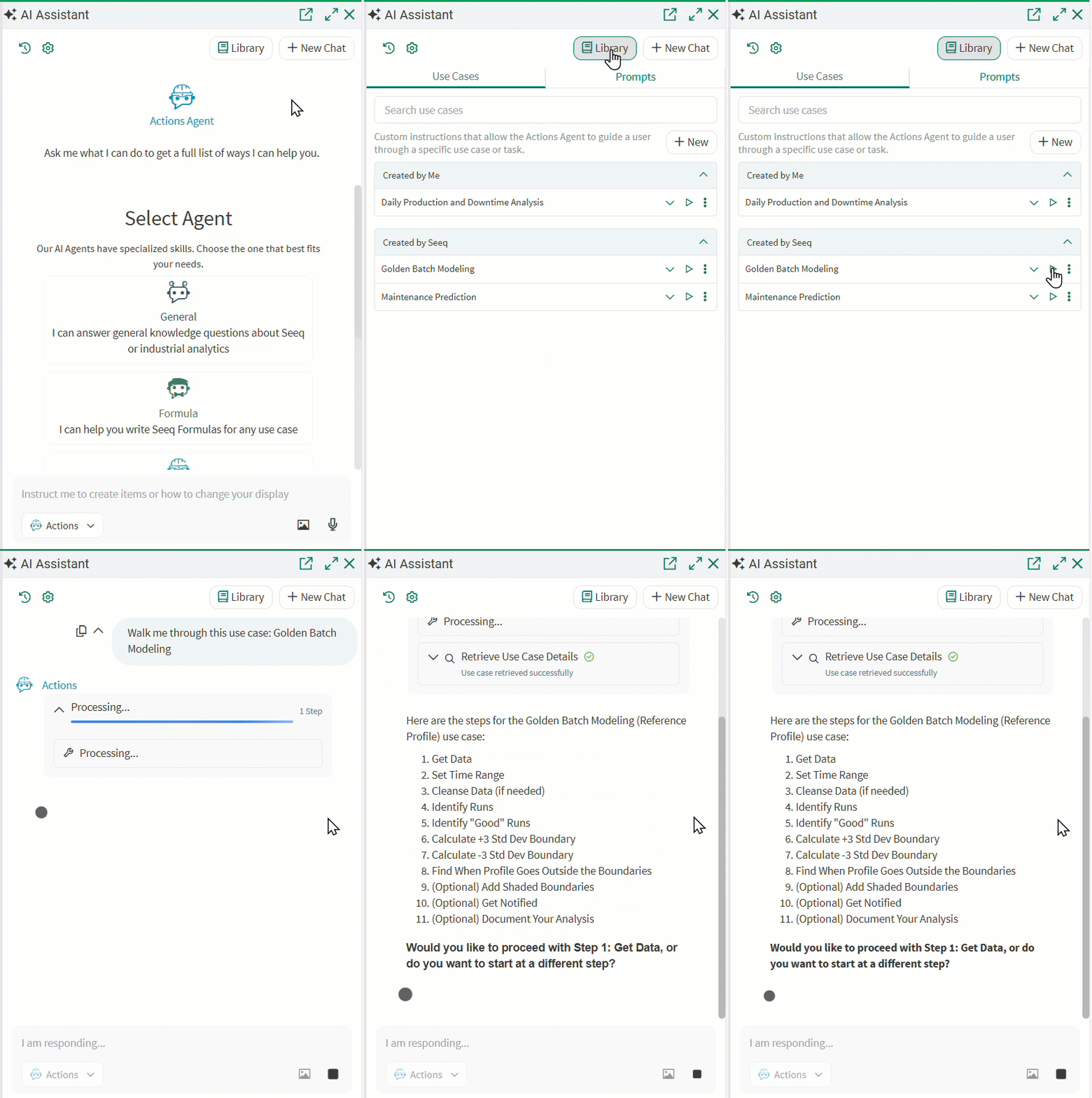
Access and add your own Use Cases to the AI Assistant Library
The Actions Agent in the AI Assistant can help users follow specified instructions to perform an analysis. We will be growing a curated list of use cases in this Library, but users can create their own and share them with others in their organization. Administrators will see all use cases across the system.
Use cases will walk users through each step using the Actions Agent, from finding data to performing calculations and sharing with others. Duplicate any use cases provided by Seeq to see how you can structure examples that you may want to build. Read more at AI Assistant - Library & Use Cases - Seeq Knowledge Base - Confluence.
October 20, 2025
Insert Vantage Views into Organizer
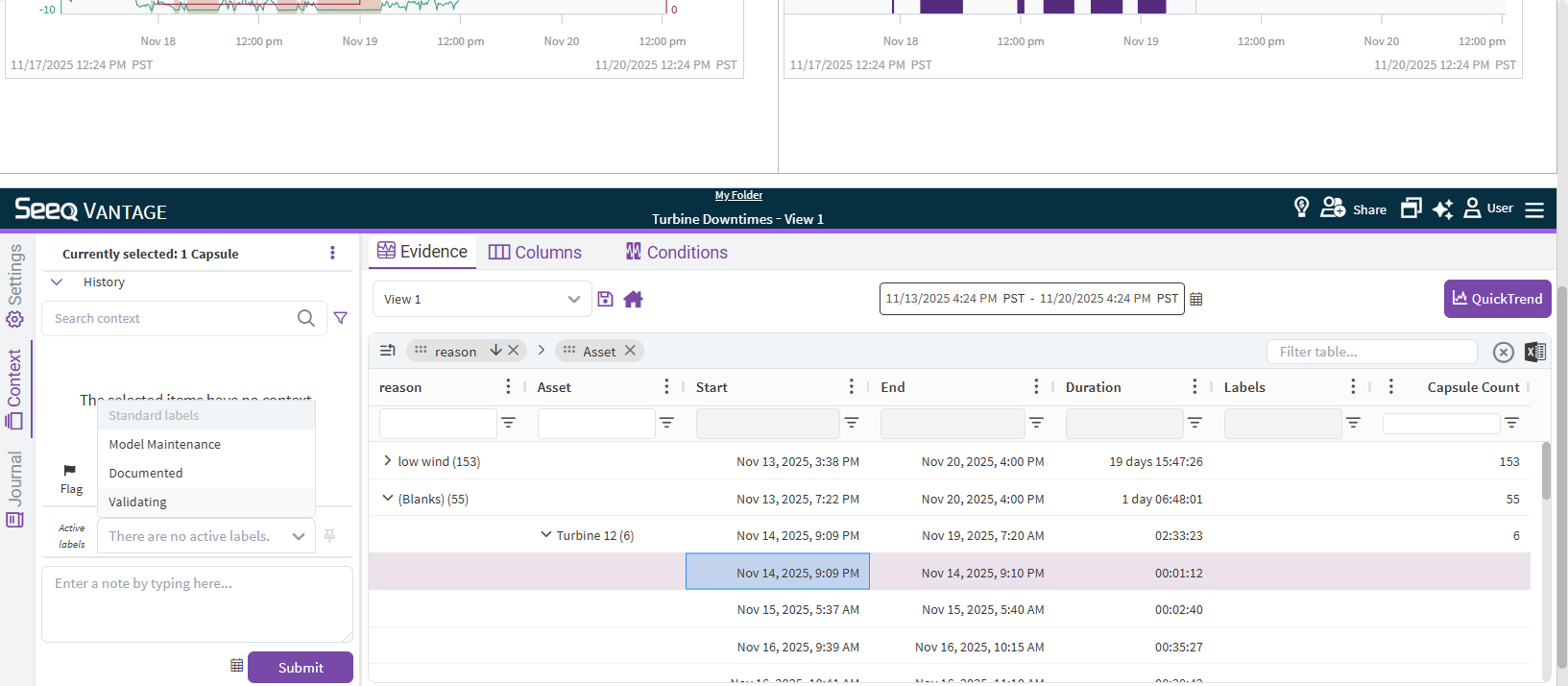
As users adopt Vantage as a place to monitor and triage events, some still have routine reporting workflows for wider awareness. Vantage tables can be inserted into Organizer Topic Documents or Dashboards so that these events with their additional context can be viewed alongside other information in Organizer or as part of existing reporting workflows. They will follow date range selection. Read more at Inserting Content - Documents.
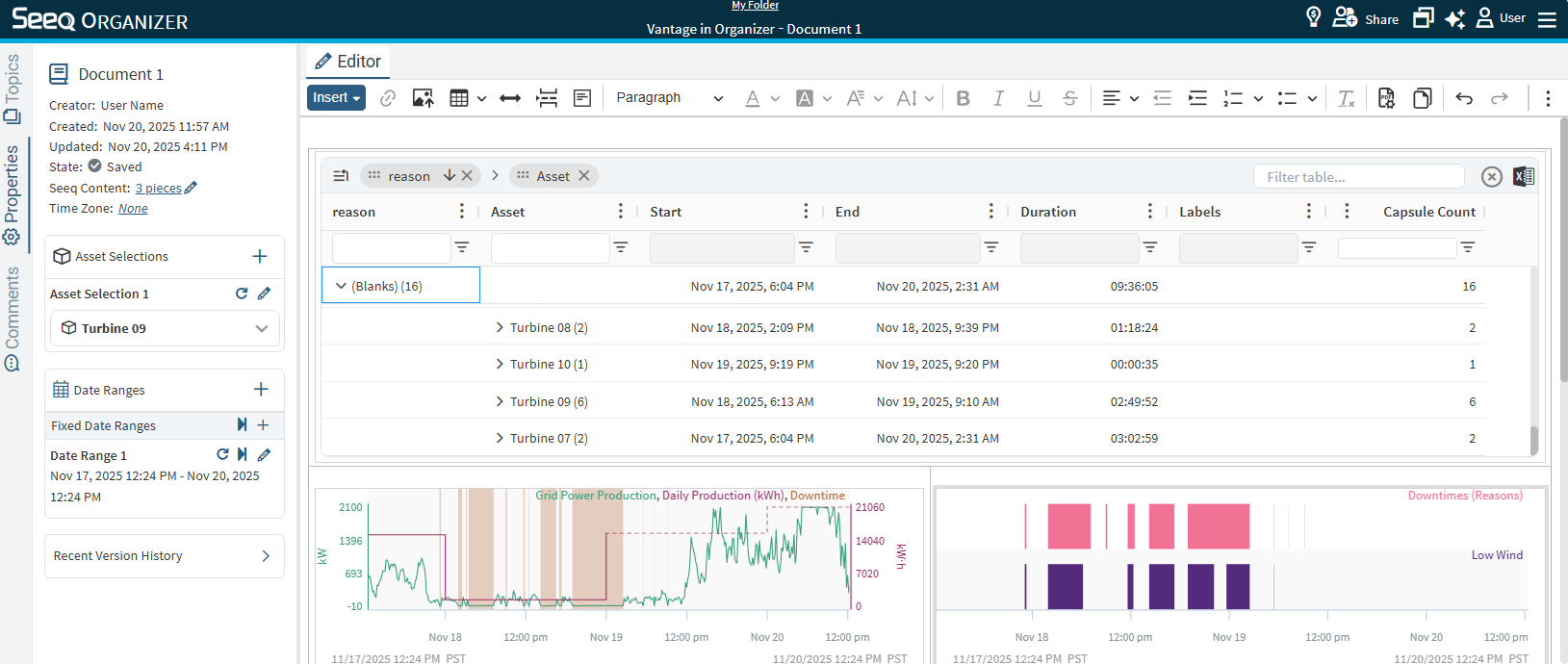
If your use case includes adding context from a presentation view Organizer Topic, you can use a relative URL to insert more than just the table.
October 16, 2025
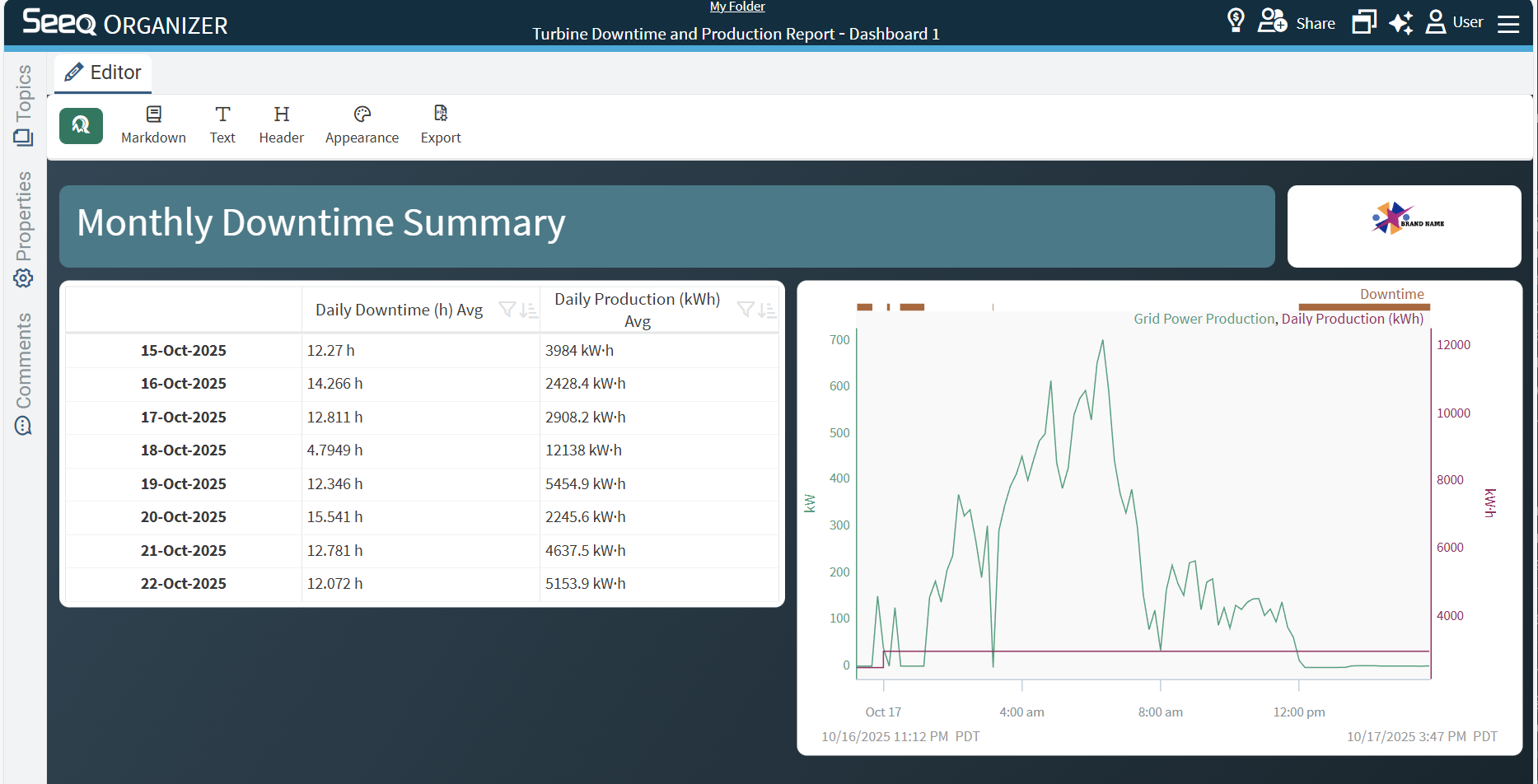
Dashboards that pop with a bit more color
Further customize your Organizer Dashboards with background colors so they can fit your company colors or just make them satisfy your personal preference. Use the Appearance option in the Toolbar and in the menu for each piece of content.
October 10, 2025
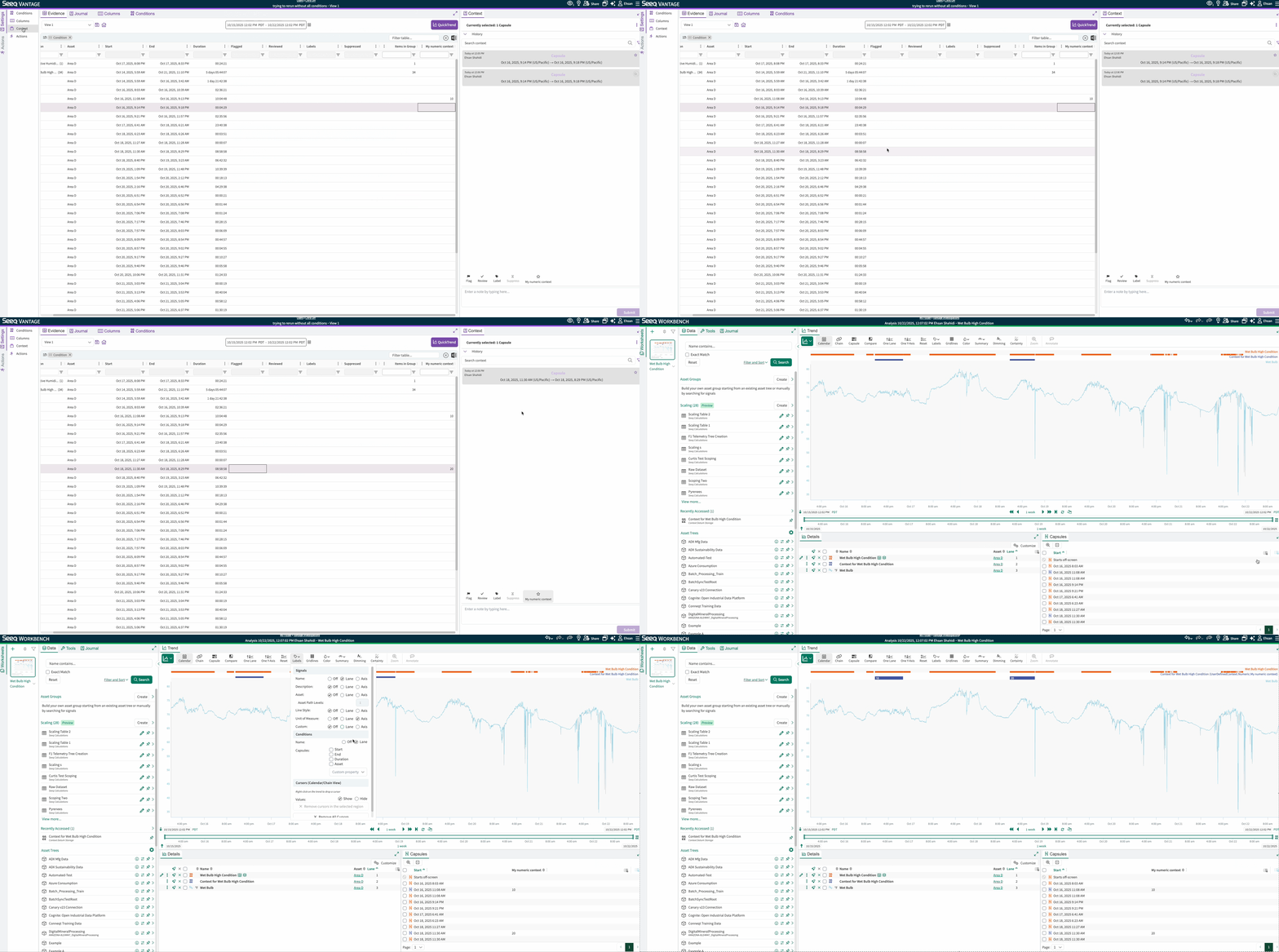
Numeric context is now available in Workbench Analysis via context conditions
Numeric context created in Vantage are now part of the context condition and can be accessed in Workbench the same way label context is.
October 7, 2025
Introducing Python 3.13 kernel in Data Lab
Experience the latest from Python!
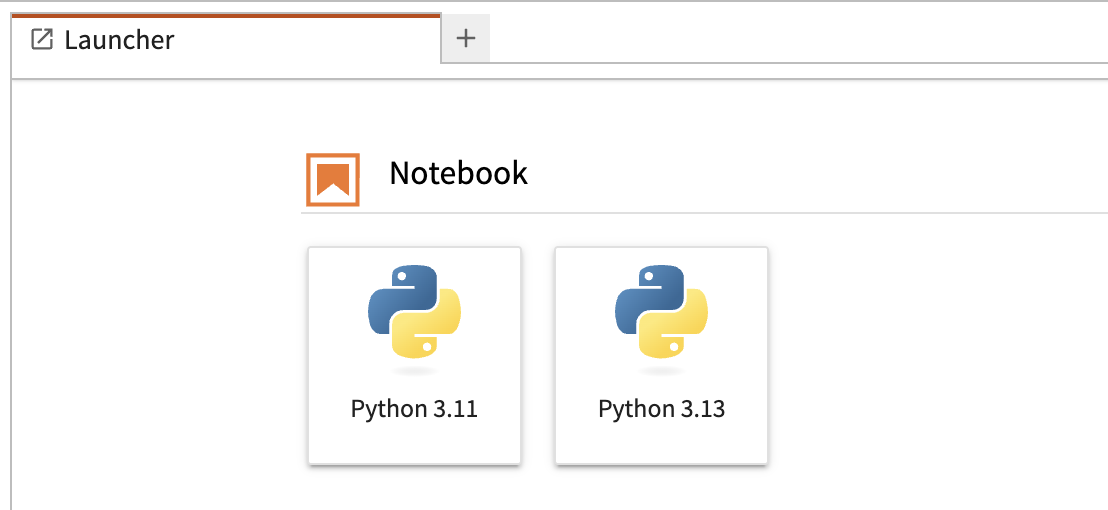
Python 3.13 is now available as an additional kernel in Data Lab. This brings access to the newest language improvements, better performance, the latest maintained packages, and an enhanced developer experience.
As part of this update, Support for Python 3.8 has been removed, and Python 3.11 now serves as the default kernel in Data Lab. For any compatibility issues, please see the Data Lab Python 3.11 Compatibility Guide for more information.
September 30, 2025
A picture is worth a thousand words
The AI Assistant now understands visual context, so you can use screenshots, photos, dashboards, or whiteboard sketches alongside your question to more efficiently communicate. The AI Assistant will consider the image to further inform its response. Here are a few reasons you may want to upload images to the AI Assistant, but we know you will dream up others:
-
Accelerate Actions Agent with multi-step instructions by annotating a diagram (see image).
-
Provide a sketch of a preferred report layout to minimize your manual efforts.
-
Inspire the Data Lab Agent when you are creating Add-ons with a preferred user experience.
Images travel with the chat and are provided to underlying LLM providers for response. Their presence in the chat makes it easy to revisit evidence or share outcomes with teammates. Read more at AI Assistant - Image upload - Seeq Knowledge Base - Confluence
.png?cb=d8dbda6a5b8d6e567a34bb2231e7128a)
September 12, 2025
DataPARC connector
The dataPARC connector is now available. Previously, Seeq was able to access dataPARC data using the OPC-UA connector. This new connector allows Seeq to access data from the dataPARC PARCserver over gRPC which is significantly more efficient.
New connections to dataPARC systems that support this API should leverage this new connector. However, existing connections to dataPARC via OPC-UA will continue to work.
September 9, 2025
Improve performance with automatic disabling of unused Scheduled Organizer Topics
Some Seeq users schedule activities and then never come back to look at their reports! This creates unnecessary system activity that can slow things down for others. Now any Topics that are updating on a schedule and are not opened within 90 days will be disabled. This excludes Topics that have emails configured to send on a schedule. Read more at Scheduling Organizer Topic Documents.
More easily move and configure Organizer Dashboard Tiles
The look and feel of Organizer Dashboard tiles has been updated for consistent access to the edit menu. Read more at Inserting Content - Dashboards.
vantage More easily Save and Overwrite Views
The “Save” button in Vantage now defaults to “Overwrite” for the View which you are on. Simply type a new name and see that the save text changes to “Create”, allowing you to create a new View.
August 27, 2025
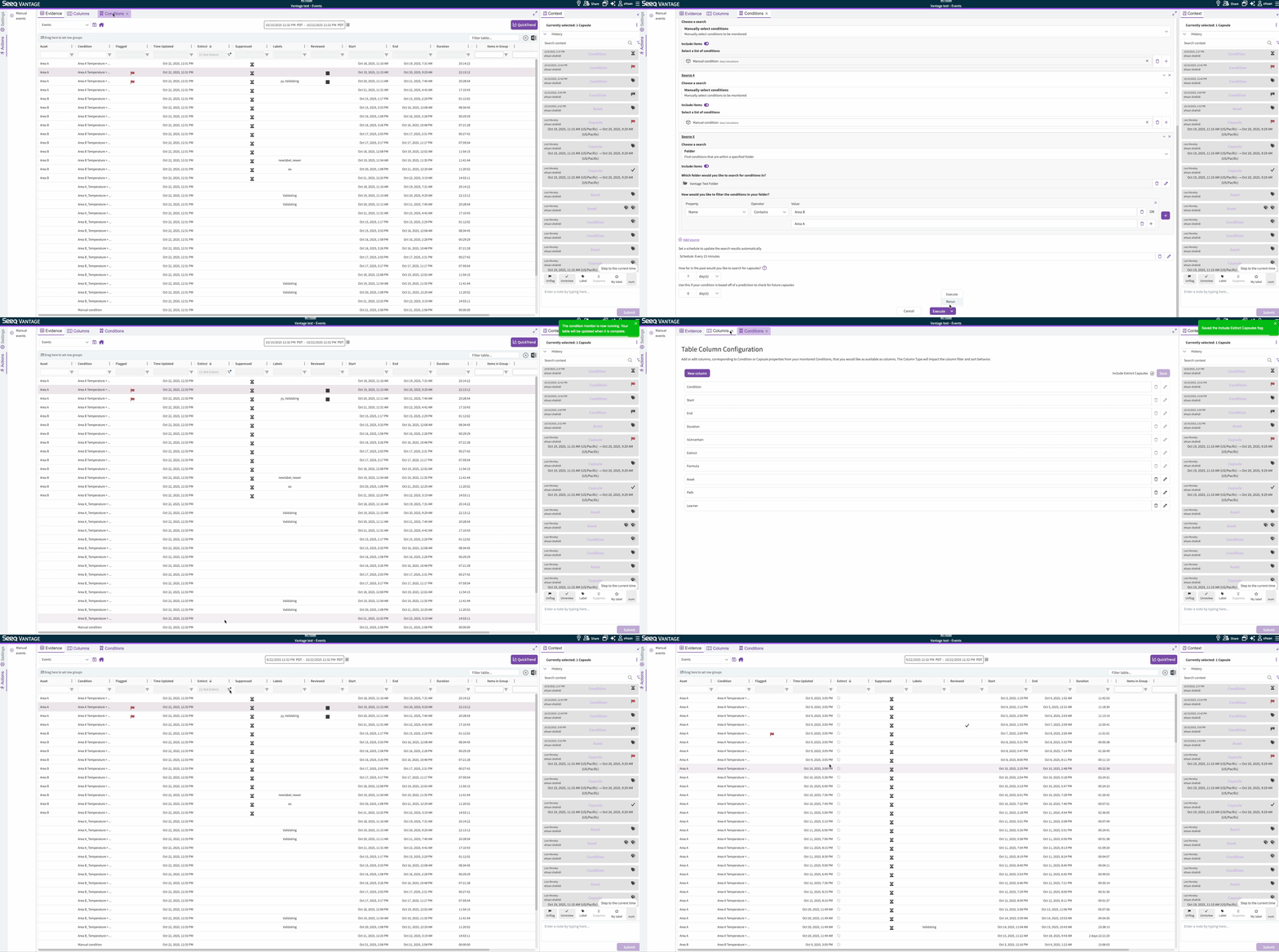
Condition Monitor manual re-run enables cleanup and syncing Vantage table with the current state of the monitored conditions
From the Conditions tab in Vantage UI, a dropdown appears on the Execute button after the initial run. Unlike the scheduled condition monitor runs and clicking the refresh button at the top right of the Conditions tab which don’t modify already-materialized capsules (except uncertain ones), the manual re-run executes the condition monitor with the given lookback and applies the desired action (either no action or marking extinct) to the existing capsules already in the table. It can be viewed as a hard reset. For instance if the monitored condition has been updated and the already-materialized capsules are no longer valid, the user may execute a manual re-run and mark existing capsules as extinct. By default, extinct capsules are not brought to Vantage, but that can be enabled from the Columns tab if desired.
August 22, 2025
Centralized information on Data Lab Notebooks
We’ve added the new Data Lab Management page — your central hub for overseeing Data Lab projects. Currently, you can:
-
View all scheduled notebooks in one place
-
Monitor run status, duration, warnings, and errors
-
Terminate currently running notebooks if needed
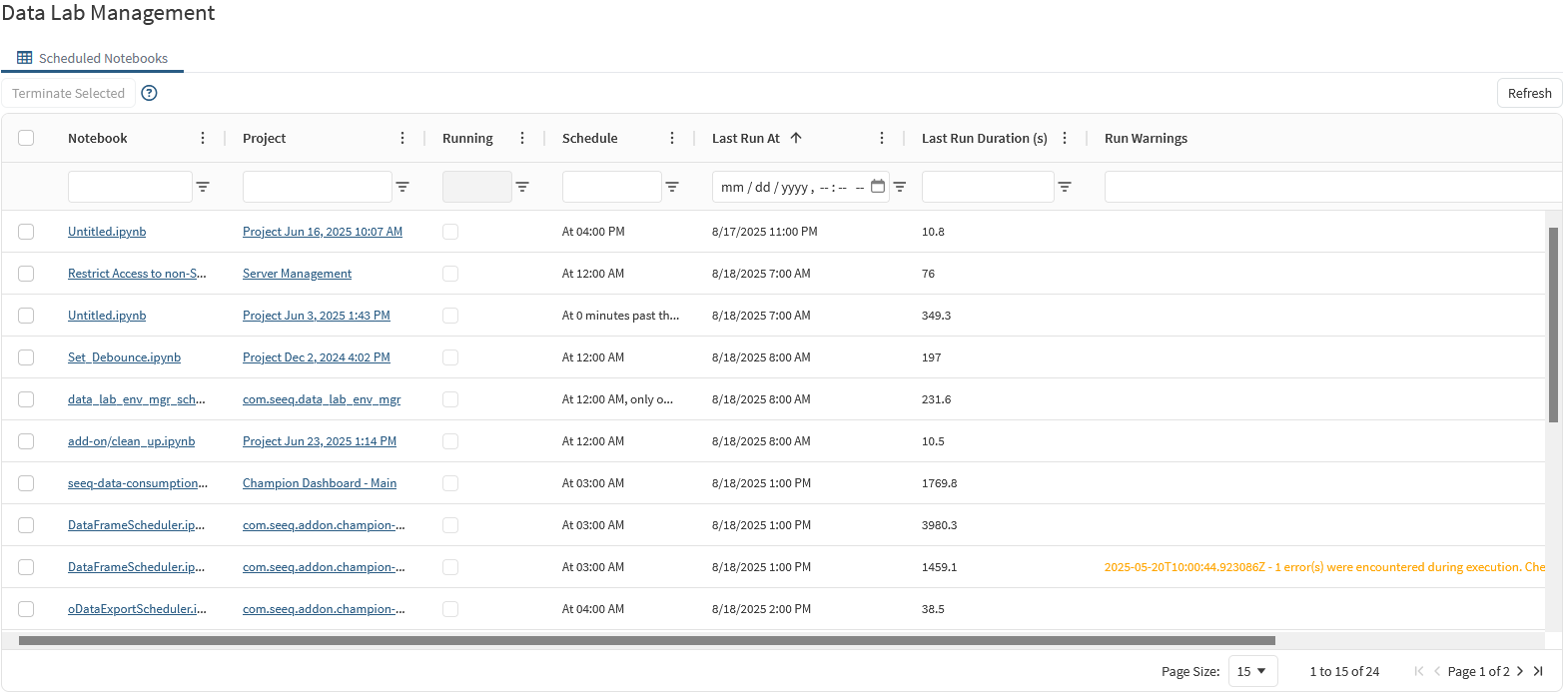
This is just the beginning — more features will be added over time, making this the go-to place for all your Data Lab management needs.
Learn more in the Knowledge Base article
August 15, 2025
Reply To in Notifications
We've added a Reply To field to email notifications. This lets you specify a different email address for recipients to reply to. Now, when a recipient gets an email from Seeq, they can simply hit "reply," and their message will go to the user or distribution list you configured, instead of the default Seeq notification address.
August 12, 2025
Improved OData Export Performance
The modern OData service now fetches data in parallel, which can greatly improve performance when exporting several items with long loading times. This also introduces a timeout per data request so stalled calculations do not occupy the worker threads indefinitely. The parallelization and timeout options can controlled at the server level or per export request.
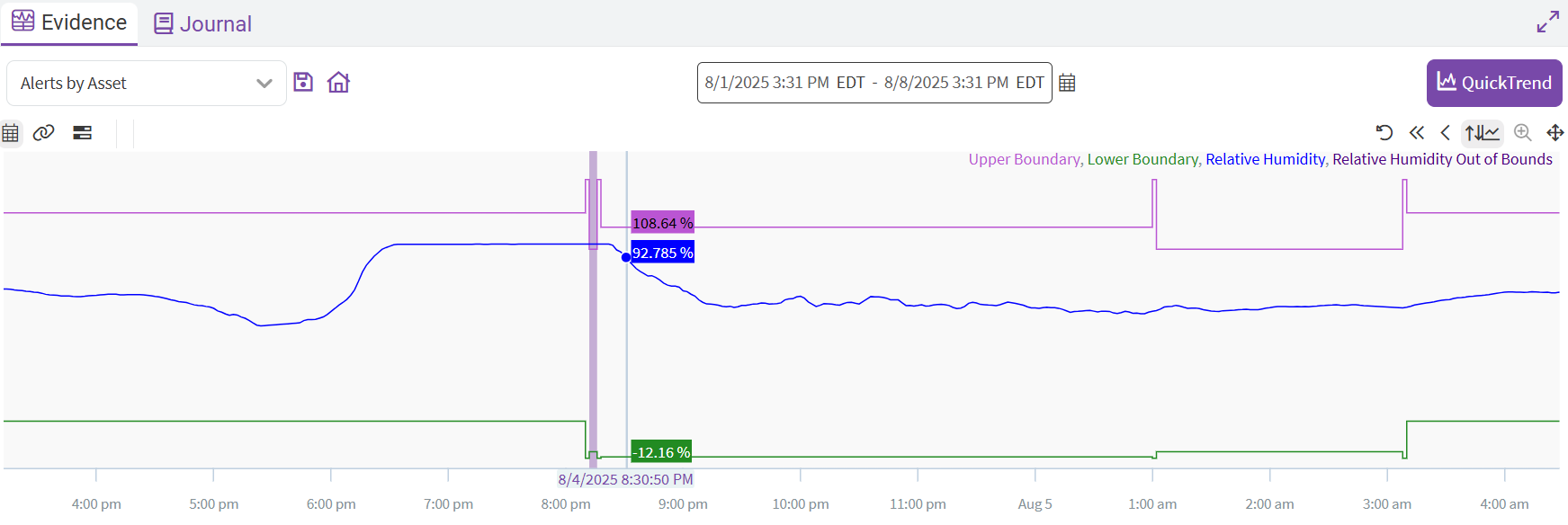
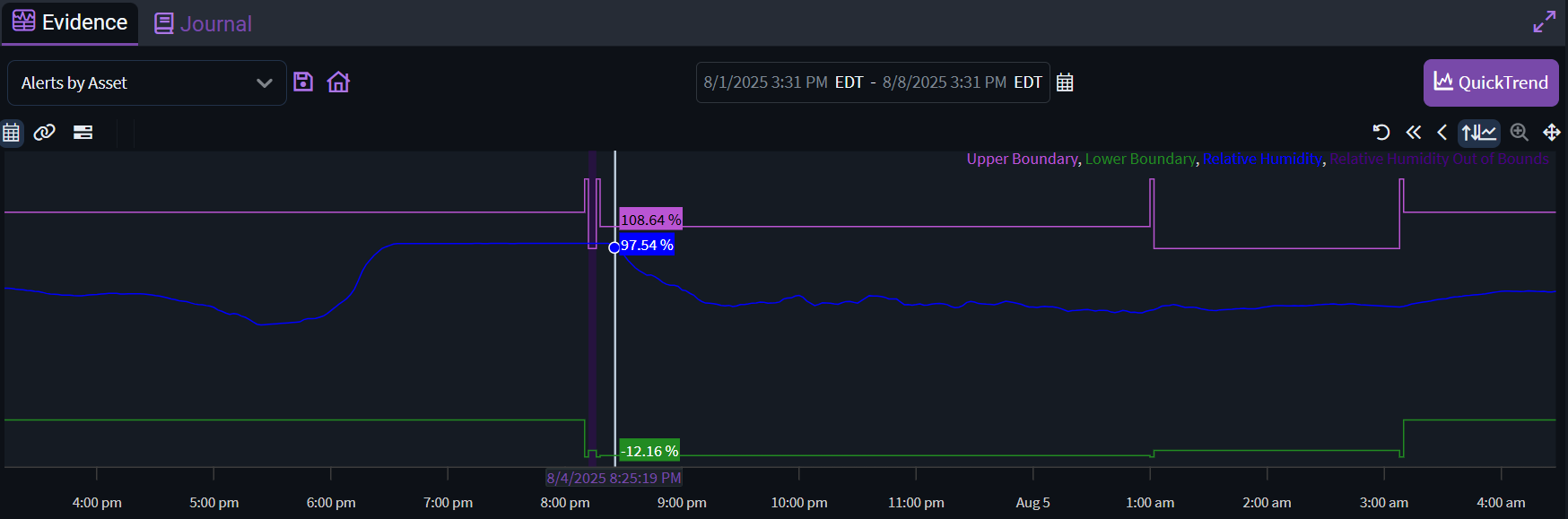
vantage QuickTrend Coloring Consistency
Now, QuickTrend signals and conditions are presented in a consistent and predictable color scheme. The color scheme is also adapted appropriately between dark and light mode:
August 8, 2025
New AI Assistant Memories
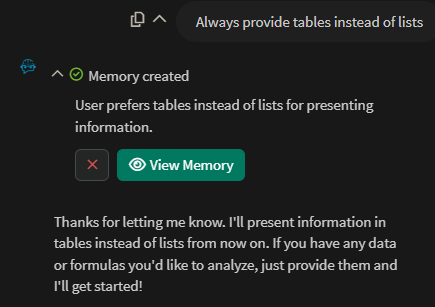
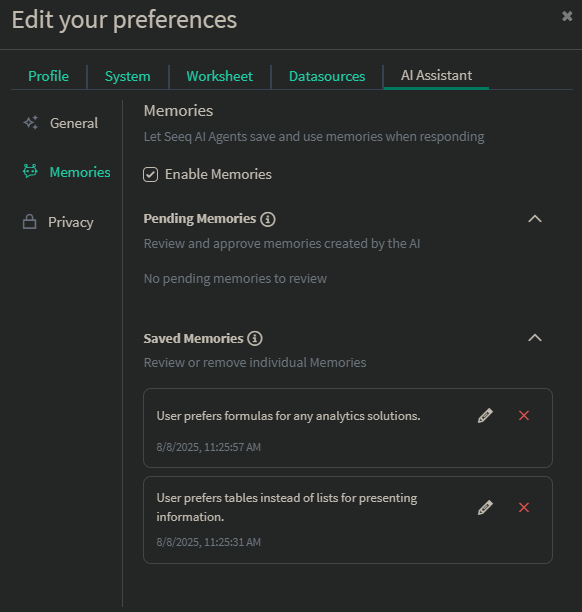
The AI Assistant now features User Memories - a powerful new capability that enables your AI assistant to remember important information about you, your preferences, and your work context across conversations. This creates a more personalized and efficient experience as the AI learns and adapts to your specific needs over time.
Read more at AI Assistant Memories.
July 31, 2025
Administration: Streamlined Vertical Navigation
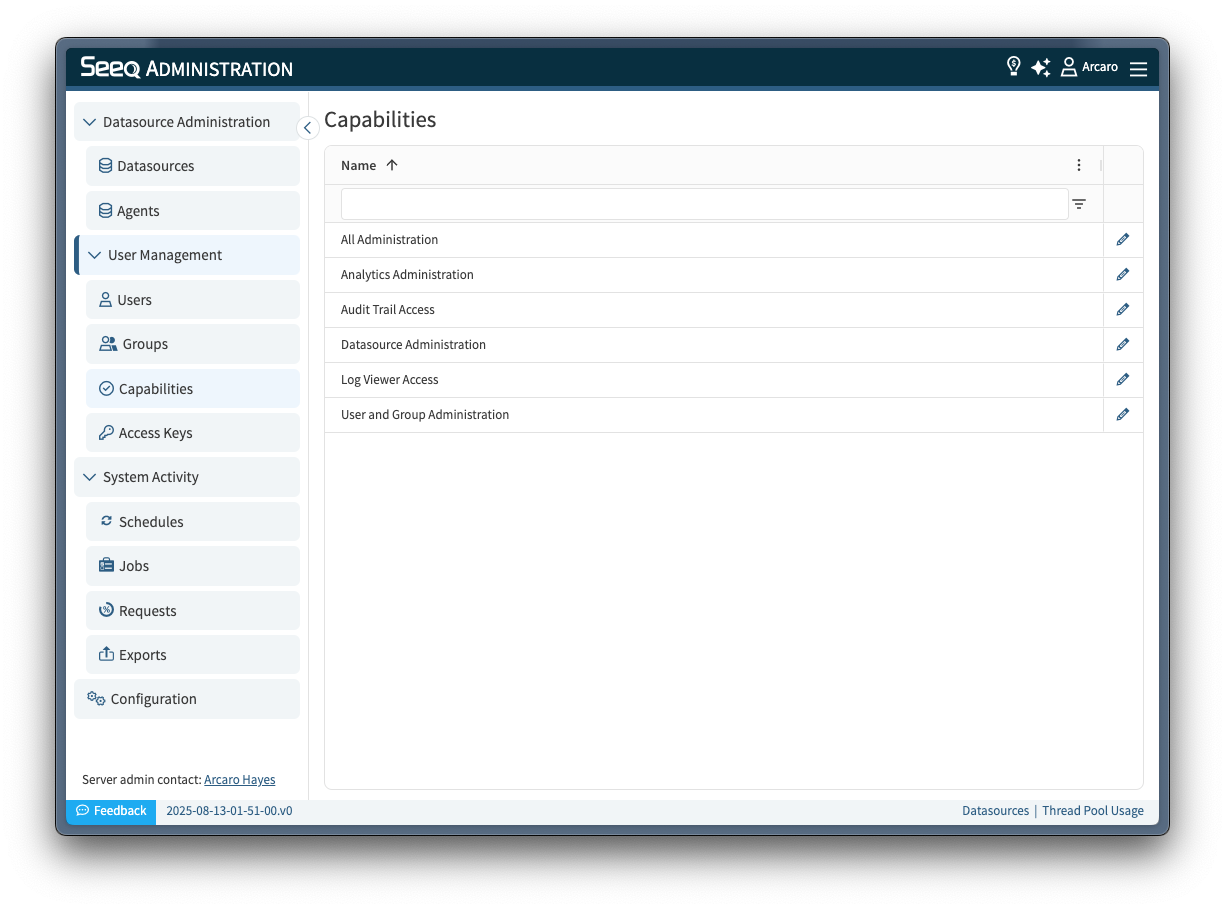
The Administration page has a fresh new layout! The old horizontal tab navigation has been replaced with a grouped, vertical tab design, making it easier to find what you’re looking for and switch between sections.
July 25, 2025
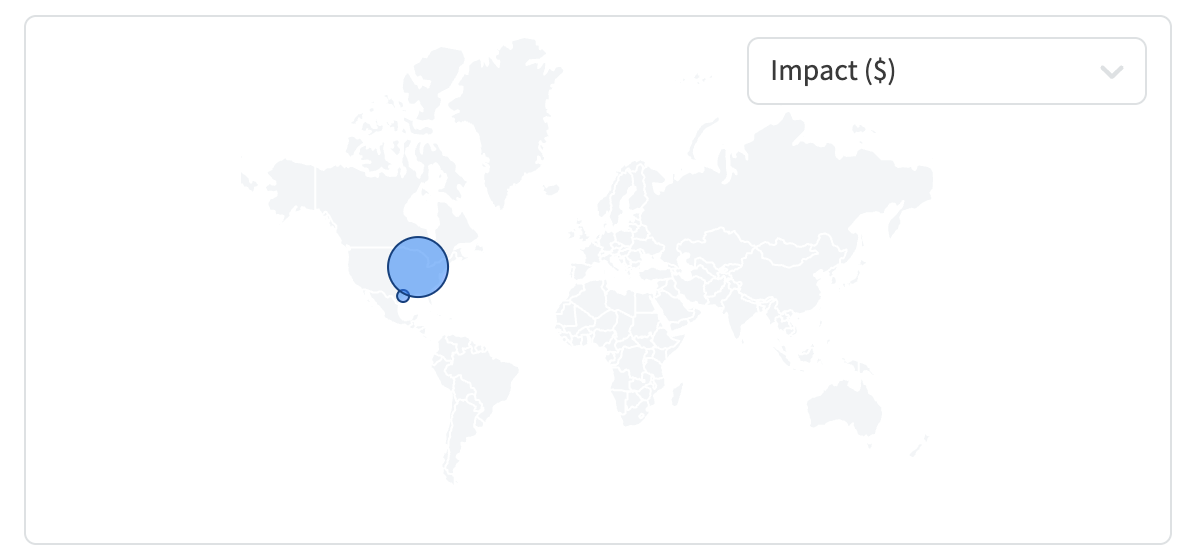
Map for Impact Reports
Visualize your Impact (and KPI) geographically!
A map can now be added to the Impact Reports Dashboard and show your Impact by location.
To take advantage of this feature add a “Map” component to your Impact Reports Dashboard:
-
click the “Edit” button
-
select “Add Map”
-
arrange your Map as desired
-
edit your existing Impact Reports to include a “Location”
-
visualize your impact
July 21, 2025
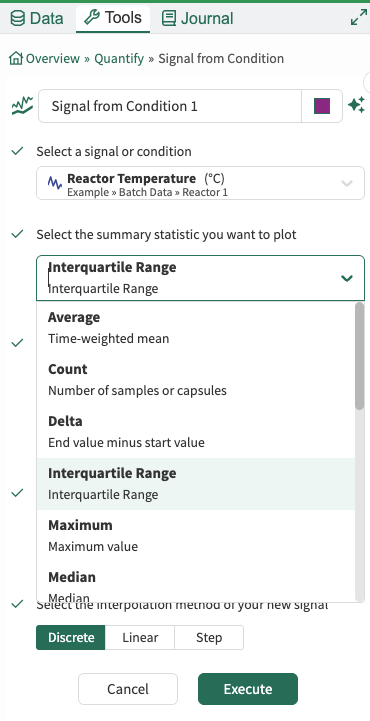
New Summary Statistic available: Interquartile Range (IQR)
The new Summary Statistic Interquartile Range is available to use. It is defined as the 75 percentile less the 25 percentile, or Q3-Q1. It is also available on the formula editor as iqr().
July 11, 2025
New search filter - limit results to locally scoped items
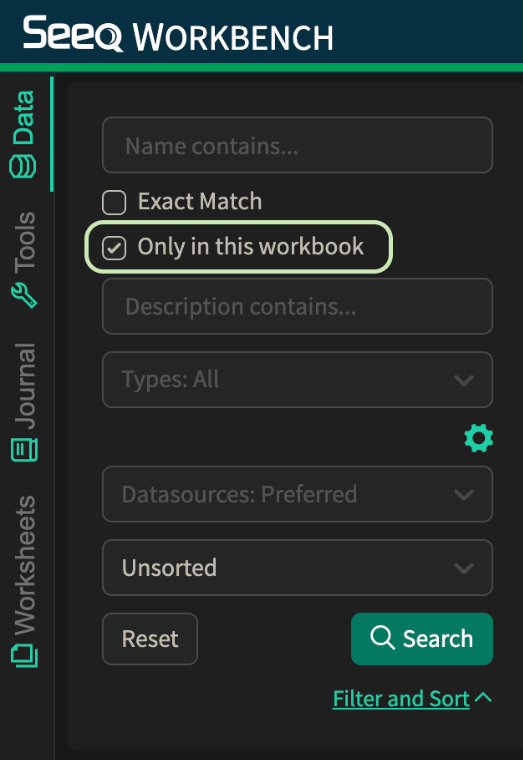
With the new checkbox in the “filter and sort“ section of the data pane, limit the search results to only items that are scoped to the current workbook. Results will include items created in this workbook and exclude items that are globally scoped.
July 3, 2025
New & Improved Actions Agent
The Actions Agent has been updated to:
-
Be more conversational: You can speak directly to it as you would other agents, ask questions such as what it can do, what types of analyses you may consider according to what’s in your display, and more!
-
Be multi-lingual: The Actions Agent is now 100% multi-lingual! Depending on your set language in Seeq, the Actions Agent will respond in that language!
-
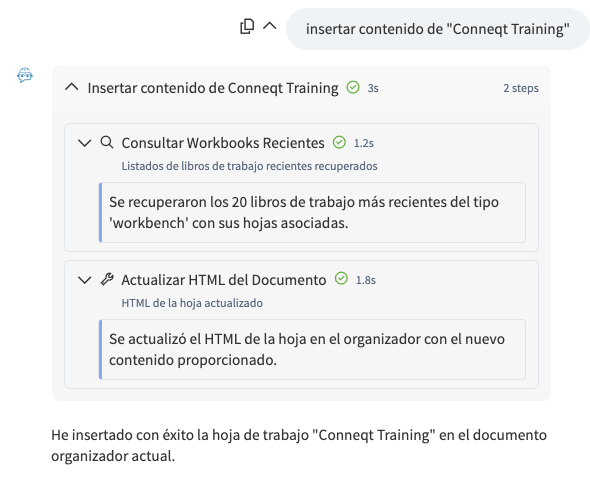
Expose what’s going on under the hood more with new UI components. This helps gain insights to any planning the Actions Agent does, or any specific steps it takes to arrive at an answer or completed actions.
June 24, 2025
Custom KPIs for Impact Reports
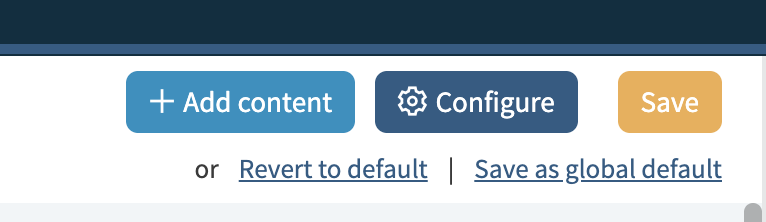
Impact Reports can now be customized to include custom KPIs that matter to your company. Admin users can access the newly added KPI configuration after clicking the “Edit” Button on the Impact Reports Page.
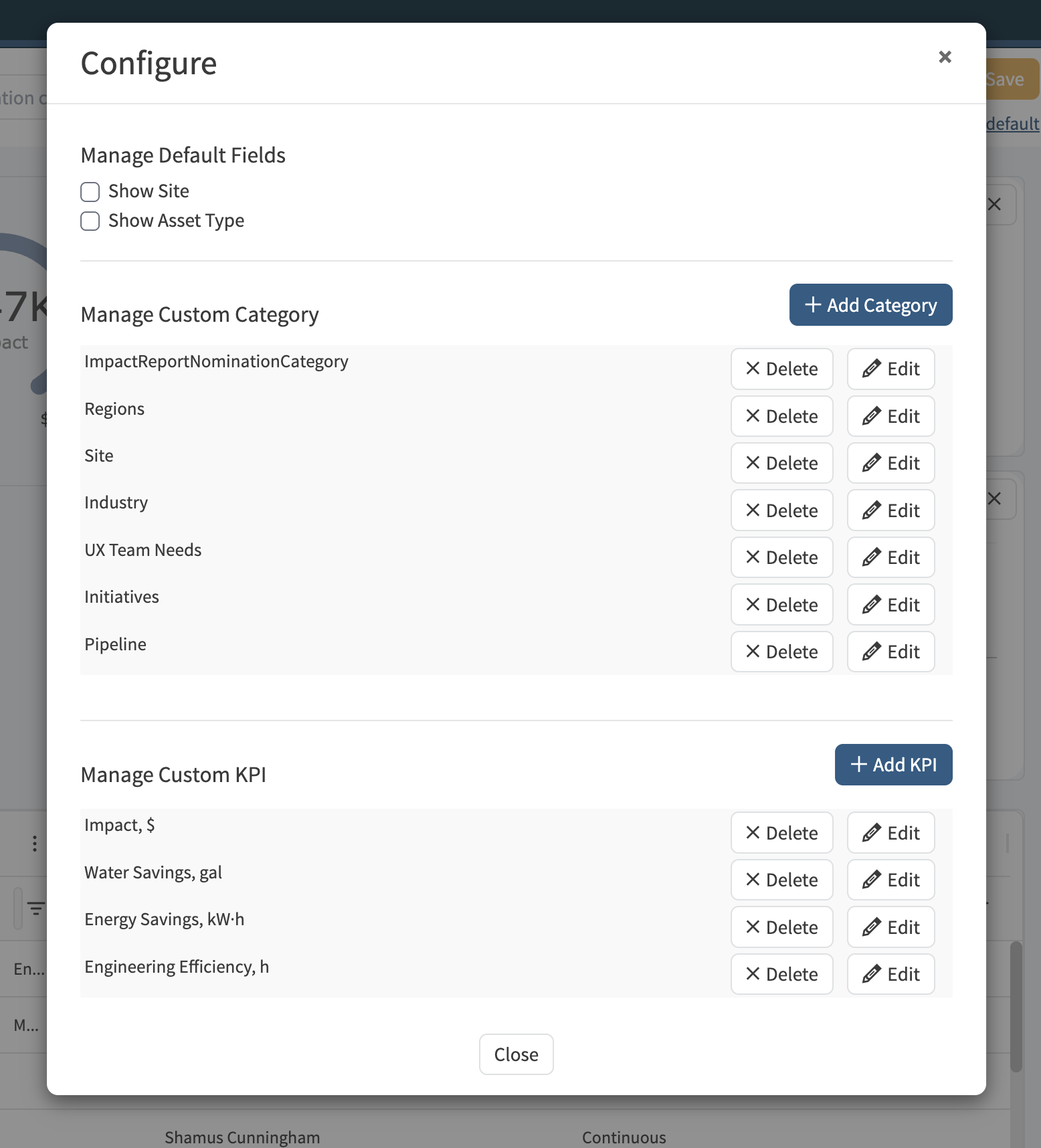
As part of this effort the management of custom categories has also been moved to this new central configuration window.
KPIs will show as inputs in the “Quantify” section when creating your Impact Reports and will be displayed on the Details Pages as well as part of the table display. Additionally KPIs can be used to create custom chart displays.
June 18, 2025
Polar Charts
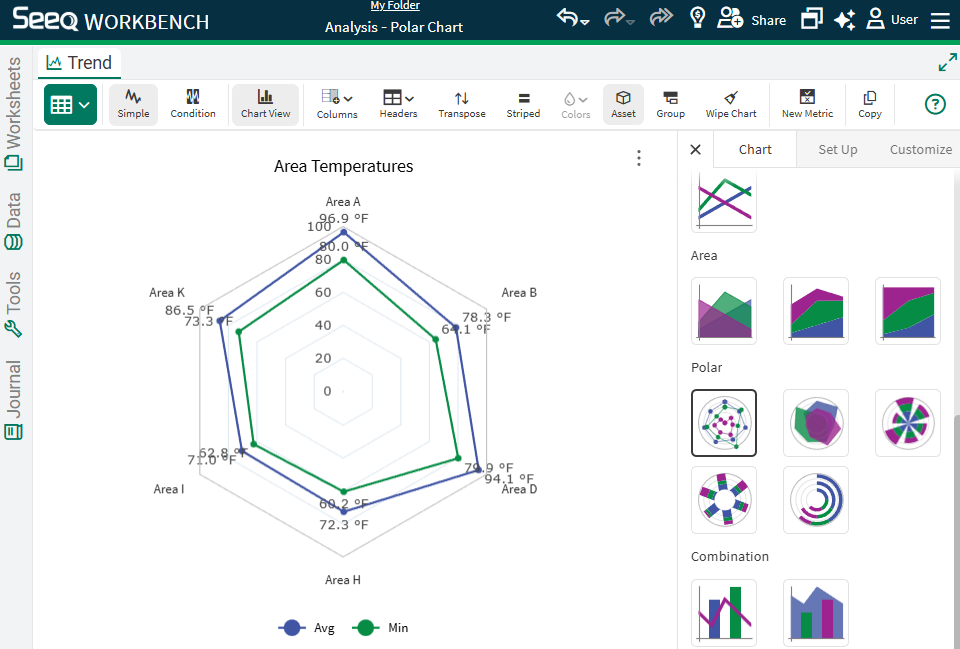
Tables & Charts have a Polar Charts section in the Chart menu, giving you access to more chart types to visualize data. The Radar Line option allows you to create spider plots for clear comparison of multiple variables on a circular axis, but you can also choose from Radar Area, Radial Column, Radial Bar, and Nightengale charts. These chart options are especially useful for representing radial data, such as temperature distributions in turbine exhausts, reactors, and other equipment where data varies by angle or position.
Calendar Date Picker
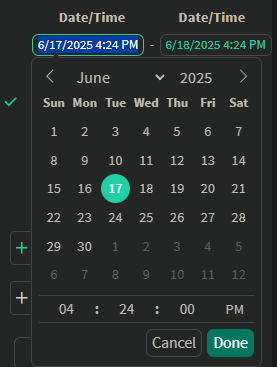
Anywhere in Seeq where you have been typing in a date (Workbench Trend, various tools, Organizer and Vantage Date Ranges), you now have access to a calendar date picker. This should make it easier to configure dates you want, but you can still type a date/time instead of selecting.
Organizer Data Lab and IOTA Content size option
If you use Data Lab Functions to insert custom visualizations in Organizer, you can now specify a percent size instead of pixels. Read more at Inserting Content - Documents | Data Lab Content in Organizer.
June 13, 2025
Principal Component Analysis
Principal Component Analysis (PCA) is a powerful machine learning technique designed to simplify complex datasets by reducing their dimensionality while retaining the most significant patterns. This method is particularly effective for identifying trends, detecting anomalies, and revealing the underlying structure within process data.
Key Features of the PCA Tool:
-
User-friendly interface – Begin your analysis swiftly, with no coding required.
-
Preview results before execution – Gain insights into the model with a preview prior to finalizing.
-
Interactive model view – Delve into essential properties such as component loadings and explained variance.
This tool is perfect for engineers and analysts who aim to interpret large multivariate datasets without necessitating an extensive background in data science. For further details, please refer to the KB article: Principal Component Analysis.
May 27, 2025
AI Assistant Prompt Library
If you are new to working with Generative AI and aren’t sure what to ask the Seeq AI Assistant, check out the library of prompts for inspiration!
May 30, 2025
Organizer Topic as a resizable dashboard
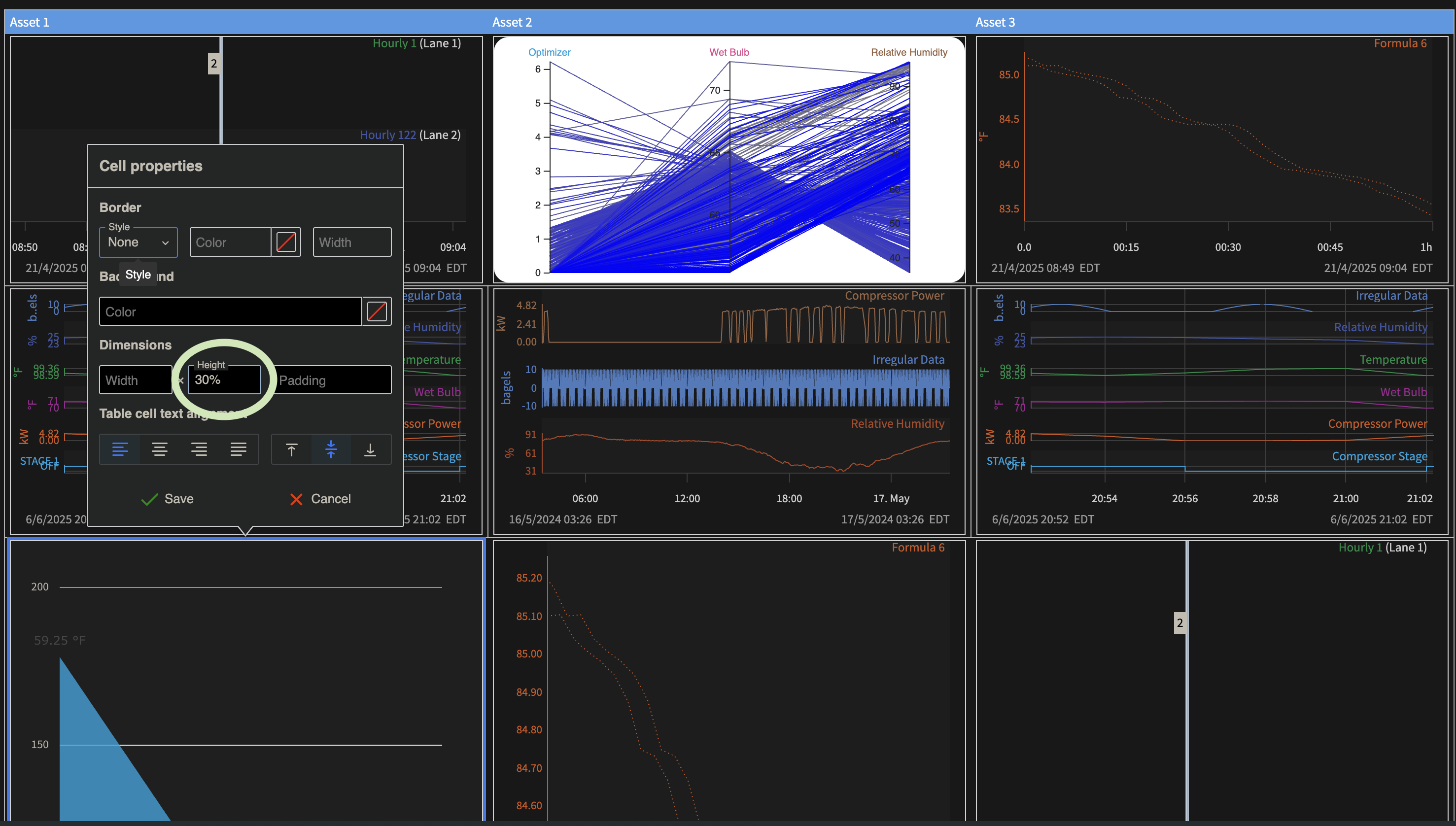
Organizer Topic Document content has a new sizing option “Fill to fit container”. This can be used to let content fill the cell of a table regardless the dimensions of the page. To get the best use of the functionality, set table height to 100% of the page height by configuring the table style. Switch all content in table cells to use the new sizing option. This produces a single page dashboard-like layout that resizes and scales to different screen sizes making best use of the available space (video below). Cell styles can be configured individually to take up desired proportion of the full-page table such as 30% for one and 70% for the other (screenshot below). Read more at Inserting Content - Documents | Set Content Properties[inlineExtension].
Note: New sizing option best works with the interactive content. The table cell should only include a single piece of content, any additional information can go into a separate row, when resizing the window may need a page reload for the height to adjust.
May 15, 2025
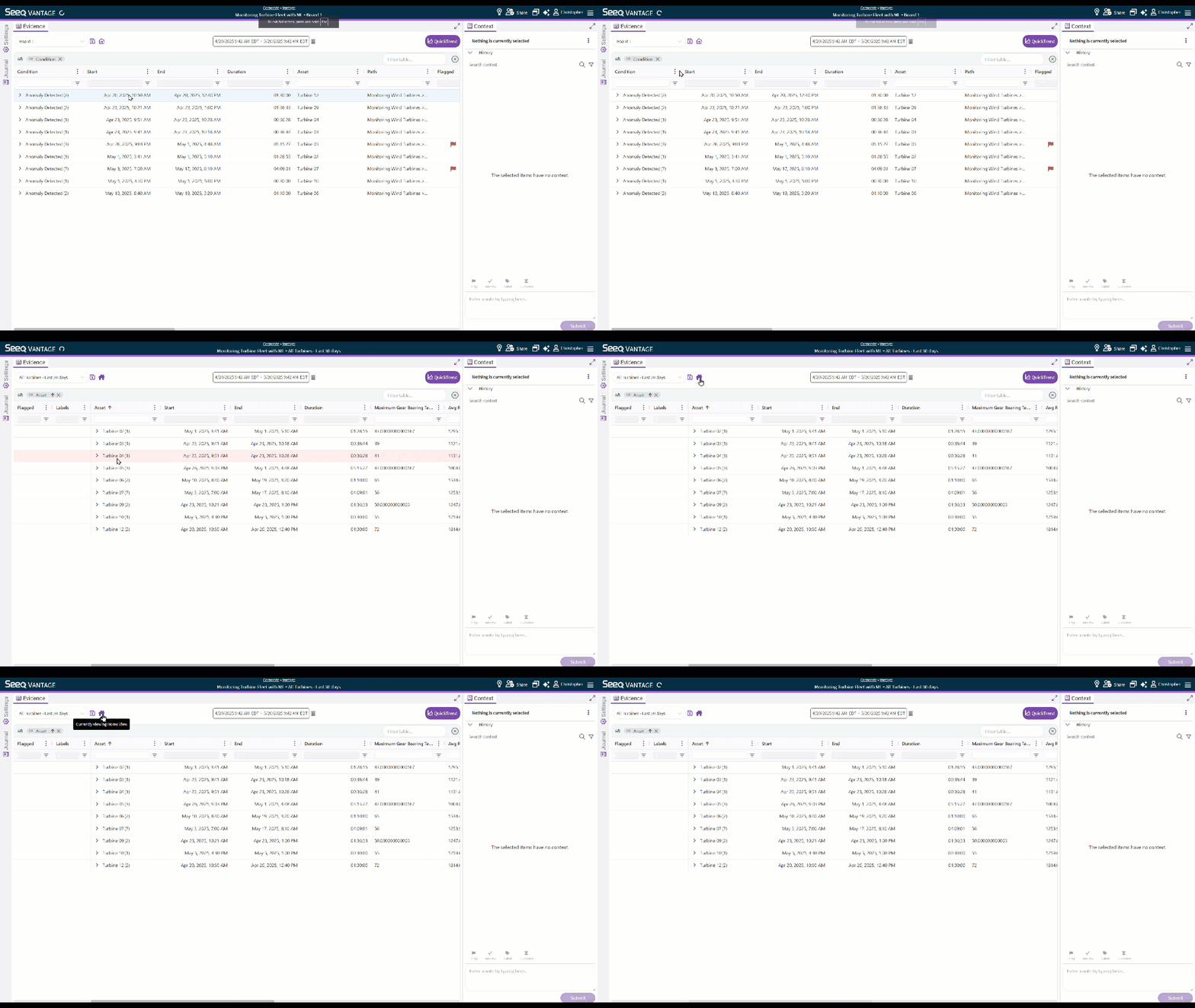
vantage Visual Indication when you are on your “Home” View
The Vantage Home icon now is colored purple when you are on your Home View.
When you on any other View, the Home icon will have no shading, and pressing the Home icon will navigate you to the Home view, and shade the icon.
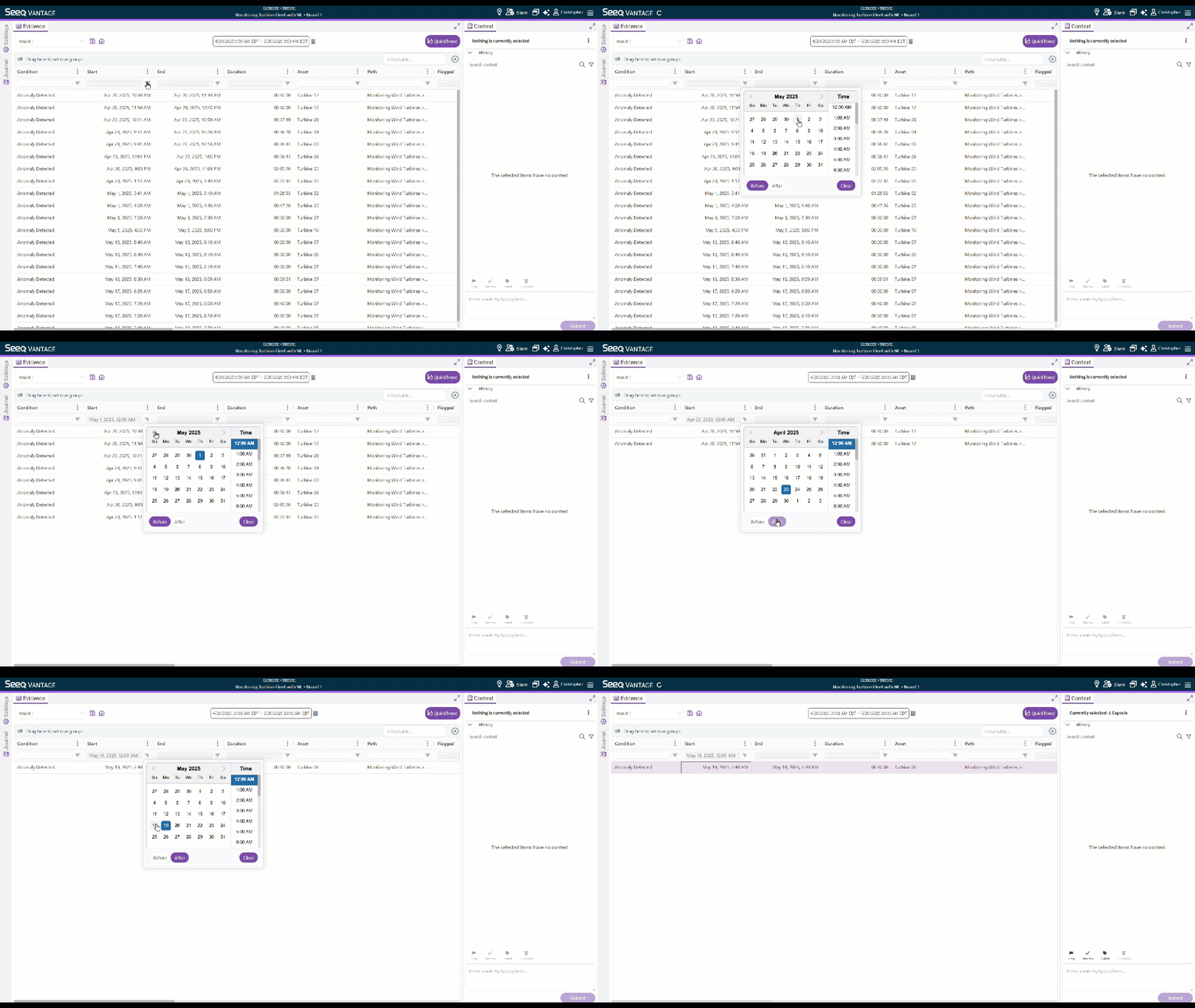
vantage More intuitive date filters for “Start” and “End” columns
You can now leverage custom filters for your “Start” and “End” column to only show events before or after a particular date and time.
May 12, 2025
Support for Externally Trained ML Models (ONNX)
Users can now register externally trained ONNX-formatted machine learning models and execute them directly within Seeq. This licensed feature simplifies integration with external ML workflows, enabling seamless inference within Seeq. A key component of this update is the External ML Tool, a dedicated interface in the Tools Pane that streamlines signal mapping and model execution.
Key Features:
-
Register ONNX models trained outside of Seeq for use in your workflows.
-
Use the External ML Tool to list, configure, and execute registered models.
-
Map model inputs to signals using an intuitive interface, aligning external models with your data sources.
-
Run inference directly within Seeq, leveraging pre-trained models for actionable insights.
-
Reuse and scale models across multiple assets or processes, accelerating deployment.
This update bridges the gap between external AI development and operational analytics, empowering users to apply advanced ML without leaving the Seeq platform.
For more information, please visit the External ML Knowledge Base page.
April 25, 2025
Machine Learning Tools - Clustering
The new Clustering ML Tool has been introduced to enhance our Machine Learning capabilities within Seeq. This tool utilizes the K-Means algorithm and features a backend ml-service designed to streamline data clustering tasks.
For further details, visit the Clustering Knowledge Base page.
April 9, 2025
Machine Learning Tools
We’ve enhanced our Machine Learning (ML) suite with integrated, user-friendly tools designed for self-service, enabling you to create capsules and make predictions. The initial tools deployed are Self-Organizing Maps (SOM), Isolation Forest (IF), and Partial Least Squares (PLS).
The Self-Organizing Maps tool is perfect for detecting anomalies in time-series data with an intuitive and visual approach. Isolation Forest provides a fast and efficient tool for identifying outliers across complex datasets. Partial Least Squares is ideal for building predictive models from high-dimensional data.
For more details, visit the Knowledge Base pages:
April 1, 2025
Updates to Table & Charts
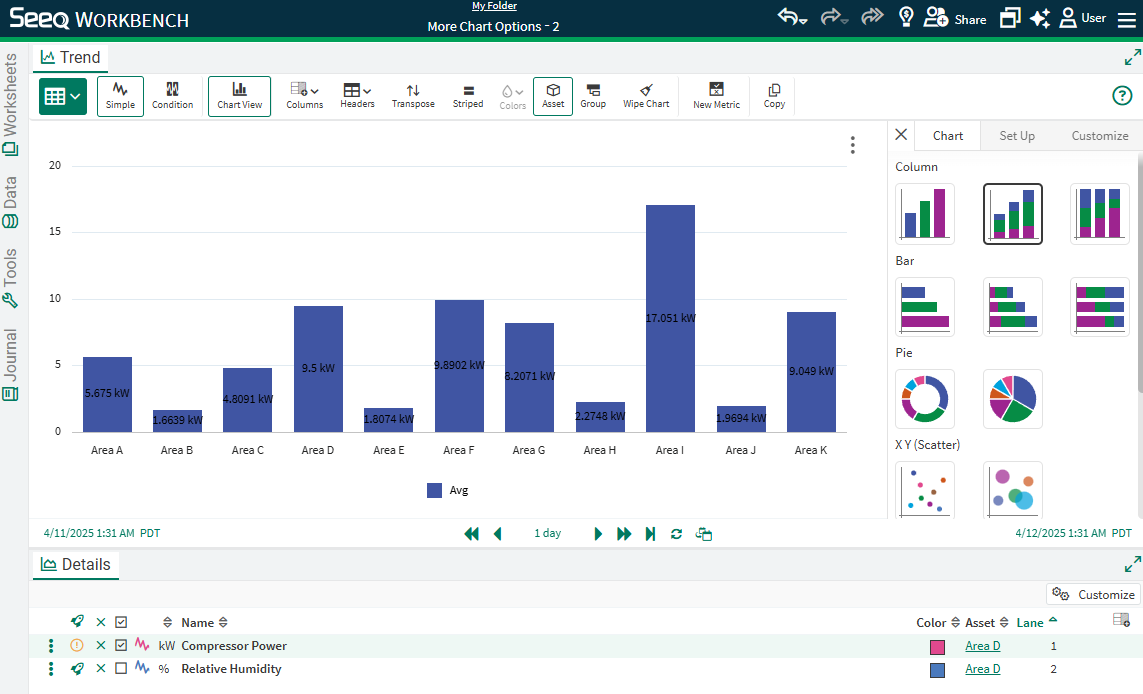
More chart customization is available for Tables & Charts in Workbench, including availability of Charts for Condition Tables. You have access donut and area chart options, as well as the ability to add titles and further customize the axes and legend. Read more at Tables & Charts | Charts.
March 28, 2025
Impact Reports
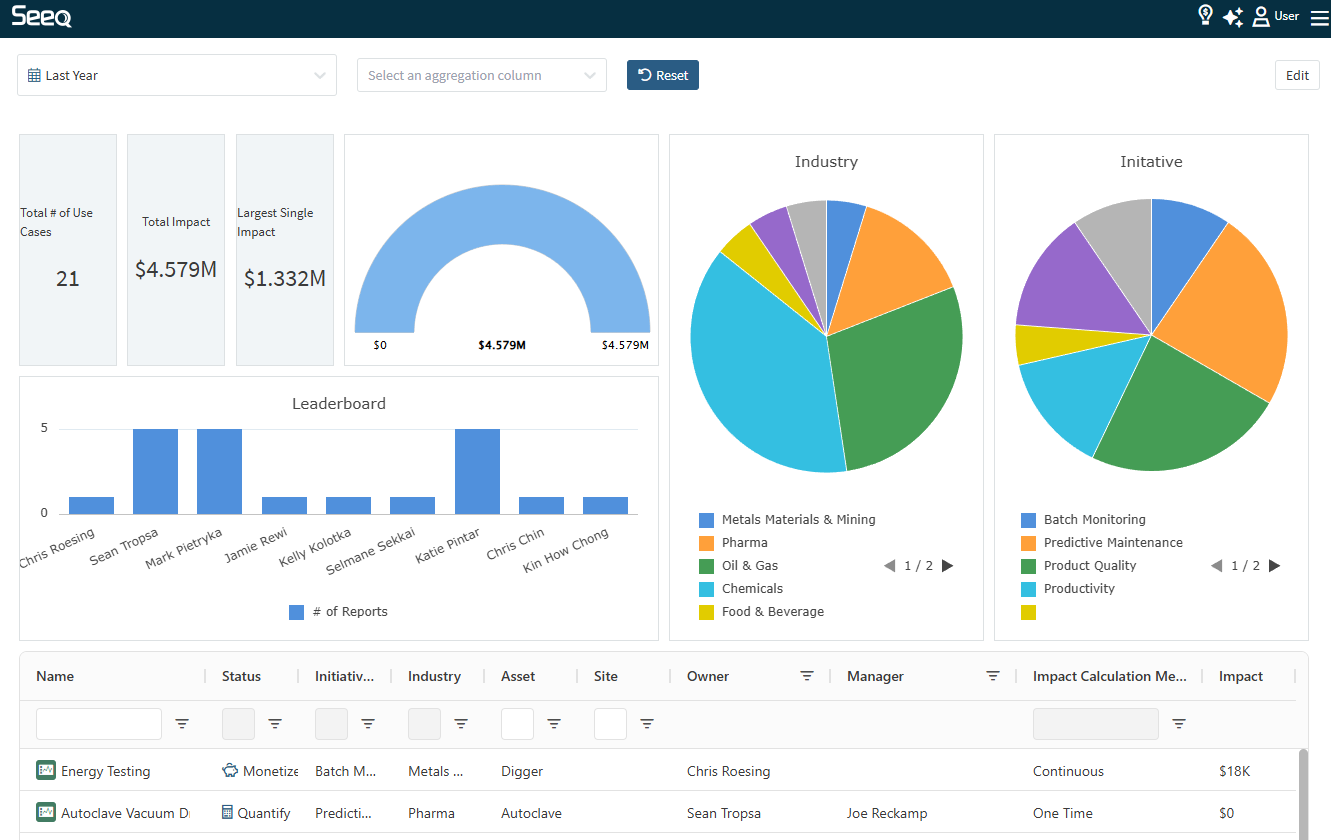
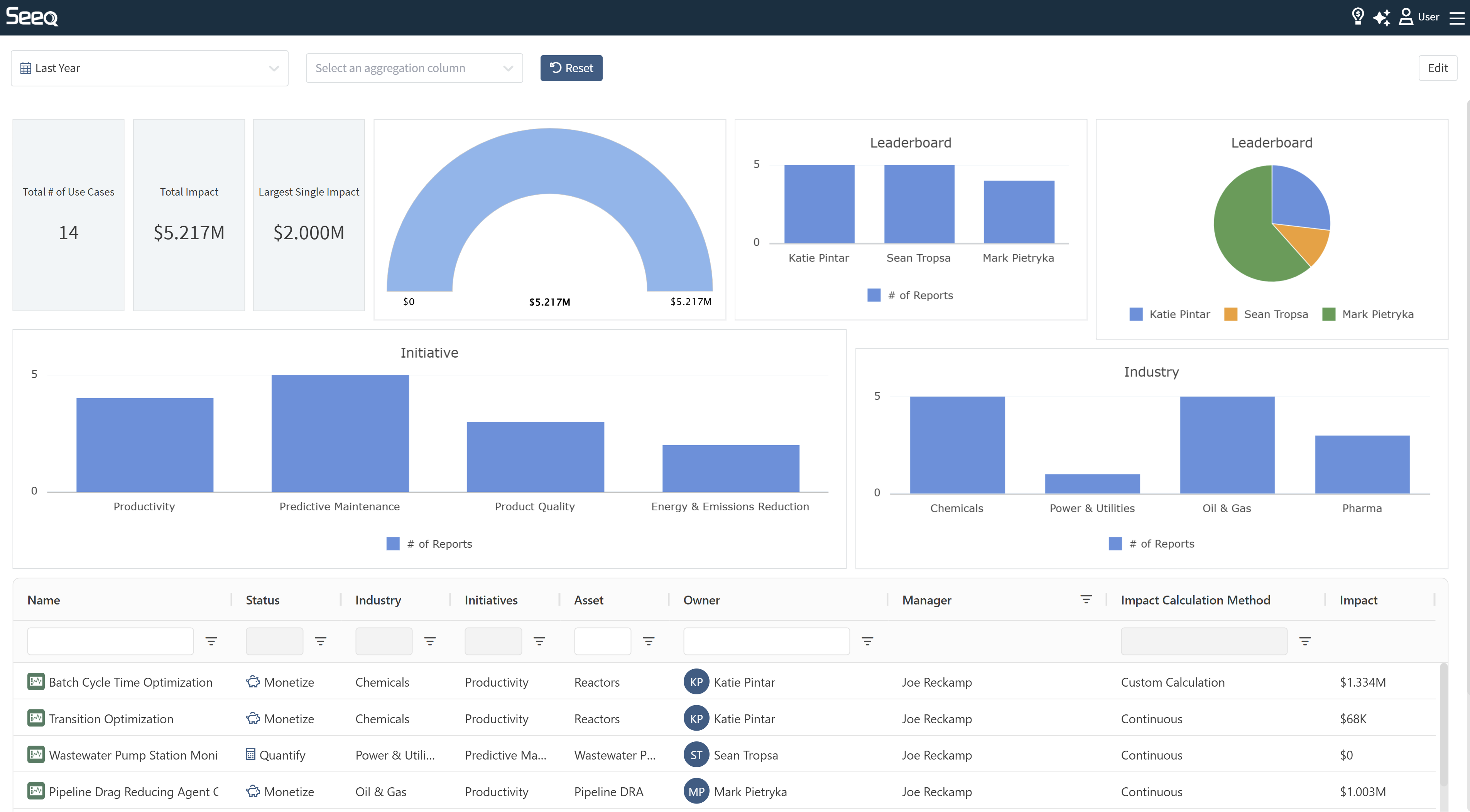
Seeq users are innovating in their organizations every day by identifying bottlenecks, improving quality, and avoiding process upsets. Any use case can be elevated across the organization through Impact Reports to spread awareness. The AI Assistant can help document the use case, and administrators can configure categories to allow aggregating impact by type. Impact reports are elevated in a single view across the enterprise to inspire collaboration and continuous improvement. Read more at https://support.seeq.com/kb/latest/cloud/impact-reports.
March 17, 2025
Signal Forecast Tool
A new tool under Model & Predict simplifies the workflow to forecast signal values into the future. This can be helpful for predictive maintenance modeling, identifying when vessels may fill or empty given their current rate of change, and modeling future cycles given those that completed in the past. Forecast Linear, Forecast Constant, Forecast ARIMA, and Forecast Splice have been available through Formula, but this tool makes it easier for anyone to extrapolate data forward given their use case. Read more at Signal Forecast.
Feb 11, 2025
Audit Trail: Print to pdf, Formatting Improvements, and Ability to Hide System Entries
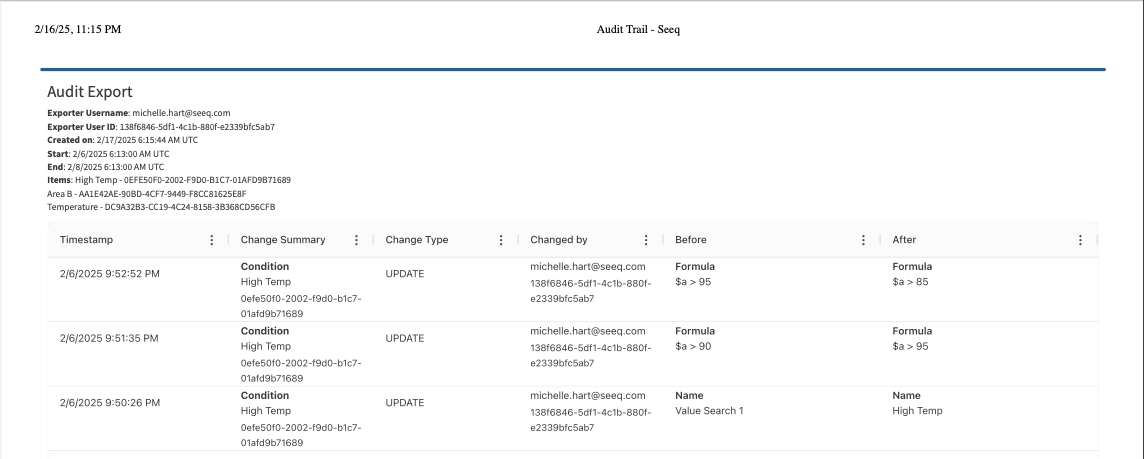
Audit Trail now has a button to print your current view to a pdf. The pdf will include critical information such as who printed it and when as well as what time frame and items are included in the printout. We’ve also added a few formatting improvements such as the ability to resize and reorder the columns. You can also choose whether to show or hide system actions which were not done by a user.
Jan 30, 2025
New Machine Learning Tools in Preview
All users will soon have access to three new Machine Learning Tools available in Seeq Workbench.
Self-Organizing Maps can be perfect for detecting anomalies in time-series data with an intuitive and visual approach.
Isolation Forest provides a fast and efficient tool for identifying outliers across complex datasets.
Partial Least Squares is ideal for dimensionality reduction and building predictive models from high-dimensional data.
These tools are currently in Preview and can be enabled by an Analytics Administrator. Read more at Machine Learning Models.
Jan 28, 2025
AI Assistant Quick Links in Journal
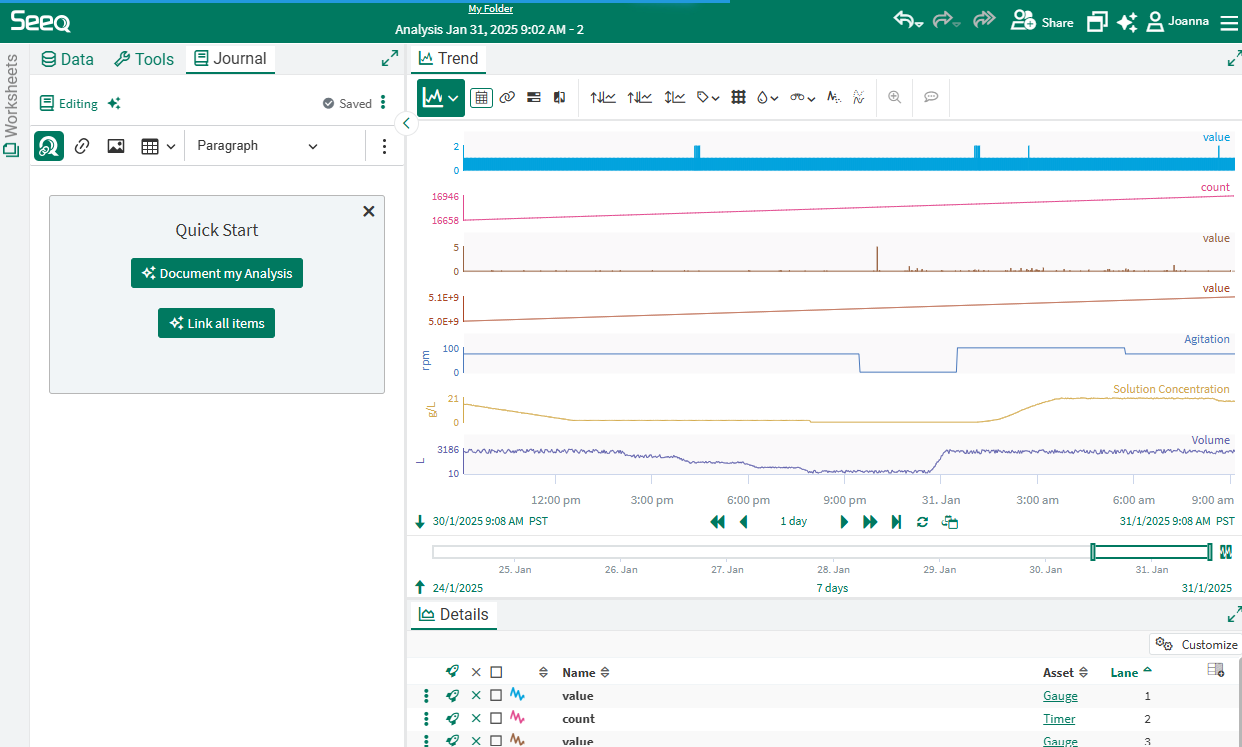
Users often have a hard time remembering to document their approach in a journal, or it can be a difficult task to do after the fact. The AI Assistant is here to help with that and there are two Quick Links available in any empty Journal to make it even easier to document your approach. This documentation is very helpful when collaborating with a team or preparing the next person in your role to learn quickly. Read more at Creating a Journal Entry.
Impact Reports in Preview
Seeq Champions across our customer base have been asking for insight on the value end users create in Seeq, so we have created Impact Reports to serve this purpose. Users can document the value they bring to the enterprise through Impact Reports. The reports are elevated in a single view across the enterprise to inspire collaboration and continuous improvement. This new capability is currently in Preview and can be enabled by an Analytics Administrator. Read more at https://support.seeq.com/kb/latest/cloud/impact-reports.
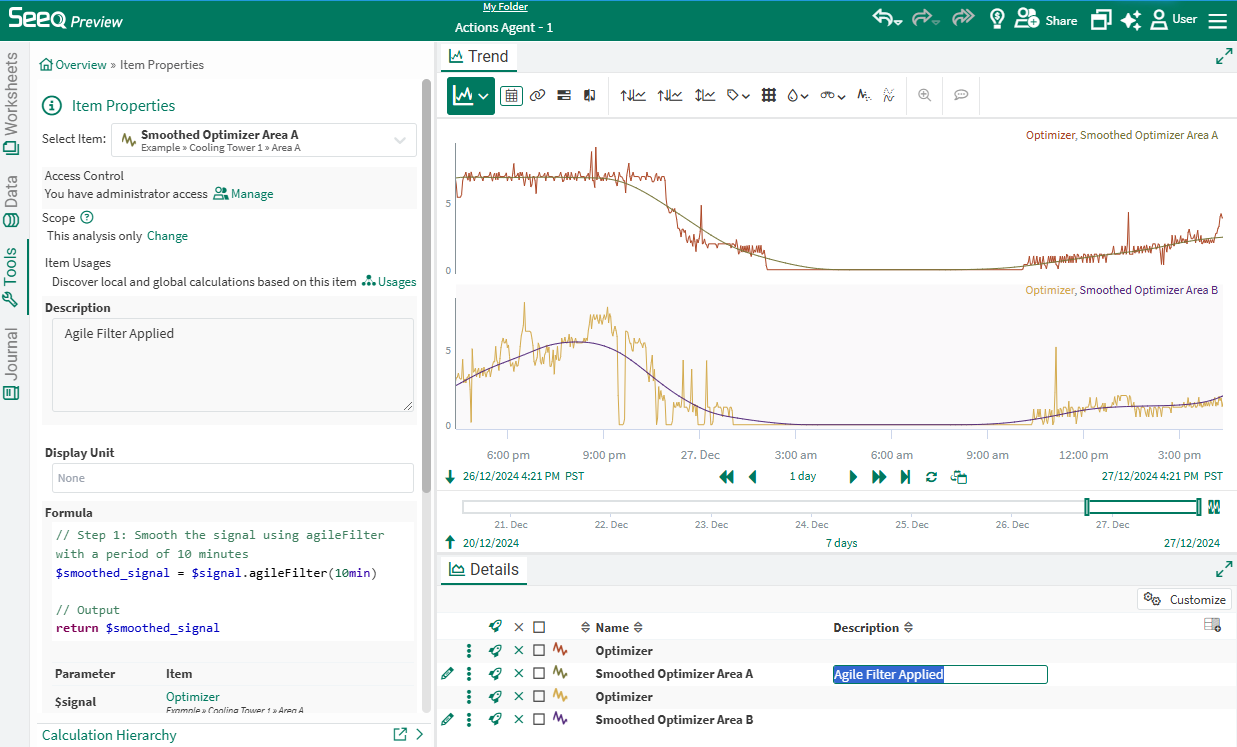
Change Description in Details Pane
When a description already exists on an item and it is displayed in the Details Pane, you can click to edit the description without opening Item Properties.
Jan 13, 2025
AI Assistant to Create and Update Organizer Topic Documents
The Actions Agent continues to expand to help users Do More! Now you can ask the Actions Agent to insert content into a new or existing Organizer, modify the document formatting, create or update date ranges or asset selections, and even copy an existing document to apply to each asset in a hierarchy. Using the Actions Agent in this way can minimize the time you spend on mundane things to allow more time to analyze and optimize your process. Read more at Seeq AI Assistant | Take Actions in Seeq for you.
vantage Journal is now available per View
Vantage now offers a Journal, accessible through the left-hand side’s Settings panel. The Journal, just like Workbench, can be used to document your findings, purpose of the View, and also give more details about how you are utilizing the View - to improve the AI Assistant responses. Use this icon to fill in a template to get started.