Locking and Versioning an Organizer Topic prevents further editing by anyone, including the owner(s) of the Organizer and Administrators.
By protecting an Organizer from changes, the contents of the Organizer can be validated by users and considered trustworthy.
This feature requires an additional software license. Please contact your Seeq sales representative for more information.
Locking and Versioning
To lock and version an Organizer, open the Access Control modal and click on the Lock tab.
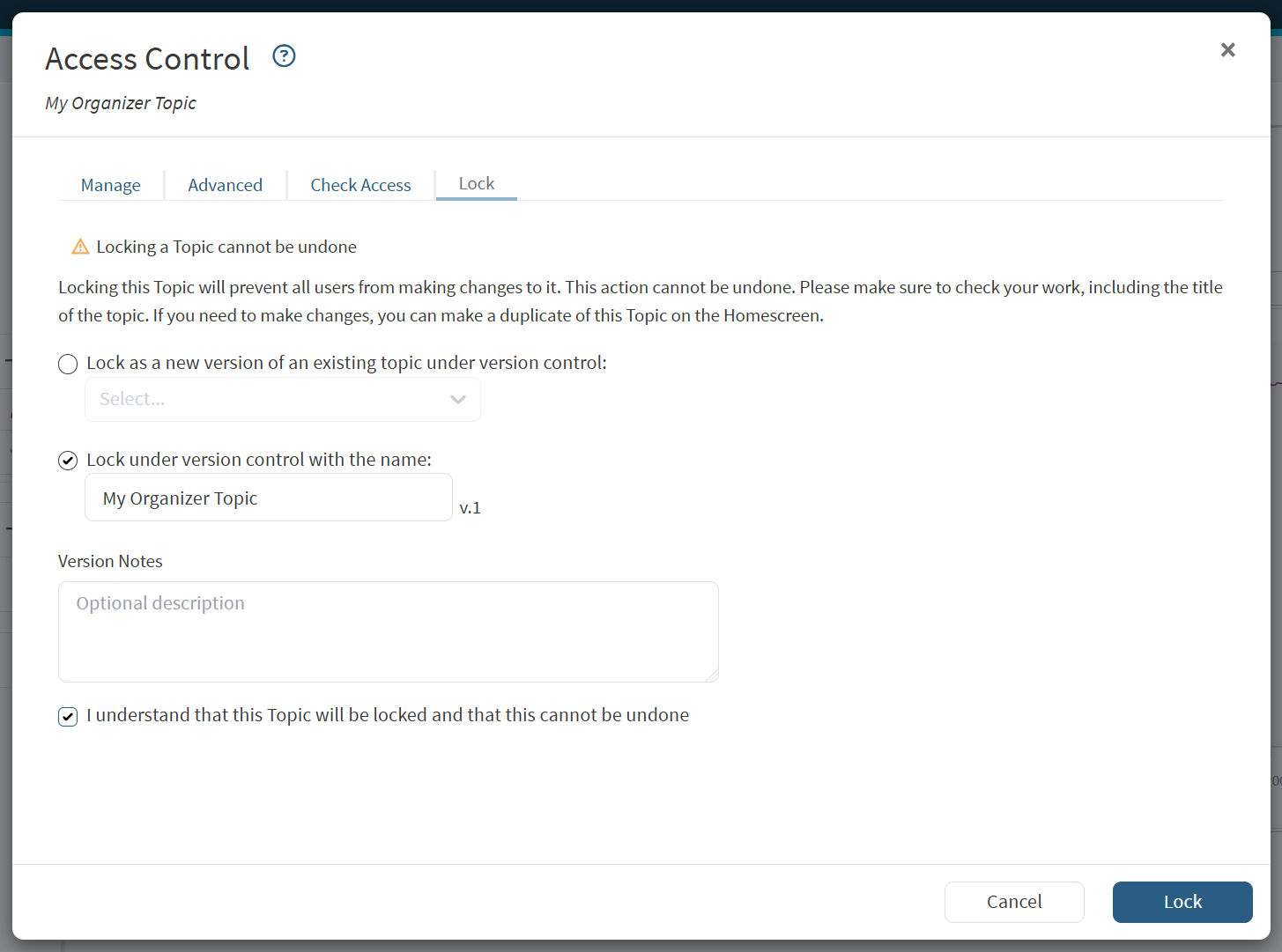
Note: you will only see the Lock tab if you have Manage permission on the Organizer.
Lock Errors
An Organizer can only be locked if all of the Analysis content inside it comes from locked Analyses.
Common reasons a lock attempt is rejected
-
The Organizer contains content from an unlocked Analysis
Fixing Lock Errors
Ensure all content is from locked Analyses.
What you can do in (or with) a Locked Organizer Topic
-
Adjust the Date Range (the change will not be saved)
-
Adjust access control (give users access, remove access from a user)
-
Share edit, view, and presentation links
-
View when it was locked and by whom (return to the Lock tab in the “Share” modal)
-
Leave comments on a Journal entry
Versioning and Version Control
A locked Organizer is automatically given a version number.
Optional: you can add notes that will appear alongside this version in the Version Management page.
Creating a new v.1
If you want your Organizer Topic to be v.1 (the first of its kind), then choose the radio option labeled “Lock under version control with the name” before you lock. Your Organizer will be given a “v.1” after its name.
Creating a v.2 (and beyond)
To communicate that this Locked Organizer is an improvement or update to a previous version, select the option titled “Lock as a new version of an existing topic under version control” and choose one of your existing versions. Your Organizer Topic will be renamed to match and given the next version number in the sequence.
Note that this is the default option when attempting to Lock an Organizer Topic that was duplicated from an Organizer Topic that is already under Version Control.
Managing your Versions
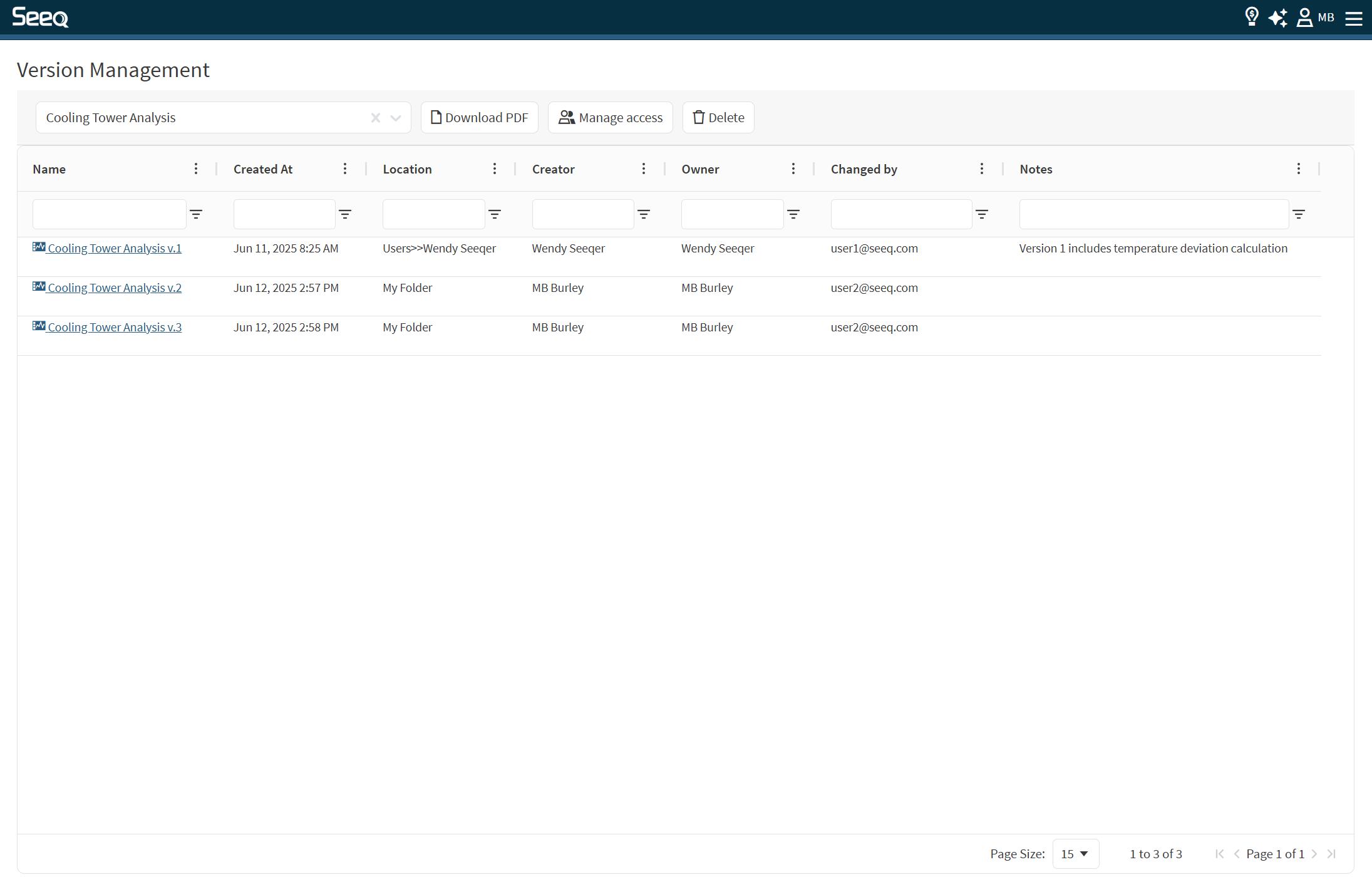
Navigate to the Version Management page via the hamburger menu.
Use the Version Management page to:
-
Access each versioned Organizer Topic associated with a Version History
-
Manage access controls on each Version History
-
Delete a Version History