
Seeq Agent Builder

Custom Agents created through Agent Builder are enabled with a license for Seeq Intelligence. Contact your account team for more information.
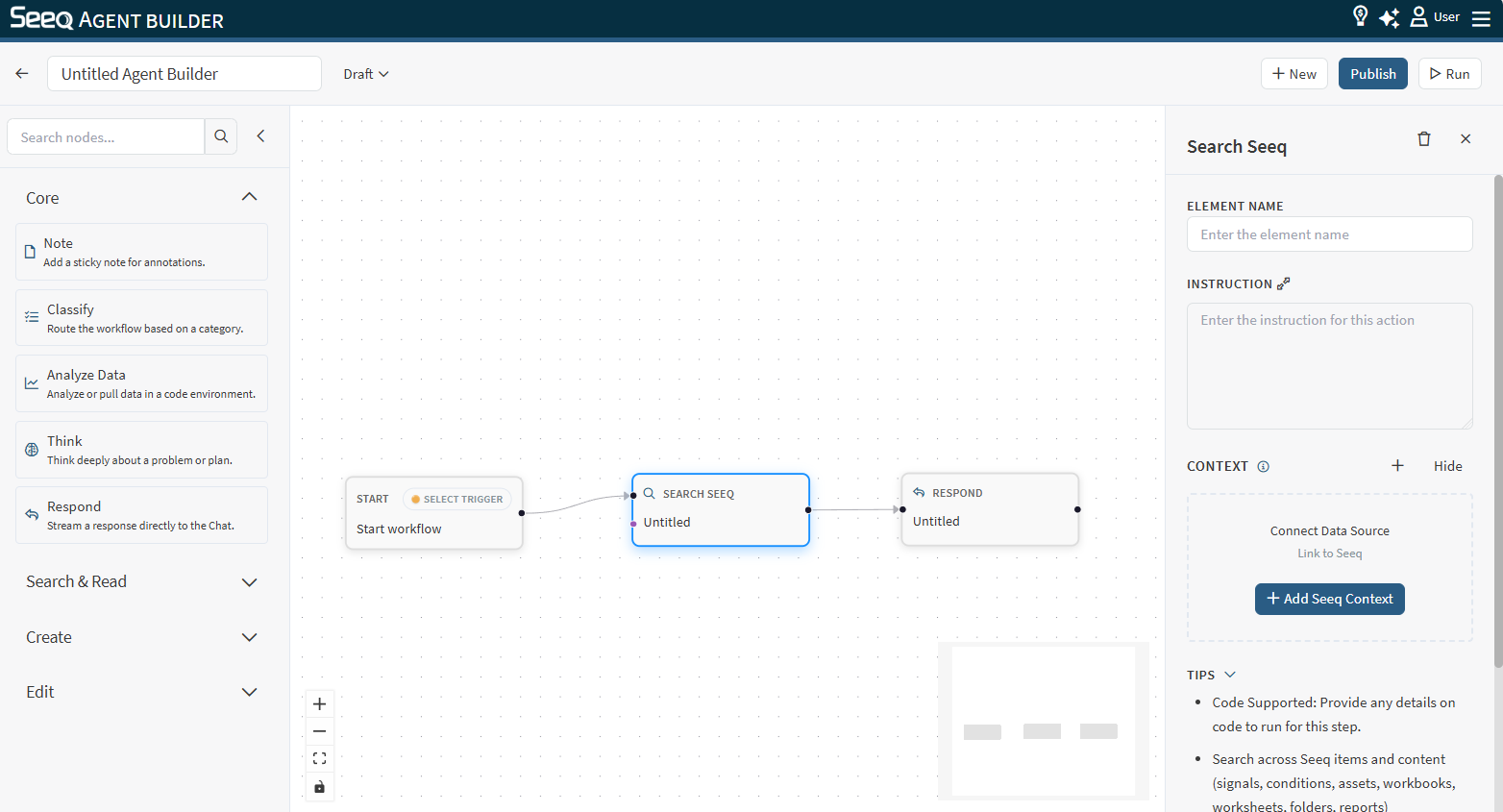
Agent Builder lets you turn repeatable Seeq workflows into reusable, AI-powered custom agents. A custom agent is a saved, multi-step workflow that can chain together analysis steps, tools, and Seeq context into a guided flow the AI Assistant can run on demand. Use custom agents when you want consistent results across workbooks, to capture and share a best-practice method with your team, or to automate long, multi-step tasks that are tedious to recreate by hand in every chat. Check out the Templates for inspiration and examples.
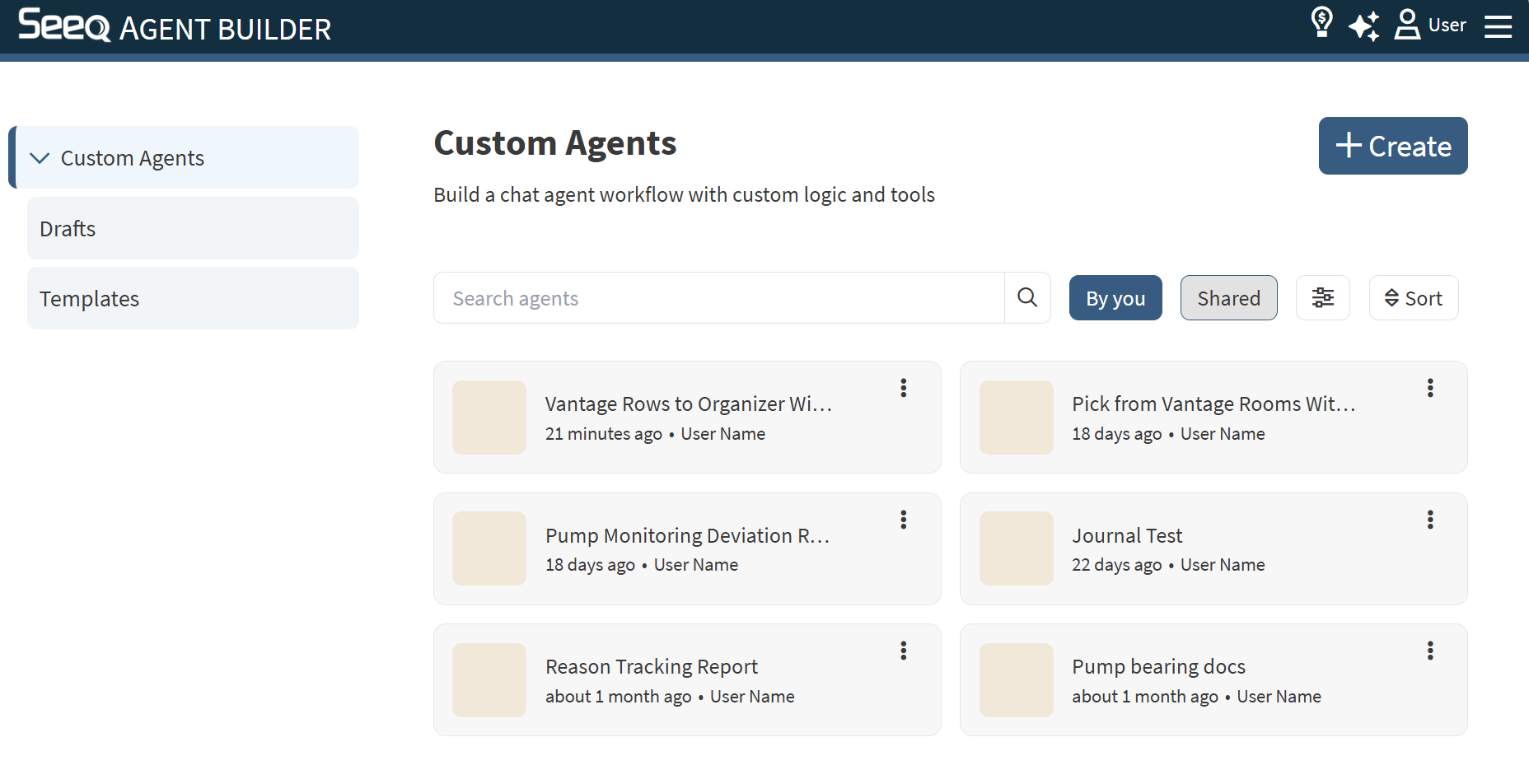
You can view all the custom agents you have created or that have been shared with you from Agent Builder.
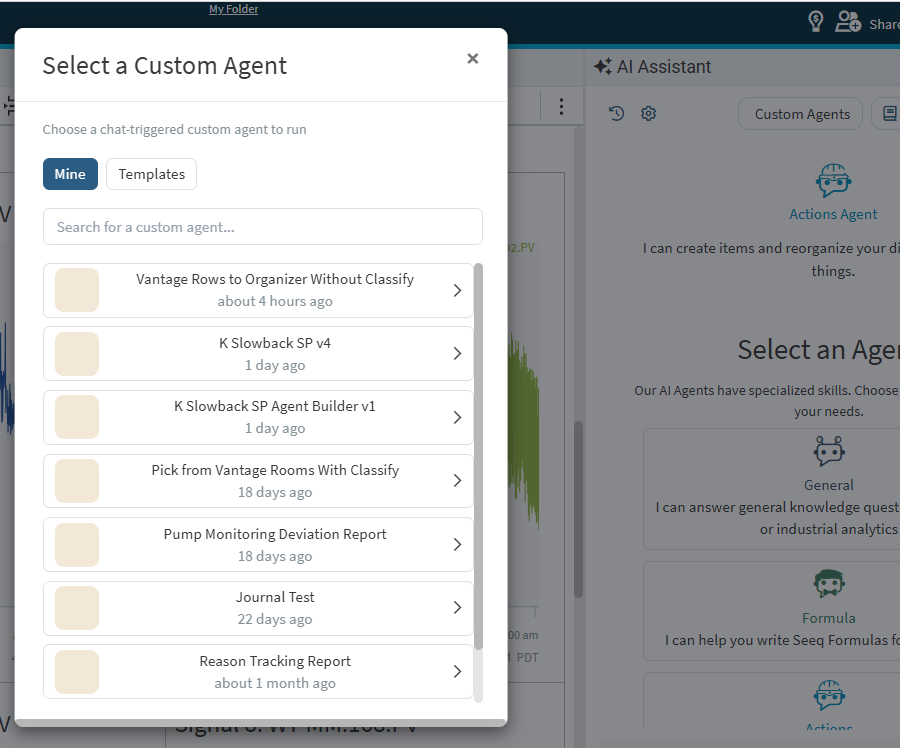
When you have access to an interactive custom agent (start type chat, form, button), it will appear from the Custom Agents menu accessible from the top of the AI Assistant.
What You Can Build
Find and summarize Seeq content: Search for workbooks/worksheets, update date ranges, then read and summarize what’s inside.
Create analysis assets: Create Workbench analyses, calculations, and worksheets based on user requests.
Generate reports: Assemble Markdown reports (and optionally publish them) based on analysis results.
Automate common workflows: Route different user intents to different actions using classification and branching.
How It Works (High-Level)
All workflows begin with a Start node (today, Agent Builder supports Chat triggers).
Each node runs an instruction (what you want that step to do).
Nodes can be connected in sequences or branches; independent branches may run in parallel.
Node outputs can become context for downstream nodes, and each Agent, Action, and Classify node can control how much upstream output it receives.
Use Manage memory in the node inspector to choose one of these options:
All previous steps: include output from all upstream steps.
Only immediate previous step: include output only from direct parent step(s).
No memory: include no upstream output.
This is useful for reducing prompt noise, isolating a step, or keeping a node focused only on the most recent upstream result.
You can attach Seeq context (a workbook/worksheet or Data Lab project) to nodes to guide what they operate on.
After an agent is Published, it appears on the Custom Agents tab of the Agent Builder page and the Custom Agents menu in the AI Assistant pane. Invoke a custom agent using the AI Assistant pane anywhere in Seeq when you want to kick off its workflow.