
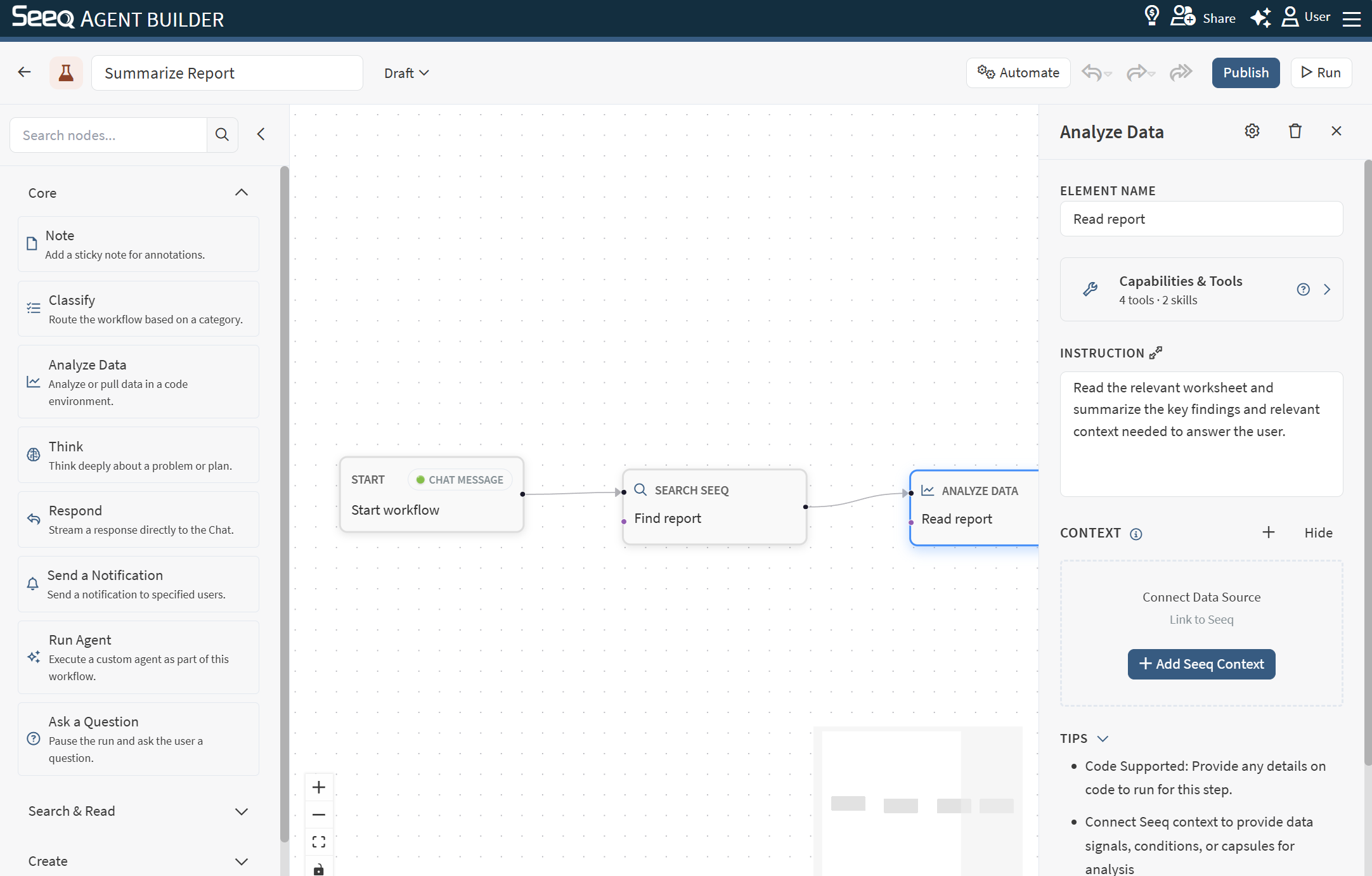
The main areas
-
Title and icon: Each custom agent should have its own clear name so others using it can know what to expect. You can edit the color and icon assigned to the custom agent by clicking on the icon to the left of the title.
-
Canvas: Where you lay out and connect nodes.
-
Nodes palette: The catalog of available node types, grouped by category.
-
Inspector: Configure the selected node (name, instruction, context, etc.).
-
Run/Publish: Publish versions and run the workflow.
Adding nodes
You can add nodes in a few ways:
-
Drag-and-drop from the palette onto the canvas.
-
Click a palette item to add it near the center of your view.
-
Drag a connection to empty canvas to create a “New Node” placeholder, then select a node type from the palette while the nodes palette is actively highlighted in blue to assign that node type to the new node placeholder.
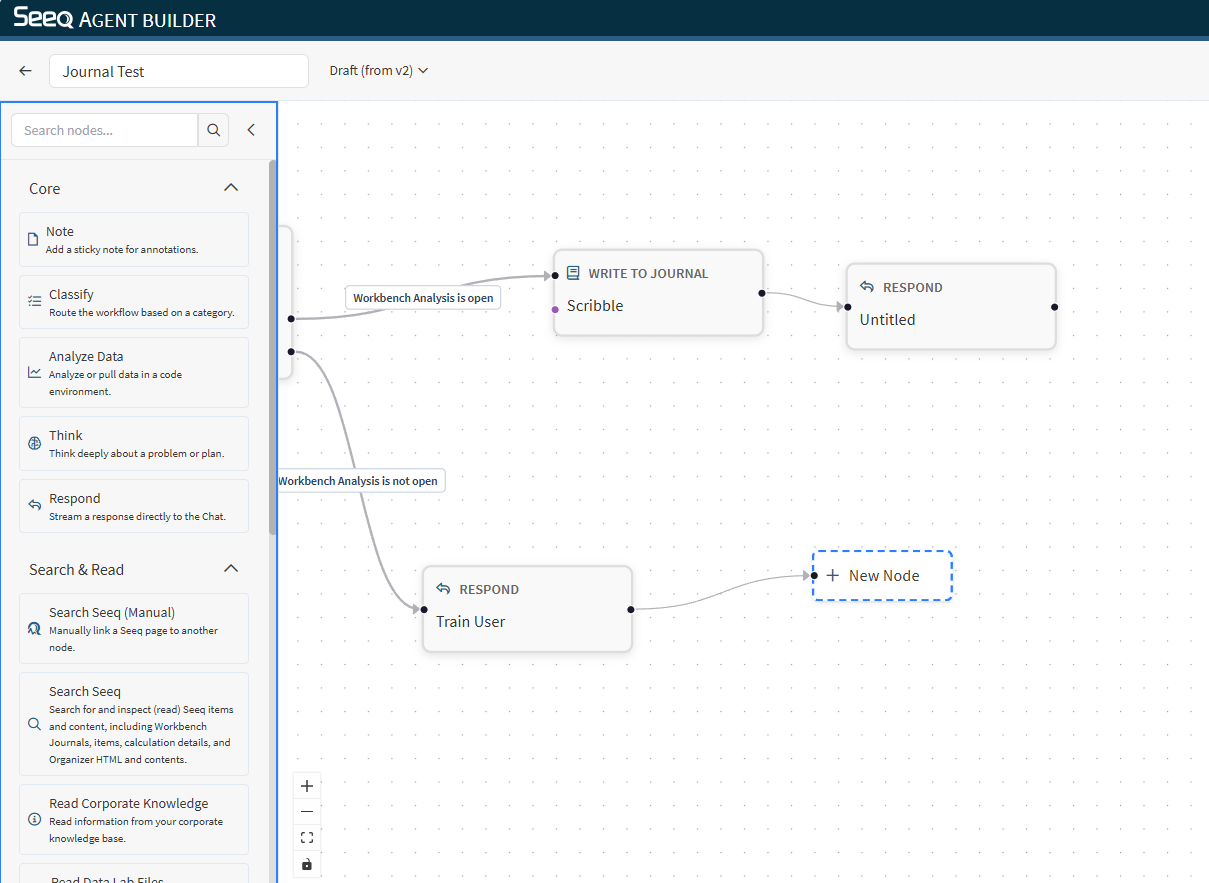
Selecting and editing nodes
-
Click a node to open its inspector.
-
Use the inspector to set:
-
Element name (a human-friendly title)
-
Instruction (what the node should do)
-
Context (for nodes that support it)
-
Memory settings (for Agent, Action, and Classify nodes)
-
Notes and organization
-
Use the Note node to add non-executing annotations to the canvas. This can be helpful for documenting intent to minimize the need to open individual nodes, but these notes will need to be manually updated as you make changes to the nodes.
-
Use the mini map and zoom controls to navigate larger workflows.
Keyboard shortcuts
-
Delete / Backspace: Delete the selected node (Start cannot be deleted).
-
Cmd/Ctrl + C: Copy selected node(s).
-
Cmd/Ctrl + V: Paste node(s).
-
Cmd/Ctrl + Z: Undo.
Run from the editor
To execute a custom agent from the Agent Builder editor, click Run:
-
If the Start node is set to Chat, Run opens the AI Assistant in workflow mode.
-
Otherwise, Run opens the Execution panel for a manual run.
Manual runs (Execution panel)
The Execution panel shows:
-
Node-by-node status (running/success/error)
-
A run log with progress messages
-
A Stop button to cancel the run