
Administrators enable External ML Tool by toggling the Features/MLTools/ONNX/Enabled feature flag on the Configuration tab of the Administration page.
Note that ONNX Registration is an enterprise feature.
What is External ML?
The External ML Tool allows users to execute externally trained machine learning (ML) models in ONNX format within the Seeq platform (hereafter referred to as “ML Model”). This provides flexibility to run custom ML algorithms using signal inputs. Users can map signals to the inputs of an ML Model and generate outputs (conditions or signals) based on the Model's predictions.
Using the External ML Tool
Find the External ML Tool under the Machine Learning section of the Tools Pane, or use the “Filter Tools” text box .
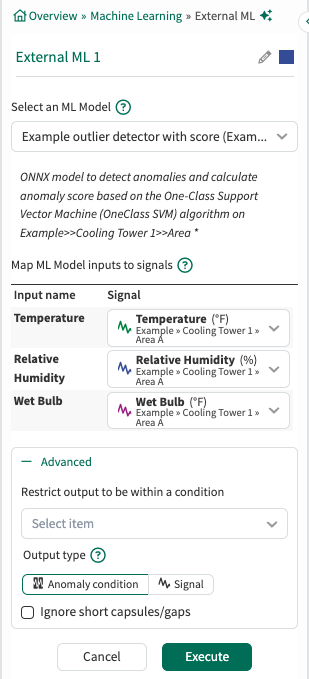
Select an ML Model: From the dropdown menu, select any of the registered ML Model. The dropdown includes a search functionality, allowing you to quickly find a specific ML Model by typing its name.
Once an ML Model is selected, its description will appear below the dropdown for additional context.
Map ML Model inputs to signals: Once an ML Model is selected, the tool will automatically populate the required input fields. Each field will display the ML Model input name along with a dropdown to select a corresponding signal.
All inputs must be mapped to valid signals before you can proceed further.
Advanced Options:
-
Restrict output to be within a condition: You can limit the data displayed to only show results within a relevant condition. If you limit the model to periods of time when the unit is running, you would likely want to restrict the output to the same running condition.
Additional Advanced Options for Anomaly Model
-
Output type: If the selected ML Model was registered as an Anomaly Model , an additional setting for Output Type will be available the first time the tool is executed.
You can choose between:-
Anomaly Condition (default)
-
Signal
-
If you select Signal and the ML Model contains multiple signal outputs, all available outputs will be listed, and you can choose any one of them.
The Signal option will only appear under Output Type if the selected ML Model includes at least one signal output.
Registering an ML Model
Before an ML Model can be used in the External ML Tool, it must be registered.
ML Model registration is an enterprise feature. Contact Seeq Support for licensing information to enable External ML.
Seeq accepts ML model in ONNX format up to 1 MB per model. For larger uploads, contact Seeq Support.
Example Documentation
An example notebook Register ONNX.ipynb and Train Export and Register.ipynb demonstrating how to register an ML Model in ONNX format in Seeq is available under SPy Documentation/Machine Learning in Data Lab. This notebook walks through:
-
Describing the ONNX : Displaying the ONNX's input and output names along with their data types.
-
Function to register ML Model (ONNX): A function defined within the notebook that performs ML Model registration, along with explanations of the arguments it accepts and their purpose.
-
Examples: Demonstrates how to register an ML Model as Prediction Model or Anomaly Model using the defined function.