Overview
Creating new columns in a Scaling Table gives you more information to operate with, allowing you to perform more complex logic or create multivariate Formulas to get your desired output. Columns can be added in several ways depending on how you’re interacting with the table.
Each method below describes how columns can be created and what makes that method unique.
Using the Scaling Table Editor
While interacting with the table directly, adding columns via the Toolbar will be the most straightforward method of adding new columns. The Toolbar shows a selection of the commonly used column-creation rules.

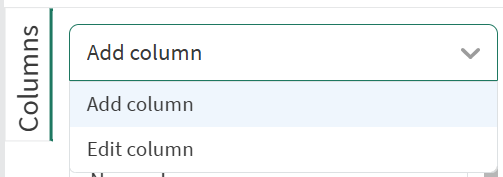
For more access to all the column creation rules, simply select the “Add column” option from the dropdown along the left-hand side, then select the rule and provide the name of the new column. For more information on the different rules used to define a column please refer to Applying Column Rules .
Using Shortcut Options
As a way to save time in creating certain columns, shortcut options are provided on some columns that allow quickly creating new columns. On columns that are of the “Item” type, there are several column options available under the three-dot menu of the column header.
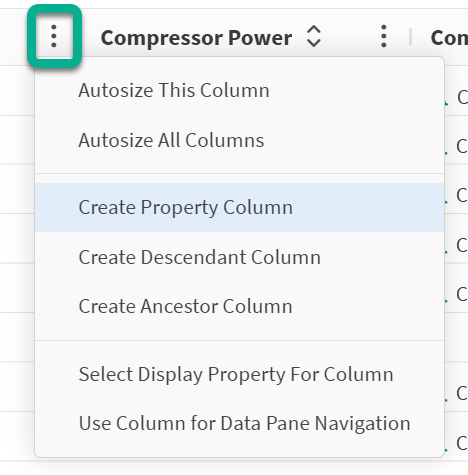
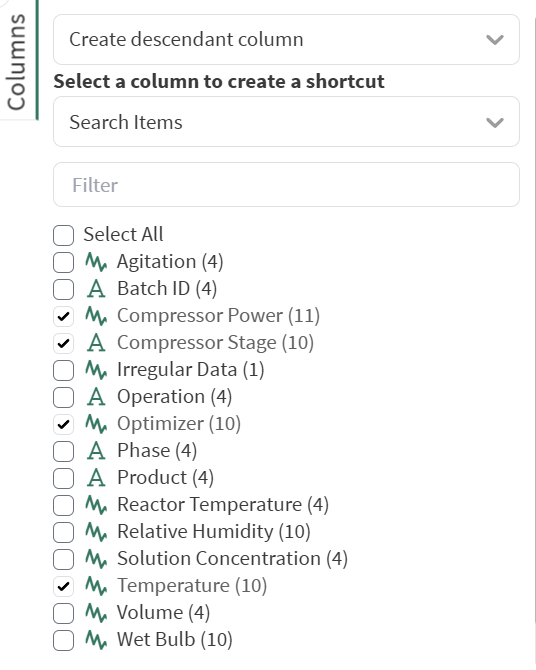
The options to “Create Column” opens the side pane with options that generate new columns based on the properties available or the hierarchy of the existing data. In the image above, selecting “Create Descendant Column” allows the selection of any descendants of items in the “Search Items” column to be created as a new column as seen below.
Using Existing Tools
Columns can also be added to a Scaling Table using the existing tooling Seeq has to offer. After having added items from a Scaling Table to the Details Pane (see Using created Analytics ), you can then use existing tools to create new calculated item columns in your Scaling Table.
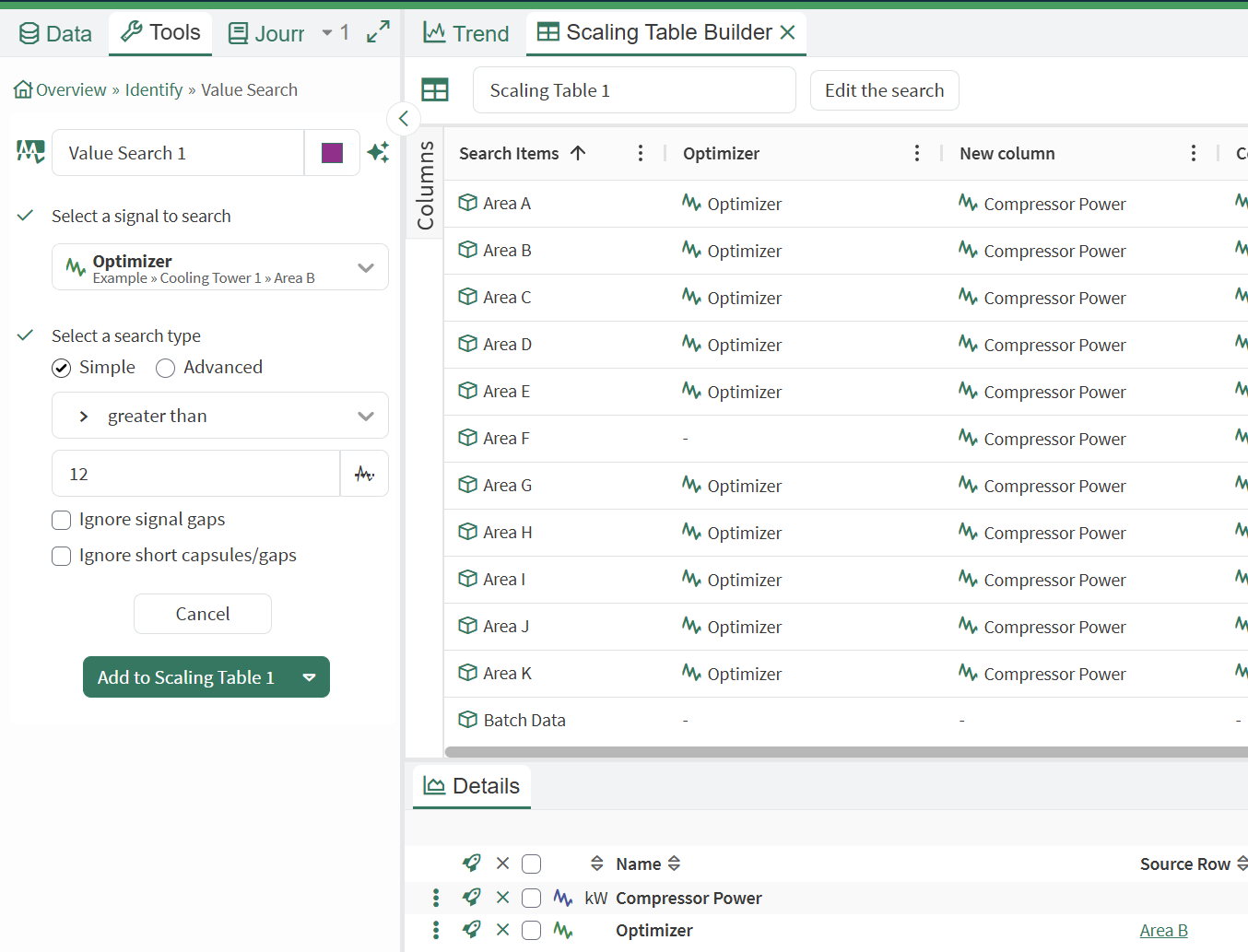
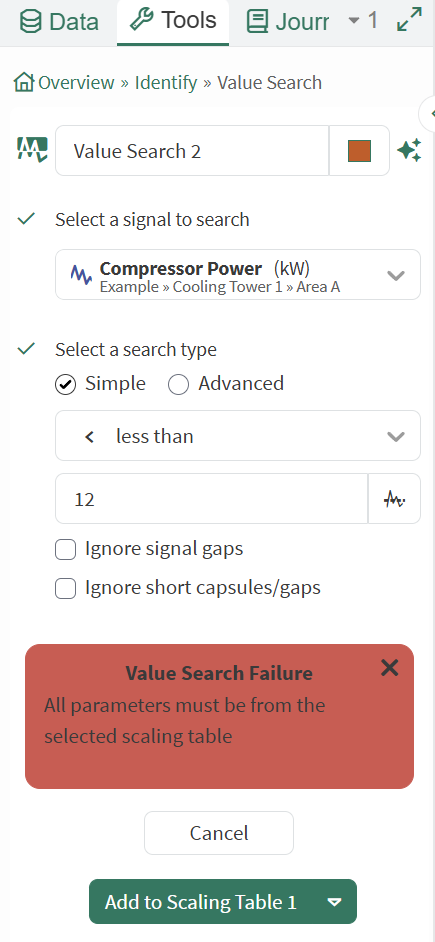
In the above example, the “Value Search” tool is used to create a condition on the “Optimizer” signal that has been added from a Scaling Table, however now there is an option presented to “Add to Scaling Table 1”. Clicking this execute button will add a new column to the Scaling Table that converts the Value Search condition into a formula and creates the new column. Once the column is added, the calculated item from the Scaling Table is added to the Details Pane. The new item corresponds with the input signal’s row in the Scaling Table to enable further operations like row swapping.
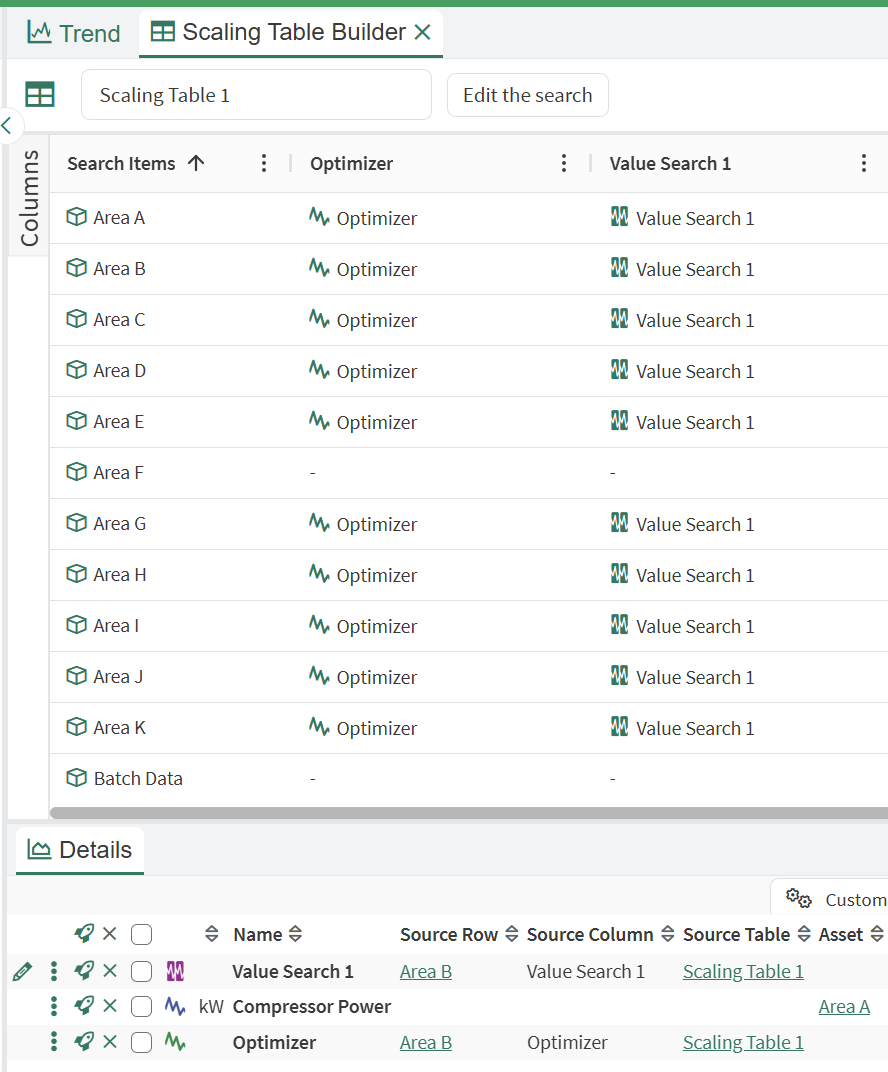
All of the inputs that are used in the tools must be from the same Scaling Table that is specified in the “Add to …” button or an error will be presented. If you want to add calculations to your Scaling Table from the existing tools, make sure to add any input variables as columns in your Scaling Table before attempting to use the tool.