
Row selection is available to provide context for data displayed in Organizer Topics. Row selection provides the same functionality as asset selections, but allows swapping between rows of a Scaling Table instead of assets. The same functionality is supported of allowing an entire document or subset of a document to display data for a specified Scaling Table row.
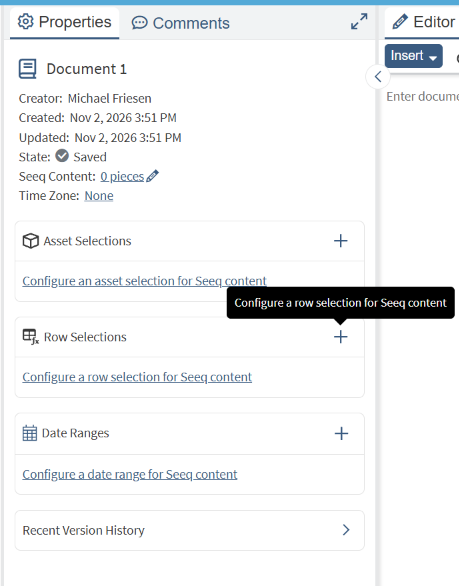
Configure Row Selection
Add a new row selection using the plus icon in the Properties tab in an Organizer Topic.
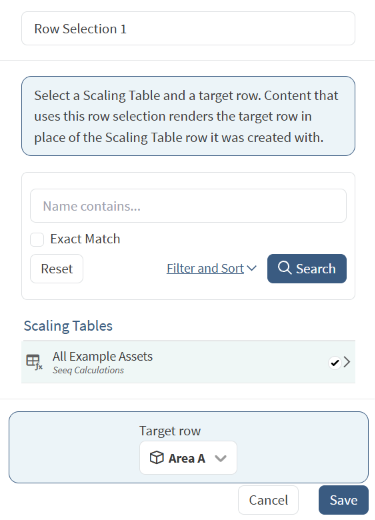
A list of Scaling Tables you have access to will be shown. Select the Scaling Table that the Analysis content contains rows from (see the article for how to use Scaling Table items). The Target Row dropdown allows selecting a starting row for the selection.
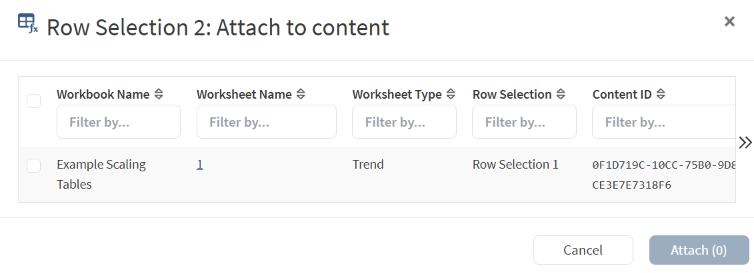
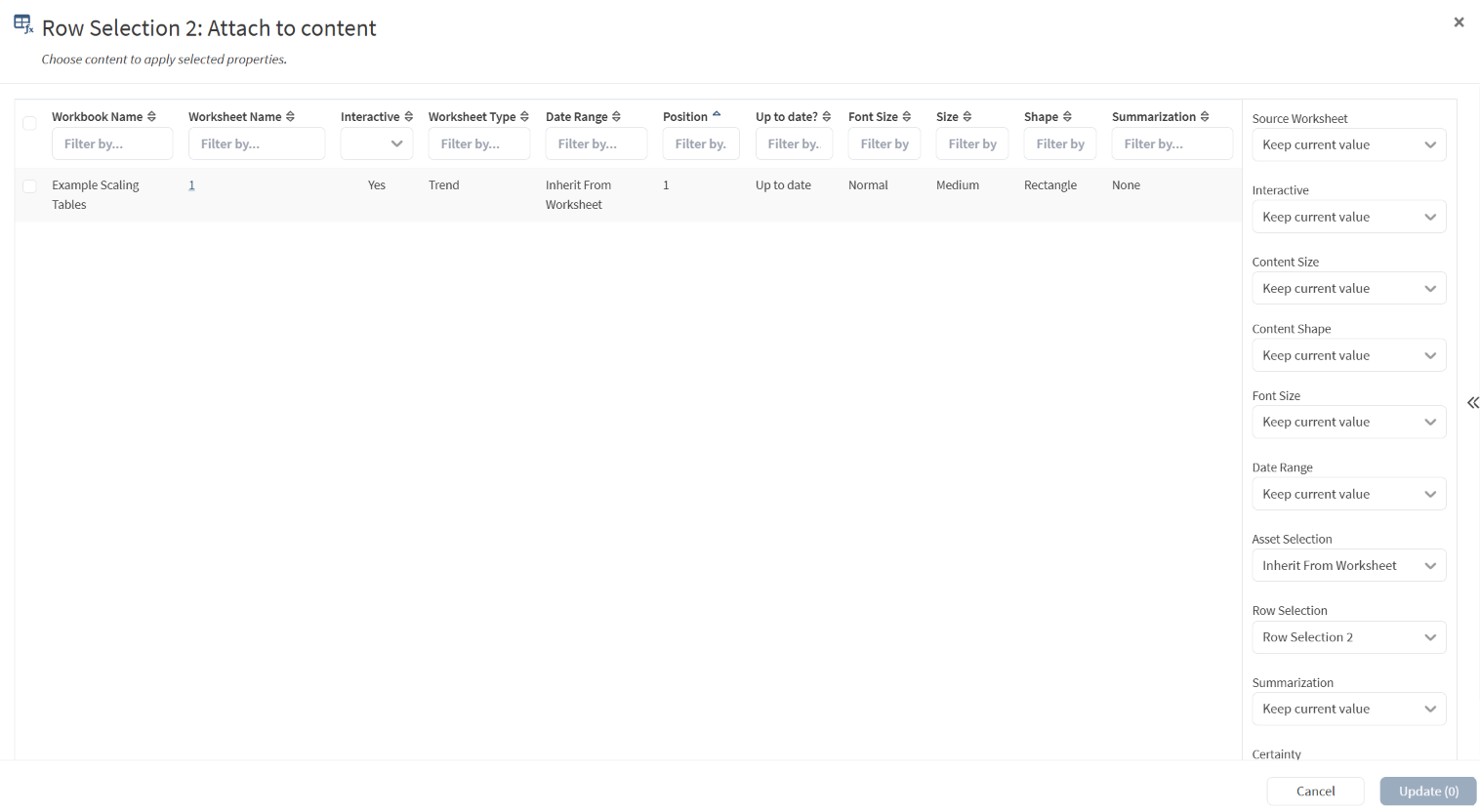
Associate content with Row Selection
Assign this row selection as a new property to as many pieces of content as needed by selecting pieces of content from a table and selecting the "Attach" button. To see more properties, click the double arrows on the right side of the pop-up. The new row selection will be automatically populated in the row selection dropdown.
More guidance can be found in Modifying Seeq Content.
Using Row Selections
Created row selections can be attached to content in Organizer the same as asset selections when importing Seeq content.
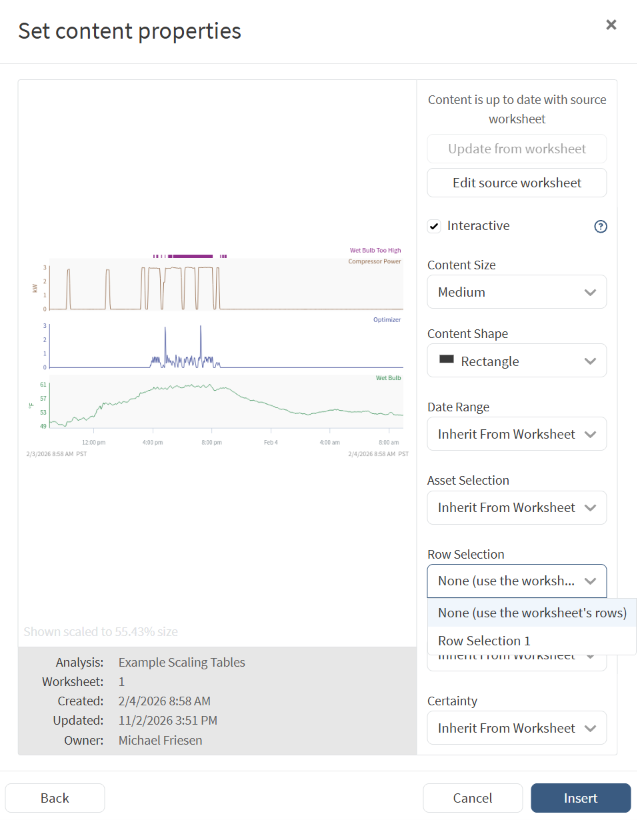
When importing Seeq content (see the article for examples), a new Row Selection dropdown is available. Choose the created row selection to attach it to the content.
Note: Only one asset or row selection can be applied to content at a time.
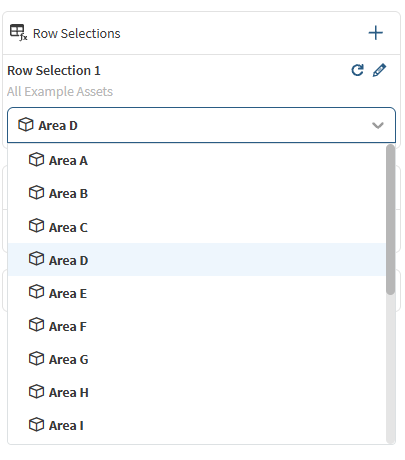
Once the content is configured, a dropdown appears for the row selection in the Properties Pane. This dropdown allows selecting different rows of the Scaling Table to show the data from that row in the configured contents. Selecting a different row will update any pieces of content associate with the row selection with the items from the selected row of the Scaling Table. For example, if Area A is selected in the image to the left, any content referencing items in row Area D will be swapped to Area A.
Troubleshooting
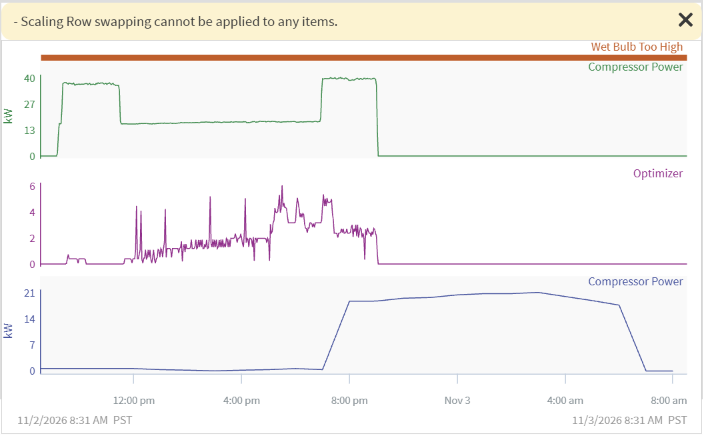
Several scenarios will result in a yellow warning icon in the upper left of the content. This will let the viewer see as much data as possible after row selection is changed, but warns that not all the data may represent the new selection.
There are at least one warning to be familiar with:
-
Row selection cannot be applied to any items
-
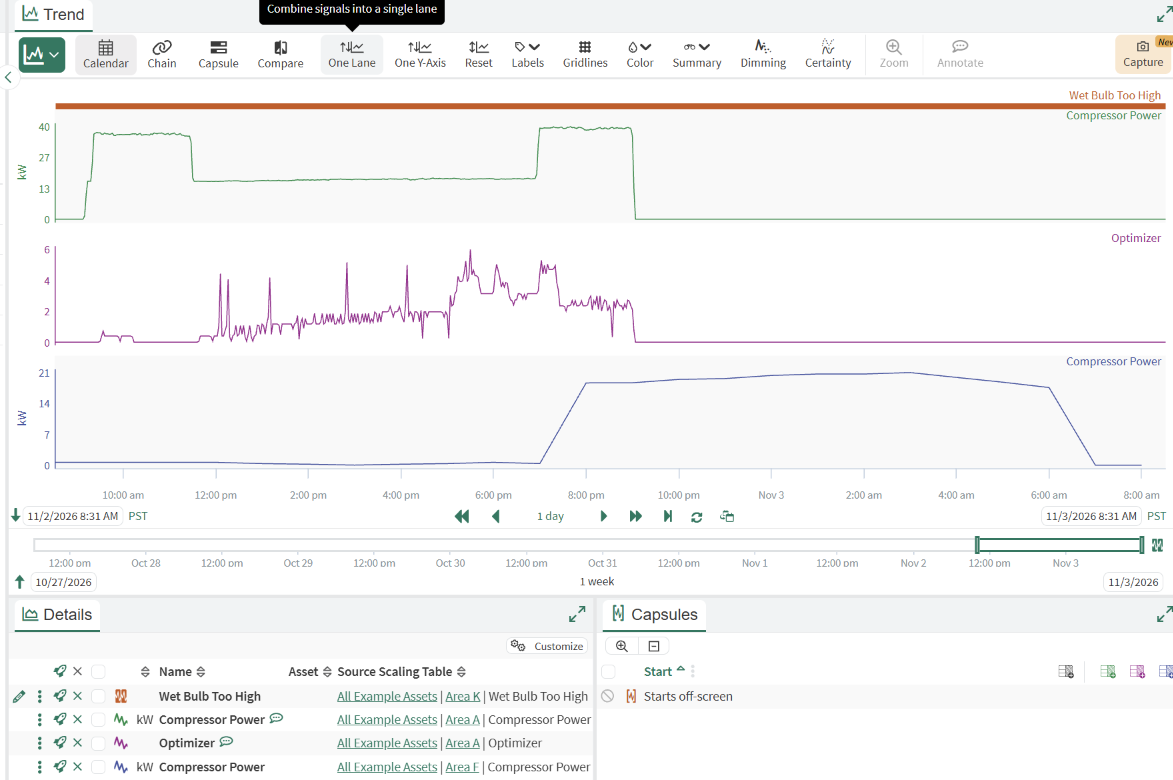
Row selections currently only support swapping row content when there is only a single row represented for a Scaling Table in the content. For example, the Details Pane to the left has two rows (Area A and Area K) represented. If swapping the row selection in the Organizer Topic, the swap cannot choose which row items to swap out and shows a warning.
-