
Approval Flows enable teams to move an Analysis through a defined sequence of review steps before the approved version becomes the “In Production” version.
This feature requires the Pharma or Enterprise License. Please contact your Seeq sales representative for more information.
Overview
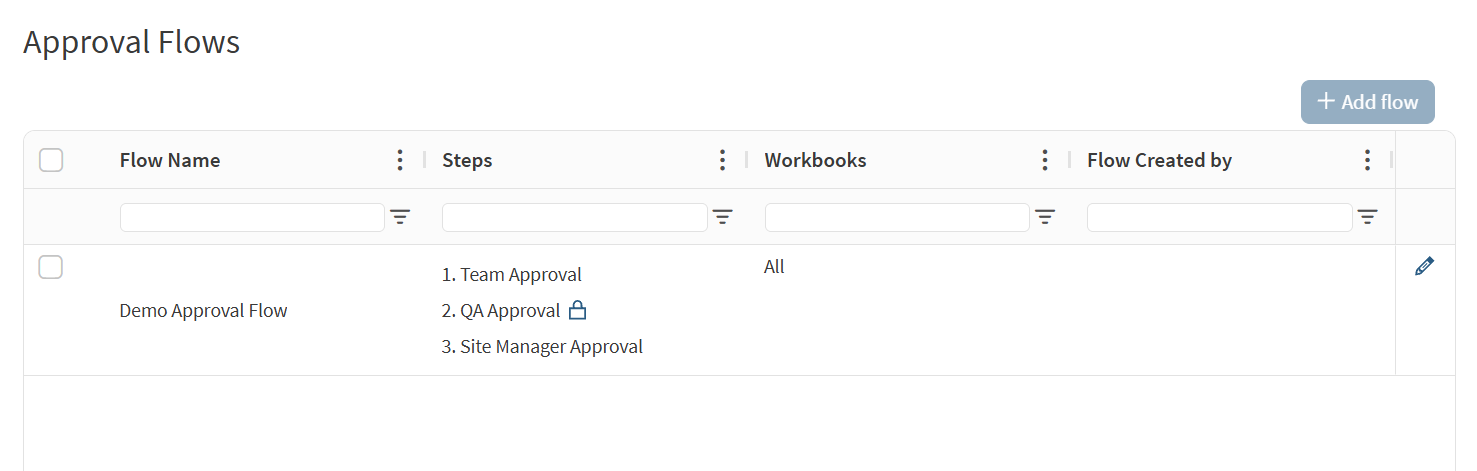
An Approval Flow contains ordered “approval” steps, each one representing explicit approval from various stakeholders and reviewers on your team.
An Analysis moves through the steps in order and cannot skip a step.
When the final step is approved:
-
The approved, locked version becomes the production version
-
The production change is recorded in the audit trail
-
The approval history remains available as an append-only record
Each flow has exactly one lock-required step. The Analysis must be locked and versioned before it can be approved into that step.
Setting up an Approval Flow
An instance of Seeq has one Approval Flow and it is configured on the Administration panel by an Analytics Admin.
To set up an Approval Flow:
-
Go to the Administration panel and scroll down to Approval Flows
-
Click the +Add Flow button
-
Name the Approval Flow
-
Name each step
-
Decide which step is the “Lock Required” step and set it here
-
Assign approvers to each step. You can assign individuals and/or groups as approvers.
Assign a Workbench Analysis to an Approval Flow
-
Open the Analysis
-
Open the menu next to the Analysis name
-
Select Start approval flow
-
Review the flow name, ordered steps, and lock-required step
-
Confirm the action
The Start approval flow action is available only to users who have the required access to the Analysis and step one. Users without Write access to step one will not see the action. Starting a flow also records your approval of step one.
Approve this step
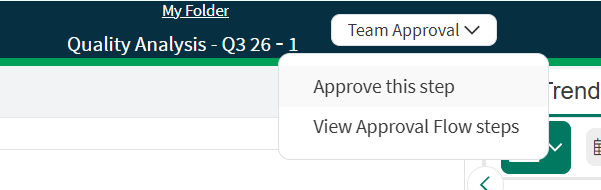
If you are an approver, you’ll be able to “Approve this step”, where “step” is the step of the Approval Flow the document is currently in.
-
Open the Analysis and review it to your satisfaction
-
Select “Approve this step”
-
Review the confirmation message
-
Confirm your approval
Note: You cannot approve the same step more than once for the same Analysis.
Approve the lock-required step
The Analysis must be locked and versioned before approval into the lock-required step.
If you have Manage access to the Analysis and its dependencies, the approval experience guides you through locking, versioning, and approving in one interaction. Locking is irreversible, so review the version name and any lock warnings before confirming.
If you do not have Manage access, contact the Analysis owner or an administrator. The system does not elevate your permissions to lock the Analysis on your behalf.
If the Analysis cannot be locked, the lock check identifies the blocking items and reasons, such as missing permissions or dependencies that are not eligible for locking.
See Locking and Versioning a Workbench Analysis for more information on this process.
Production promotion
When the final approval step is completed, the approved version is automatically promoted to production. “In Production” is indicated with a badge in the Analysis’s header.

Roll back, or changing which Analysis is “In Production”
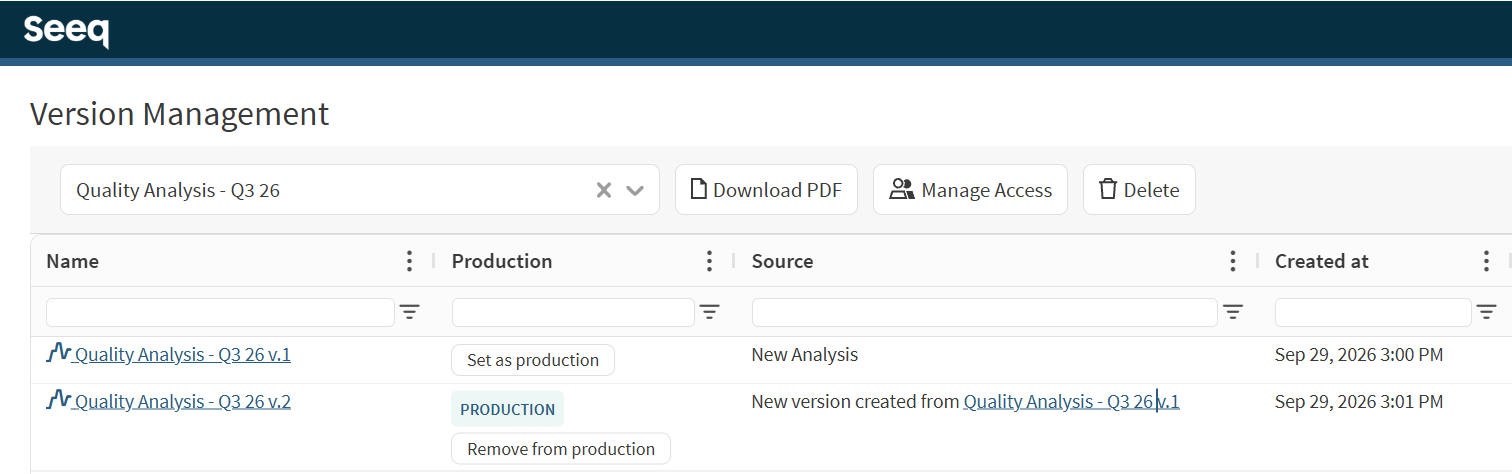
To roll back to a previous “In Production” version, go to the Version Management page.
-
Select the applicable Version History
-
Look in the Production column for buttons labeled “Set as production” and “Remove from production”. The current production version has a blue badge. Eligible alternative versions have “Set as production” buttons.
-
To be eligible, the alternative version must have once been through every step of a non-archived Approval flow.
Important behaviors and limitations
-
Approval Flows currently applies only to Workbench Analyses (not Organizer Topics)
-
Steps must be completed sequentially
-
The current implementation assumes one flow per server and does not support multiple simultaneous flows on one Analysis
-
A started flow cannot be cancelled or removed
-
Approval history cannot be deleted
-
Manual locking remains governed by the existing locking permissions and is not disabled just because an Analysis is in an Approval Flow