
The Manual Signal tool can be used to create a signal manually by entering timestamp and value pairs.
Using the Manual Signal Tool
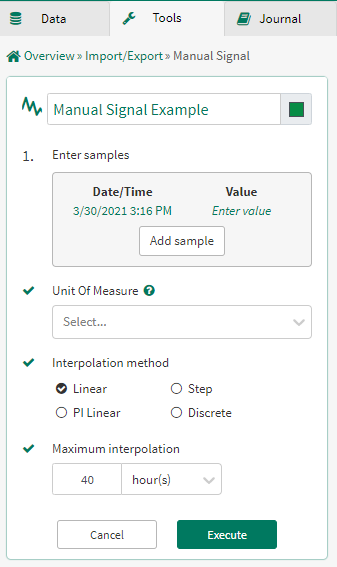
Enter samples: Edit the Date/Time and Value fields and click Add Sample to begin to create your signal.
Select the unit of measure: (optional) Select the units for your signal.
If you want the values to be interpreted as strings, string must be chosen as the unit of measure.
Select the desired interpolation method.
Choose the desired maximum interpolation.
The samples you add will be shown in a table within the tool. A preview of the signal will be available on the trend.
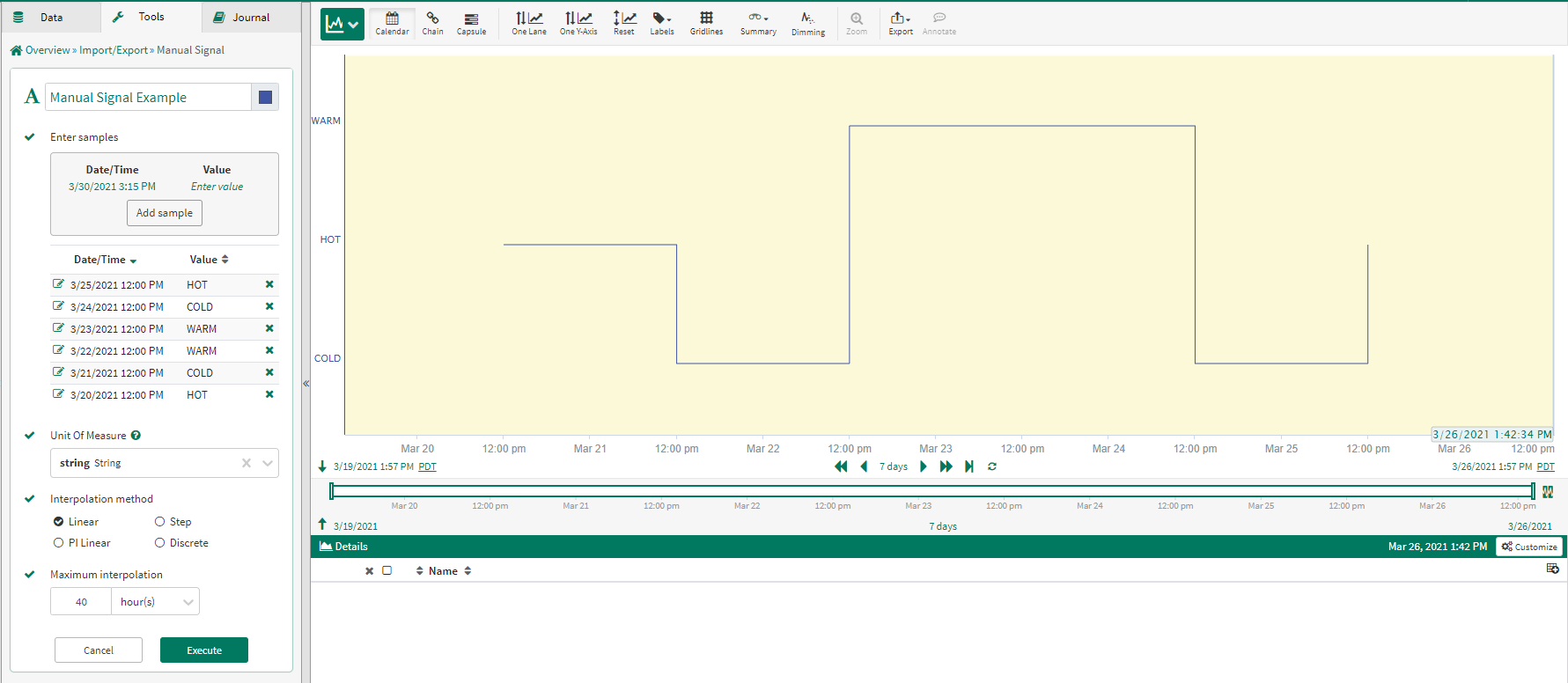
Editing a Manual Signal
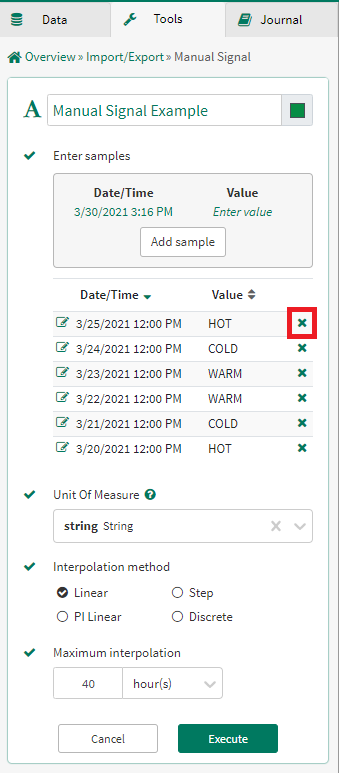
To remove a sample from your signal, simply click the :remove: icon.
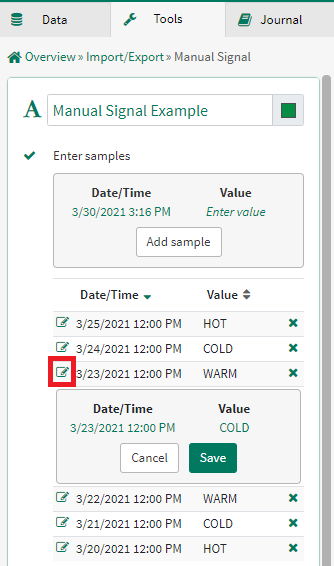
To edit an existing sample in your signal, click the :pen: icon. An editor box will appear below the sample you are editing. Update the Date/Time and/or Value for that sample and then click save to apply any changes.