
By default, the Seeq AI Assistants use models that Seeq manages. Administrators can instead connect Seeq to their own OpenAI or Azure OpenAI deployment, so that AI Assistant requests go through the organization's own provider.
Overview
The LLM Provider tab of the Administration panel shows which provider the server currently uses. If no custom provider is configured, the tab shows This server uses Seeq's models. Once a provider is configured, the tab shows its environment and connection details.
Before saving a new configuration, administrators can test it. The test checks each model Seeq uses against the provider and reports which models answered, without saving anything.
Configuration
To configure a provider:
-
Go to the Administration > LLM Provider.
-
Click on Configure. If a provider is already configured, click on Edit provider settings.
-
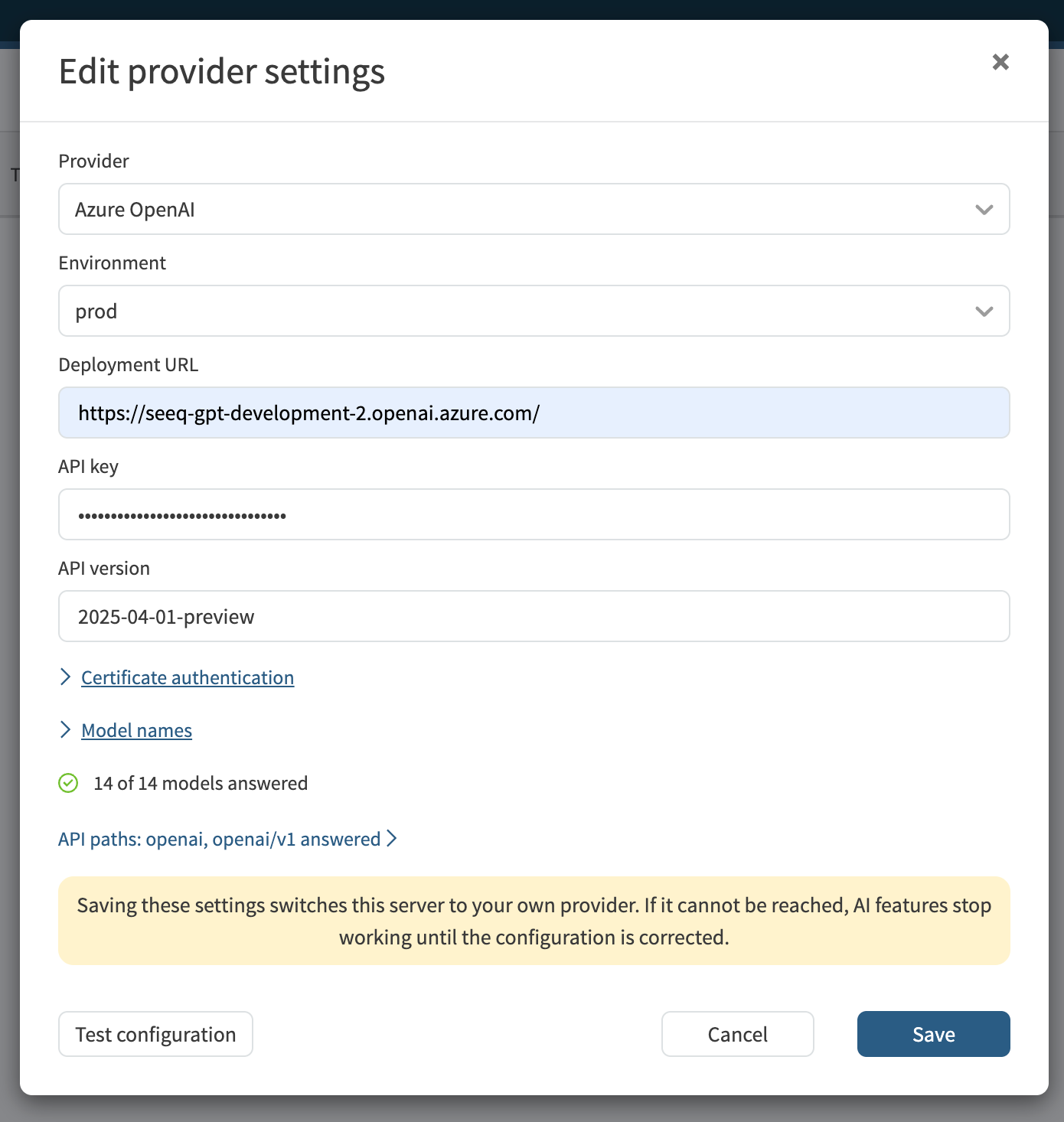
Select the Provider (OpenAI or Azure OpenAI) and the Environment.
-
Enter the connection details:
-
For OpenAI, enter the Base URL (for example, https://api.openai.com/v1), the API key, and optionally the Organization.
-
For Azure OpenAI, enter the Deployment URL (for example, <https://<resource>>.openai.azure.com/), the API key, and the API version.
-
-
Under Model names, fill in a row only if your provider uses a different name for a model than Seeq does.
-
If your endpoint sits behind a gateway that requires a client certificate, open Certificate authentication and paste or upload both the certificate and the private key. Otherwise, leave both empty.
-
Click on Test configuration and review the results.
-
Click on Save.
Testing a Configuration
The test sends a short request to each model through your provider and shows one of the following results:
-
All models answered, for example "14 of 14 models answered", alo responded.
-
Some models failed. The failures are grouped by the error the provider returned, for example 404 DeploymentNotFound when a model has no deployment, or a connection error.
-
The configuration could not be tested. A required value is missing or invalid, for example an Azure OpenAI configuration without an API version.
-
Resolve any failures before saving. A model that does not answer during the test will not be available to the Seeq AI Assistants.
Removing a Configuration
-
To return to the models Seeq manages, click on Remove on the LLM Provider tab and confirm. The Seeq AI Assistants revert to the default Seeq-managed provider within a few minutes. portant notes Only Seeq Administrators can view or change the LLM Provider con
-
Saving a configuration switches the server to your provider immediately. If the provider cannot be reached, AI features stop working until the configurationis corrected.
-
Your provider must serve every model the Seeq AI Assistants use. If a model is not available, Seeq falls back to the next available model, which can change how the AI Assistants behave.
-
Saved API keys are hidden and are not shown again after saving.
Note: If the configuration is saved but the server cannot be switched to it, the message shows the configuration setting to update. If you need help, please create a support request.