User Profile and Preferences
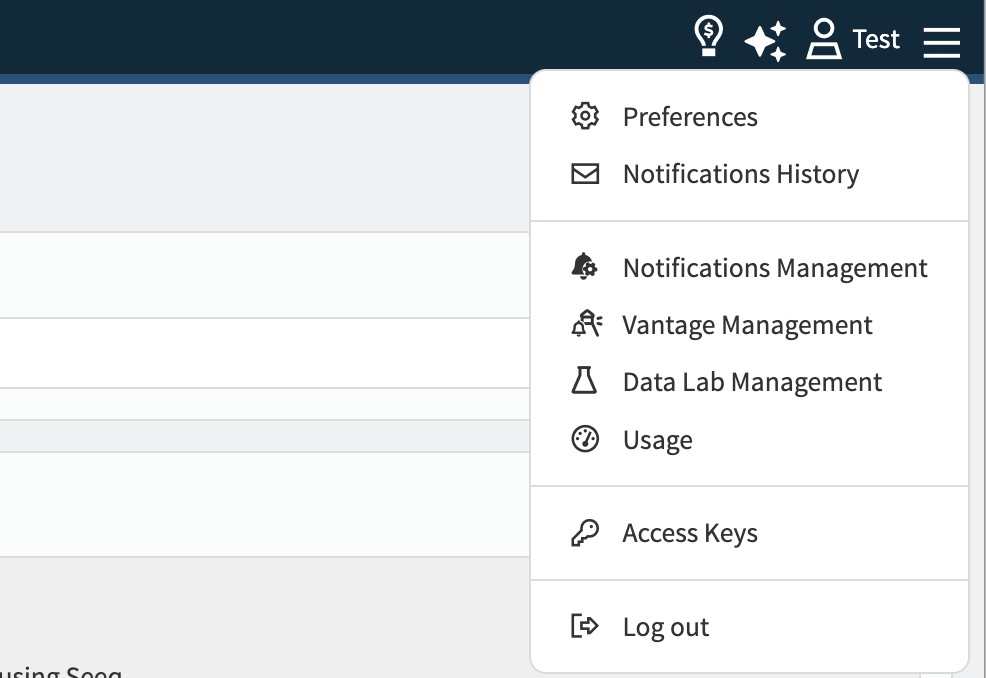
The User Icon at the top right of the screen has many uses and accessible features. This article will describe them in detail. Note while this icon displays in Data Lab to represent the user logged in, it does not allow for updates or navigation elsewhere.
Preferences
Profile
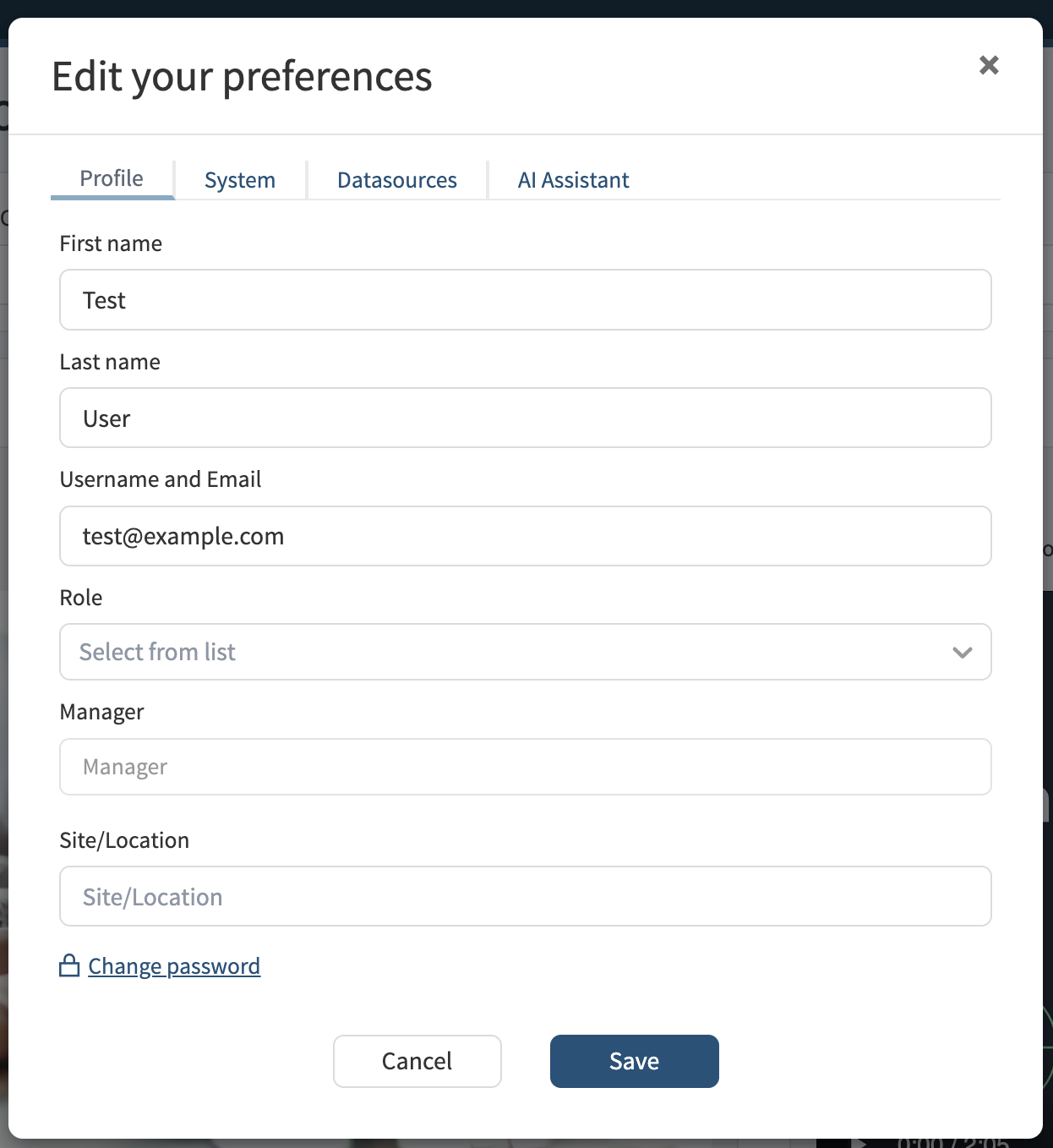
Edit your First & Last Name, the email address associated with your Seeq account, your Role, your Manager and your Site or Location.
System
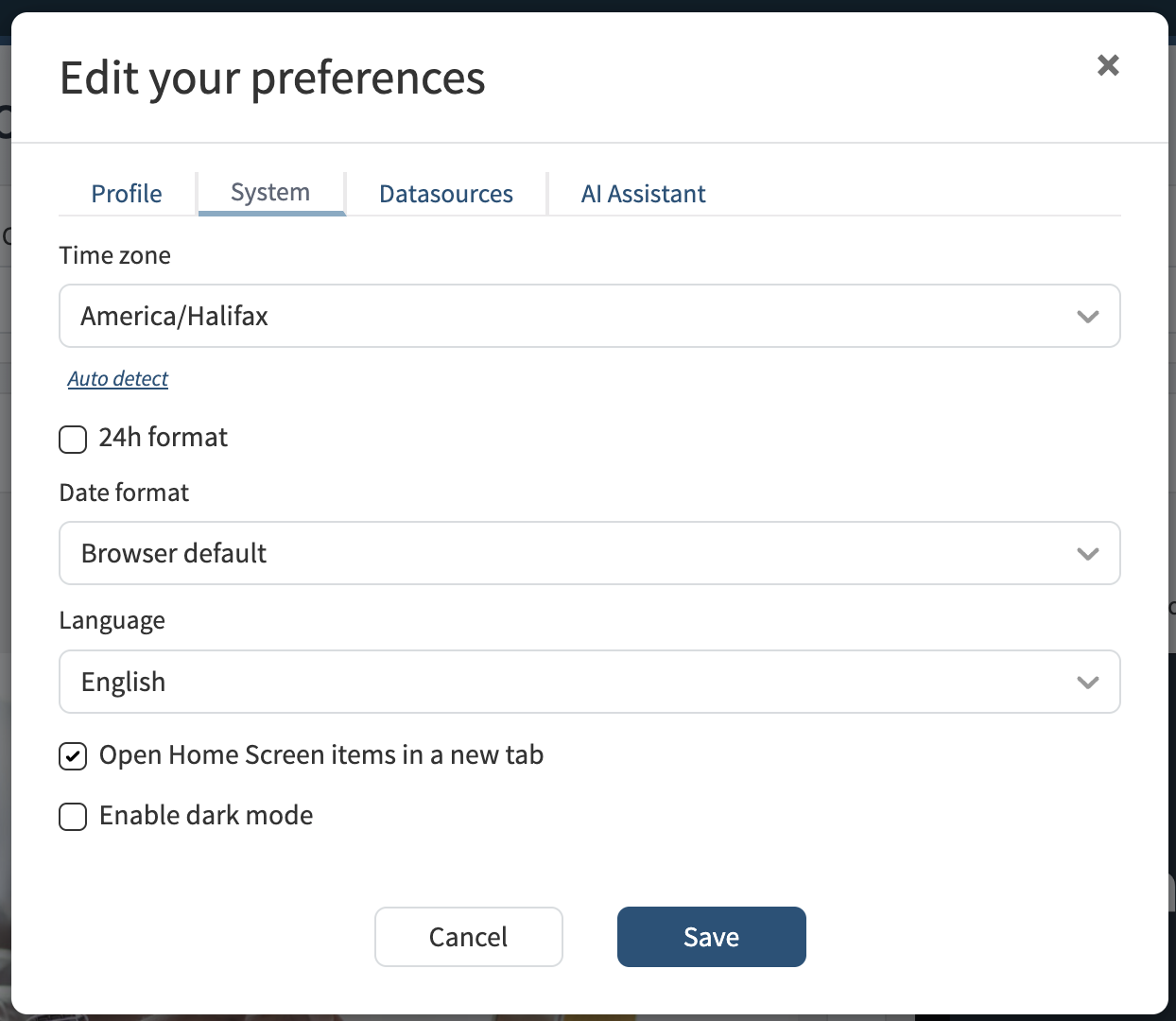
Allows editing your timezone (auto detect will detect your current timezone rather than needing to use the dropdown) – this can be helpful to ensure a worksheets and Organizers are viewed in your preferred timezone.
If you prefer 24-hour formatting for time of day, check the 24h format box so that anywhere time is displayed in Seeq will appear as 0:00 to 23:59 instead of 12:00 AM to 11:59 PM.
Use “Date format” to control the order and separators used for numeric dates in Seeq. Choose Browser default to follow your browser or operating system settings, or choose a specific format: MM/DD/YYYY, DD/MM/YYYY, YYYY-MM-DD, or DD.MM.YYYY.
This preference is saved for your user account. It is separate from 24h format, which controls how time of day is displayed.
Preferred language can also be selected here, as well as preferred method of opening content from the Seeq home screen (new tab or same tab), and dark mode. Enabling dark mode will apply to the Seeq home screen, Organizer, and Workbench.
Click Save to apply any changes.
Datasources
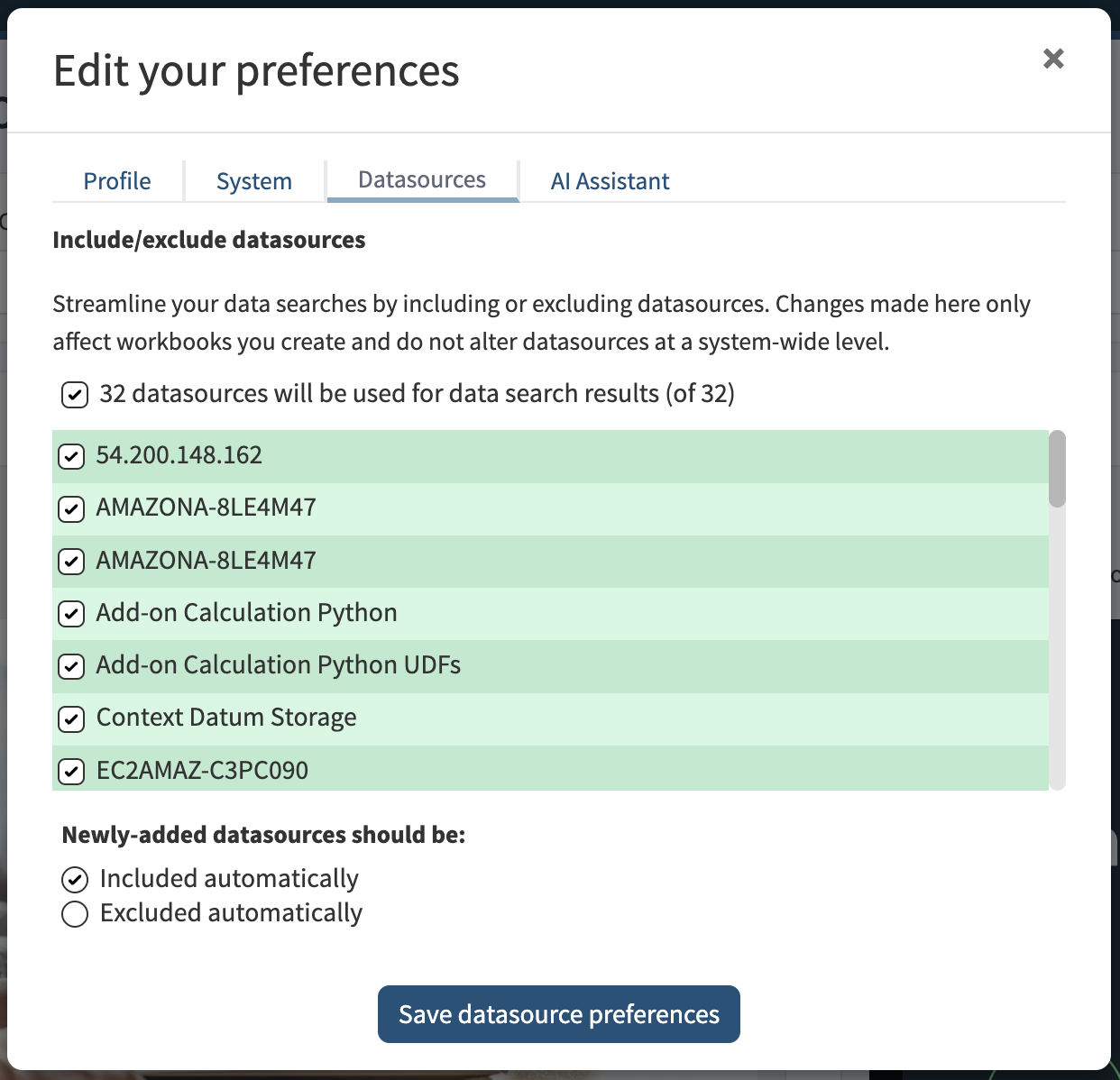
Users with access to many datasources may want to include or exclude certain datasources from search results. Put a checkbox next to datasources that should be used when searching, and uncheck datasources that should not be searched.
Users can also declare whether newly-added datasources should be checked or unchecked by default.
These settings are saved at the User level.
Notifications History
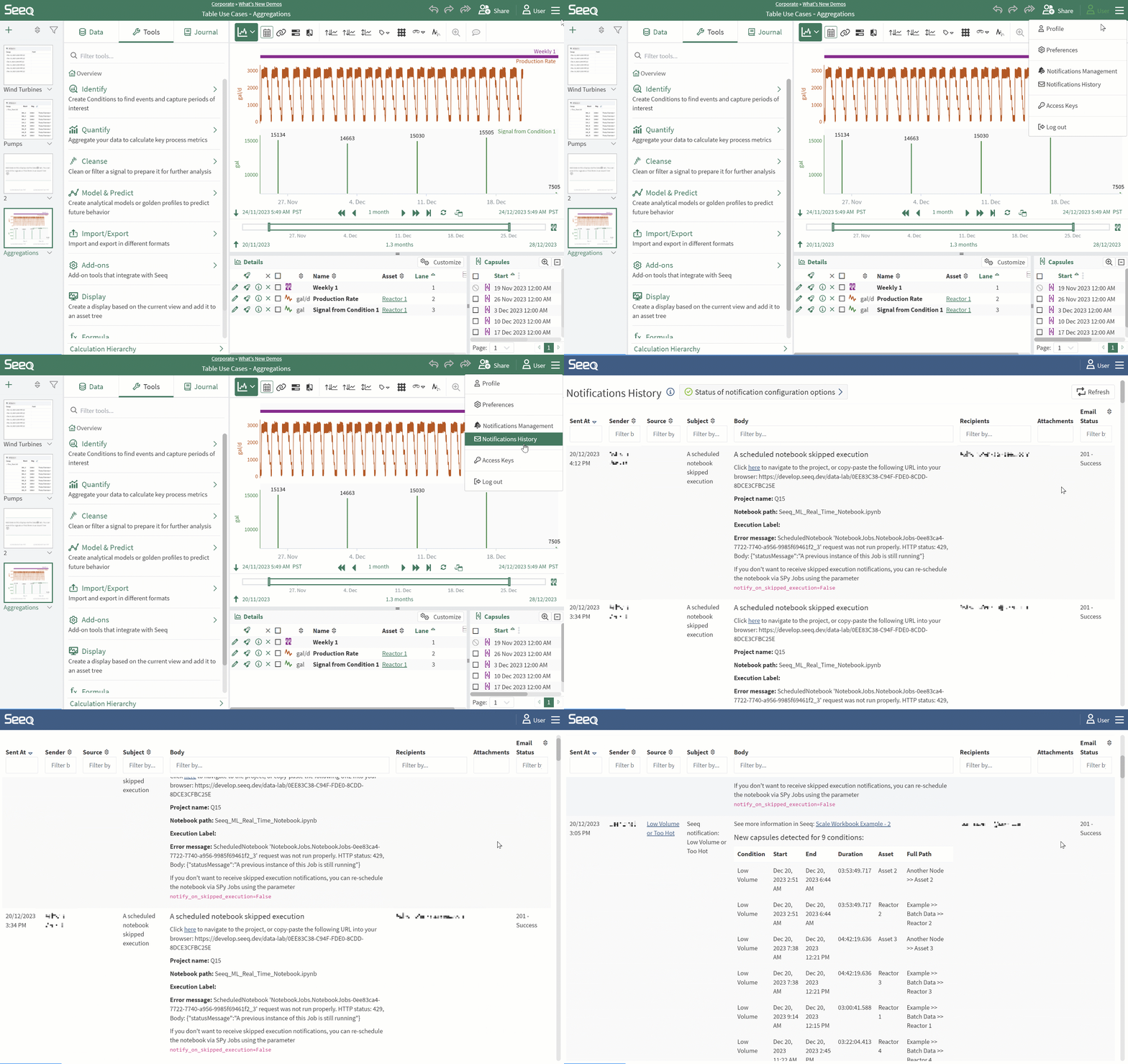
Notifications History allows Users to view, search, and filter the last 7 days worth of email notifications. Non-administrators will only see their own notifications, while administrators will see all notification traffic.
Notifications Management
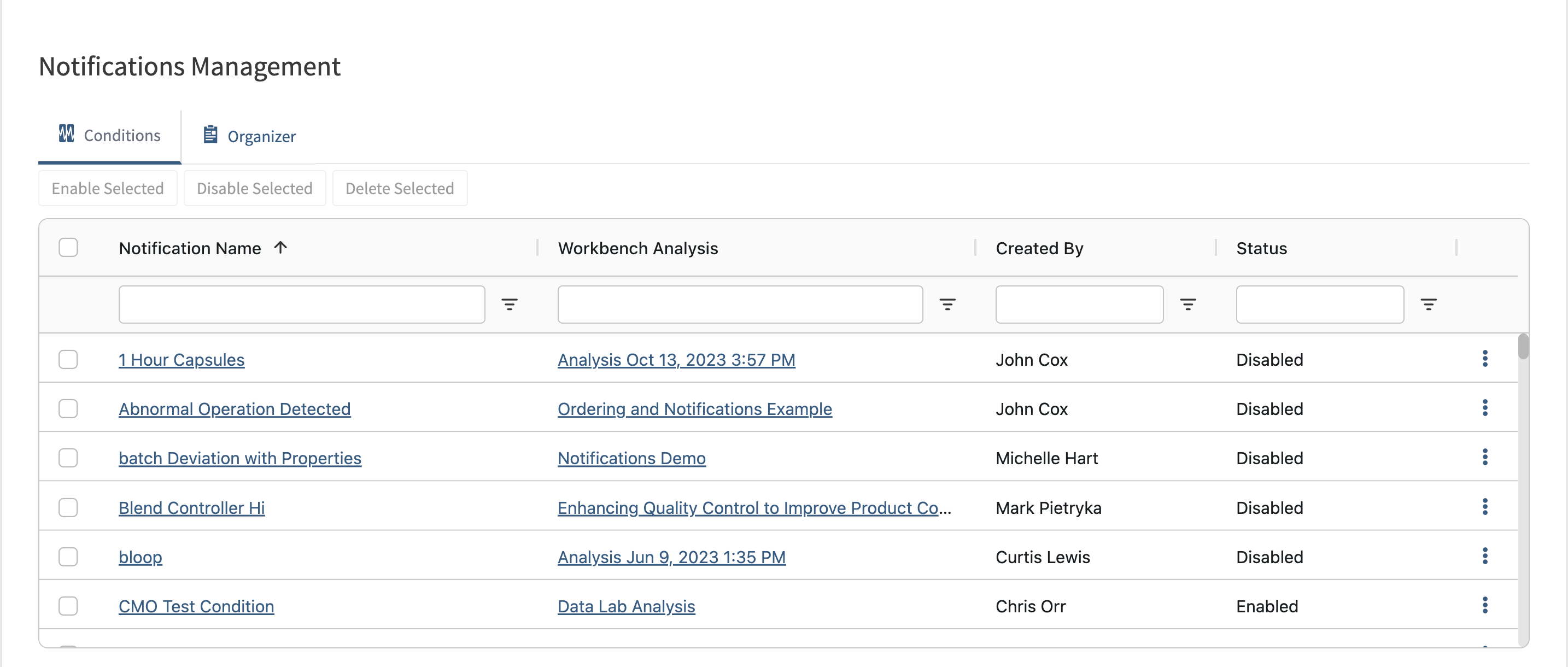
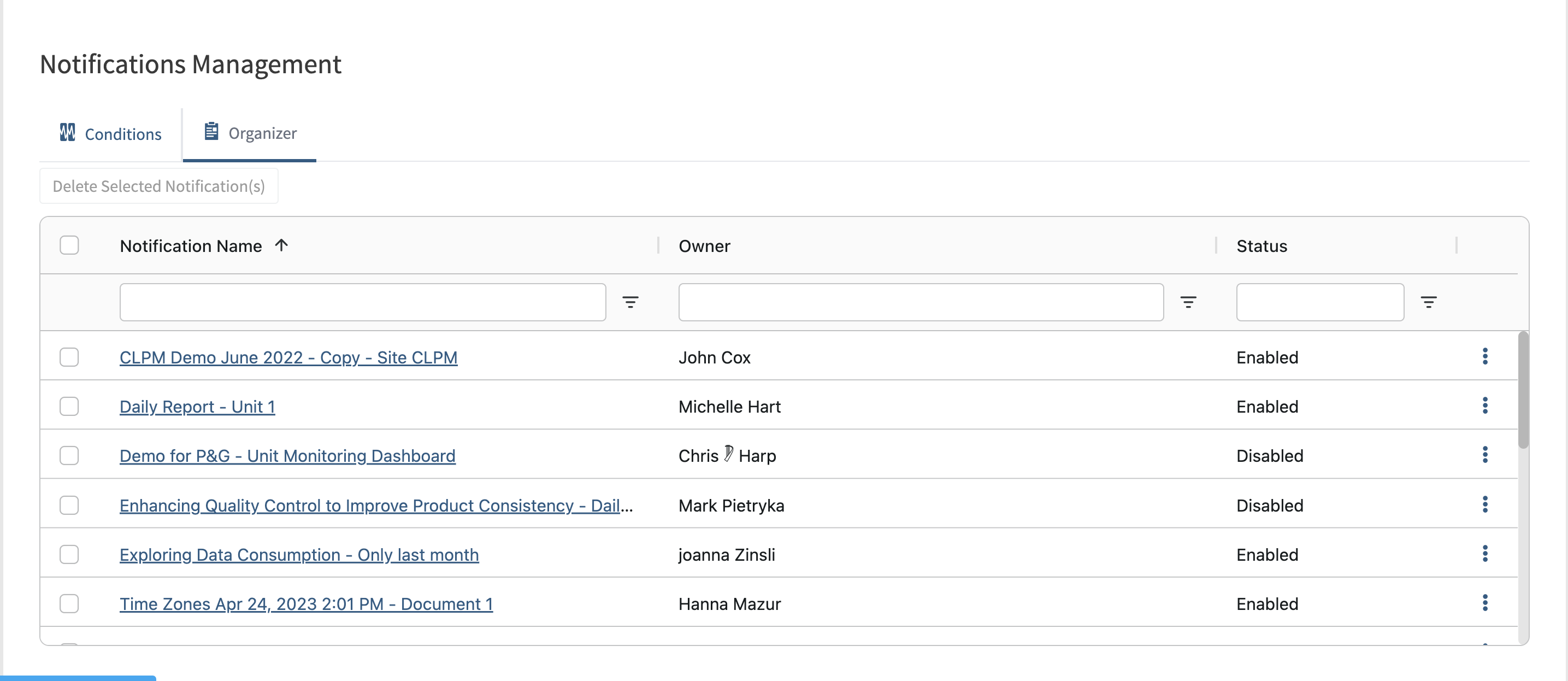
All Seeq email Notifications can be viewed, managed (disabled, enabled, & deleted), and modified (changing frequencies, adding/removing participants, & otherwise modifying other aspects of the notification such as the name and body content) from this page.
Seeq administrators are able to view and modify all notifications created by any user on the server, while non-administrators will only be able to view and modify notifications created by themself.
There are two tabs on this page, one dedicated for Condition notifications (notifications that are sent upon detection of capsule events), and the other dedicated for Organizer notifications (notifications that are sent upon the scheduled update of an Organizer Topic).
Sorting, filtering, quick links, and bulk actions are available for both tabs.
Access Keys
Access Keys allow users to authenticate scripts using the SPy module and OData when using Windows, LDAP, or OpenID Connect authentication. Each Access Key is unique to a user and inherits the permissions from the User. Access Keys can be managed within the user profile icon or the Admin Panel.
More information can be read at the Working with Access Keys Knowledge Base article.
Log out
This button will log the User out of Seeq.
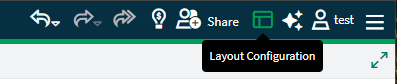
Layout Configuration
Workbench, Organizer, and Vantage layouts can be modified by each user by selecting an active header and dragging to other areas of the screen. This can allow you to display the Journal at the same time as the Tools Pane, or expand the width of the worksheets tab to more quickly navigate through a long list of worksheets or documents. Any modifications made to a layout by clicking on one section and dragging it elsewhere will be applied for any Workbench a user accesses. The layout preferences are user specific and application specific, so other users will not see the layout modifications you apply, and each user can have different layouts in Workbench and Organizer. If you have made changes that you do not like, access the Reset Layout selection adjacent to the User menu in the toolbar. See Worksheet Preferencesfor an additional option relevant to Workbench.