
Templates

Templates are a new feature available to all Seeq customers.
Overview
Templates are a new Seeq feature that let you package best-practice analytics into reusable, shareable building blocks. A Template wraps one or more calculations together so they can be applied consistently across similar assets or processes (for example, pumps, compressors, production lines).
Each Template is a reusable package that includes:
Inputs – the signals, scalars, conditions, or properties a Template needs to run (for example, flow, pressure, status, equipment ID).
Rules / Calculations – the logic that turns inputs into intermediate items and final outputs (first-principles calculations, thresholds, statistics, or ML-backed formulas).
Outputs – the resulting signals/conditions/scalars that describe performance, health, KPIs, or events. Templates support multiple outputs from a single execution for efficient deployment.
Templates can be:
Applied once to quickly stand up a best-practice analysis for a single asset.
Scaled across thousands of assets via Scaling Tables for Enterprise+ users.
Creating a Template
Start by creating your analysis using point and click tools or Formula in Workbench or a Scaling Table. Any calculation (using existing Seeq Tools, Formula operators, UDFs, etc.) can be packaged as part of Template logic. Once best practice calculations have been created and validated to solve a specific need, create a new Template.
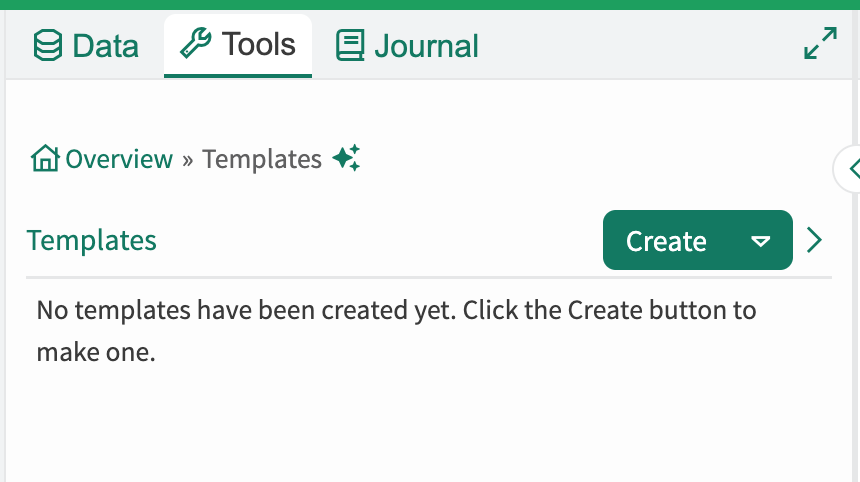
Templates can be found in the Tools Pane in Workbench.
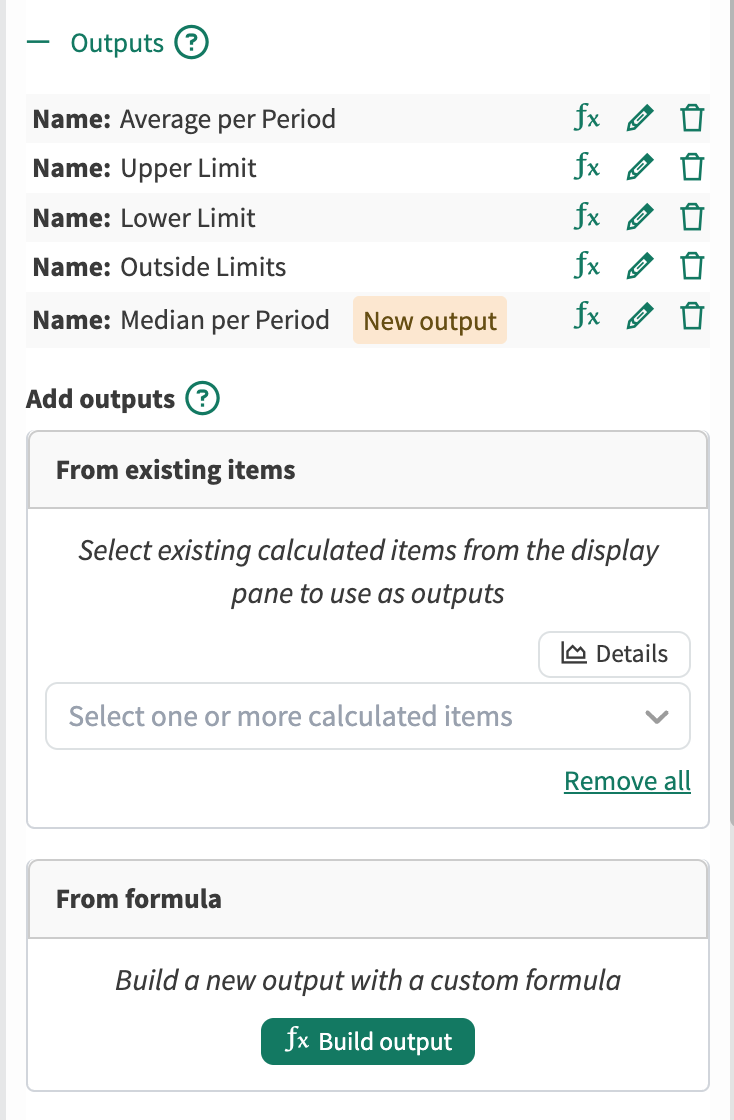
When creating a Template, provide a Name and Description that indicate what the Template does and what use cases it can be used to solve. Then, by selecting calculated items as outputs, the inputs and intermediates will automatically populate. Additional outputs can be created from scratch, as well as all items can be renamed to use a standardized identifier for future applications.
During this creation step, the Template is encompassing the entirety of the calculation hierarchy, and the inputs will be the raw tags required for all of the intermediates and outputs. Once the inputs are identified, provide common names and descriptions that will be used in the new Templates apply pane for future use. The Template author can also move intermediates to be inputs if the raw tag is not the desired input. Once the Template is ready, it can be saved and then applied.
For Enterprise customers and Seeq for Pharma customers, there is an option to Save Draft or to Lock & Publish. See Template Locking & Versioning for more details.
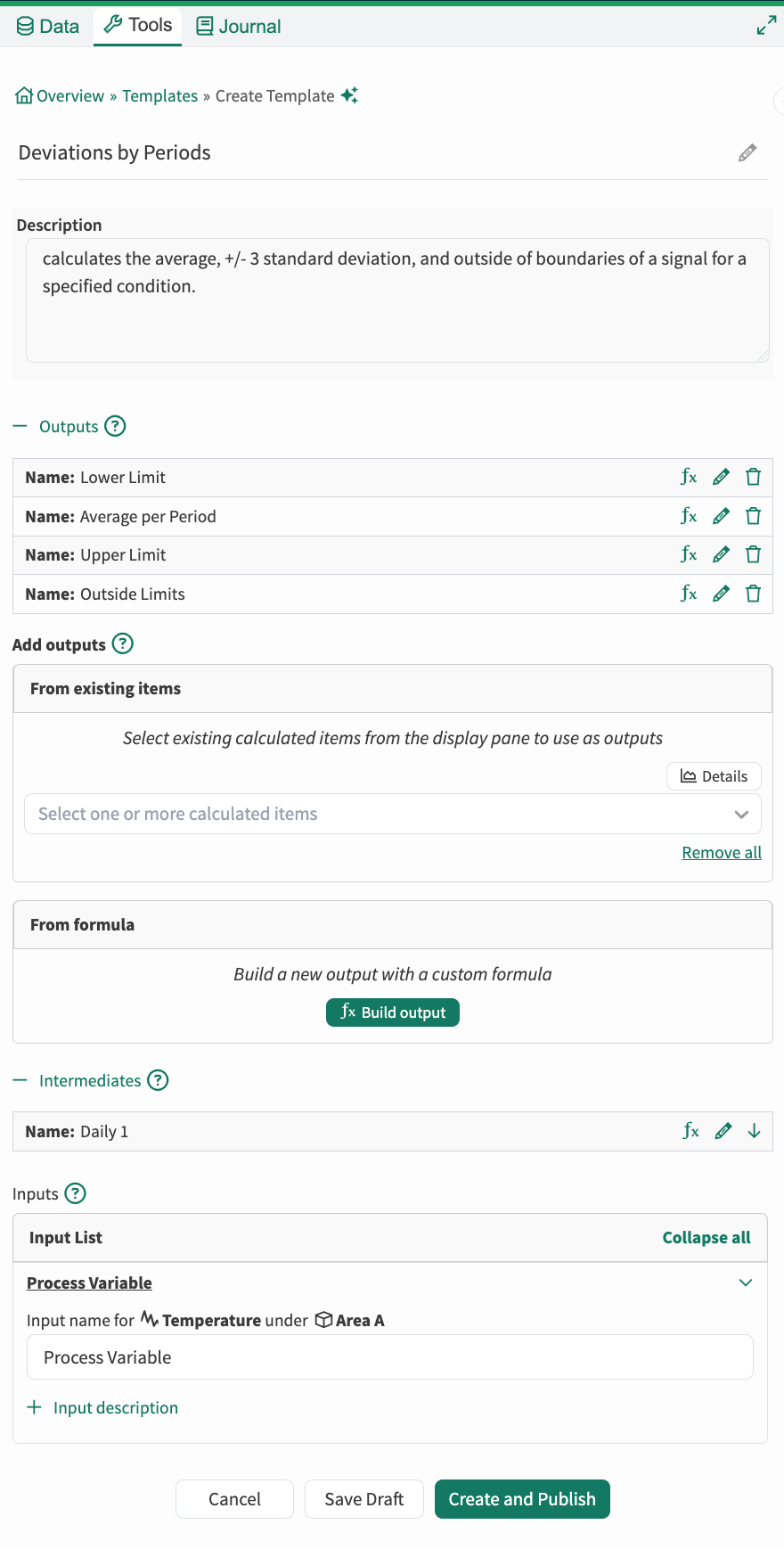
Template with Locking and Versioning
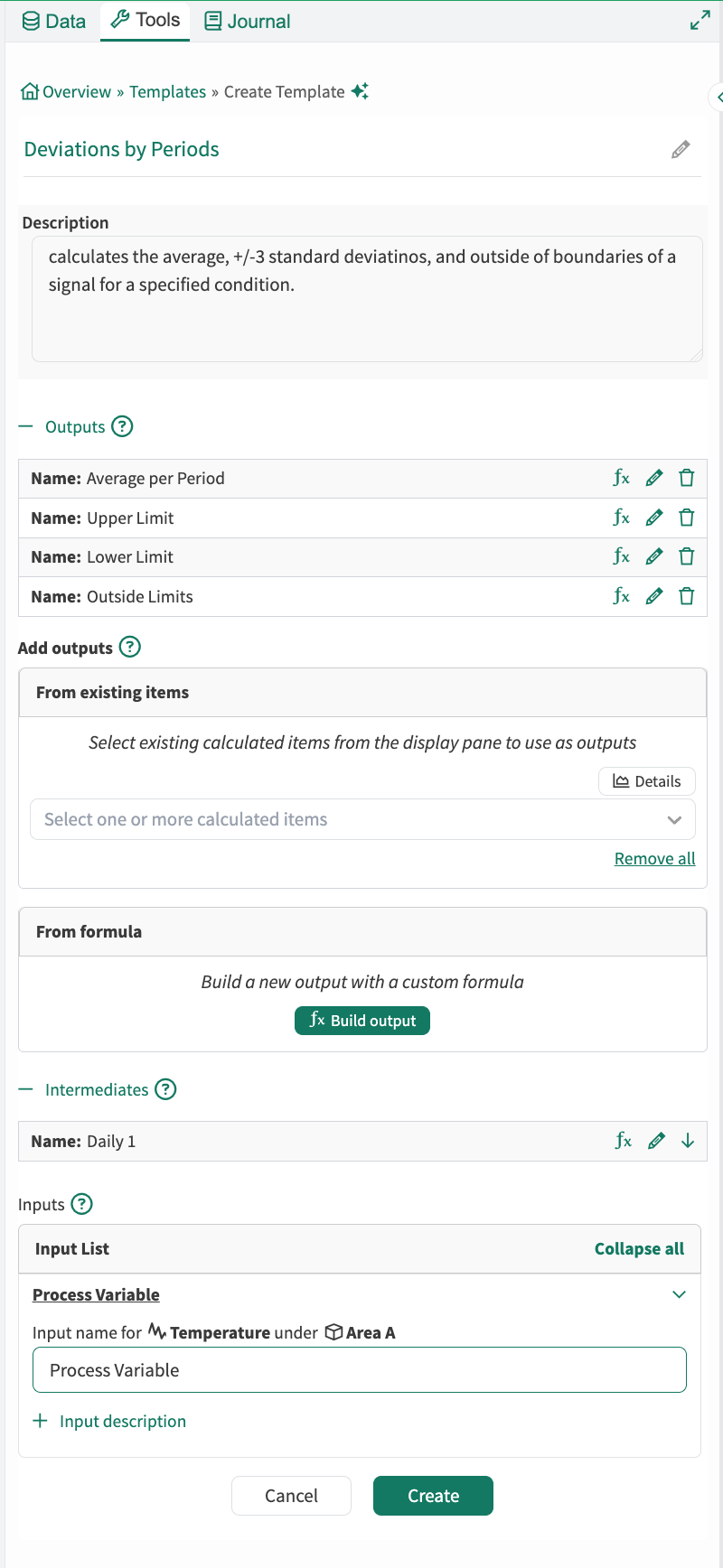
Template without Locking and Versioning

Once the Template is created, the items used to create the Template are no longer associated with it. These items were a means to extract the math and the calculation logic required for the outputs at a point in time, but those items are not tied to the Template. Therefore, if changes are made to these original items, there will be no impact or changes made to the Template. Additionally the Template does not retain the original inputs, so when new outputs are added or edited, mapping is required as shown in Editing a Template.
Applying a Template
To apply a Template, access the Templates list from the Tools Pane and click on the Template to be applied. Templates can be used similarly to existing Seeq Tools by mapping the required inputs and executing, however, multiple outputs are supported, so several items can be created with each execution.
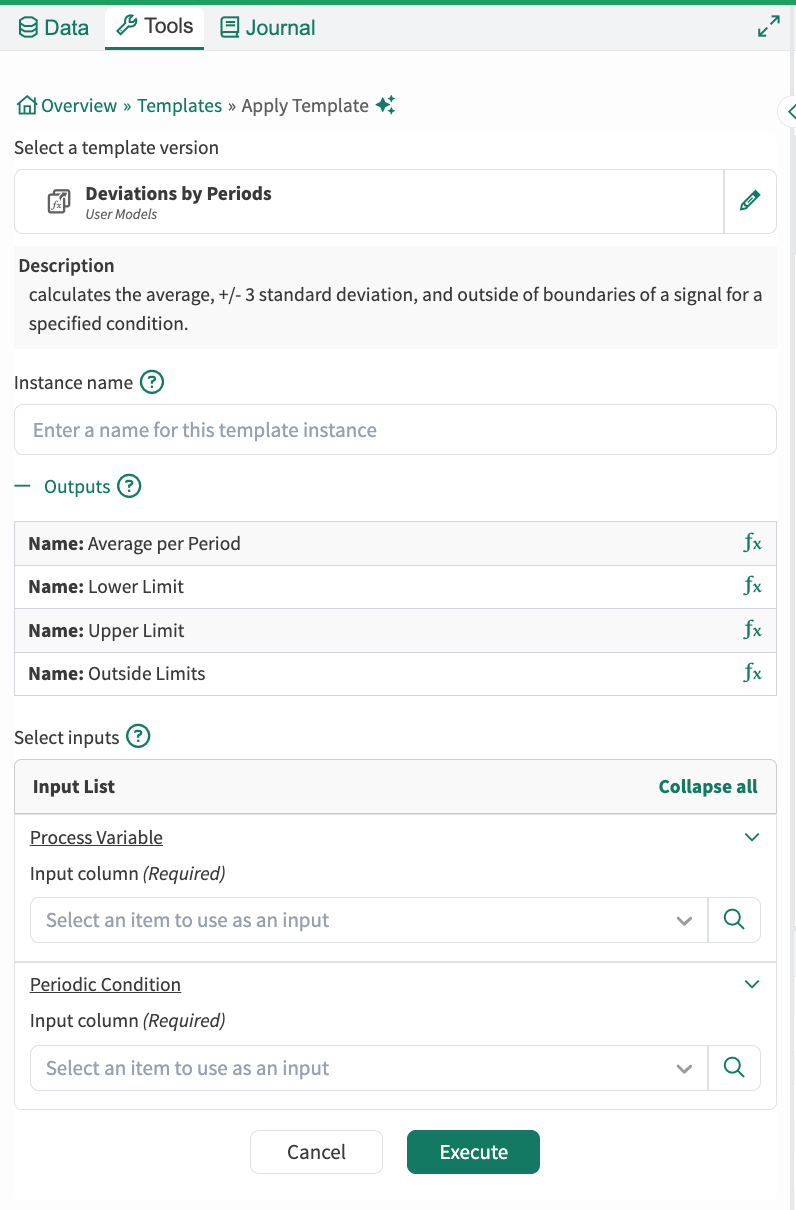
Apply Template through the Tools Pane
Instance Name: provide a name for the application being created. Since the outputs will have uniform names, the Instance Name is the identifier for this specific application.
Outputs: when applied, all of the outputs are created and added to the Details Pane. The fx icon can be used to show more formula details for each output.
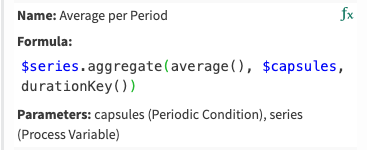
Inputs: signals, scalars, or conditions required to execute the Template. By default, the items in the Details Pane & Recently Accessed are provided in the dropdown. To search for other items, use the magnifying glass.
After applying the Template, the outputs are generated and added to the Details Pane. Because they were created by using a Template, the items are grouped as a Template Instance. This additional information includes what Template controls the items, and the Instance name.
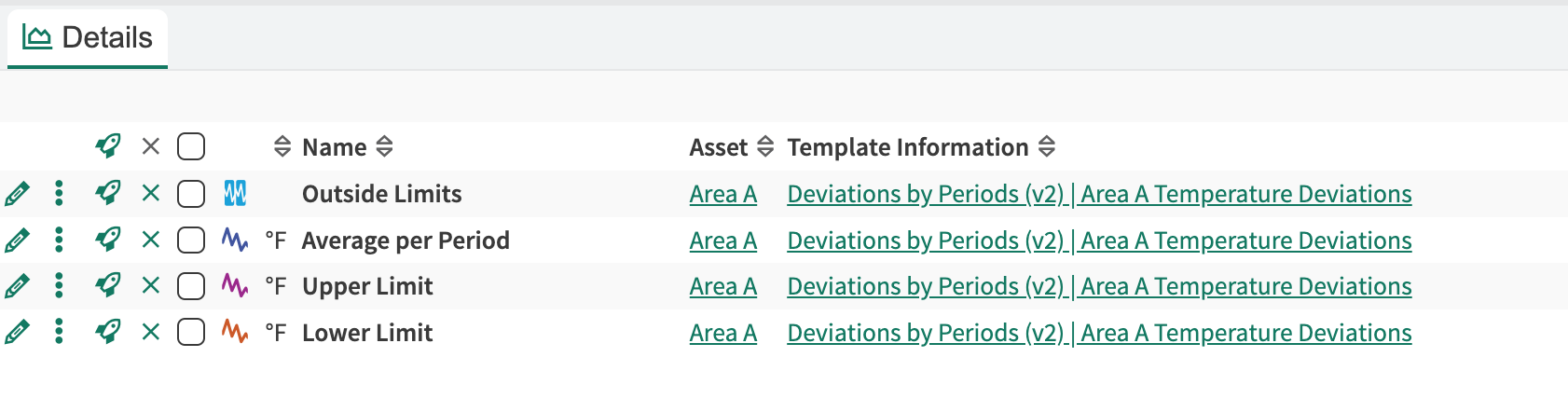
Template information available in the Details Pane: Template (Version) | Template Instance Name
Because these new items are Template controlled, they cannot be edited individually unless they are first retired from the Template. This is to provide governance for these items, and when the Template is edited or a new version is created, the instances (the items created by the Template) can be upgraded to accept the new changes.
Retiring a Template Application
For some use cases, the Template may be used as a starting point for creating items, but some individual changes need to be made. This can be done by retiring the Template application. This action cannot be undone, and once the connection is broken between the items created and the Template, it cannot be reconnected without creating a new instance of the Template. Once disconnected, the created items behave as any other calculated item in Seeq.
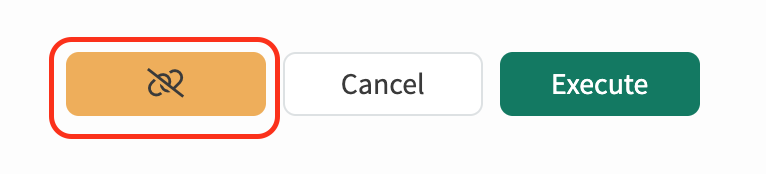
Retire an application in the Reapply Tools Pane
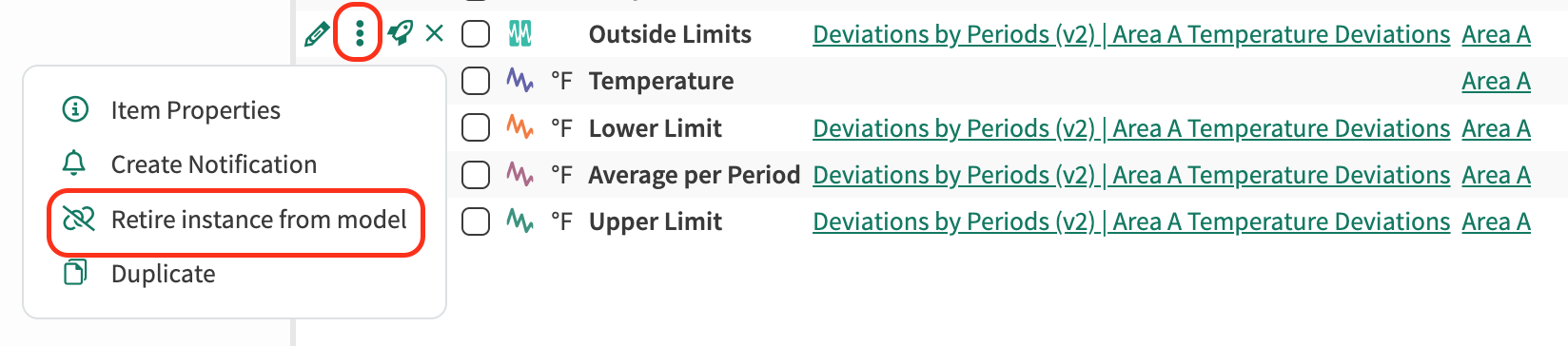
Retire an application through the 3 dot menu
Editing a Template
Just as everything in Seeq, developing a Template is an iterative process. A Template can be edited through the Tools Pane. When editing a Template, several changes can be made:
updating the name or description of the Template or any of the individual Template features (inputs, intermediates, outputs)
adding, deleting, or changing the output and intermediate calculations
Just as with creating a Template, the experience is different whether or not Locking & Versioning is enabled. When a Template is locked, it can no longer be edited. Instead, a draft is created that can be published as a new version.
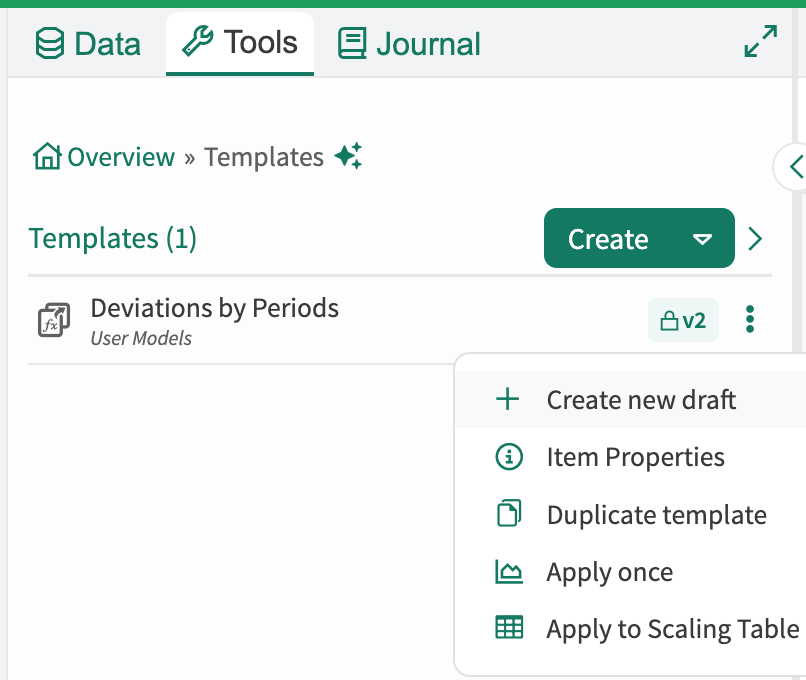
With Locking and Versioning enabled, a draft is created from a locked Template since the locked Template cannot be changed.
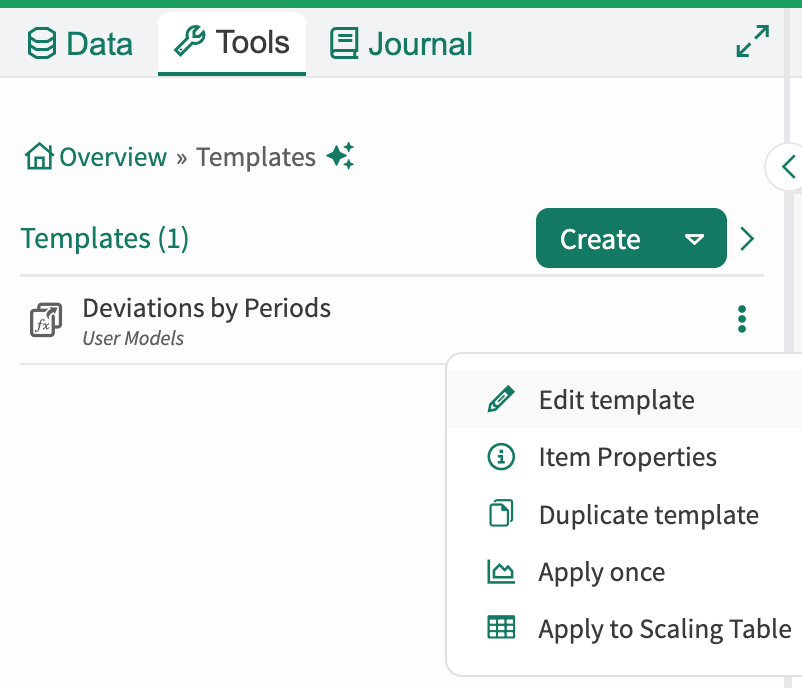
Without Locking and Versioning, the existing Template can be edited.
The editing steps and capabilities are the same for a new draft or editing an existing Template, however, once editing is complete, for Locked & Versioned Templates, the draft can be saved or it can be locked and published as the newest version. When Lock & Publish is selected, a change summary is provided between the base version and the new version.
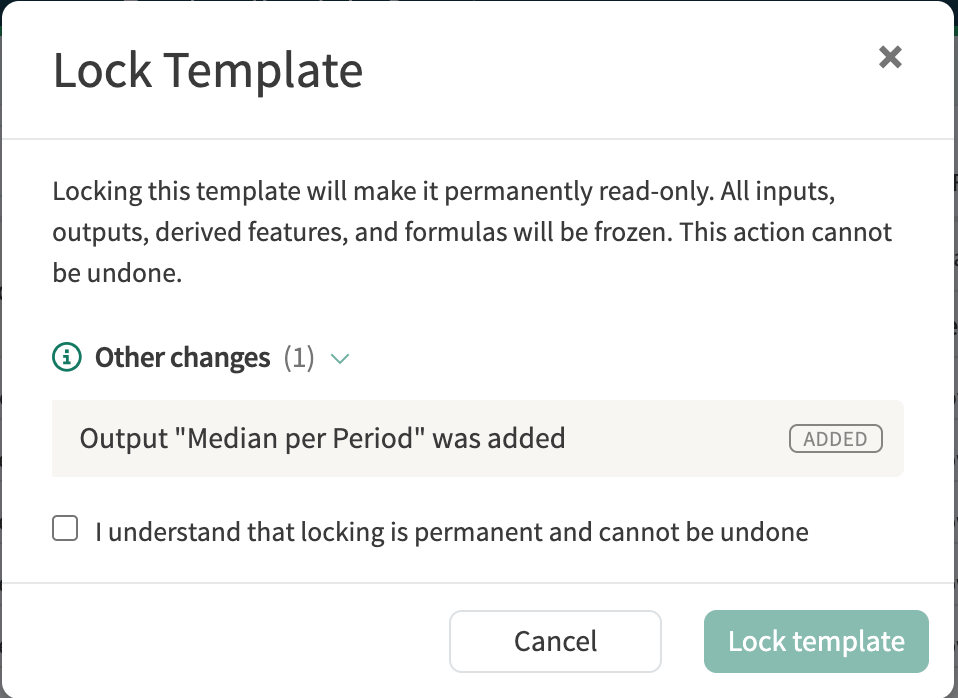
When Template editing is complete without Locking & Versioning, the Template is just saved.
Updating Template & Feature Metadata
To change the names or descriptions of the Template itself or for any of the features, click in the text boxes and update the entries as necessary. For intermediates & outputs, clicking on the text of the name allow changes to be made.
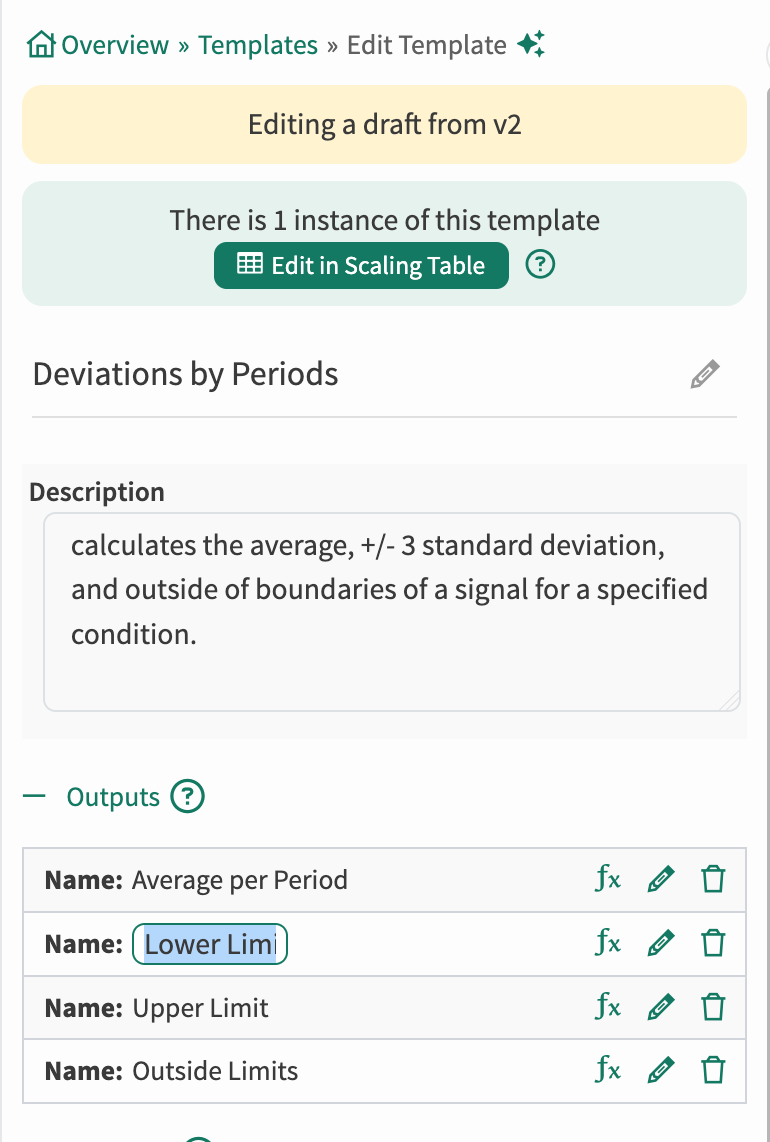
Updating Names and Descriptions
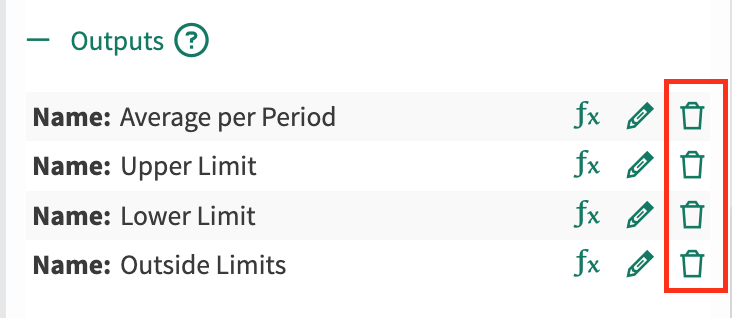
Deleting an Output
An output can be deleted by using the trash icon to the right of each entry. When an output is deleted, the inputs and intermediates that were required by the deleted output(s) will be removed from the Template as they are no longer required.
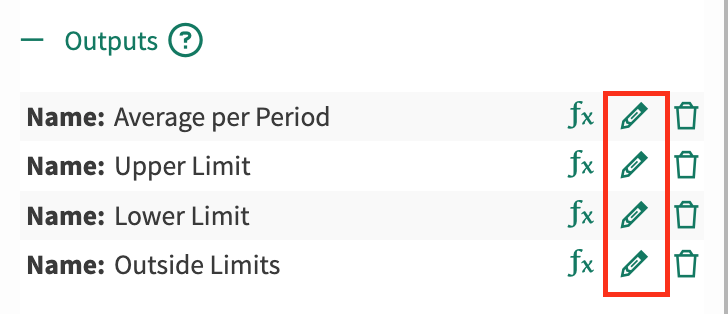
Editing an Output / Intermediate Calculation
To edit the calculations underlying an output or intermediate, first click the pencil icon next to the feature that needs to be changed.
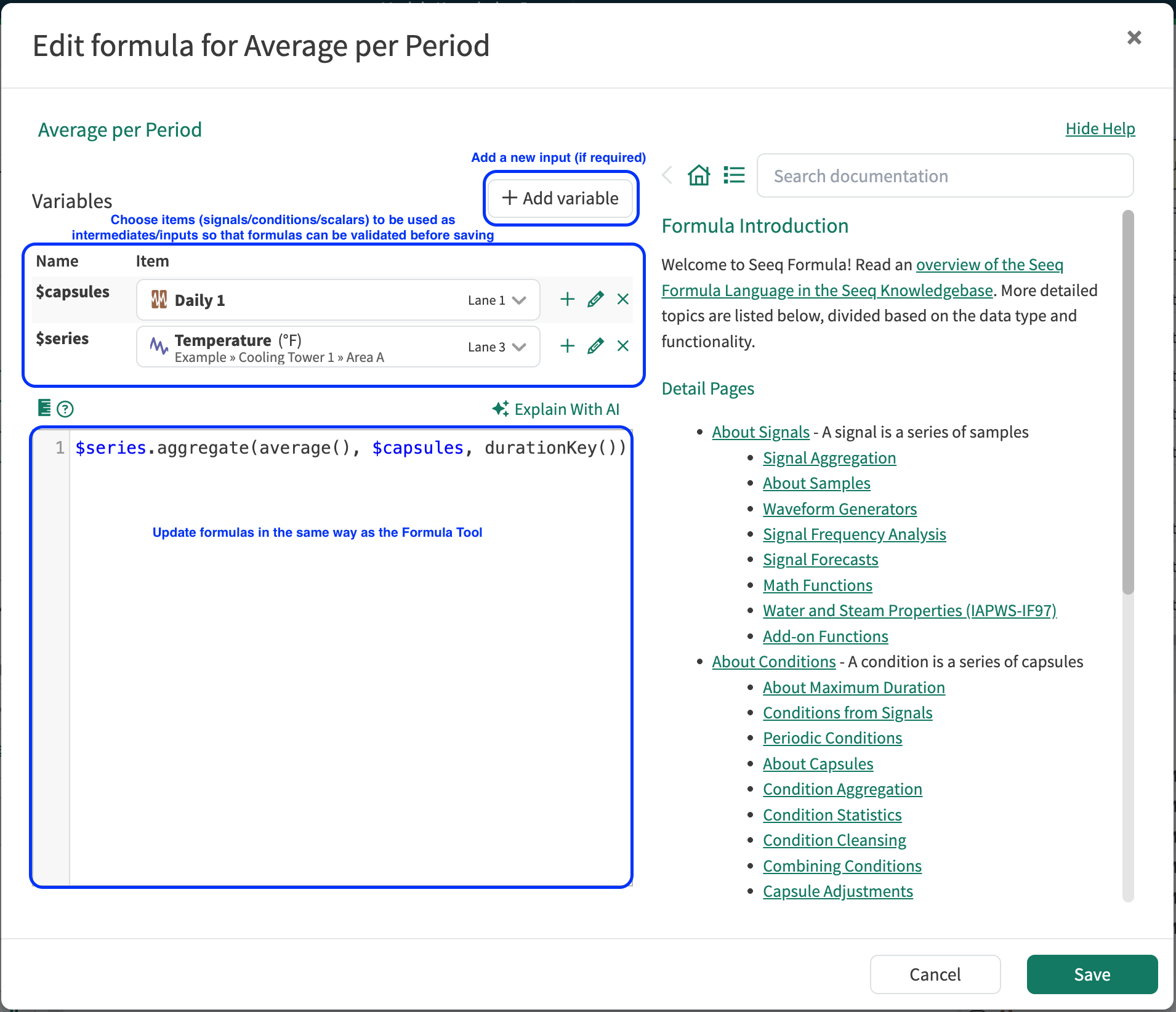
Once editing the feature, additional inputs can be included by using the + Add Variable button. Then, real Seeq items need to be specified for each of the formula variables.
Reminder: Once a Template is created, it is no longer attached to the original items from which it was made. Therefore, this item selection for each of the Formula’s input variables (see screenshot below) is required for Seeq to validate if the formula will compute.
Once the items are specified, the formula can be edited using any of the operators available in the Formula tool. The Formula Assistant can also be used to help write and troubleshoot any changes to these calculations!
Adding an Output
To add a new output, an item can be used from the Details Pane in the same way that was done during the creation step. Once again, the calculation hierarchy will be extracted, and new inputs and intermediates may be added. Additionally, items can be created by building a new formula. This option to build a new output uses the same interface as editing an output or intermediate shown above.
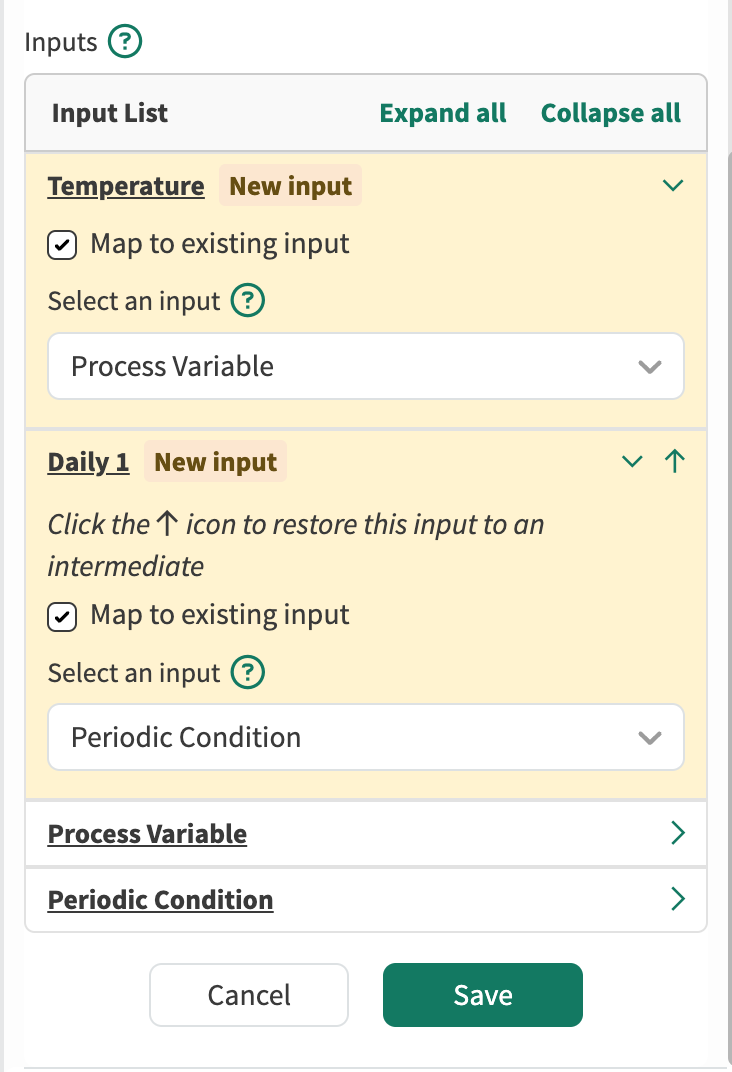
If the newly added inputs or intermediates should reference existing inputs or intermediates of the Template,
can be used so that duplicate inputs are not created.
Moving an Intermediate to an Input or Output
During Template creation, the calculation hierarchy is crawled all the way back to a raw tag, not calculated items. All of the necessary intermediate calculations are added to the Template, but there may be times when one of those intermediates should actually be an input or output item. The arrows provided in the intermediates section allow the Template author / editor to shift these features to an input or an output.
For example, a periodic or manual condition is added by default as an intermediate because it is a calculated item. In the example shown in this article, Daily is moved to an input so that the Template user can supply any condition to calculate over.
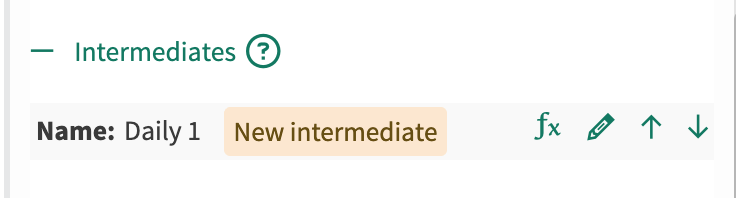
If an intermediate is moved to an input, the required inputs to create it are removed. If an intermediate is moved to an output, there is no change to the required input list.
Reapplying a Template Instance - without Versioning
Once the Template has been updated, there is no immediate change on the instances created by it. In order to implement the new changes for a Template instance, the Template needs to be reapplied. If any new inputs are required, they need to be specified during reapplication. If the user chooses not to update to the latest Template changes, cancel out of reapply instead of executing.

Reapplying a Template Instance - with Versioning
When Locking & Versioning are enabled, existing instances of the Template are version aware. Therefore, when a new version of the Template is locked and published, the instances have a new icon in the Details Pane  . When the arrow is clicked, the instance can be reapplied using the newest version of the Template. If additional inputs are required, they need to be provided during the upgrade and reapply step.
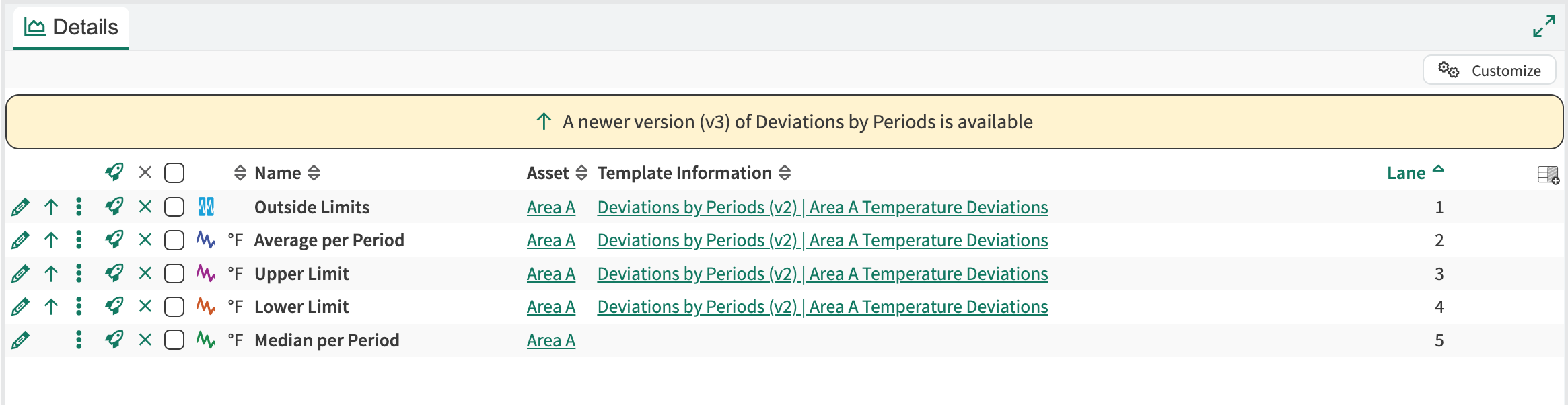
Template Properties
Template properties provide information above the Template, the versions for Enterprise customers, as well as the ability to delete the Template.
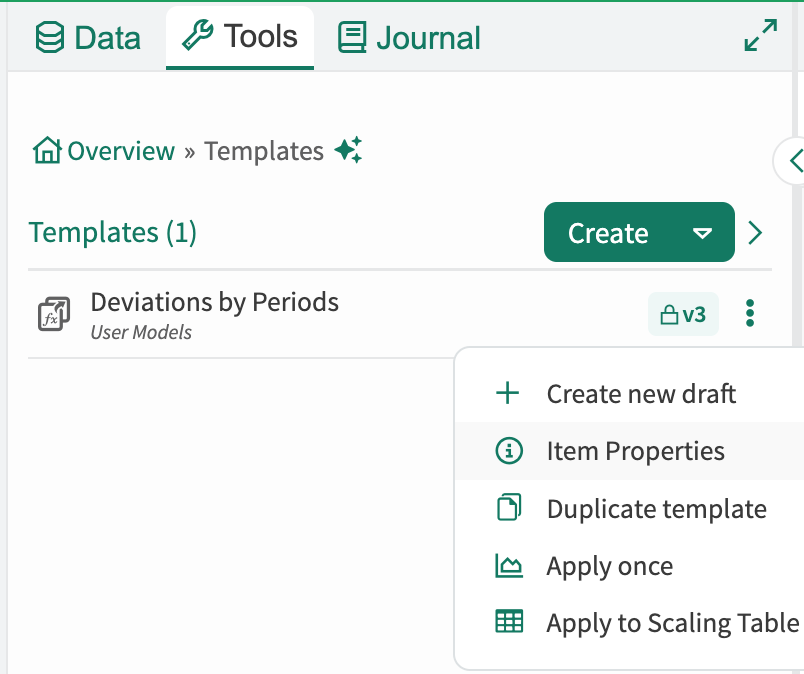
Access point for Template Properties
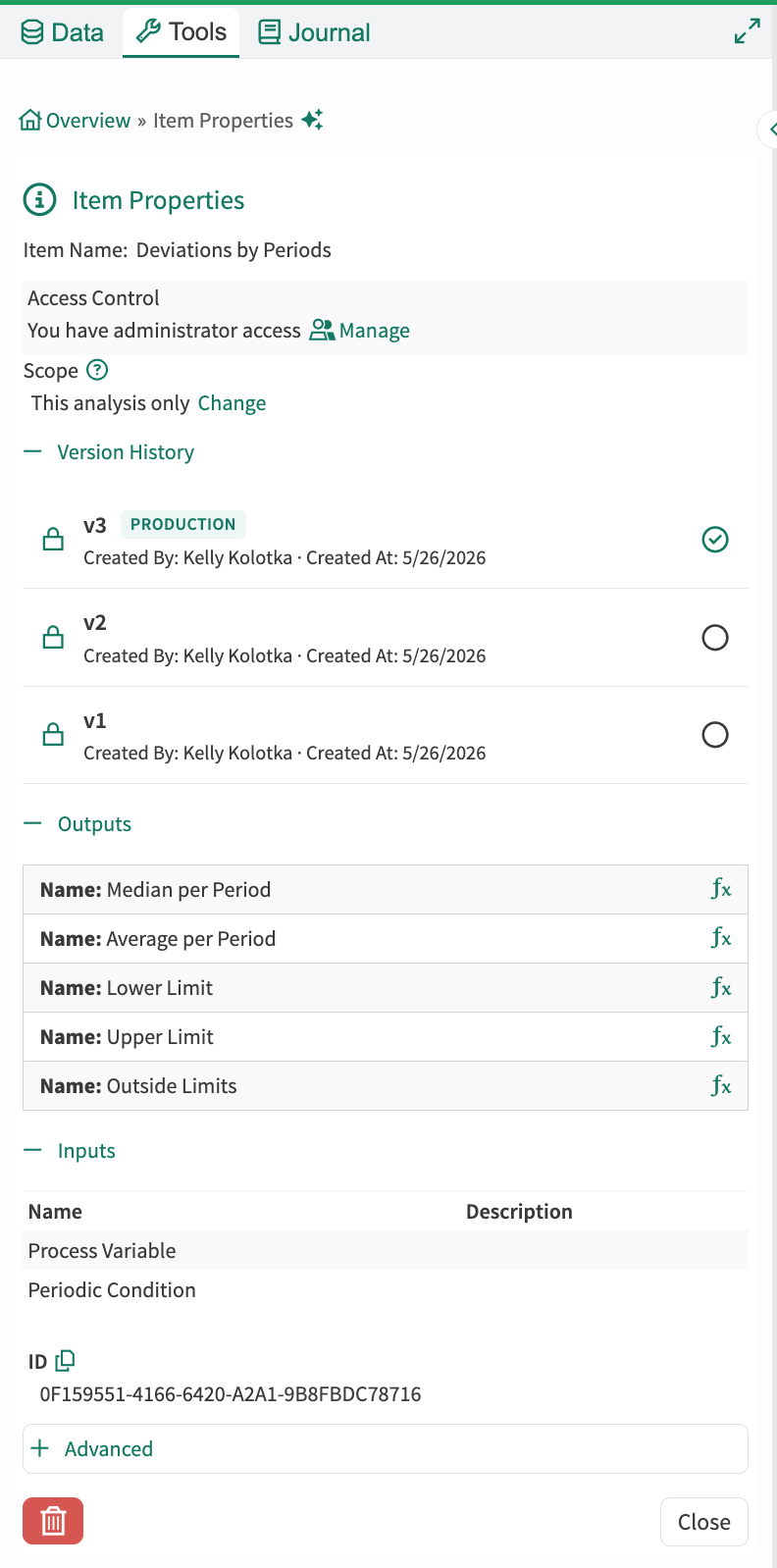
Information available in Template Properties
Locking & Versioning
Locking & Versioning of Templates enable governed workflows. By having versions and version history, the iterations of a Template have a historical record of what changes were made, by whom, and when. It also provides the comfort that a Template is not changed, or when it is, the Template user is aware that a new version is available to opt into. Locking & Versioning is only available for Enterprise customers and Seeq for Pharma customers. Reach out to your Seeq Account Team if you are interested in Locking & Versioning capabilities throughout the Seeq platform.