Configuring Table Columns
Overview:
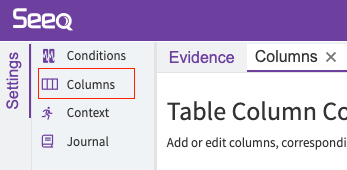
You can add, edit, or delete columns in the Vantage Room using the “Table Column Configuration” tab in the settings panel.
Getting Started:
Add Column
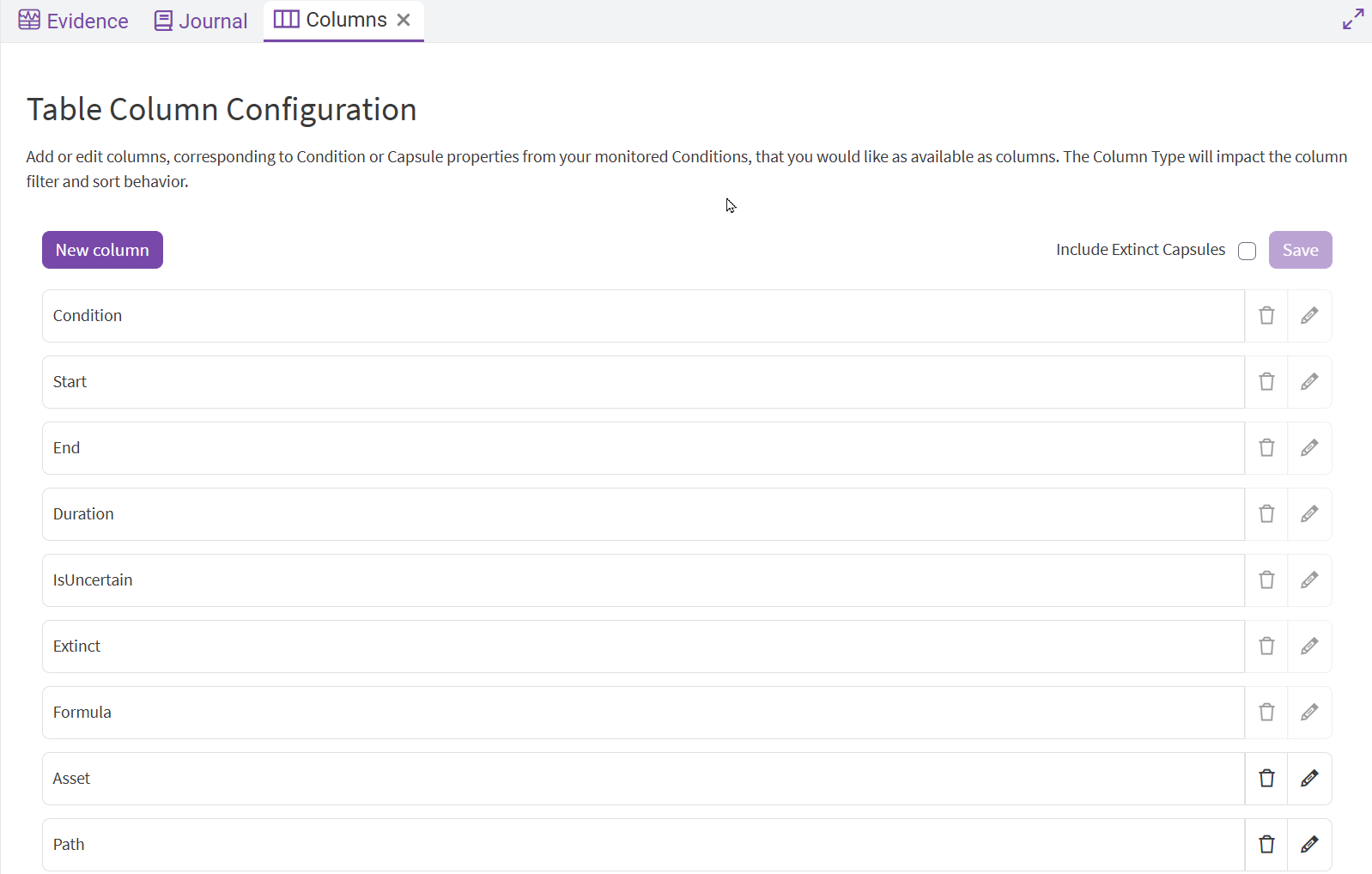
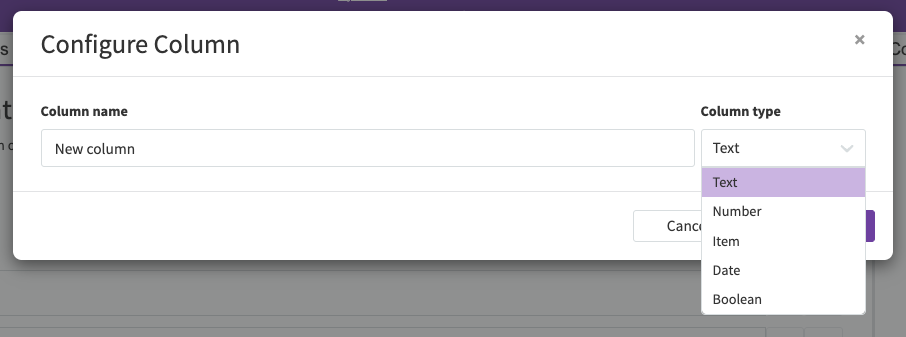
Select the “New Column” button in the top left to configure a new column’s name and type.Add or edit columns, corresponding to Condition or Capsule properties from your monitored Conditions, that you would like as available as columns. The Column Type will impact the column filter and sort behavior.
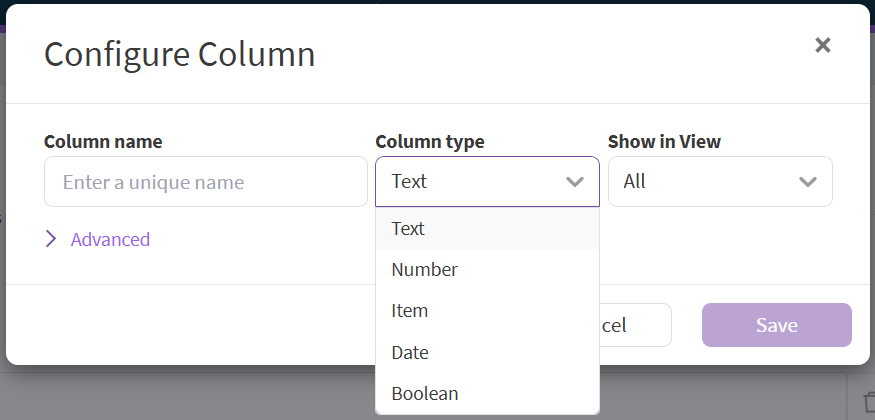

Columns must have a unique name along with a user-selected type (Text, Number, Item, Date, or Boolean)
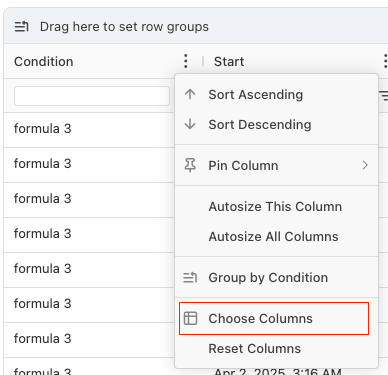
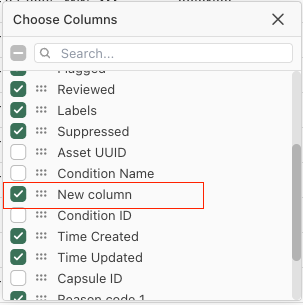
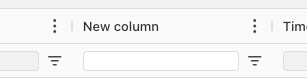
Upon saving, the column will now be visible in the Vantage Room table. The “Show in View” option allows you to select whether the newly created column should automatically be included in your Current View, All, or None. If you do not choose to automatically include it in any of your Views, you can still access it and toggle its' visibility with the “Choose Columns” menu from any three-dot menu in the Evidence table.
Edit/Delete Column
To edit or delete existing columns, utilize the trash and edit buttons for the column you would like to configure

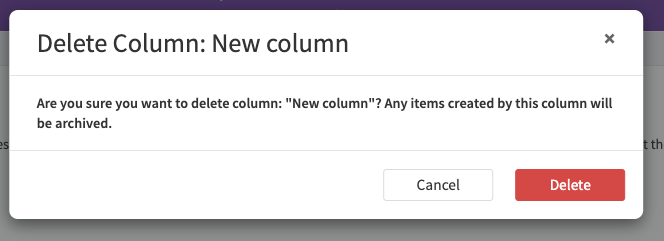
To edit a column’s configuration, follow the same steps as when you add the column, altering the column’s name or column type.
Advanced
With the Advanced options, you can use different rules to define how a Vantage column retrieves it’s information. By default, the rules applied, in order, search for Capsule Properties that match the supplied Column name, then a Condition Property.
You can leverage various Rules to more flexibly search and add metadata to the events that populate Vantage.
In order to utilize the advanced rules, you must first save a column with the default rules, then proceed to edit it and apply the advanced configuration.
Advanced Example
The most common example of the Advanced rules are extracting text values from the Path of an Asset Tree. For example, if your Conditions are part of an Asset Tree with the following structure:
Example
Cooling Tower 1
Area A
Condition being monitored
The two columns added by default to your Vantage Room are Asset, which is the immediate part of the Condition, in this case Area A, and Path which is the full hierarchy of it’s location, which would be Example >> Cooling Tower 1 >> Area A. In many cases, however, you would like Cooling Tower 1 and Example to show up as separate columns in Vantage to leverage the grouping, sorting and filtering capabilities of the Evidence table independently. To do so, you can follow this example:
Save a column called
Path Level 1
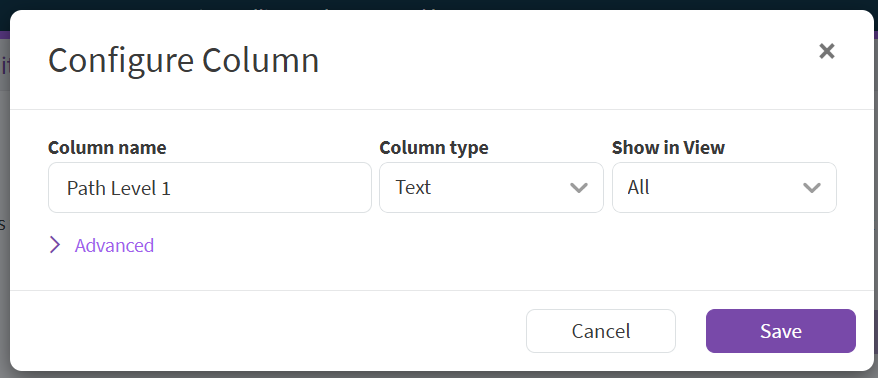
Now, edit that column and expand the Advanced section.
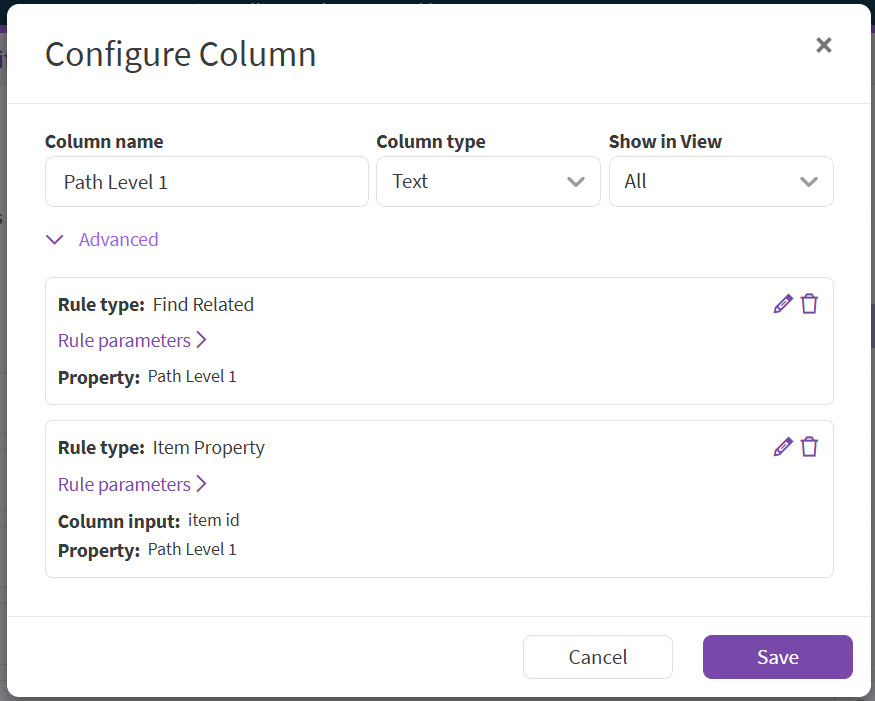
Edit the first rule and change the Rule type to
Text Extractor, change the Column Input toPathand use the following regular expression:(?:[^>]+ >> ){1}([^>]+). This expression splits the fullPathby>>and grabs the{1}argument of the split. Note that this format starts from the 0th index. Make sure to click “Update column rule” when you are done, then Save.
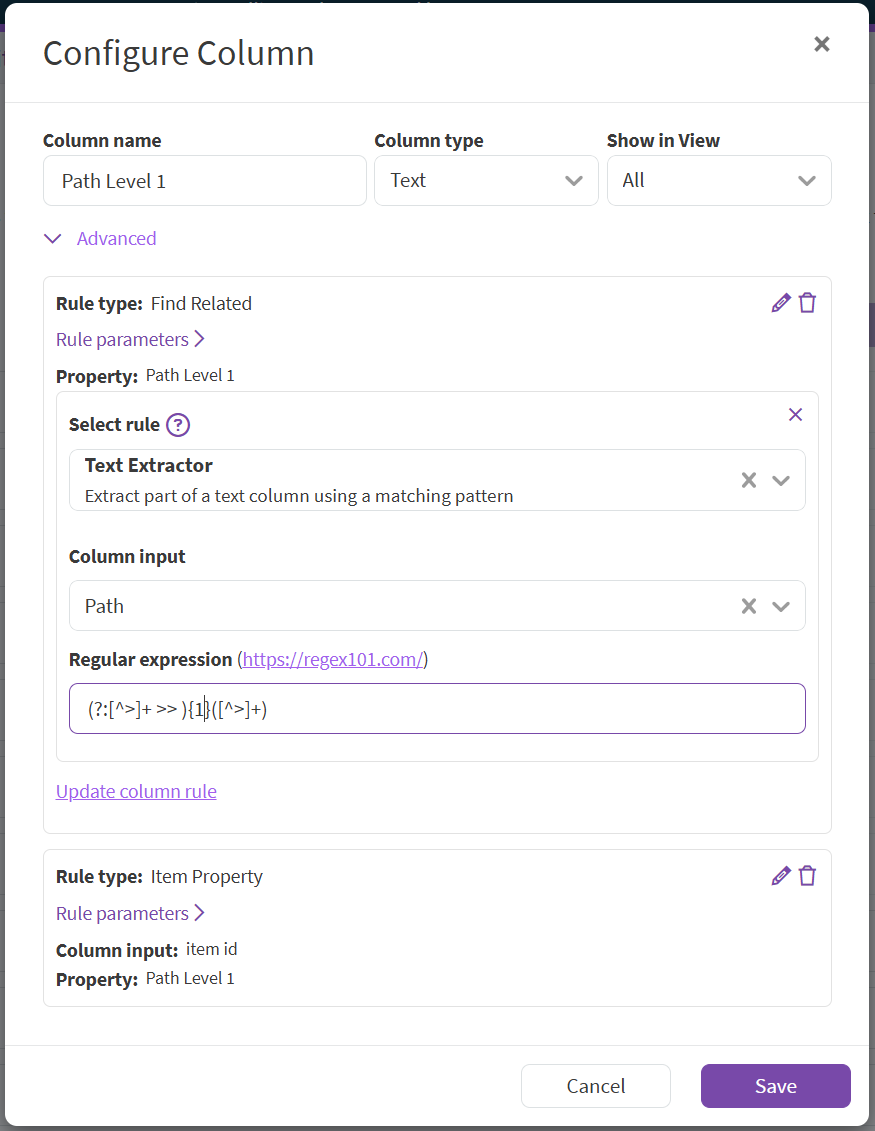
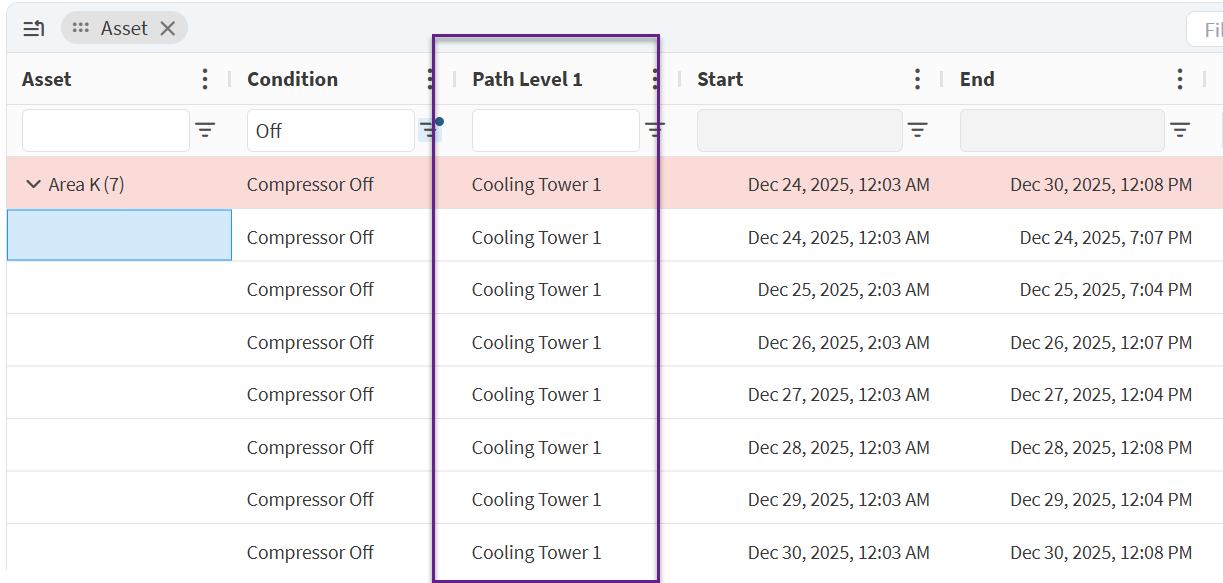
Once saved, you’ll see a new column populated with the 1st text grouping of the
Path, in this example:Cooling Tower 1. This column now can be independently grouped, sorted and filtered, offering more flexibility within your Vantage Room.