
Overview
Creating new columns in a Scaling Table gives you more information to operate with, allowing you to perform more complex logic or create multivariate Formulas to get your desired output. New Columns (outputs) are built based on information from other columns (inputs) or can be simply Constants. There are many different Column Rules that require different inputs and produce different outputs, particularly different types, including Item, Text, Dates, Numbers, and Booleans. Most of the rules select an Item Type by default, but a few like Constant require the user to specify that parameter.
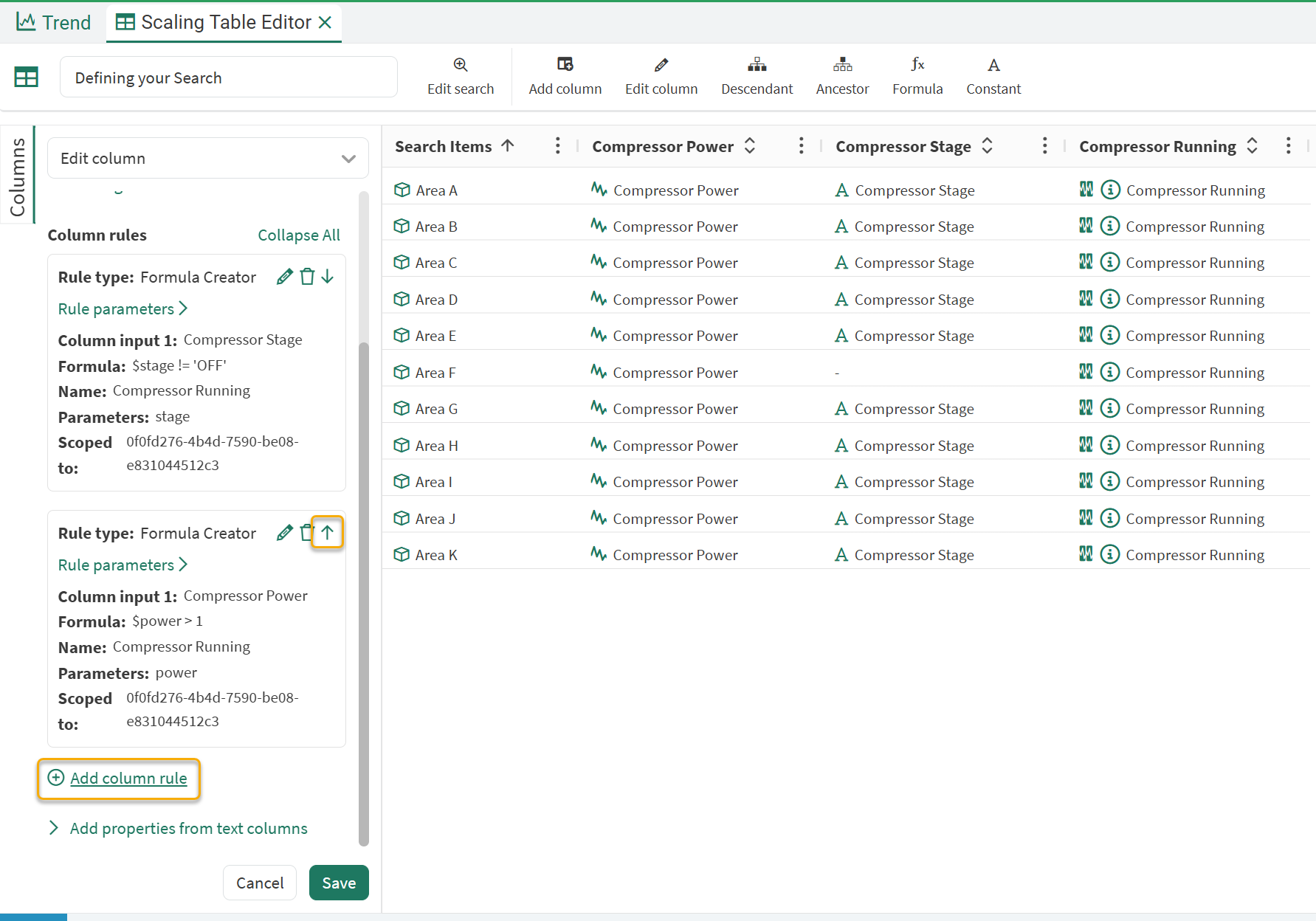
Fallback rules can also be applied to a column in the Column Rule Editor. The first Column Rule specified will be tried first. If that does not apply to all of your items, you can add as many rules as necessary to fill out all of the rows for that column. This is like an if-then structure. If Rule #1 can be applied it will, if not try Rule #2 and so on. These fallback rules can be created within each Configure Column modal.
You can use as many Fallback rules as you need to satisfy your use case, and can reorder them in the column editing modal:
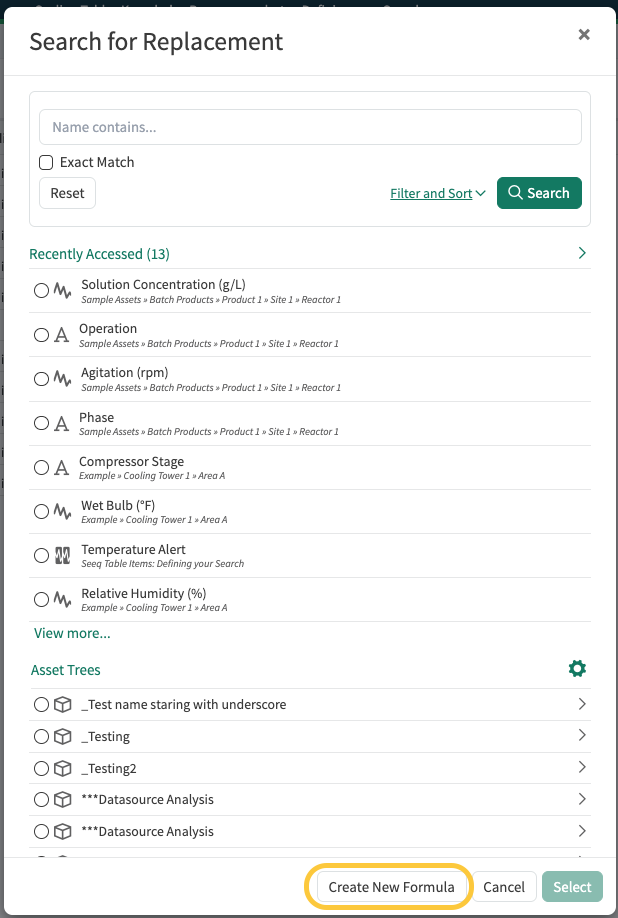
When certain rows of the Scaling Table are particularly unique, and they require a specialized item or formula rather than an additional fallback rule, manual overrides can be used instead. To manually override, double click on the cell. For Item columns, a search modal can be used to find a replacement, or a new formula can be written to create an item for that cell.
For Text and Numeric columns, double clicking on the cell creates a text editor. New values can be typed in, or copied from external sources or within the table and pasted into the table to apply the
value(s) as overrides. Selecting multiple cells and starting to type will apply the entered value across all selected cells, and drag and fill functionality is supported to apply one value to multiple cells.Manual overrides can be deleted by clicking the green x on a single cell. To delete manually entered overrides from multiple cells at once, the delete key or right-clicking selected cells and choosing delete overrides will remove the override.

Continue reading for details on the different rule types and examples on how and when to use them.
Calculate or Define Values
The “Calculate or Define Values” group of rules is used for creating new items, 1 per row in your table. Commonly, these are new Formulas, but can also be Scalars (trendable constant values) as well as Constants, which can be of any type, like Text or Number.
Formula Creator
Create a new column of calculated items at scale by using the Formula Creator rule. The same operators and syntax are available as can be found in Seeq Workbench.
Helpful Tip
Try using the AI Assistant’s Formula Agent to help write your formulas. Start with something simple like: “Calculate the monthly average of a signal.” and go from there! If the AI Assistant doesn’t yield the correct formula, access the Formula Documentation through the Workbench Tool for more information.
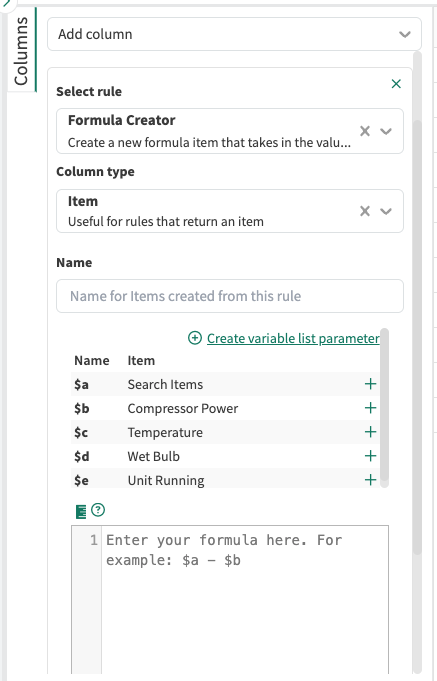
Name: name of all of the items (signals, conditions, or scalars) created by this rule
Variables: just as in Formula in Seeq workbench, reference the variable for the Item you’d like to reference. You can use the Create Variable List Parameter to add more options

Formula: write the formula using the same syntax as Formula in Seeq Workbench. All of the same operators are available
Constant
The Constant rule allows you to create a constant value for all of the rows of your Scaling Table. This rule requires you to specify the Column type. This rule allows allows for Conditional Logic. You can do a text lookup on another Text column, and the Constant will only apply to the rows that have an exact match. With the use of Fallback Rules, you can populate the column with different constants depending on the contents of other columns in that row.
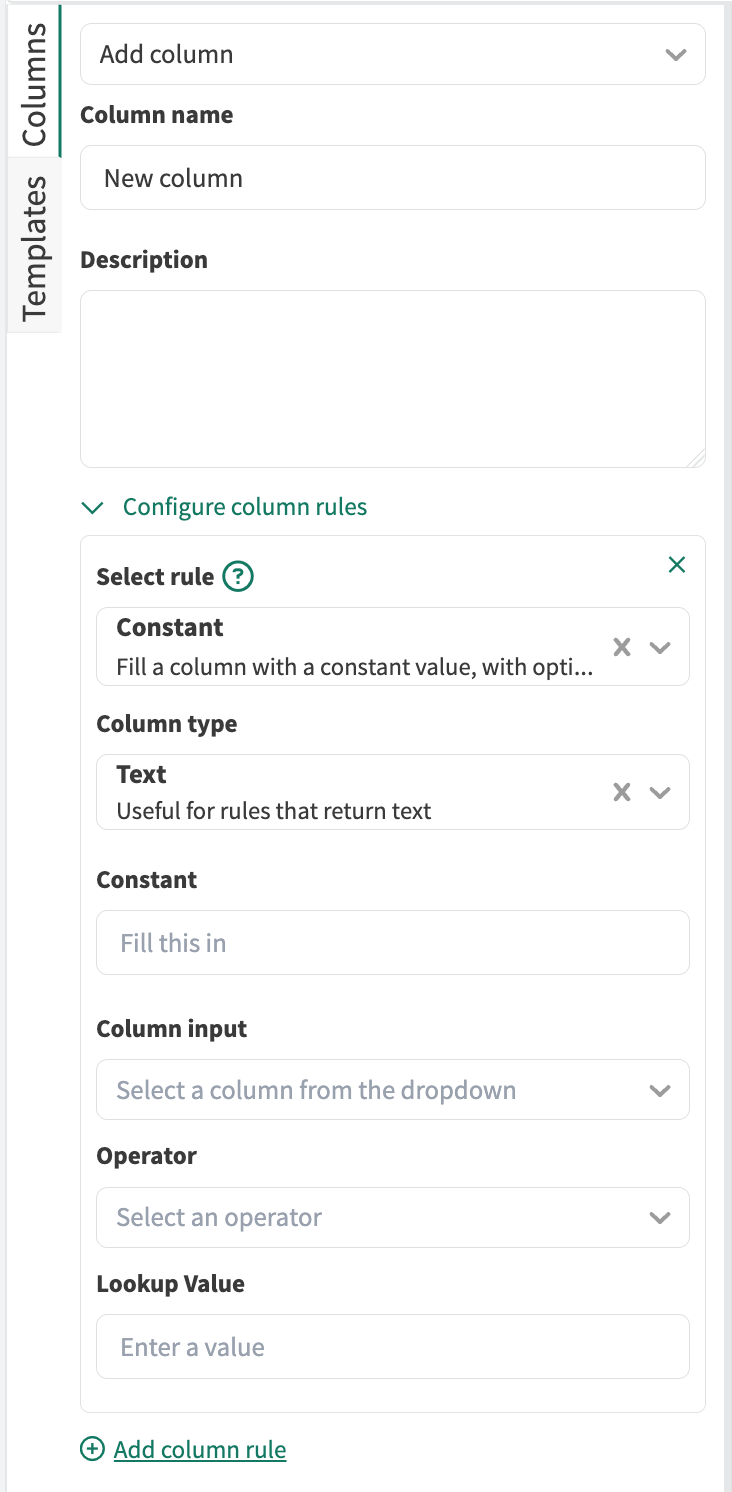
Constant: input the value of that you would like to use as a constant
NOTE: Unlike many other rules, the Column Type has many options so you may need to change the default of Text to Number if that is more fitting for the constant value you are entering.
Column input (optional): The column you’d like to search to perform the conditional logic
Operator (optional): The match type to perform for the lookup value when referencing the column input
Lookup Value (optional): The value you are doing a direct search for of your Column input.
Scalar Creator
Create a new column of scalars by using the Scalar Creator rule. This is used to convert a Text Column into Scalar type so that the values/strings can be used in Formulas.
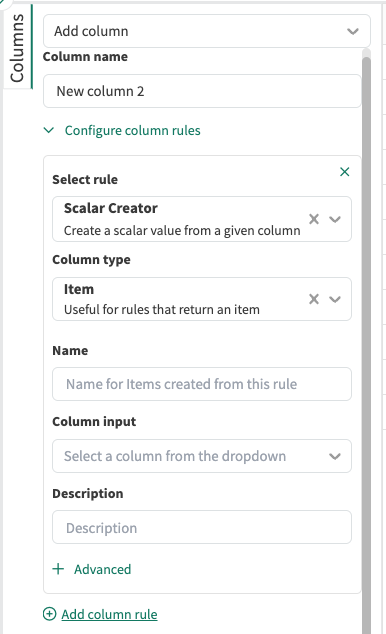
Name: name of the items (scalars) created by this rule
Column Input: pick from the available Text Columns that you would like to make a scalar
Description (optional): Provide a description as an Item Property on the newly created scalars
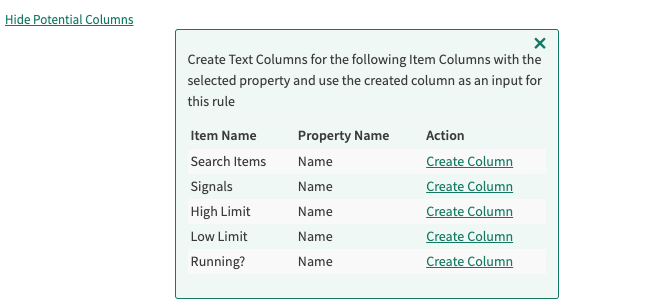
Show/Hide Potential Columns (under +Advanced): a shortcut to create Text Columns from your existing Item columns. These new Text columns can then be made into scalars
Find Data
The “Find Data” group of column rules help to find information, like other Items or properties, based on other columns already in your table. These are most useful when navigating items up and down an asset hierarchy or extracting properties, like Name or Description, from existing items to be used in subsequent rules.
Item Search
The Item Search rule searches for an item based on provided properties. One or many properties can be used to search for an item. If an item is found with the specified property arguments, the rule will return its ID. If multiple or no items are found with the specified property arguments, the rule will return null.
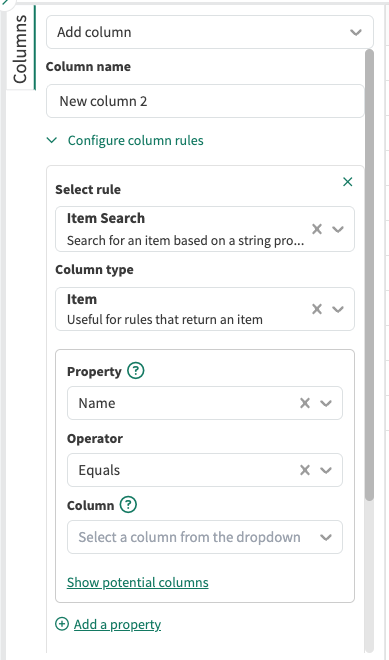
Property: The item property on which to search.
Operator: The operator value to use when searching.
Column: The Text column to use as the input value. You can use the Show potential columns to create more Text columns through a shortcut.
Item Types (optional): Narrow the search by only searching for one specific type. Leaving this blank will search across many types.
Scoped item search: Will only search for items that are scoped to the current workbook. This is a good way to narrow the search results to ensure that the rule only finds one item.
Find Related
In an existing hierarchy, the Find Related rule allows you to pull in additional information from a specified column. This could be items related to your Source Level or a property on the items in that column.
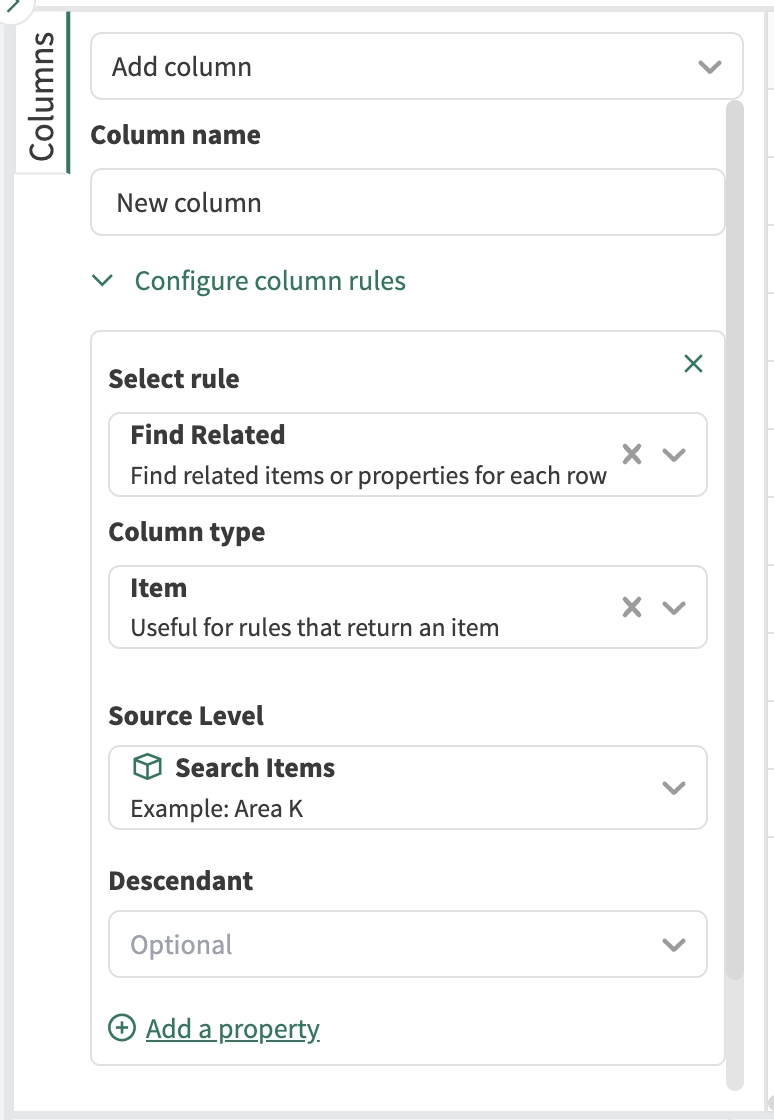
Source Level: Specify the column of items
Descendant (optional): Optionally choose an item below the specified Source Level in your current Asset Tree. A pick list is provided. This is an alternate to the Descendant Shortcut.
Add a property: Extract a property of the Source Level Items like Name, Item Type, Path or a custom property.
Find Descendant
In an existing hierarchy, the Descendant rule will return items below items below the specified search item in the structure. A descendant is defined as coming after the item of interest in a Path. As example, Temperature is a descendant, down one level, from Area A in the following path: Example >> Cooling Tower 1 >> Area A >> Temperature. This rule has more flexibility for your Descedant search instead of just an exact match.
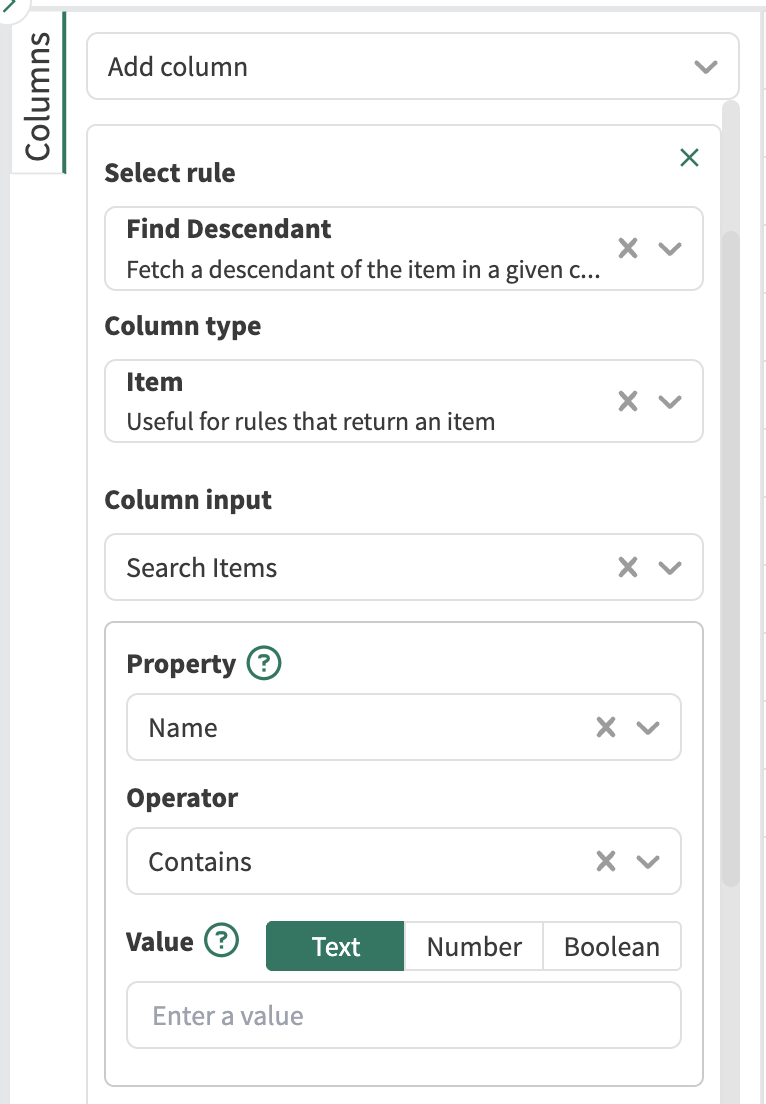
Column Input: pick from the available Item columns you’d like to retrieve the descendants from.
Property: filter the search by any property on the items by clicking the dropdown or typing in the name of a Custom Property
Operator: the type of search you’d like to perform. Options are provided like contains, exact Match, regular expression (https://regex101.com/ ) searches, etc.
Value: The property value that you are searching for
Item Type (optional): used to refine the search by specifying that the descendant item needs to be of a specific type.
Find Property
The Item Property rule will retrieve a property from an item. This could be one of the default Seeq Item Properties like Name, or custom properties created by the user or from a datasource. This is an alternate to the Create Property Column shortcut.
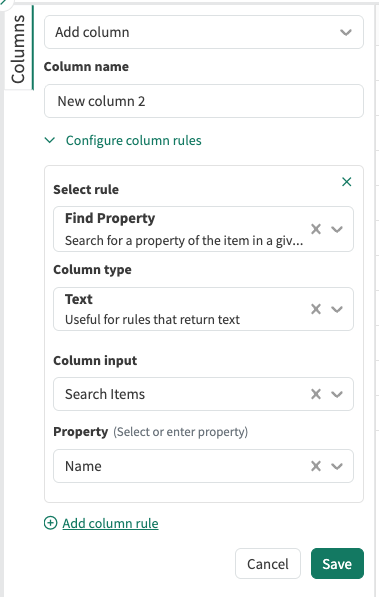
Column type: this input is required for this rule selection
Column input: pick from the available Item columns you’d like to retrieve the path
Property: specify the property you’d like to return as an output. Name, Description, Datasource ID, and Datasource Name are available through the dropdown. You can also click and start typing any other property that exists on your items.
Path
The Path rule will return the path to the specified item in its hierarchy. This is similar to the Path options in Workbench (in Labels & the Details Pane).
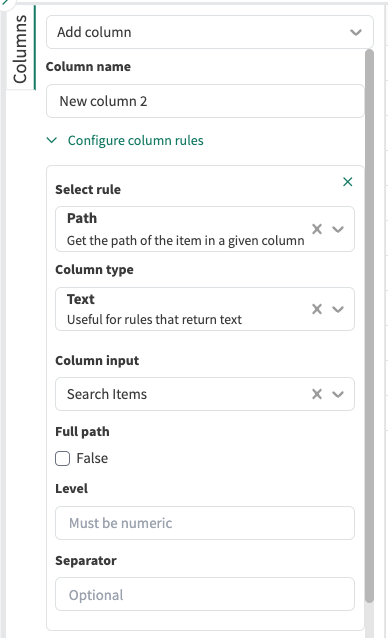
Column Input: pick from the available Item columns you’d like to retrieve the path
Full path: If checked, this will return the full path. If not, you can specify the level you’d like to return (direct ancestor, 2 levels above, etc.)
Level: specify how which level of the hierarchy that you’d like to show in your column
Separator (optional): specify the character that you’d like to use as the separator between levels. For example >> in Example >> Cooling Tower 1 >> Area
Context Condition
If there has been context (labels, reason codes, etc.) added in Vantage, this rule can extract that information from a column of conditions.
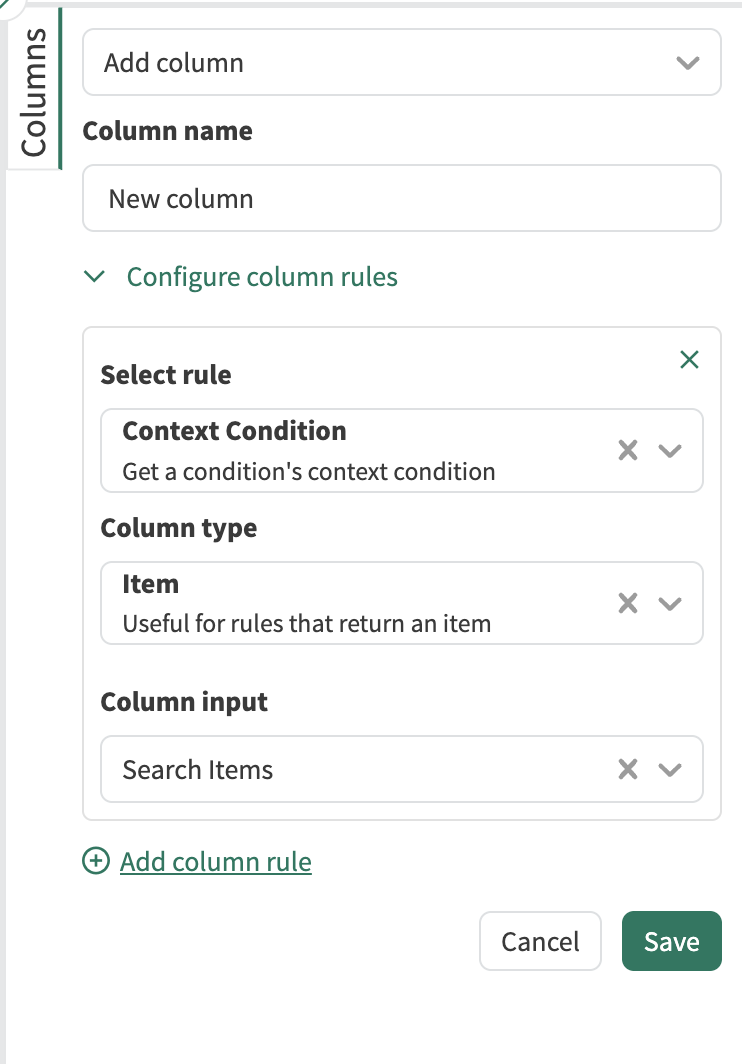
Column input: Specify the column of conditions from which you’d like to get the Vantage context.
Find or Change Text
The “Find or Change Text” section of rules is useful for manipulating text columns, generally used in an effort to rename created items to more descriptive or unique names, as well as assigning properties. It’s also useful for creating a unique column that can then be subsequently used for the Data Pane navigation feature.
Concatenate
Concatenates two or more text columns in order.
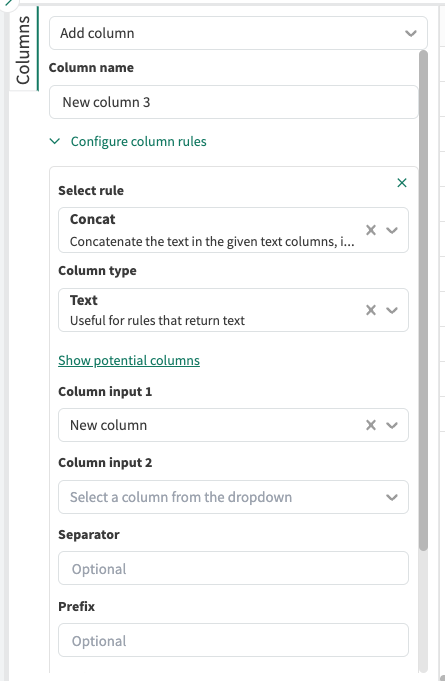
Column inputs: pick from the available Text Columns that you would like to merge. The order you select them will be the order they will be concatenated.
Separator (optional): provide characters to separate the text being concatenated (spaces, hyphens, etc)
Prefix (optional): provide characters to be added at the beginning of the new Text column entries
Suffix (optional): provide characters to be added at the end of the new Text column entries
Text Extractor
Extract a value from the selected Text column that matches a provided regular expression.
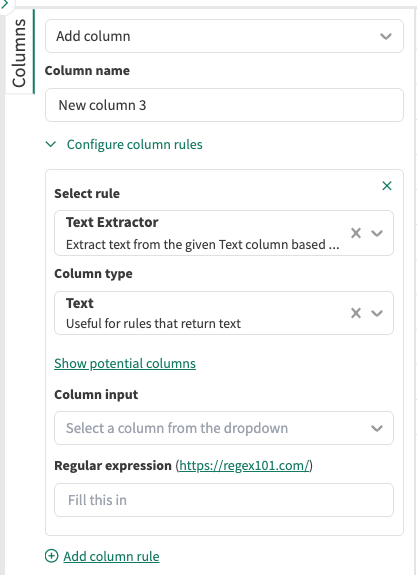
Column Input: The Text column that the resulting value will be extracted from
Regular Expression: Text input taking a regular expression (https://regex101.com/) to identify what text to extract. Inputting standard text will look for an exact match (case sensitive) in the Column Input to extract.
Text Replacement
Replaces any text matching a regular expression with the text value of a selected replacement
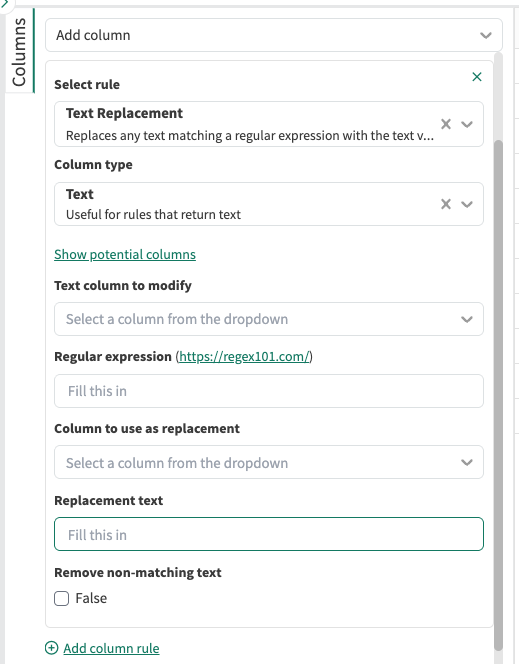
Text Column to Modify: The Text column that contains the value where the replacement will occur
Regular Expression: Text input taking a regular expression(https://regex101.com/ ) to identify what text to replace. Inputing standard text will look for an exact match (case sensitive) in the Text Column to Modify for replacement.
Column To Use as Replacement (Optional): Column that contains the replacement value.
Replacement Text (Optional): The replacement value to use for all rows
Either Column To Use as Replacement or Replacement Text must have a value
Remove Non-Matching Text:
Selected: if there is no match found in the Text Column to Modify, then no result will be returned
Not selected: if there is no match found in the Text Column to Modify, then the original value of the Text Column to modify will be returned