
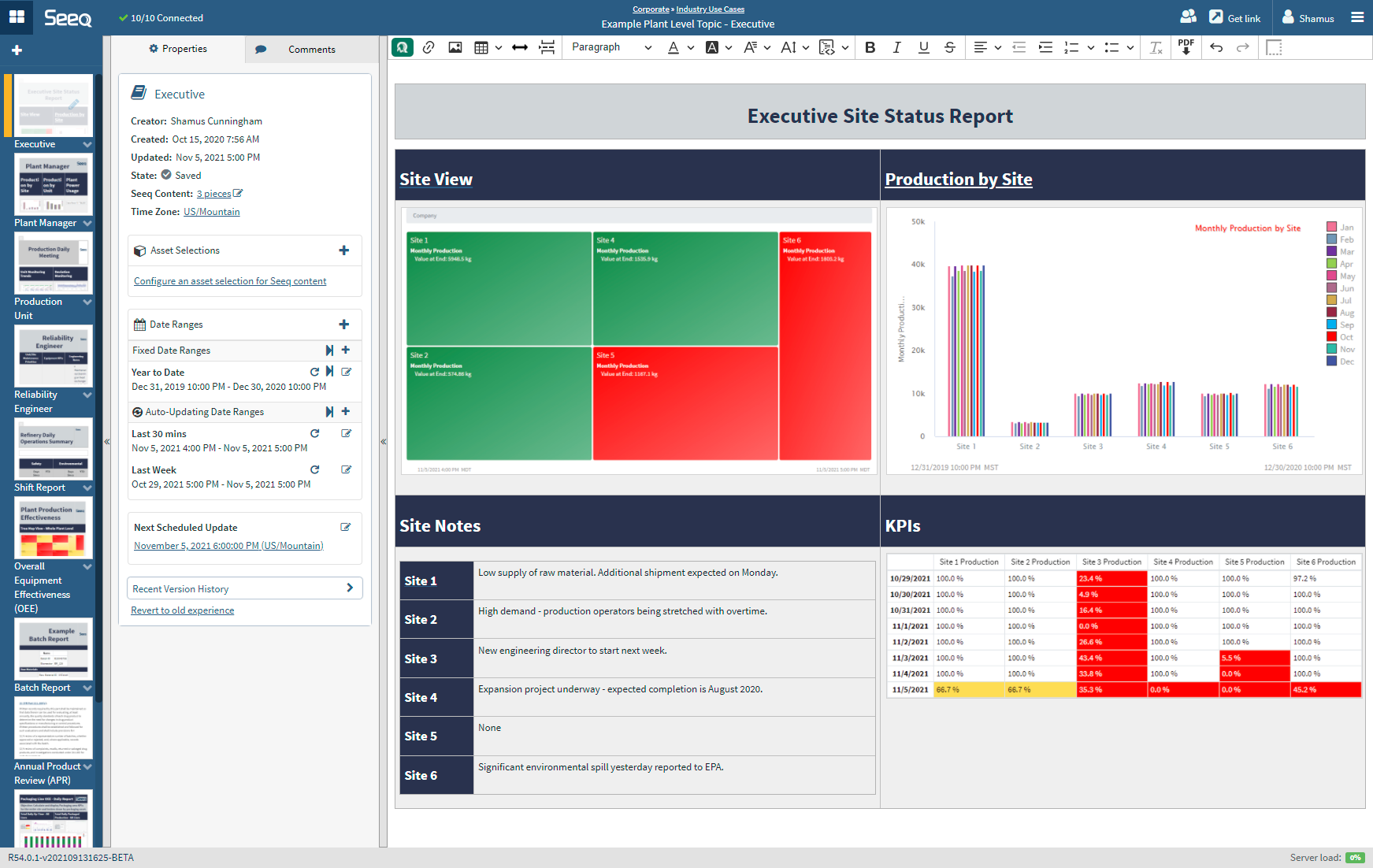
This section covers the basics of how to put together Topics which templatize and summarize information from multiple Workbench Analyses.
Organizer Topics can be used to generate reports and dashboards that can auto update. The Organizer Topic can be published to a PDF that contains live links back to View Only mode in Seeq, enabling any reader to view the data.
-
Creating a New Organizer Topic Once content is developed in Workbench Analysis and ready to be published, create a new Organizer from the Seeq Home Page.
-
Inserting Seeq Content Any Seeq content can be added to an Organizer Topic.
-
Modifying Seeq Content Edit and update Seeq Content after inserted in the Organizer Topic.
-
Adjusting Date/Time Ranges Multiple date ranges can be configured in the Organizer Topic to update Seeq content without opening the linked Workbench Analyses. Create fixed-date reports or live updating documents for continuous monitoring. Documents that automatically update will also need a Schedule.
-
Scheduling Organizer Topic Documents Users can schedule Organizer Topic updates. These updates can occur whether or not the Topic is open in a browser.
-
Selecting Assets in Organizer Topics -
Publishing a PDF Share your Organizer Topic with anyone by publishing a PDF with embedded Seeq content.
-
Best Practices for Organizer Performance
Frequently Asked Questions
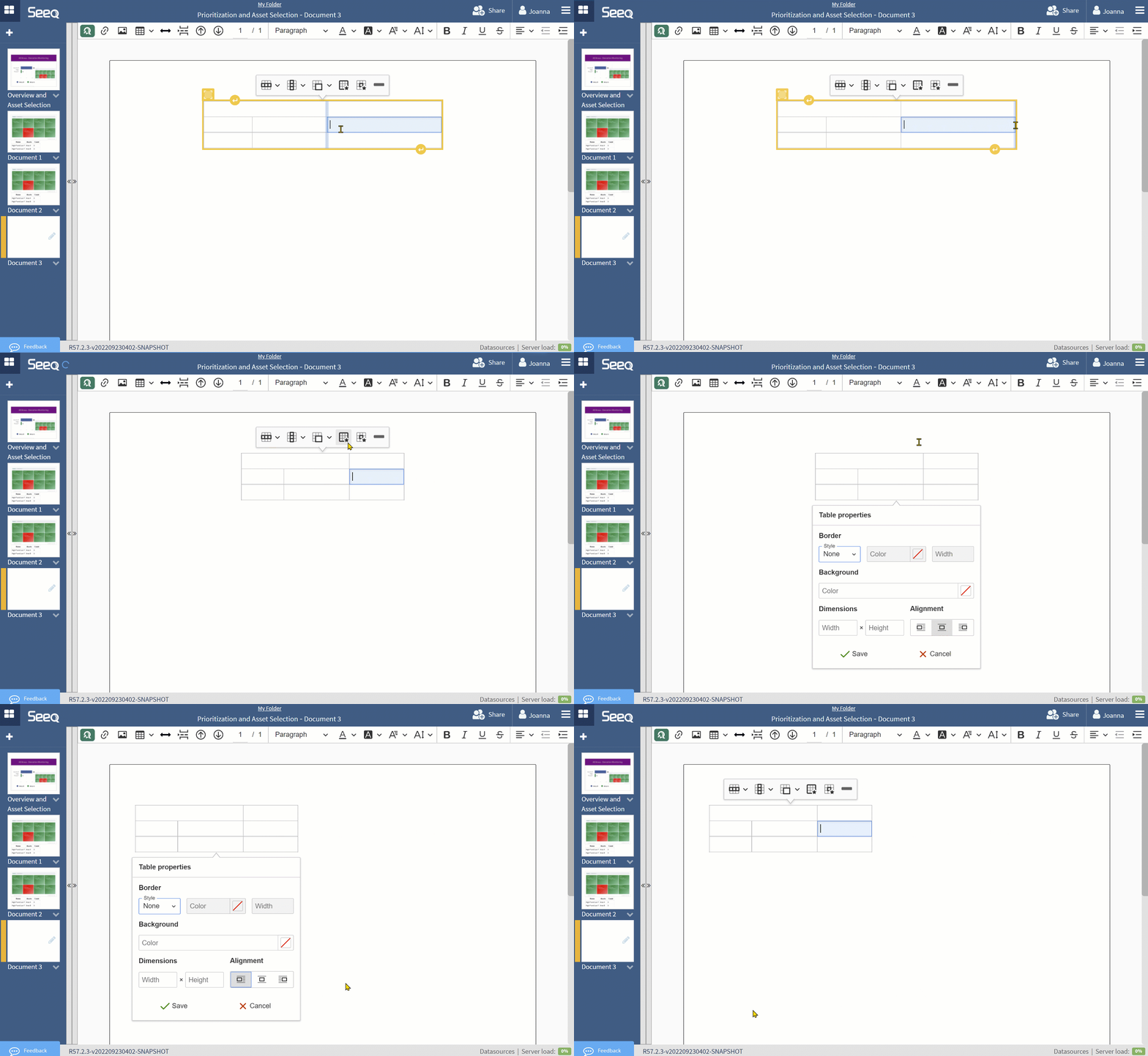
How do I move a table to be only on one side of my Organizer?
Tables are centered by default. If you resize them by dragging columns, you may want them to stick to one side or the other. Use the Table Properties menu to select alignment on the left, center, or right.
I am trying to add a column to my table but it doesn’t let me. How do I add another column?
Some users have reported they cannot insert column in Seeq Organizer Topic. If you have a Topic Document that used tables and was created in a prior to R54 and want to add a new column to the table in this new experience, you will find that you likely need to edit the width of a cell before you can see the new column display. See the short video below that walks through the steps if you encounter this issue.
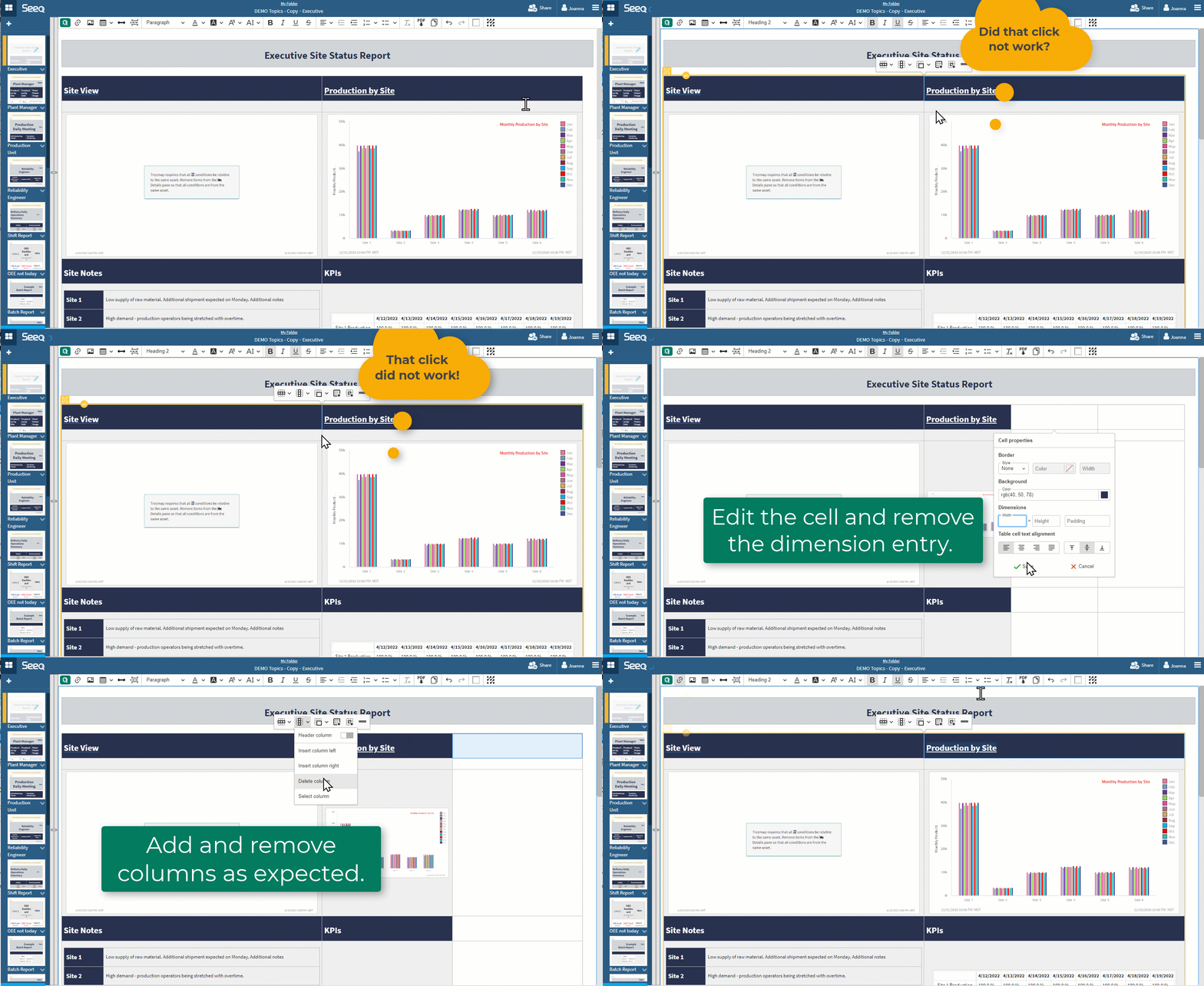
Apologies for this inconvenience if you encounter it. Once you have made this adjustment on a table, you should not have to do it again.