
Scoping
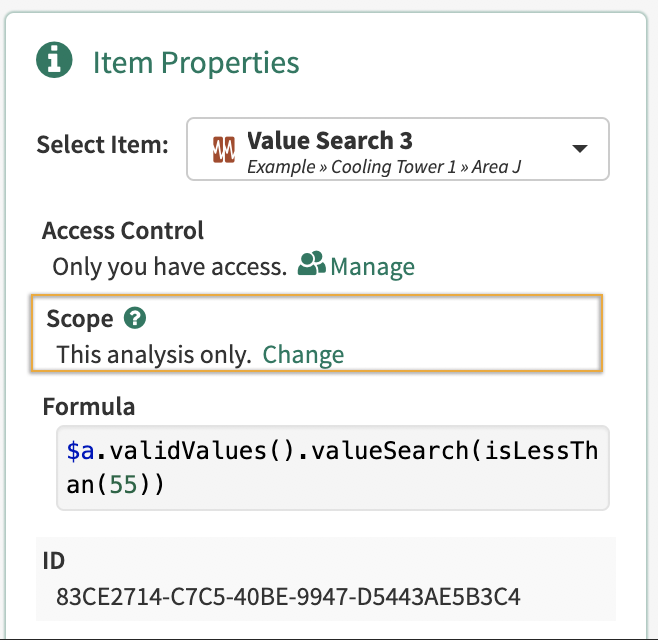
Scope controls where a item may be found via item search or navigation; scope can be:
-
Local: Items are only searchable within the analysis or datasource in which they were created.
-
Global: Searchable by any user with permission to that item from anywhere. Use caution, as setting the Scope to ‘global’ on an item cannot be undone.
You can control an item’s scope in the ‘Item Properties’, under ‘Scope', if you have manage permissions on the item.
Permissions
Permissions are the authorization given to users that enables them to read, write, or manage specific items.
-
Read: Users with read access to an item can view, search, and navigate to that item.
-
Write: Users with write access to an item can edit, rename, and trash (archive) that item. Users with write permissions to an item must also be given read access.
-
Manage: Users with manage access to an item can hard delete (delete archived or trashed item), manage permissions, and manage scope for that item . Users with manage permissions to an item must also be given read and write access. Newly-created Analysis and Topics provide manage permissions to their creators by default.
Administrators in Seeq have manage access to all content in Seeq.
Folders, Analyses, and Topics that are moved retain their explicit permissions.
“Save” or “Execute”
In order to be able to “Save” or “Execute” a tool, all tool form inputs must be valid, which means you must have permission to read any items that are used as inputs to the tool. That means if another user shares a calculated item with you and any of the tool inputs show as redacted, you won’t be able to re-execute the tool (e.g. to change the name) without first selecting input items that you have permission to use.
Viewing and Configuring Scope or Permissions
Within an Analysis
Scope and permissions may be viewed or configured on Items used within an Analysis (such as a Signal or Condition) through the Item Properties panel.
There are two ways to open Item Properties:
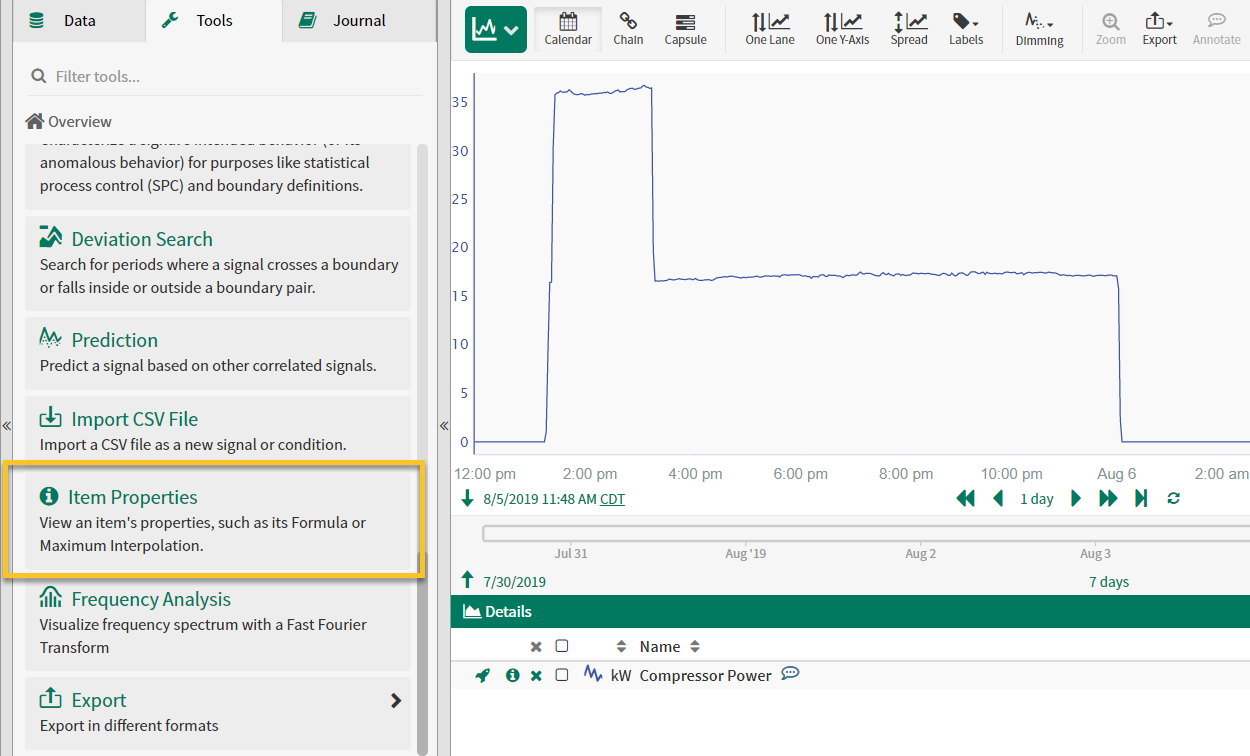
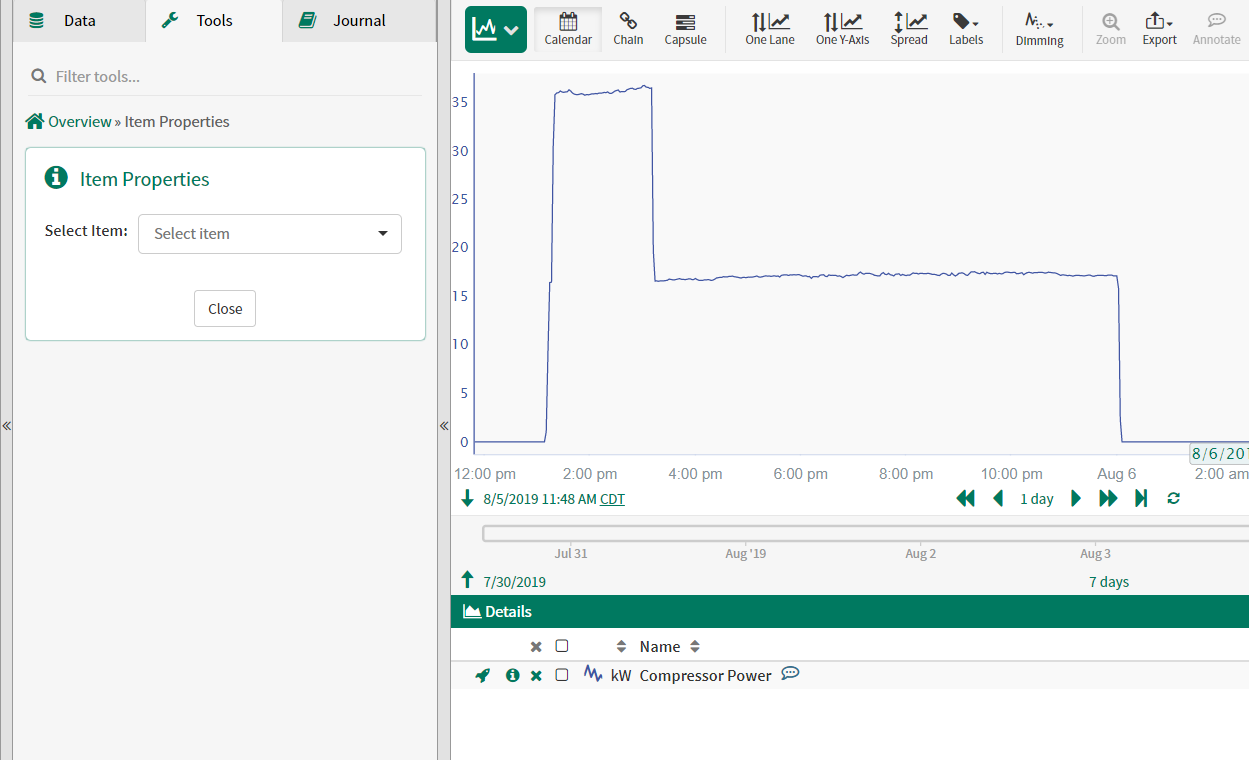
Open Item Properties from the Tools tab. Then, select the Item from the dropdown menu of all Items in the Details pane.
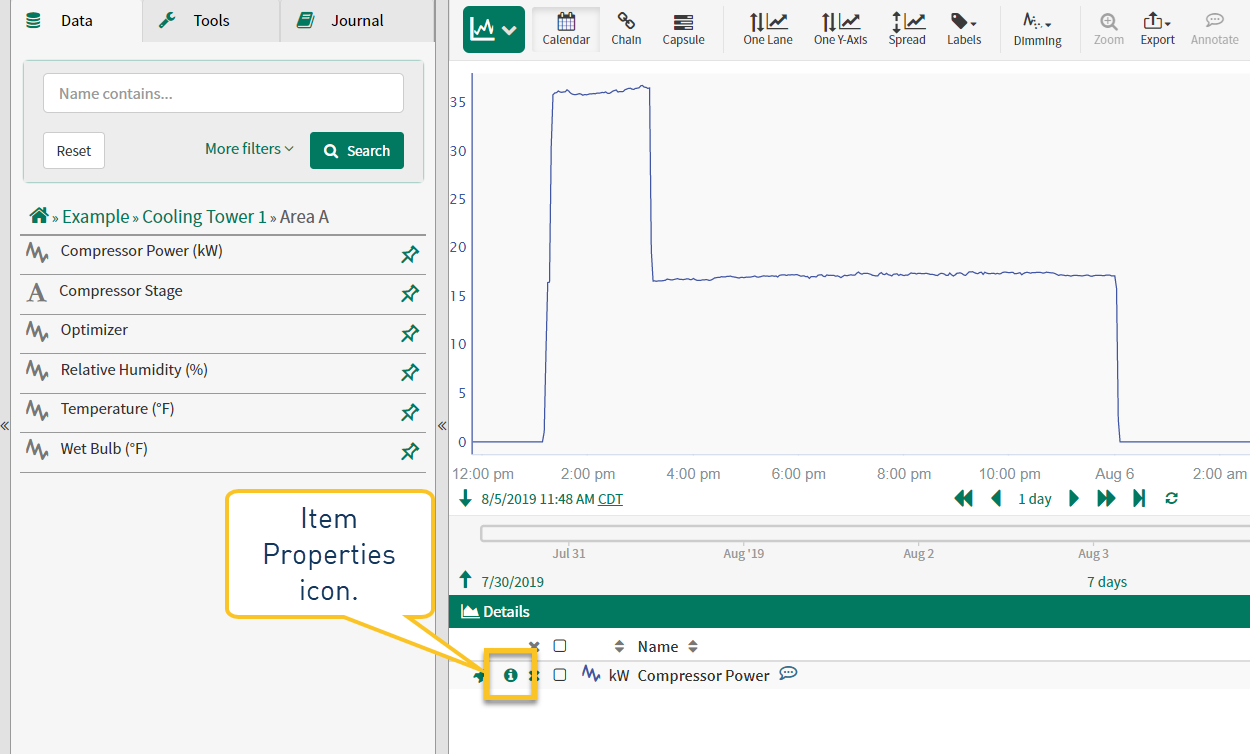
You can also access Item properties by clicking the Item Properties icon to the left of the Item name in the Details panel.
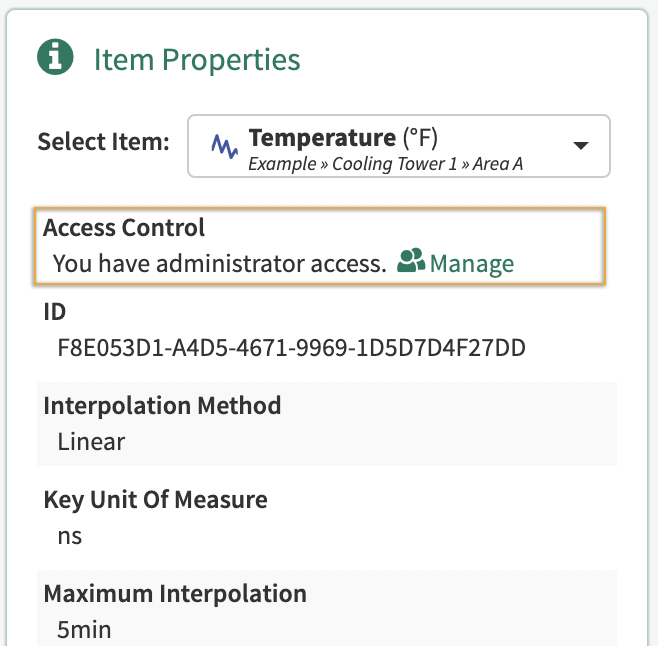
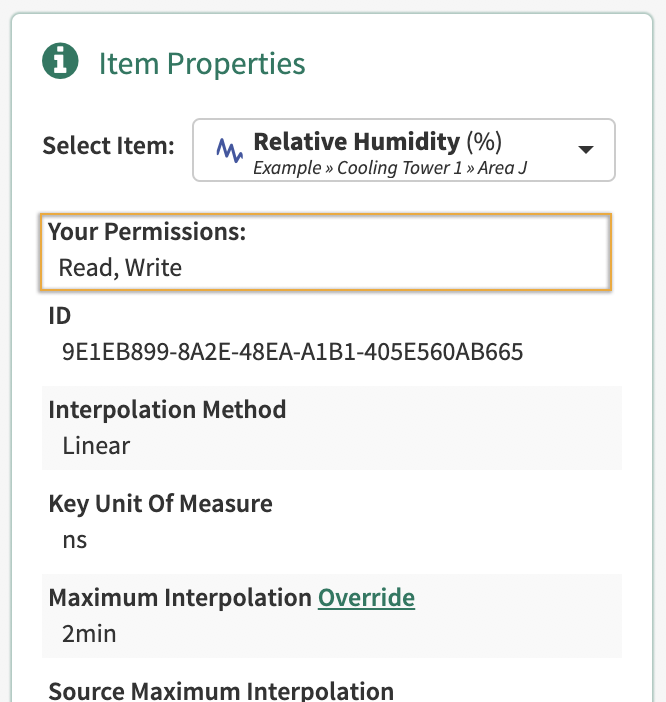
View your level of access. Here are some examples:
You have administrator access.
You have Manage access and the item is shared.
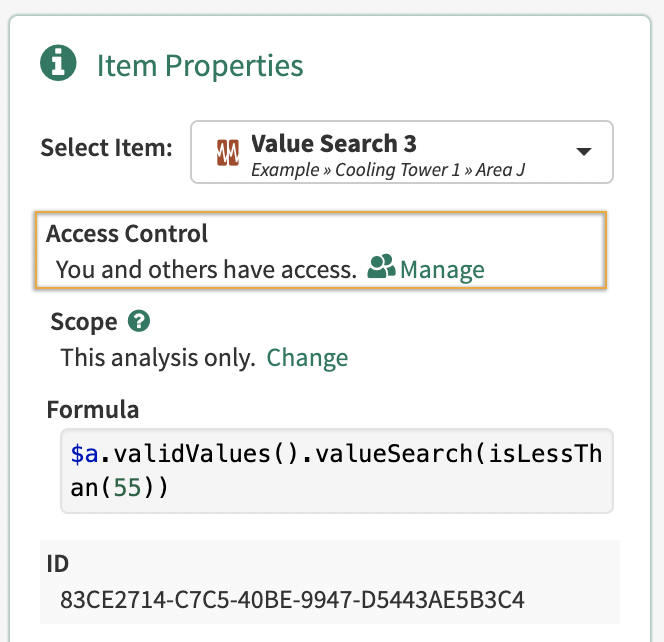
You have read and write access.
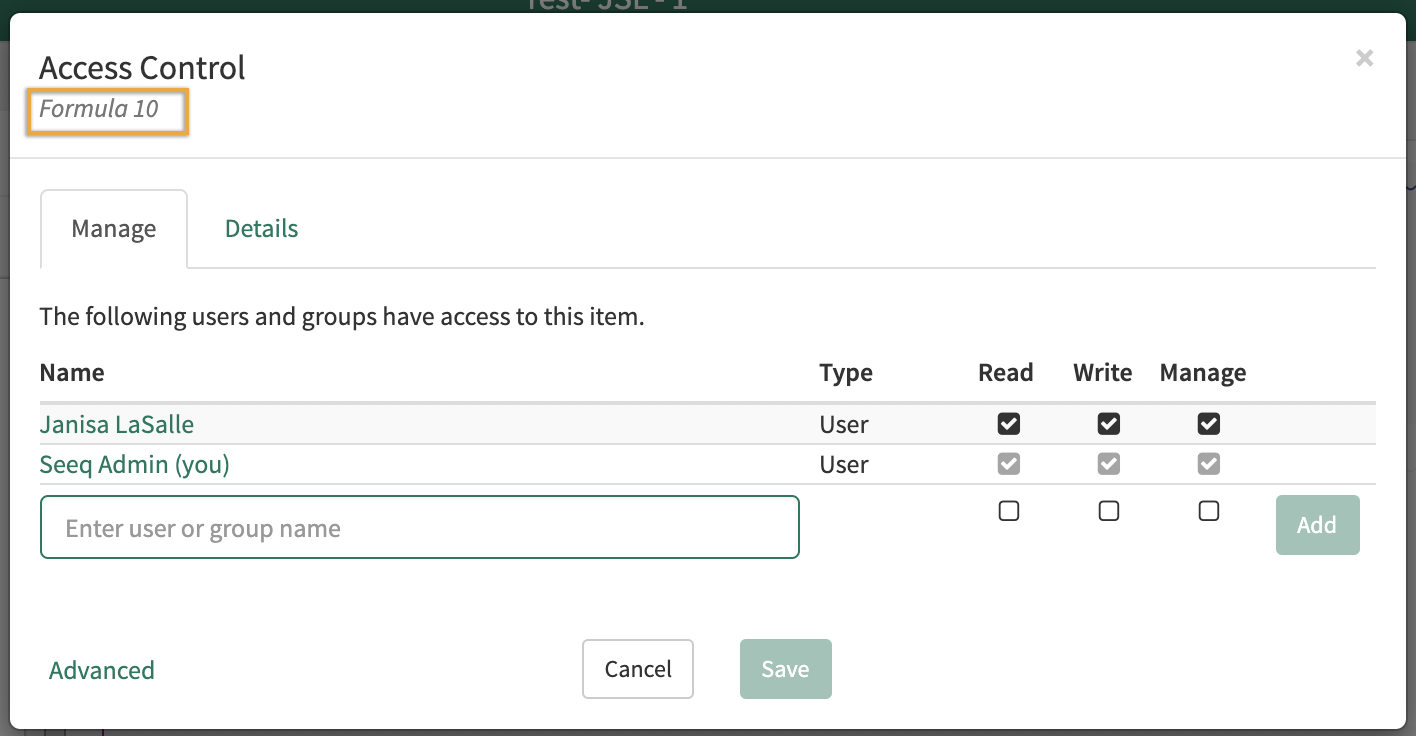
If you have After clicking Manage, you will be presented with the Access Control modal. Underneath the title, you will see the name of the item you are editing.
View the item scope. Here is an example:
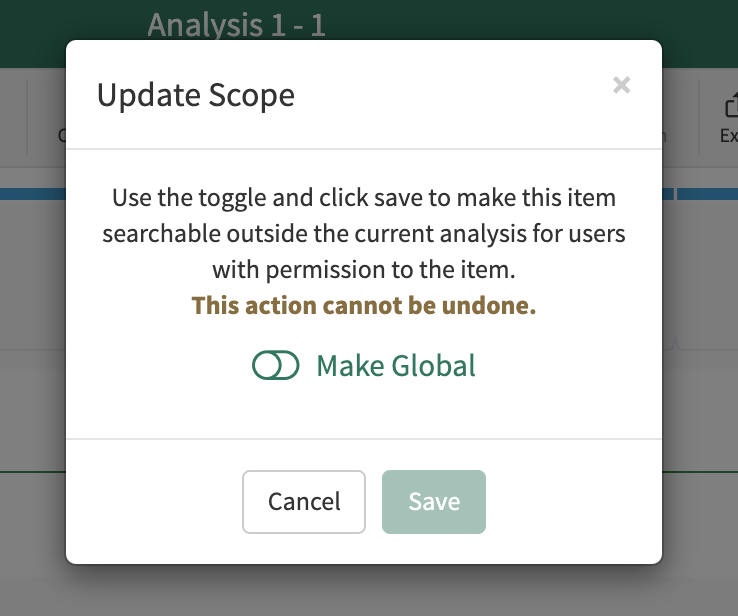
Folders, Workbooks, Topics, and Projects
There are two ways to update the permissions of folders, workbooks, topics, and projects in Seeq.
Select a Folder, Analysis, Topic, or Project on the home screen to edit its permissions.
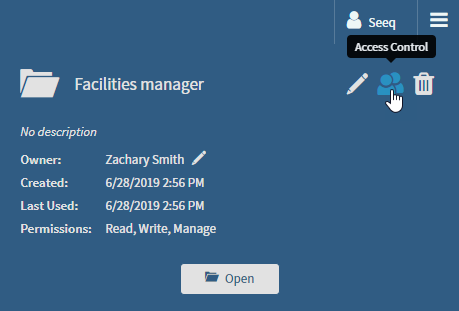
Click the Access Control button on the Workbook or Document header.

Redaction
If a user does not have read access to an item within a worksheet, they will see it as redacted. They will be notified via banner and/or an alert icon in the details pane.
.png?cb=ae0d0cd801963c4d5b24a413fd8eb989)
Redaction will hide information from users that do not have permission to view specific items within a worksheet. Calculated items that derive (e.g. via tool or calculation) from a non-accessible item are viewable as long as the user has at least Read permission on the calculated item.