
Share your Organizer Topic with anyone by publishing a PDF with embedded Seeq content.
For best experience anticipating how the PDF will appear, use the fixed width display of Organizer. There is a double arrow button in the toolbar to toggle between automatic width and fixed width modes. The fixed width view will let you anticipate how the content will display on a 8.5 x 11 page.
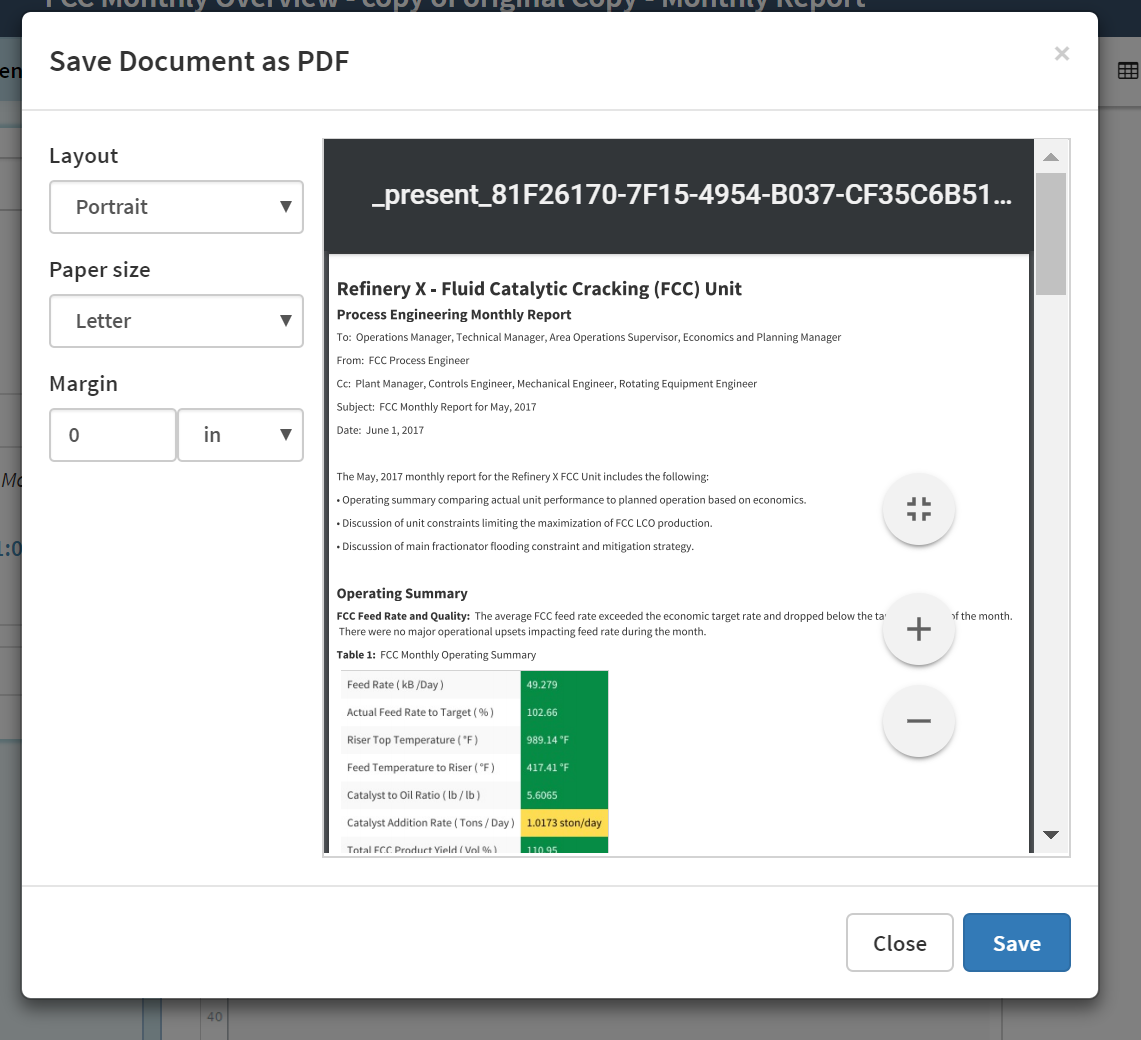
When the Organizer Topic is completed and ready for publishing, select 
Layout: From the dropdown menu, select portrait or landscape.
Paper size: From the dropdown menu, select paper size.
Margin: Enter a number in the cell if a margin is desired. Default is 0. From the dropdown menu, select units to be applied to the number entered (in, cm, mm, or pixels).
Click Save and a new tab will open with the PDF. Then follow normal procedures applicable to the browser used to save the PDF to the desired location.