
Formula enables users to create new signals or conditions using simple math and a library of powerful functions.
Using the Formula Tool
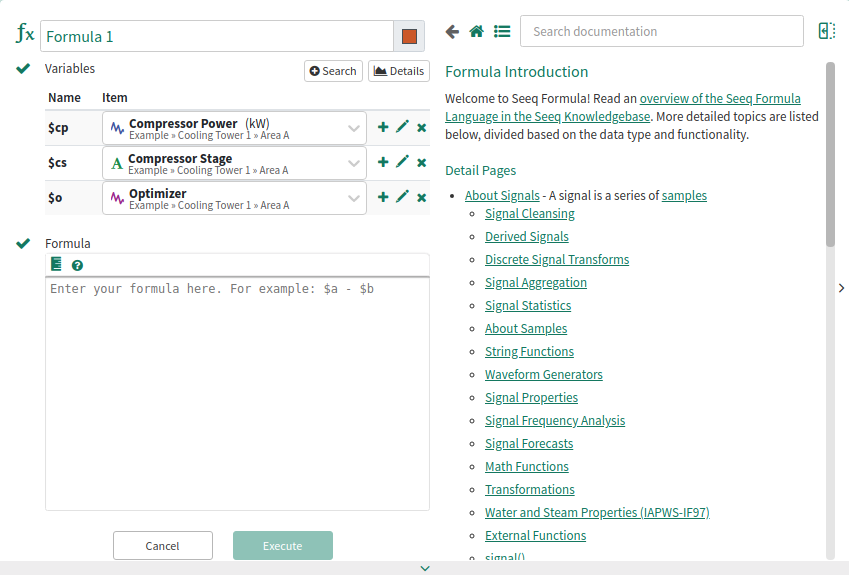
Variables: You can modify the list of available time-series and condition variables by the following:
-
Name: rename your variables by clicking the edit icon

-
Item: select the signal or condition you want to connect to your variable name
-
Add: Click the add icon

-
Remove: variables by clicking the appropriate

-
Add more variables: additional variables can be added to your formula by either clicking


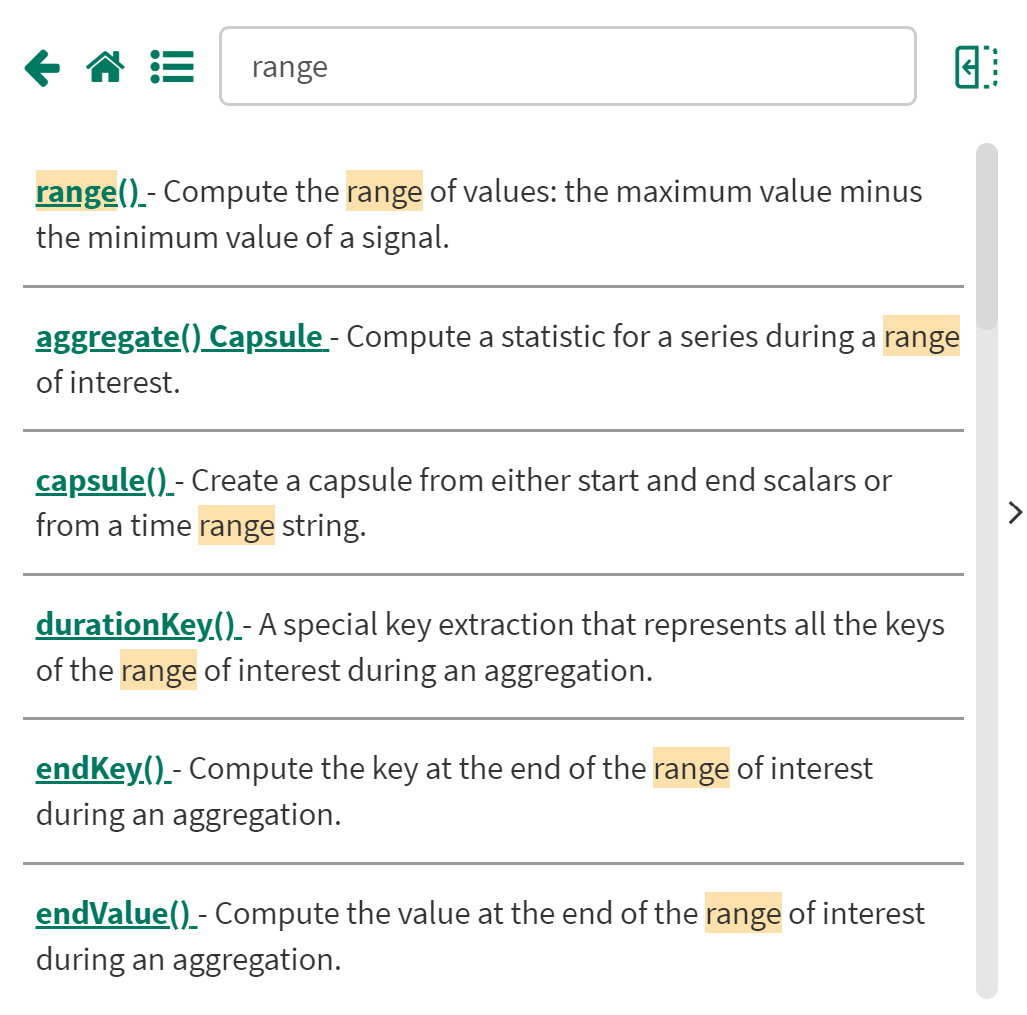
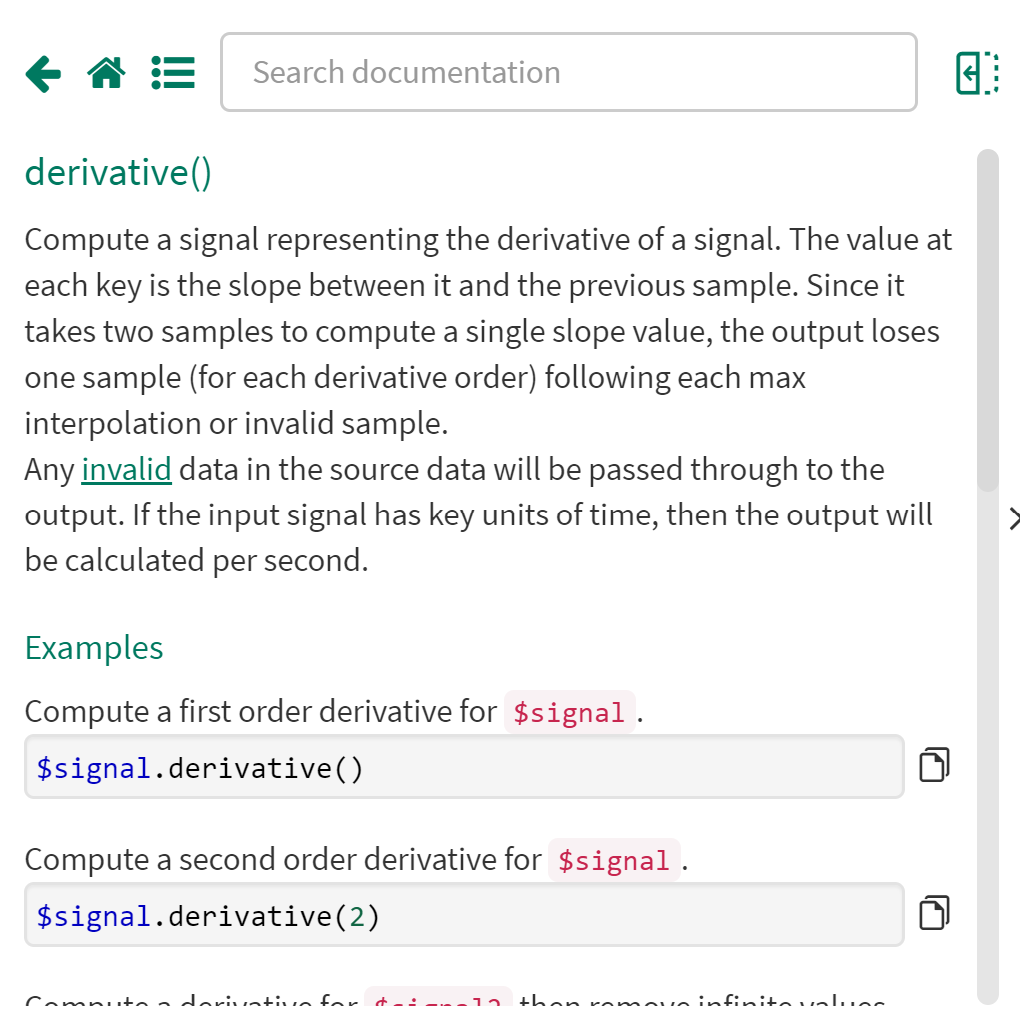
Formula: Enter a mathematical formula to derive new signals or condition using a combination of the list of variables you defined above and formula functions. Refer to the article, Seeq Formula Overview, for information on formula syntax. Search and navigate available functions (all documented with working examples) in the formula reference docs. The formula docs are only available in the expanded view of the formula editor.
Formula Documentation: In the expanded formula panel, formulas can be searched using the 


Expand/Collapse Panel: Click the icon 