
Overview
The document addresses an issue encountered when attempting to provide a download link for a generated file in an Add-on. Although a link to the file is displayed, the file cannot be downloaded by the end user.
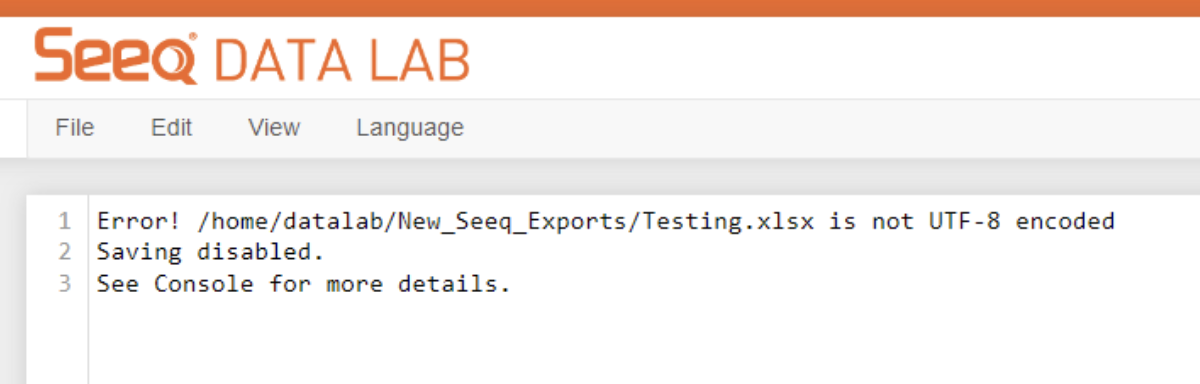
To understand the problem, it is important to note that when downloading a file from an Add-on, the URI of the file requires a specific format for Add-on Mode to recognize it as a downloadable file. This format includes the inclusion of /tree/ in the download path.
The solution to enable a working download link involves passing an additional base_url parameter to the FileLink package. The base_url is obtained by using the spy.utils.get_data_lab_project_url() function and appending /tree/ to the path. By utilizing this modified base_url, a clickable link can be generated to download the file.
The document provides an example that demonstrates the solution by generating an Excel file from a Pandas DataFrame and creating a clickable link to download the file. The FileLink class from the IPython.display module is utilized, along with the appropriate base_url, to generate the download link.
In some cases, users may still encounter issues with the download link if the get_data_lab_project_url() function returns an IP address instead of the desired URL. In such cases, an alternative approach using the jupyter_notebook_url can be implemented to retrieve the URL information and construct the base_url accordingly.
Solution
To create a working download link for the generated file, follow these steps:
-
Import the necessary modules and libraries, including
pandas,numpy,IPython.display, andos. -
Create the test data, such as a Pandas DataFrame.
-
Define the file name and the path where the file will be saved. Ensure that the desired directory exists by checking its existence and creating it if necessary.
-
Obtain the
base_urlby usingspy.utils.get_data_lab_project_url()function and appending/tree/to the path. -
Save the DataFrame as an Excel file using
df.to_excel(file_name). -
Display the
FileLinkby passing the file name andbase_urlto theFileLinkclass. This will generate a clickable link that enables the user to download the file.
import pandas as pd
import numpy as np
from IPython.display import display, FileLink
import os

# create some test data
df = pd.DataFrame(np.random.random((5, 5)), columns = list('ABCDE'))
xlsx_file_name = 'testfile.xlsx'

# save the file
path = 'New_Seeq_Exports'
isExists = os.path.exists(path)
if not isExists:
    os.makedirs(path)
file_name = path + os.sep + xlsx_file_name
url_base = spy.utils.get_data_lab_project_url() + '/tree/'  # << this is the base of my URI
df.to_excel(file_name)
display(FileLink(file_name,url_base))
If the above steps do not resolve the issue, and get_data_lab_project_url() returns an IP address instead of the desired URL, the following additional steps can be taken:
-
Obtain the
urlby using thejupyter_notebook_urlvariable. -
Parse the URL using the
urlparsemodule and extract the desired path. -
Create the directory where the file will be saved, if it does not already exist.
-
Save the DataFrame as an Excel file using
df.to_excel(file_, sheet_name='Data', index=False). -
Generate the
download_urlby concatenating the parsed scheme, network location, path, and the file name. -
Assign the
download_urlto the appropriate attribute or variable that corresponds to the download button or link in the Add-on's user interface.
url = jupyter_notebook_url
parsed = urlparse.urlparse(url)

string = parsed.path.split('/')[:-2]
path = '/'.join(string)

folder = 'New_Seeq_Exports'

isExists = os.path.exists(folder)
if not isExists:
    os.makedirs(folder)
file_ = folder + os.sep + xlsx_file_name
url_base = f"{parsed.scheme}://{parsed.netloc}{path}/tree/"
df.to_excel(file_, sheet_name = 'Data', index = False)
download_url = f"{parsed.scheme}://{parsed.netloc}{path}/tree/{file_}"
#display(FileLink(file_, url_base))
download_button.href = f"{download_url}"