
Search Seeq
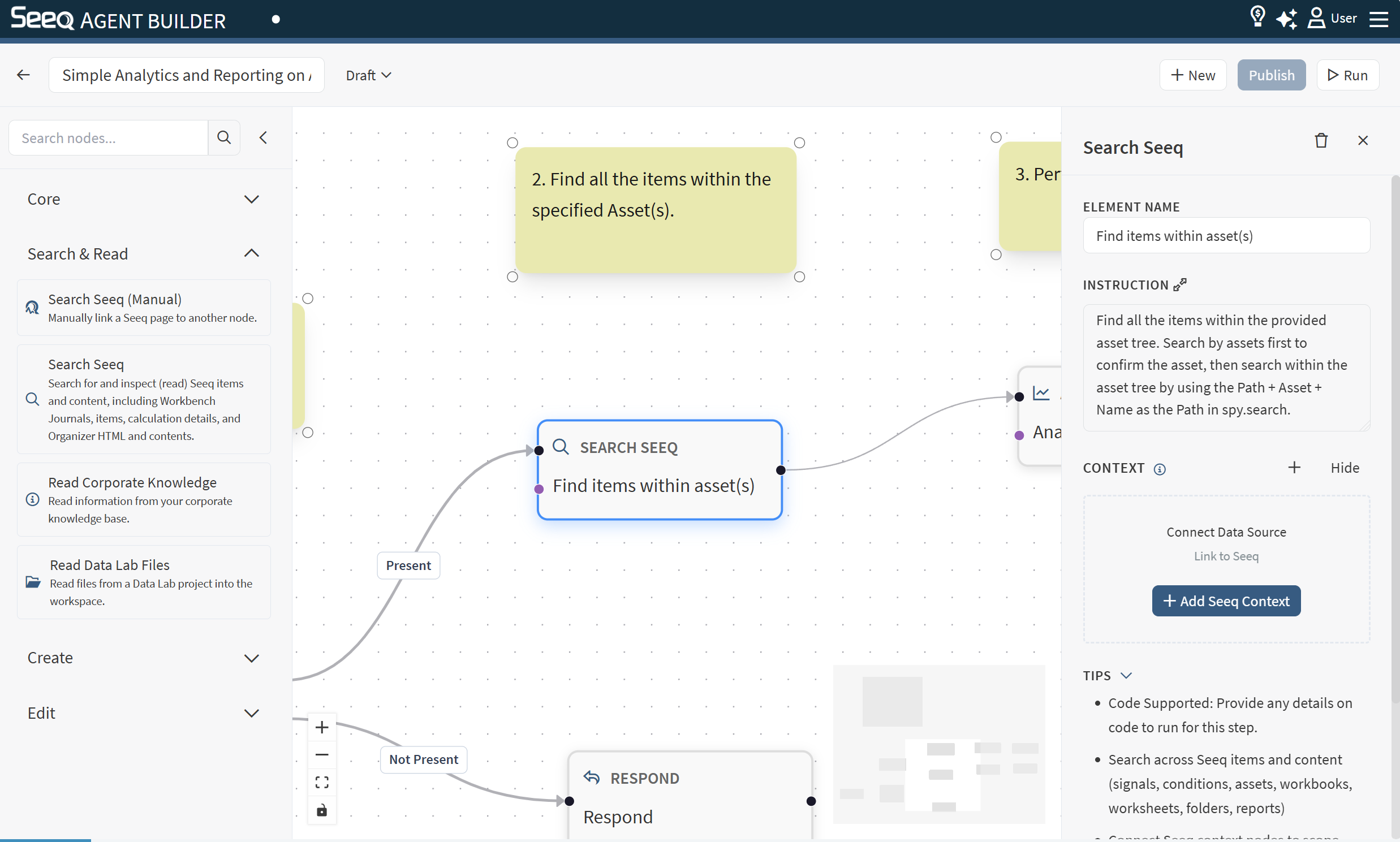
Use Search Seeq to find Seeq “items” such as Signals, Conditions, Assets, Scalars, and related item types and inspect Seeq content, including Journals, calculation details, and Organizer.
When to use
You need IDs for signals/conditions to analyze or load into a worksheet.
You want to locate items by name, path, or asset association.
You’ve found a workbook/worksheet and want to extract relevant information.
You want to summarize what’s in an existing worksheet or Organizer report before taking action.
Configuration
Element name: Optional label to make your workflow easier to read.
Instruction: Describe the items you need and how they should be identified. Describe what to read and what to extract.
Context behavior
This node supports Seeq context. Attaching context can help narrow results to a relevant workbook/worksheet or scope. If multiple contexts are available (incoming + attached + upstream), the workflow engine can choose the best context for this node.
Output
The output typically includes:
Candidate items (names, paths)
IDs and relative links (useful for downstream steps like Load Item or analysis)
Example instructions
“Find the signal for ‘Reactor Temperature’ in Unit 2 and return the item ID(s) and path.”
“Find conditions related to ‘Startup’ for Asset ‘Boiler-1’ and return the best matches.”
“Find the asset mentioned in the Chat prompt and return all the signals that are children of that asset.”
“Read the worksheet and summarize the key calculations and the main trends shown.”
“Extract the assumptions and data sources referenced in this Organizer report.”