
Pushing Seeq Notifications to an Outgoing Webhook
Overview
It is possible to publish Notifications from Workbench to an outgoing webhook. It must be a webhook configured in Seeq Data Lab. This article outlines how users can receive notifications on the presence of Seeq capsules via something other than email, such as in Slack.

This feature requires an additional software license. Please contact your Seeq sales representative for more information.
When posting to Data Lab the URL set in the Seeq configuration should be in “relative” form (details in the next section).
Seeq Vantage Condition Monitors
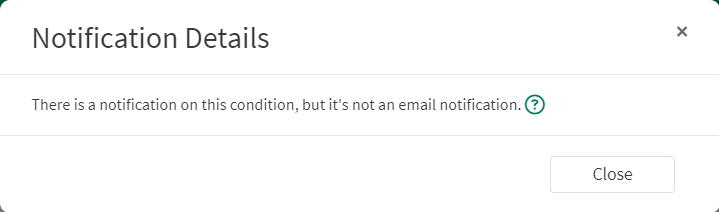
Starting in R65, Seeq Vantage utilizes the same condition monitoring infrastructure as email notifications, and these outgoing webhooks. If your organization is using Vantage, you may see Conditions with a notification that shows this message when clicked:
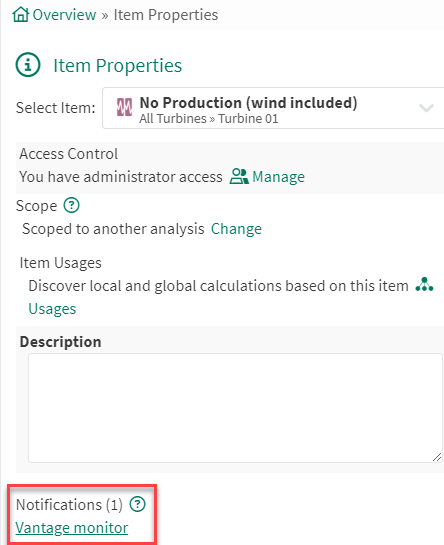
You can confirm this is a Condition being monitored by Seeq Vantage by opening its Item Properties, and validating it’s name is “Vantage monitor”:
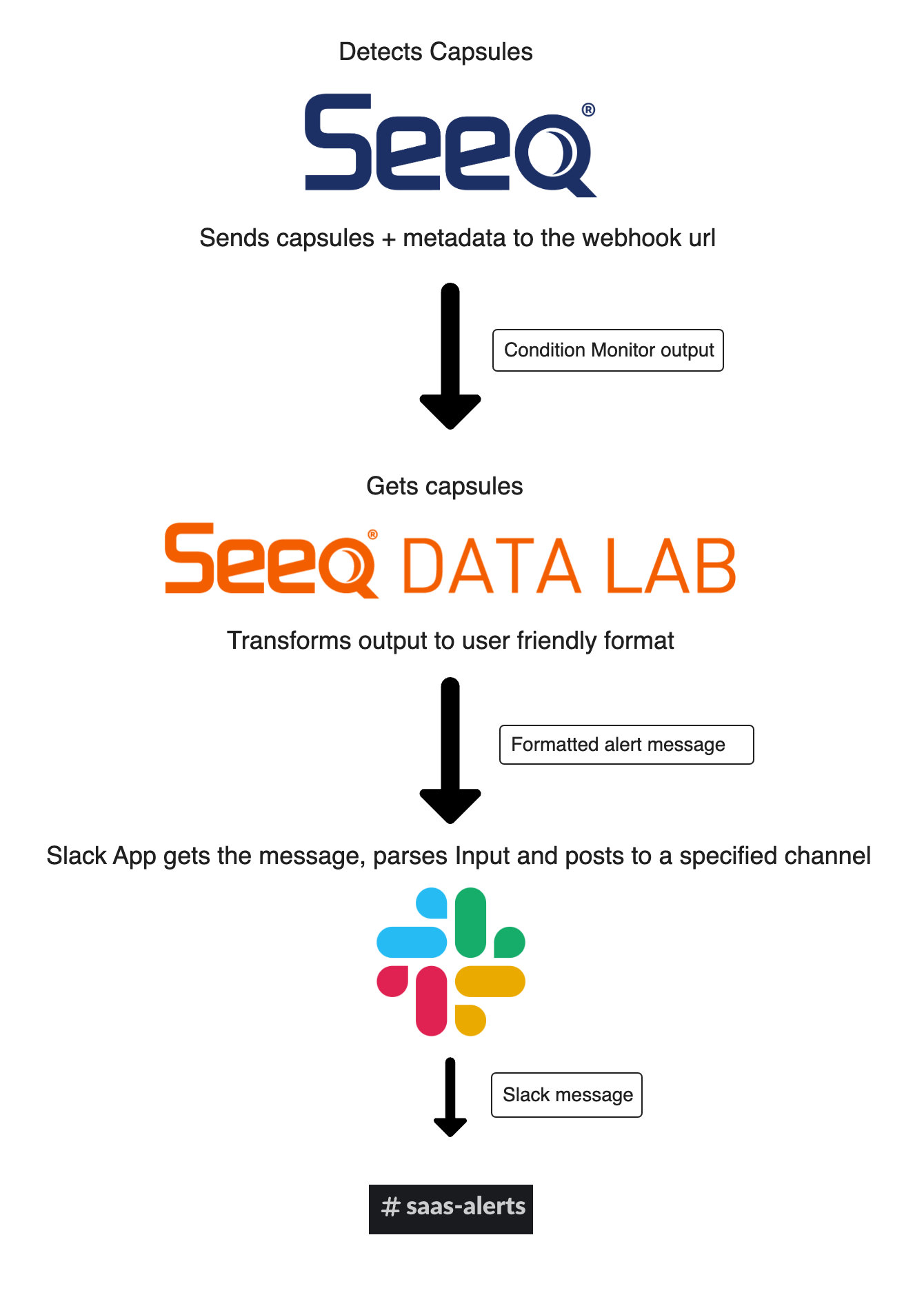
Seeq to Slack Webhook Example
Below is a Jupyter Notebook utilizing Data Lab Functions to implement a Seeq to Slack notification:
Steps to implement the sample project:
Enable Notifications configuration -
Features/Notifications/ConditionMonitors/Enabledon the Seeq server (Administrator access required).Create a notification on a condition.
In Seeq Data Lab, make a new project.
Add a Data Lab Functions API endpoint that will be receiving the notifications and sending them out to Slack like the WebhookSlackExample.ipynb notebook attached above. Included in this notebook is the schema for implementing a custom Condition Monitor webhook notification.
This example notebook can be uploaded a Data Lab project and used right after replacing the URL on line 7 in the last notebook cell. Depending on how many notifications are configured on the system, you may want to adjust this script to filter to a subset of the notifications for the webhook integration.Once this notebook is uploaded to a Data Lab project, the user will be able to construct a relative URL of the following format:
CODE/data-lab/{project_uuid}/functions/notebooks/{notebook_name}/endpoints/{endpoint_path}?{query_string}or in the case of the example notebook above:
CODE/data-lab/{project_uuid}/functions/notebooks/WebhookSlackExample/endpoints/condition_monitors_templateOnce variables in this URL are replaced with real values from the Data Lab project and notebook, the URL will need to be set in the following configuration setting:
Features/Notifications/ConditionMonitors/OutgoingWebhookUrl. This is the global notifications webhook. To receive notifications from a single condition monitor, set the condition monitor’swebhookUrlfield via the API endpointPOST /condition-monitors/{id}.Finally, to make the script work, the user needs to create a new Slack App that will post messages to a selected channel. For this step Slack has thorough documentation and guided tutorials. Some helpful resources are:
Once a user has created and configured the Slack App, Slack will provide a webhook URL that will replace the URL on line 7 in the last notebook cell in the Data Lab script provided above.
An example Slack message received after implementing the sample project:
😱 SaaS Application Alerts:
Condition: Chocolate is lacking some sugar
Start: 2021-03-12 11:05:05
Customer: ChocolateFactory
Domain: MagicLand
Server: MagicServer1